Elementor Widgets

WooCommerce Photo Reviews is available 4 widgets in Elementor:

  • Photo Reviews: To display a list of reviews on your website.
  • Review form: To display the review form for customers to post their reviews.
  • Rating: To display the product rating.
  • Overal rating: To display the last average rating of the product.

* Note: This feature is only available in the WooCommerce Photo Reviews plugin premium version.


A. Photo Reviews widget

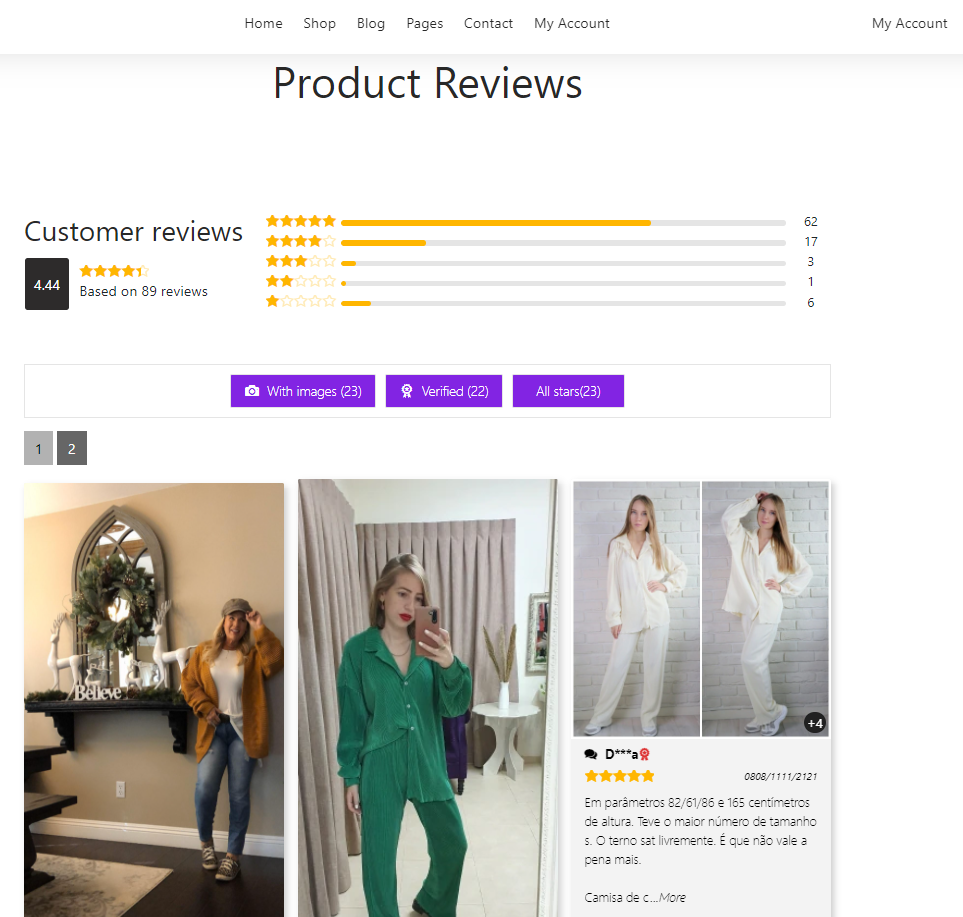
You can use the Photo reviews widget to display a review list of all products or specific products on your website. Create a review page or edit a page with Elementor.
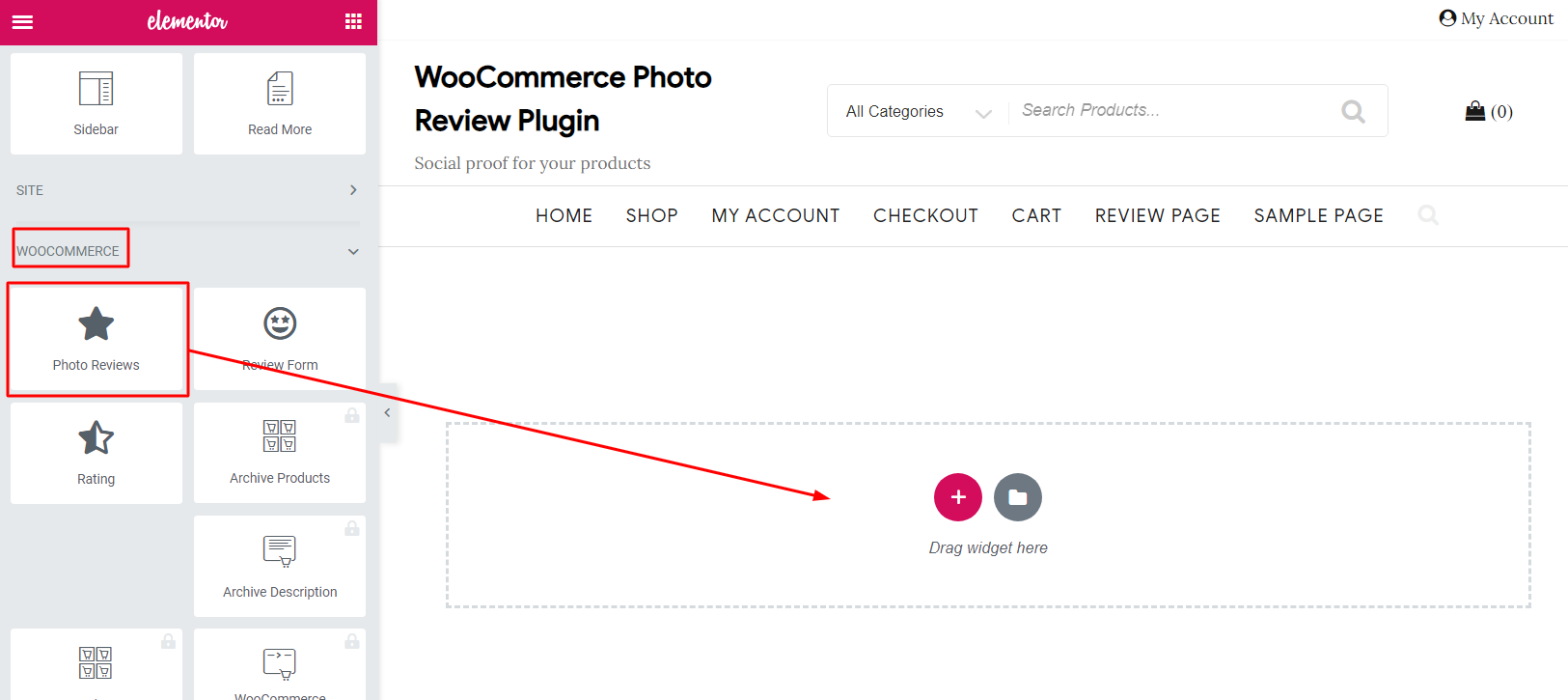


  1. Choose the WooCommerce Tab in Elementor left side bar.
  2. Drag and drop the Photo reviews widget to the supported and desired position on the page.
  3. Design the Reviews page with Elementor, customize Photo Reviews on the left bar to design the Reviews page.
 

a. General tab

Go to General tab on the left side bar.
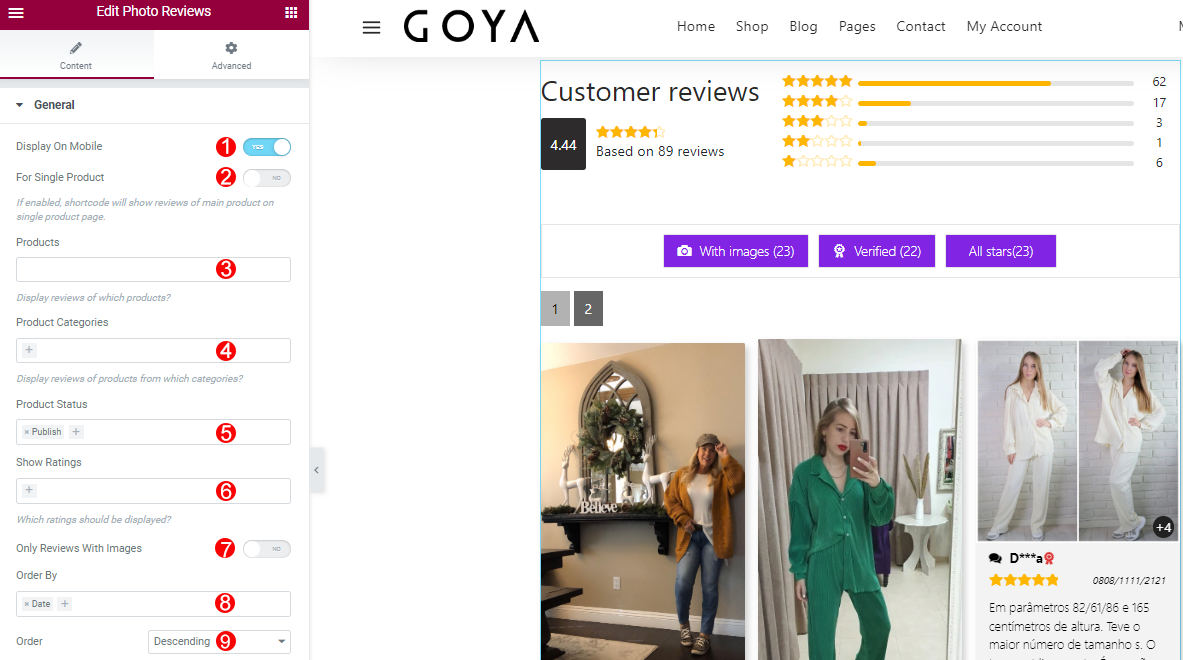
  1. Product Categories: Choose the categories that you want to display on review page.
  2. Product Status: Only display the reviews of the products which have these statuses.
  3. Show Ratings: Choose the ratings which will be displayed.
  4. Only Reviews With Images: YES/NO, select to display reviews with photo.
  5. Order by: Order the reviews by choosen fields.
  6. Order: Sort the review follow ASC or DSC ratings.


b. Pagination Tab

Go to Pagination tab on the left side bar.
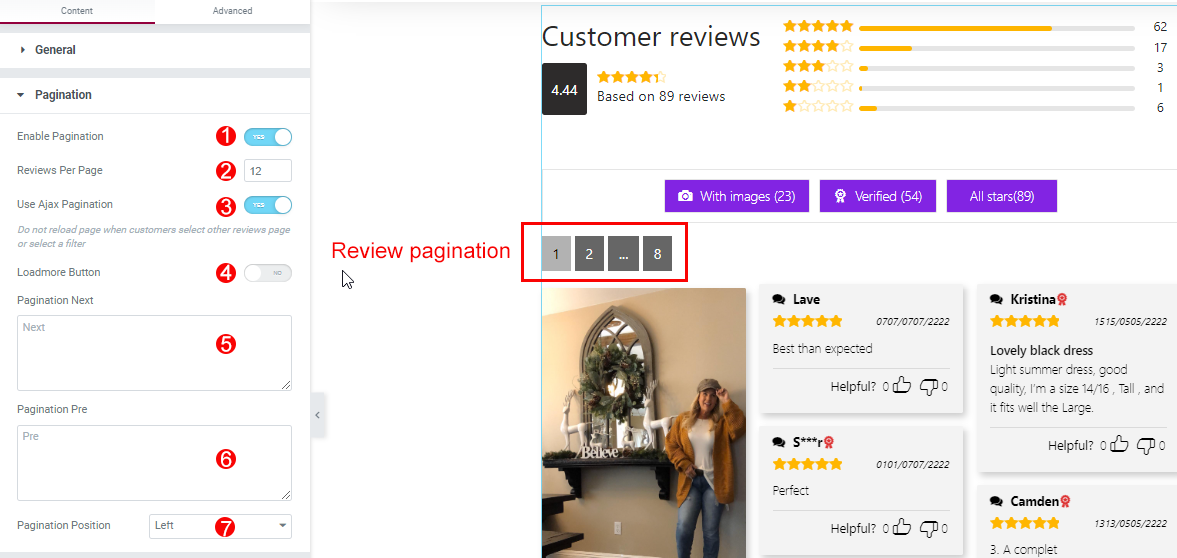
  1. Enable pagination: YES/NO, paginate reviews.
  2. Reviews per page: Enter the number of reviews displayed per page.
  3. Use Ajax Pagination: YES/NO, select to not reload page when customers select other reviews page or select  a filter.
  4. Loadmore button: Click on the load more button to display more reviews, enable this feature, the review pagination will be overridden.
  5. Pagination next: The text if clicking to will see the next reviews.
  6. Pagination Pre: The text if clicking to will see the previous reviews.
  7. Pagination Position: Choose the position of pagination: Left; Right; or Center.


c. Filter Tab

Go to Filter tab on the left side bar.
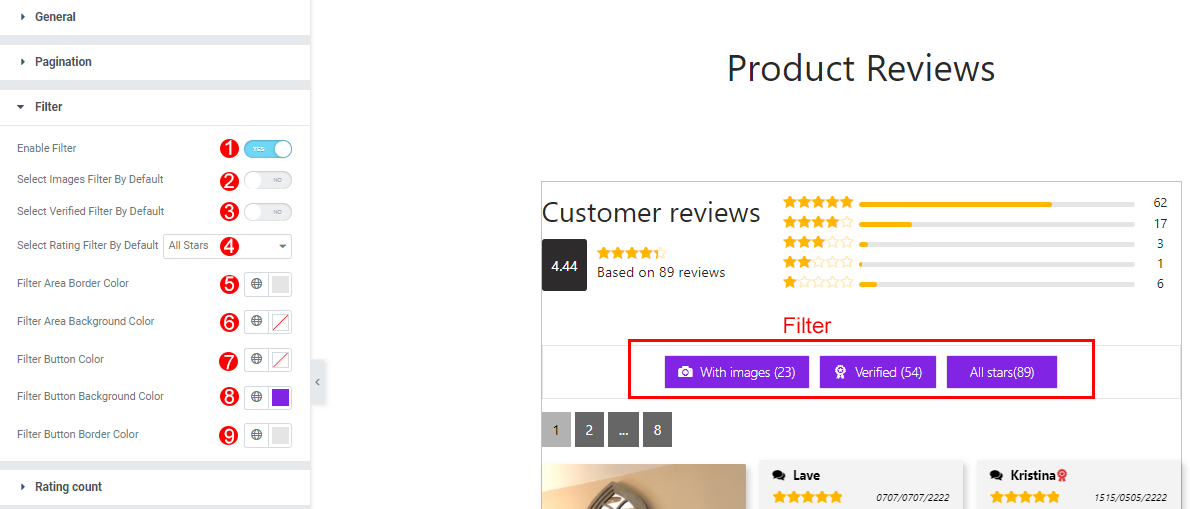
  1. Enable Filter: YES/NO, select to enable filter.
  2. Select images Filter By Default: YES/NO, select to set images Filter by default.
  3. Select Verified Filter By Default: YES/NO, select to set Verified Filter by default.
  4. Select Rating Filter By Default: Select to set Rating Filter by default.
  5. Filter Area Border Color: Choose the color for area border.
  6. Filter Area Background Color: Choose the color for  filter area background.
  7. Filter Button Color: Choose the color for filter button.
  8. Filter Button Background Color: Choose the color for filter button background.
  9. Filter Button Border Color: Choose the color for filter button border.


d. Rating Count Tab

Go to Rating Count tab on the left side bar.
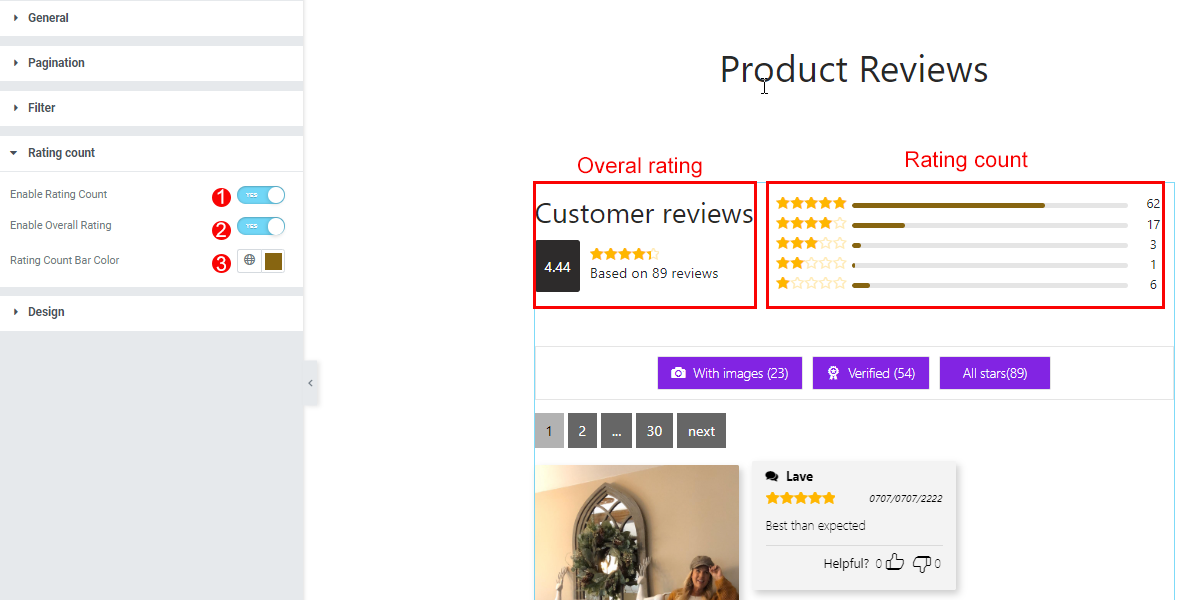
  1. Enable Rating Count: YES/NO, select to enable rating count on review page.
  2. Enable overall Rating: YES/NO, select to enable overal rating  on review page.
  3. Rating Count Bar Color: Choose the color for rating count bar.


e. Design Tab

Go to Design Tab on the left side bar.
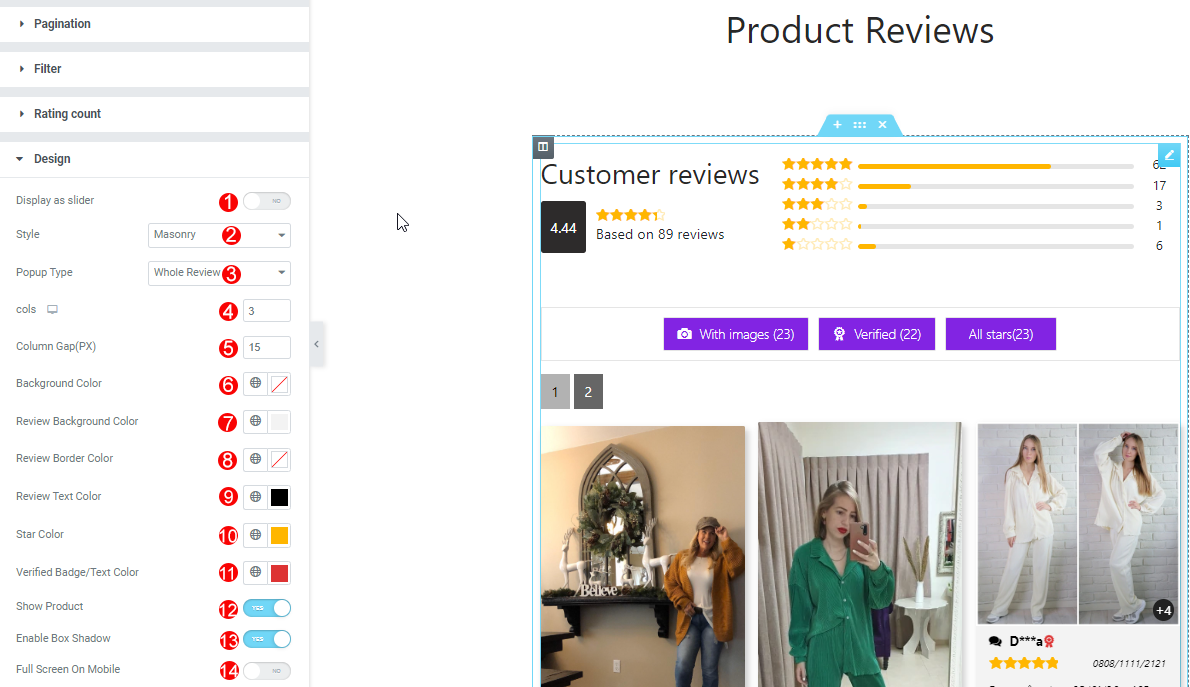
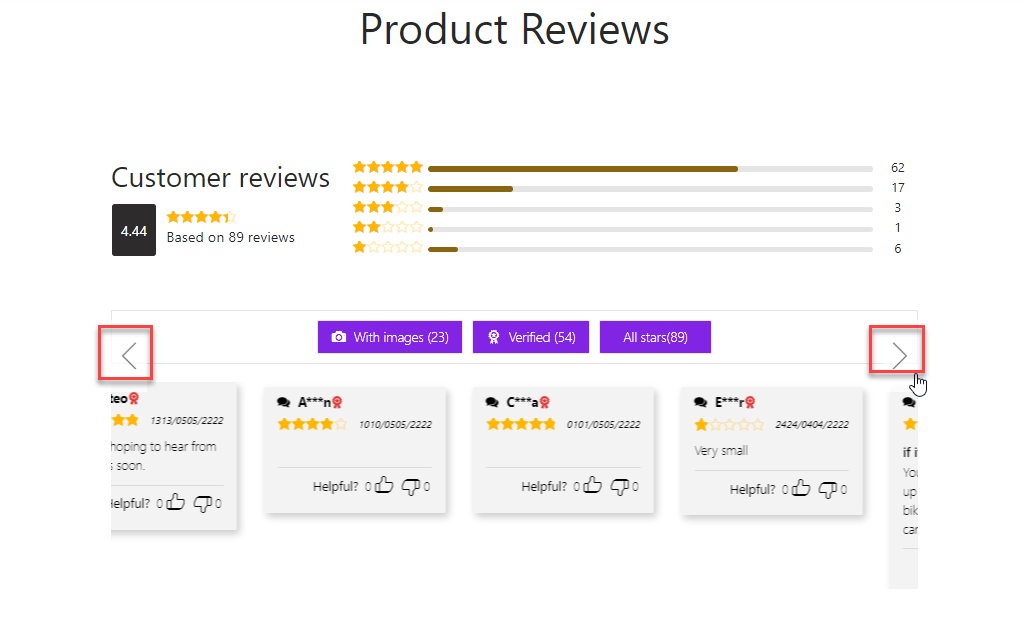
  1. Display as slider:  Display reviews under a slider.
  2. Style: Choose style of photo reviews displayed on the review page: Masonry or normal.
  3. Popup Type: There are three styles you can select to let the images appear when the customer clicks on the review images:
    • Whole review: Display full review content when clicking on this review image.
    • Only image: Zoom out just this review image.
    • Off: Not zoom the review image.
  4. Col: Enter the number of  review columns displyed on review page.
  5. Column Gap (PX): Enter the gap between columns.
  6. Background Color: Choose the color for background.
  7. Review Background Color: Choose the color for review background.
  8. Review Border Color: Choose the color for review border.
  9. Review Text Color: Choose the color for review text.
  10. Star Color: Choose the color for stars.
  11. Verified Badge/ Text Color: Choose the color for Verified badge/text.
  12. Show Product: YES/NO, select to show product on popup.
  13. Enable Box Shadow: YES/NO, select to enable box shadow.
  14. Full Screen on Mobile: Display reviews full size on mobile.
 

B. Review form widget

You can use the review form widget to display the review form for customers to post their reviews.
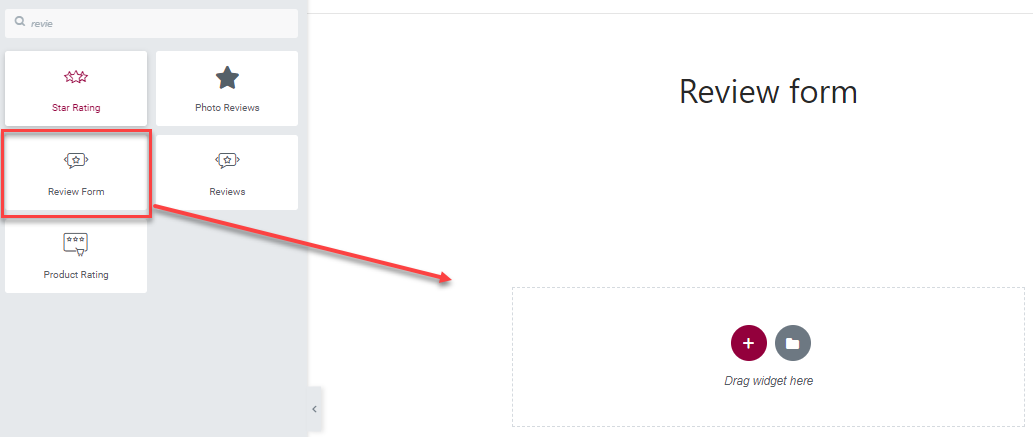
  1. Choose the WooCommerce Tab in Elementor left side bar.
  2. Drag and drop the Review form widget to the supported and desired position on the page.
  3. Design the Review form with Elementor.
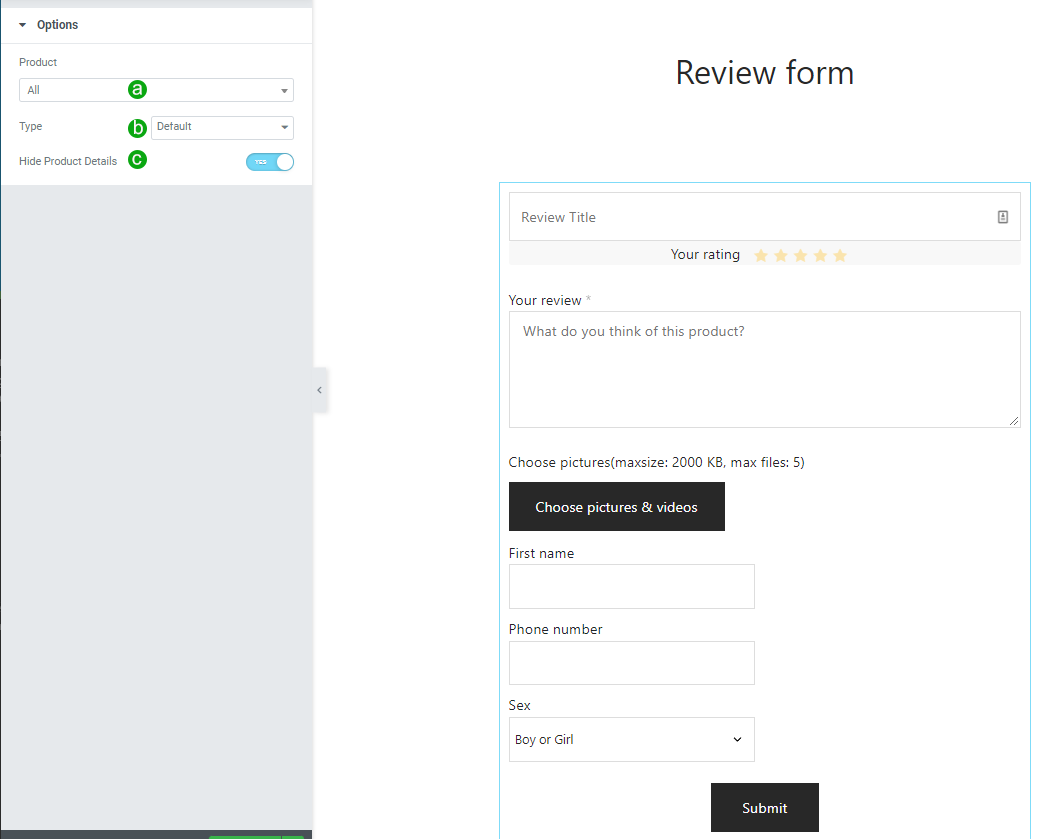
a. Product:

b. Type: Display the review form in the default type or in the popup type (click on the Write Your review button to display the review form under a popup).

* Note: If choosing the popup type, you will be asked to localate the review form button on the Left; Right or Center.

c. Hide product details: Use this option to hide or show the main product details.


C. Rating widget
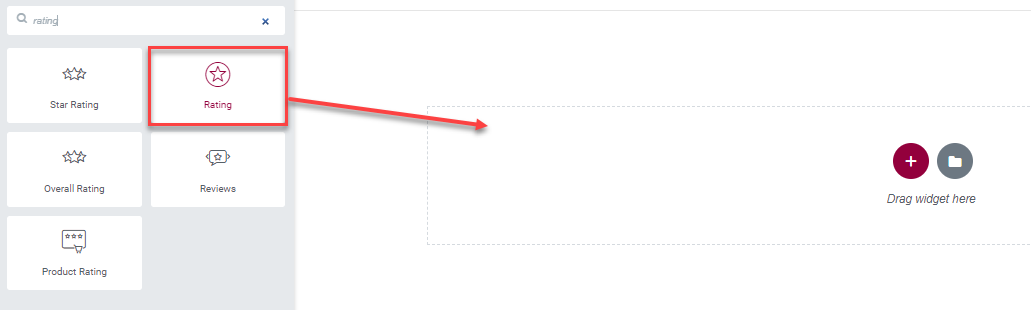
  1. Choose the WooCommerce Tab in Elementor left side bar.
  2. Drag and drop the Rating widget to the supported and desired position on the page.
  3. Design the rating with Elementor.

a. Product:

b. Product review count: Enable to display the rating count.

c. Rating: Display a specific rating in the rank from 1 -5 star.


D. Overall rating widget
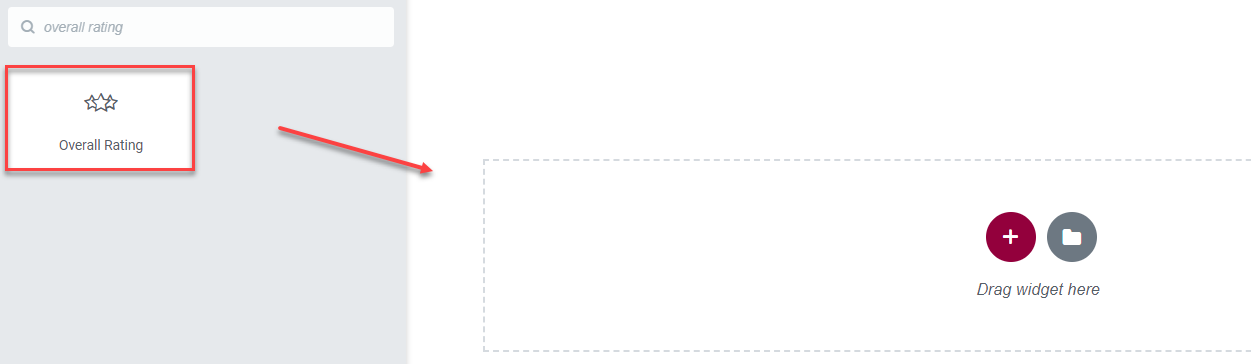
  1. Choose the WooCommerce Tab in Elementor left side bar.
  2. Drag and drop the Overall Rating widget to the supported and desired position on the page.
  3. Design the overall rating with Elementor.
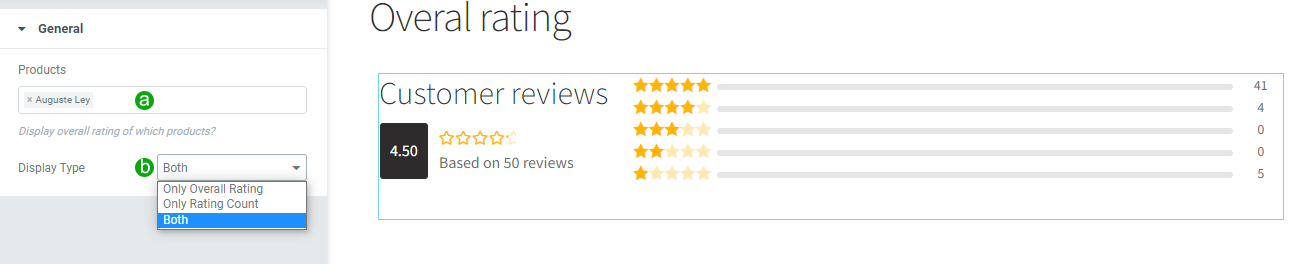
a. Product:

b. Display type: There are 3 options for you

  • Both: Display both overall rating and rating count
  • Only Overall rating: Only display overall rating
  • Only Rating count: Only display rating count


Add Reviews Manually

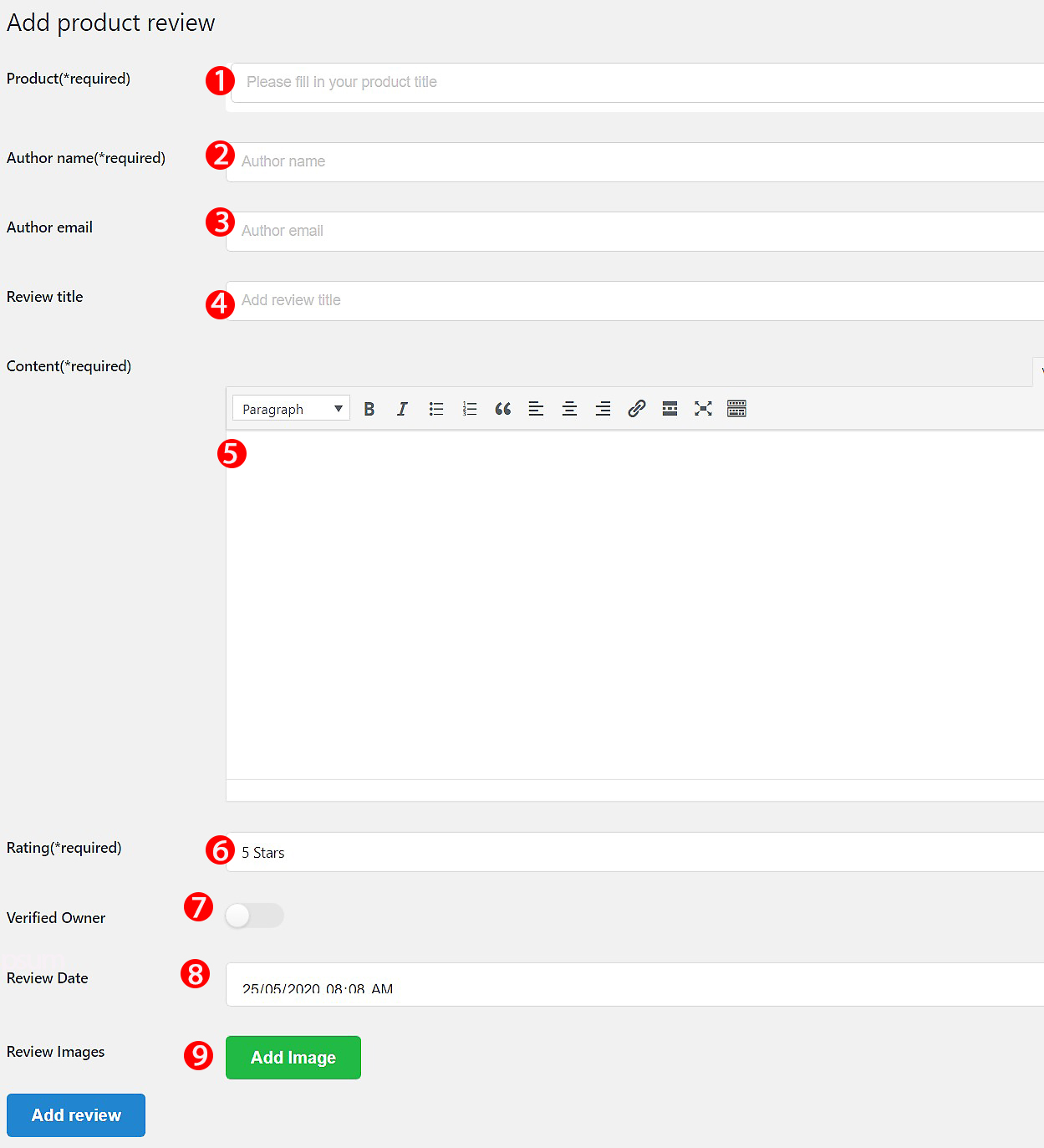
Go to Dashboard/ Photo Reviews/ Add A Review to add a review manually.

  1. Product: select a product to add review.
  2. Author name: enter an author name.
  3. Author email: enter an author email, this option is not required and you can leave this field blank.
  4. Review title: Enter the title of review.
  5. Content: type in the review text.
  6. Rating: select a rating.
  7. Verified Owner: select if you want to enable the verified owner badge for this review.
  8. Review Date: select a review time.
  9. Review Image: add review pictures.

Shortcodes

Visit this tutorial video and read the detail written documentation below:


The plugin provides with 4 shortcodes.


A. The shortcode to display reviews.

Reviews shortcode is used to display all reviews or specific reviews of some products or categories. Usage with all available arguments:

[wc_photo_reviews_shortcode comments_per_page="12" cols="3" cols_mobile="1" use_single_product="on" cols_gap="" products="" grid_bg_color="" grid_item_bg_color="" grid_item_border_color="" text_color="" star_color="" product_cat="" order="desc" orderby="comment_date" show_product="on" filter="on" pagination="on" pagination_ajax="on" pagination_pre="" pagination_next="" pagination_style="" pagination_position="" pagination_end="" loadmore_button="off" filter_default_image="off" filter_default_verified="off" filter_default_rating="" custom_css="" ratings="" mobile="on" is_slide="" style="masonry" masonry_popup="review" enable_box_shadow="on" full_screen_mobile="on" overall_rating="off" rating_count="off" average_rating_style="" only_images="off" image_popup="below_thumb"]

General

  • comments_per_page: number of comments per page. comments_per_page='12'
  • mobile: ON/OFF, select if you want the shortcode to run on mobile devices. Example: mobile='on'
  • use_single_product: ON/OFF – Enable/disable to show reviews of a single product. E.g. You place this shortcode under a single product page and choose “ON”, it displays reviews of that product only; otherwise it displays reviews of all products. Example:use_single_product='on'
  • products: display reviews of which products, enter product IDs. Example:  products='99,100'
  • product_cat: display reviews of products in which category.  Use the category ID for this shortcode. Example: 16 is the category ID of a specific ID:product_cat='16'
  • order: sort reviews ASC or DESC. Example: order='asc'
  • orderby: select how you would like to sort reviews. ‘comment_author’, ‘comment_date’, ‘comment_ID’, ‘comment_post_ID’, ‘wcpr_review_vote’. Example: orderby='comment_ID'
  • If to sort reviews by vote, use this shortcode: orderby='wcpr_review_vote'
  • ratings: select which rating you want to display. Example: display only 4 and 5 stars reviews, ratings='4,5'
  • only_images: ON/OFF select if you want to display only reviews that have images. Example: only_images='on'

Pagination

  • pagination: turn pagination ON/OFF. Example:pagination='on'
  • pagination_ajax: do not reload the page when customers select another review page or select a filter. Example pagination_ajax='on'
  • pagination_position: select left/right/center. Example: pagination_position='center'
  • pagination_pre and  pagination_next: allows to show the Next and Previous button to redirect to next/previous review pages. Example: pagination_pre="Pre" and pagination_next="Next"
  • loadmore_button: allow to load next reviews by clicking the Load more button, use ON/OFF  to turn on or turn off this feature. Example: loadmore_button="on"
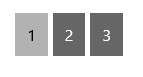
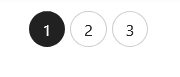
  • pagination_style:Select the pagination style. Leave this field empty to use style 2 by default. Supported values are
    • 1:
    • 2:
  • pagination_end: Display pagination at the bottom of the reviews. This option does not apply to shortcodes using the Load More button. Supported values:
    • 1 (enable
    • 0 (disable)

Filter

  • filter: show filter bar, ON/OFF. Example:filter='on'
  • filter_default_image: Select Image filter by default, ON/OFF. Example filter_default_image='on'
  • filter_default_verified: Select verified filter by default, ON/OFF. Example filter_default_verified='on'
  • filter_default_rating: Select rating filter by default. Example filter_default_rating='5'

Rating count

  • rating_count: ON/OFF select if you want to display the rating count module. Example:rating_count='on'
  • average_rating_style: Choose the display style for the average rating. Leave this field empty to use the style defined in the plugin settings. Supported values: 1, 2, 3.
    • 1: Use the average rating style of Grid (Masonry)/Normal layout
    • 2: Use the average rating style of Grid 1/Grid 2
    • 3: Use the average rating style of List 1/List 2
  • overall_rating: ON/OFF select if you want to display the overall rating. Example: overall_rating='on'

Design

  • display as slider: Display reviews in the shortcode under a slider, ON/OFF. Example: is_slide="on"
  • style: Select the front-end style masonry/normal. Example:style='masonry. Supported styles include:
    • grid: Style Grid 1
    • grid_layout_2: Style Grid 2
    • masonry: Style Grid (masonry)
    • normal (this style is used if the attribute is empty): Style Normal
    • list_1: Style List 1
    • list_2: Style List 2
  • masonry_popup: display the masonry popup, you can choose review or image. Example:masonry_popup='review'
  • cols: number of grid columns. Example:  cols='3'
  • cols_mobile: number of columns on mobile. Example: cols_mobile='1'
  • cols_gap: gap between grid columns(px). Example:cols_gap='30'
  • grid_bg_color: grid background color. Example:  grid_bg_color='#000000'
  • grid_item_bg_color: grid item background color. Example: grid_item_bg_color='#3c3c3c'
  • grid_item_border_color: Grid item border color. Example: grid_item_border_color='Gold'
  • text_color: reviews text color. Example: text_color="'#ffffff'
  • verified_badge_color: verified badge color. Example: verified_badge_color='#29D50B'
  • star_color: rating stars color. Example: star_color='yellow'
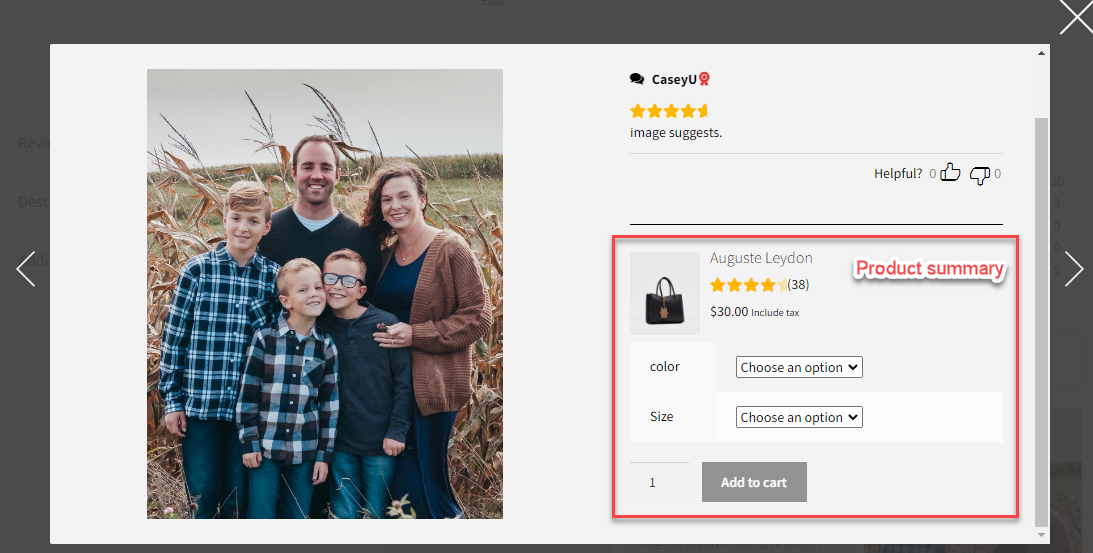
  • show_product: show product summary on Masonry popup, ON/OFF. Example: show_product='on'
  • full_screen_mobile: Select to enable full screen on mobile, ON/OFF. Example: full_screen_mobile='on'
  • image_popup: Display the image popup, you can choose below thumb or light box. Example:image_popup='below_thumb'
  • enable_box_shadow: Select to enable box-shadow, ON/OFF. Example: enable_box_shadow='on'
  • custom_css: allows you to add your custom CSS code. Example: custom_css='.star-rating:before,.star-rating>span{top: 0;}'

Language

  • If you’re using WPML and want to show reviews in all languages, add this argument to the shortcode, ON/OFF: wpml_all_languages="on"
  • If you’re using Polylang and want to show reviews in all languages, add this argument instead, ON/OFF: pll_all_languages="on"


Note: The filters and/or the overall rating will be hidden if there’s no review to filter/to show the overall rating.


B. The shortcode to display the reviews form.

[woocommerce_photo_reviews_form product_id="" hide_product_details="" hide_product_price="" type="popup" button_position="center" upload_button_style="2"]

This shortcode helps you to display a review form.

  • Display in single product pages: Paste the shortcode [woocommerce_photo_reviews_form] into the product description to display a review form for that product on the front-end. If you place the shortcode directly on a product page, the form will automatically apply to that product only.
  • Create a review page – General Review Form (For All Products):
    • When used alone [woocommerce_photo_reviews_form] on a general page, the form applies to all products.
    • However, it may not be visible if accessed directly, as the form needs a specific link or channel to recognize which product the review is for. E.g. if you just add this shortcode, you won’t see it by simply accessing the page frontend, but via the review link inside a review reminder email, as guided through steps below.
    • Steps:
      • Add the shortcode [woocommerce_photo_reviews_form] to any page, to create a review page
      • Go to Review Reminder settings
      • Find the Review Page option and set the page where you placed the form
      • By doing this, when a customer clicks the review link in a Review Reminder email, they will be redirected to the selected review page, where the form will display correctly for their purchased product.
  • Shortcode params:
    • product_id: Add a product ID into the shortcode, e.g. [woocommerce_photo_reviews_form product_id='85'], by adding the product ID you can create a review form for a specific product and display it on any page.
    • hide_product_details: ON/OFF Allow you to hide or show product details. Example if you want to hide product detail: [woocommerce_photo_reviews_form product_id='85' hide_product_details='on']
    • hide_product_price: ON/OFF Allow you to hide or show the product price. Example if you want to hide product price: [woocommerce_photo_reviews_form product_id='85' hide_product_price='on']
    • type: POPUP or empty Allow you to show review form popup type or not. Example: [woocommerce_photo_reviews_form product_id='85' type='popup']
    • button_position: LEFT/RIGHT/CENTER Allow to show review form button position, left, center, or right. Example: [woocommerce_photo_reviews_form product_id='85' type='popup' button_position='left']
    • upload_button_style: Choose how the media upload button (image and/or video) is displayed. Leave this field empty to use the style defined in the plugin settings. Supported values:
      • 1: Show button
      • 2: Show text and icon

Our plugin is designed to collect product-specific reviews. WooCommerce itself does not support a general store-wide review form – all reviews must be assigned to a specific product.


C. The shortcode to display review overall rating.

[wc_photo_reviews_overall_rating_html product_id="" overall_rating_enable="on" rating_count_enable="on" average_rating_style=""]

The review overall rating shortcode allows displaying the overall rating of reviews of a product anywhere you want. Usage with all available options:

  • product_id: display reviews of which products, enter product IDs. Leave empty if you insert this shortcode on a product page, so overall reviews will be of that product. Example:  products='99,100'
  • overall_rating_enable: ON/OFF, select if you want to display overall rating, just leave ON. For example: overall_rating_enable="on"
  • rating_count_enable: ON/OFF, select if you want to display rating count, just leave ON. For example: rating_count_enable="on"
  • average_rating_style: Choose the display style for the average rating. Leave this field empty to use the style defined in the plugin settings. Supported values: 1, 2, 3.
    • 1: Use the average rating style of Grid (Masonry)/Normal layout
    • 2: Use the average rating style of Grid 1/Grid 2
    • 3: Use the average rating style of List 1/List 2


D. The shortcode to display product rating

[wc_photo_reviews_rating_html product_id="" rating="" review_count="on"]

This shortcode is used to display the rating of a product(s)

  • product_id: display rating of which products, enter product IDs. Leave empty if you insert this shortcode on a product page, so product rating will be of that product. Example:  products='99,100'
  • rating: Display a specific rating in the rank from 1 -5 star.
  • review_count: ON/OFF to display the rating count.

Import/Export Reviews

You can Import/Export reviews using CSV files.

A. Export reviews

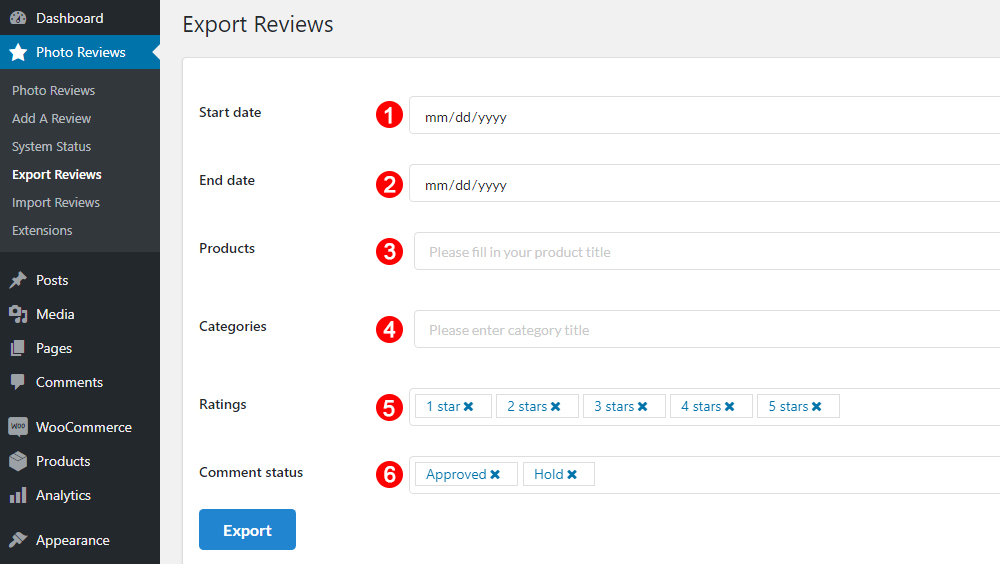
To export reviews into a CSV file, go to Dashboard/ Photo Review/ Export Reviews

  1. Start date: select a date range to export reviews.
  2. End date: select a date range to export reviews.
  3. Products: select to export reviews of specific products.
  4. Categories: select to export reviews from specific product categories.
  5. Ratings: select to export only reviews with these ratings.
  6. Comment status: select to import only approved reviews.

B. Import reviews using CSV files

To import review using CSV files, go to Dashboard/ Photo Reviews/ Import/

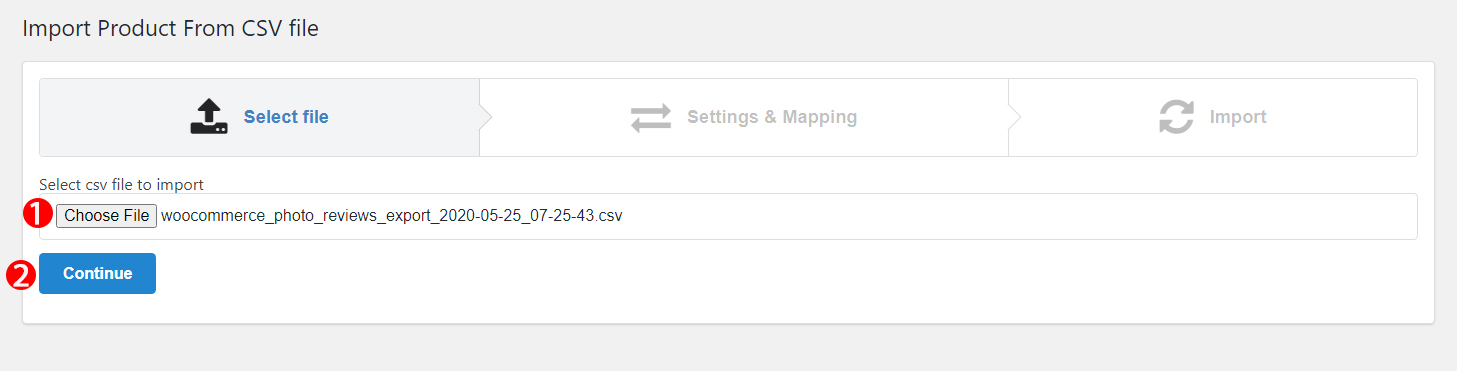
Step 1: Upload  CSV file

  1. Choose File: Choose the review CSV file you want to import.
  2. Continue: Click Continue button to go next step.

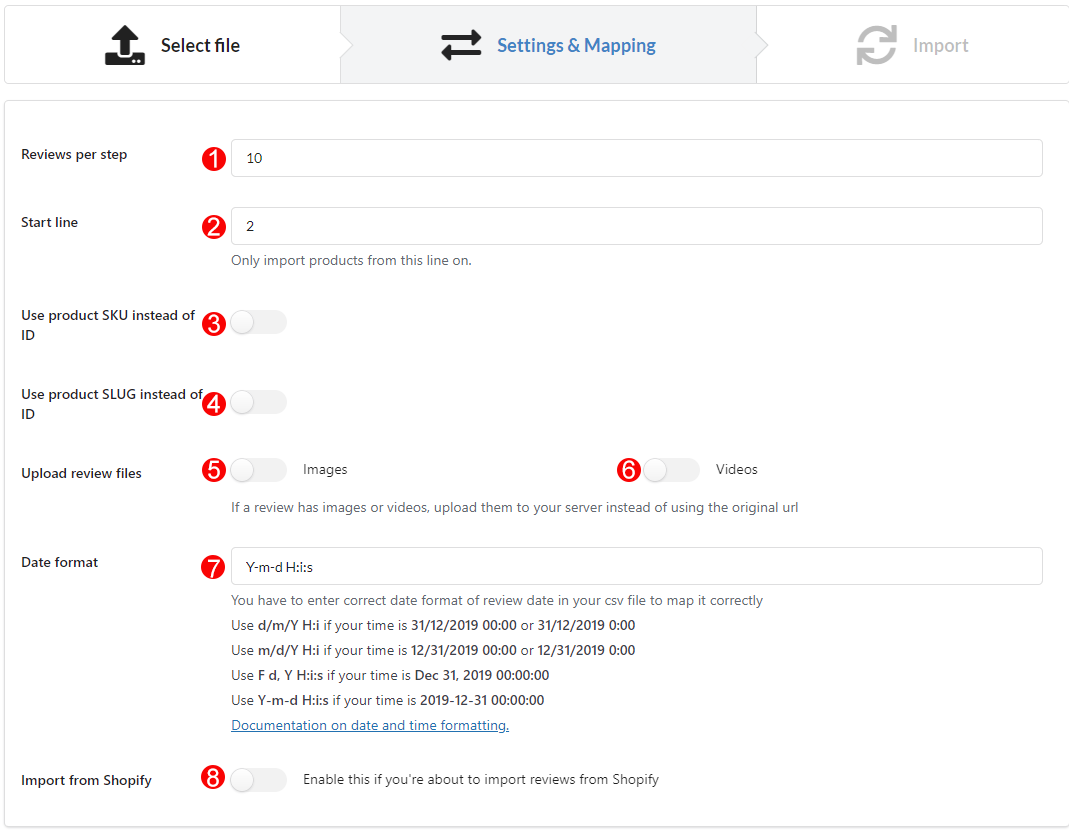
Step 2: Setting & Mapping

Before importing reviews by CSV file, you will configure below general settings:

  1. Reviews per step:  The number of reviews imported per step.
  2. Start line: Reviews will be imported start at the chosen line in CSV file.
  3. Use product SKU instead of ID: Enable it to import reviews by CSV using SKU instead of ID
  4. Use product SLUG instead of ID: Enable it to import reviews by CSV using SLUG instead of ID
  5. Upload review image file: Enable if you allow to upload reviews with images in the CSV file.
  6. Upload review video file: Enable if you allow to upload reviews with videos in the CSV file.
  7. Date format: type the format of date displayed in CSV file and it must be followed correct date format https://wordpress.org/support/article/formatting-date-and-time/
  8. Import from shopify: Enable to import product reviews from shopify to WooCommerce if the Shopify to WooCommerce plugin is installed and activated.


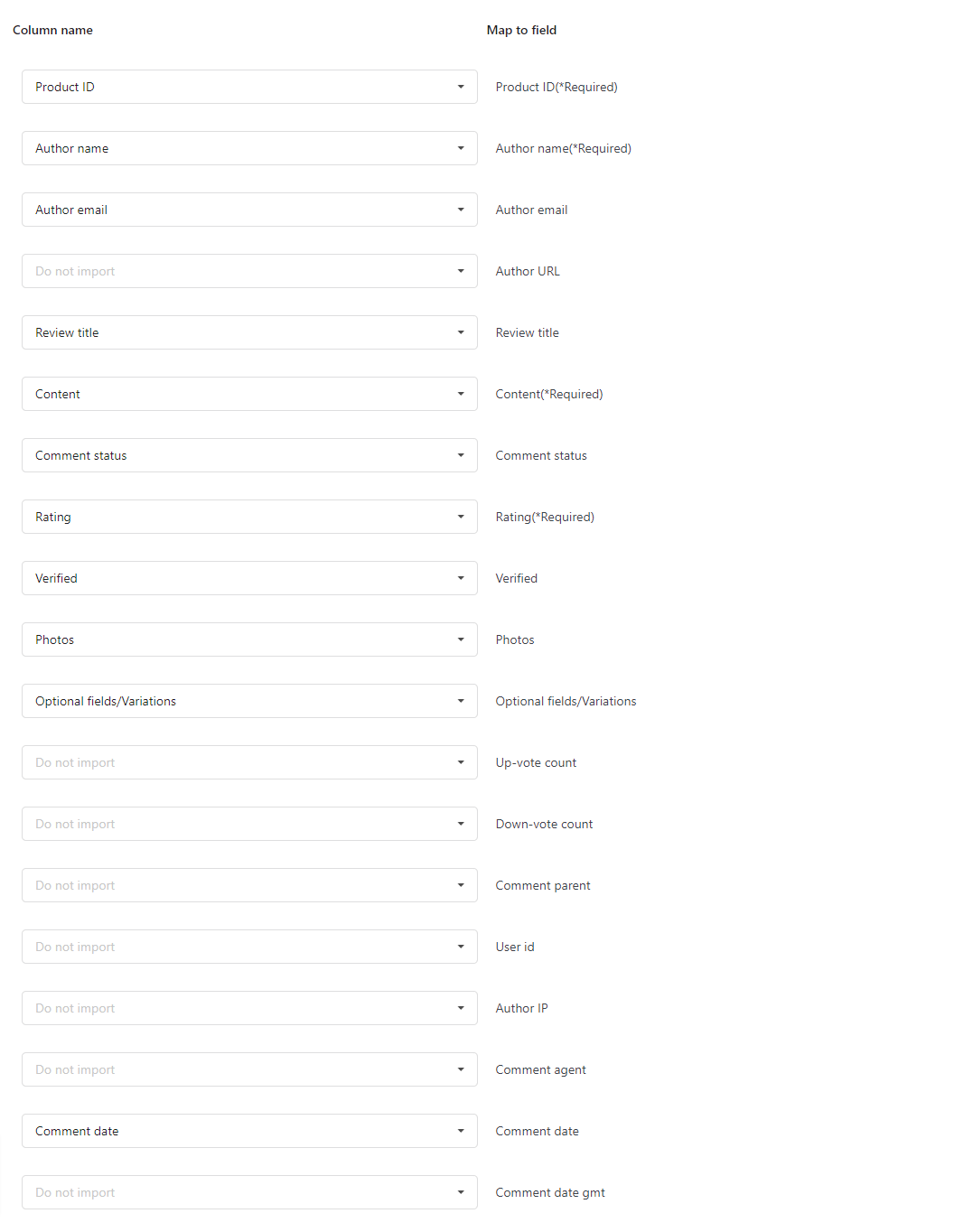
You will be asked to map the column names in the CSV file with the respective product meta fields. There are some fields are required to map: Product ID; Author name; Content; Rating.


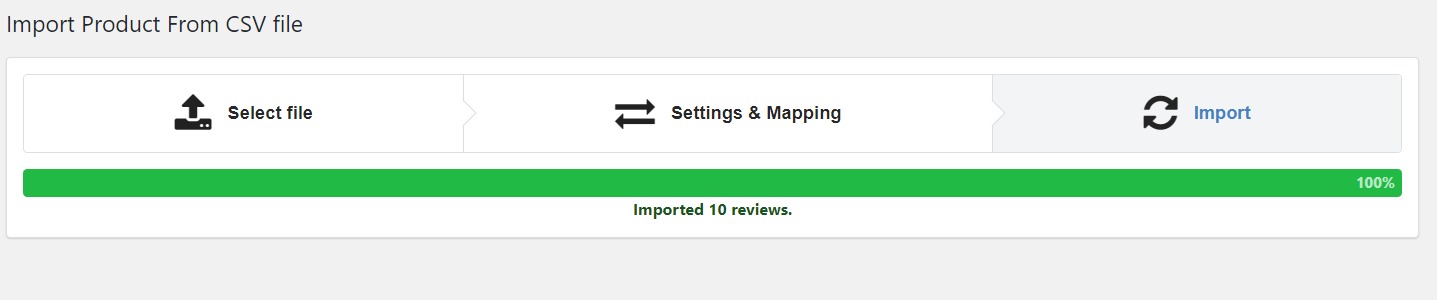
Step 3: Import CSV file

Click on Import button and wait.


Review Reminder Email

Once the customer has purchased the product, you will set up email reminders to remind them to leave reviews in the Review Reminder tab.


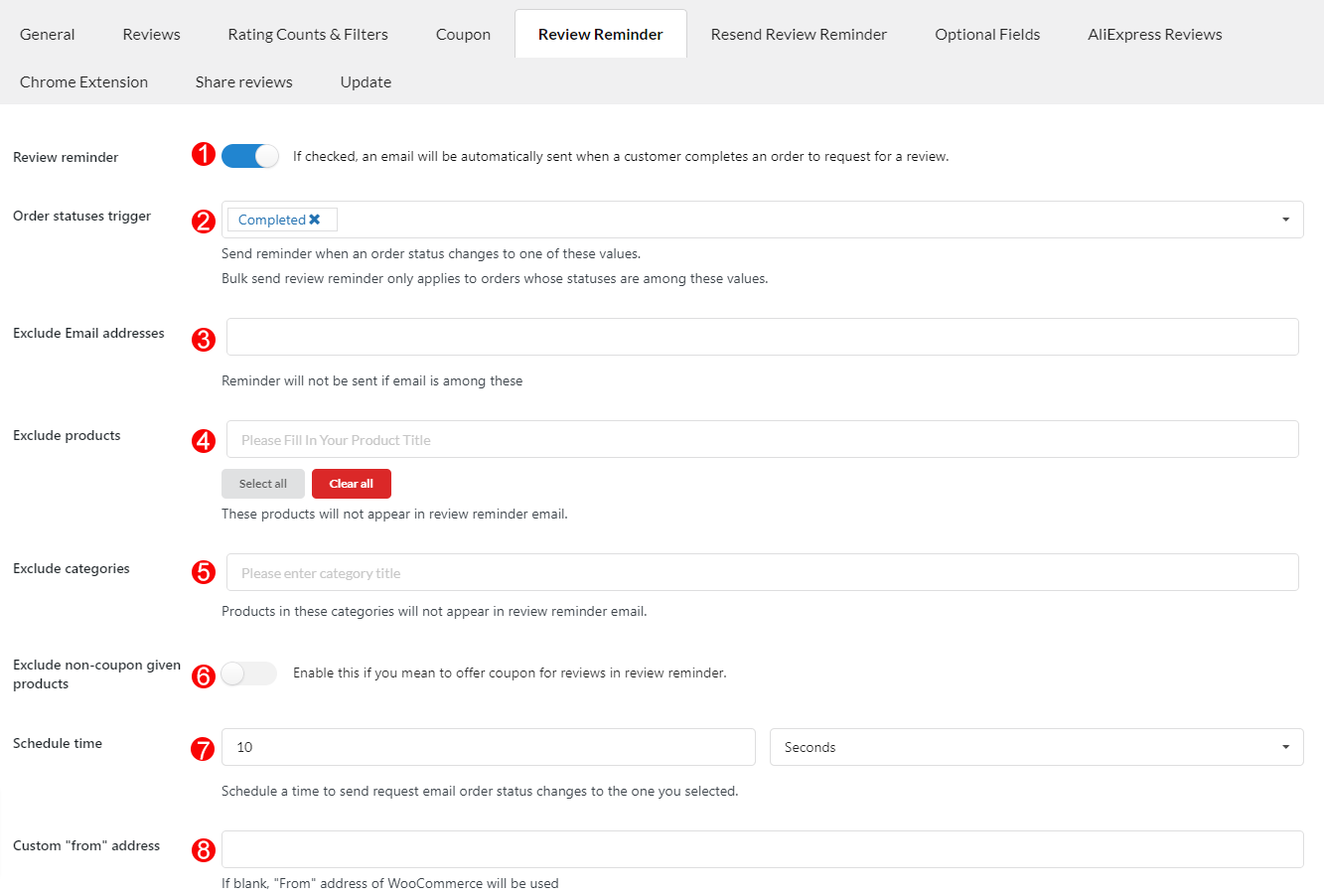
A. General settings

1. Review reminder: Enable this option to send an email to customers asking for reviews.

2. Order status trigger: If an order status is one of those statuses selected in this field, review reminder will be sent.

3. Exclude Email addresses: Set the email addresses which will be not received review reminders.

4. Excluded products: Review reminder emails will not sent if the order includes these products.

5. Exclude categories:  Review reminder emails will not sent if the order includes these categories.

6. Exclude non-coupon given products: Products that do not receive coupons, you can select in the Coupon tab, will not appear in review reminder emails.

7. Schedule time: Schedule a time to send a request email after an order is marked as statuses chosen above.

8. Custom “from” address: This option allows to change the send – from the address with review reminder emails. If you leave this field blank, the plugin will use the default WooCommerce email address.


B. Review Reminder Email

There are 2 types of the email template you can use to send review reminder emails, you will customize the review reminder email templates using the WooCommerce Email Template Customizer plugin or the original review reminder email template in the WooCommerce Photo Reviews plugin.

  1. Email templates from WooCommerce Email Template Customizer plugin: 
    • Use WooCommerce Email Template Customizer plugin to design the Coupon email – you can use either free or premium version of the email customizer plugin. Visit this documentation to learn how to customize the review coupon email templates.
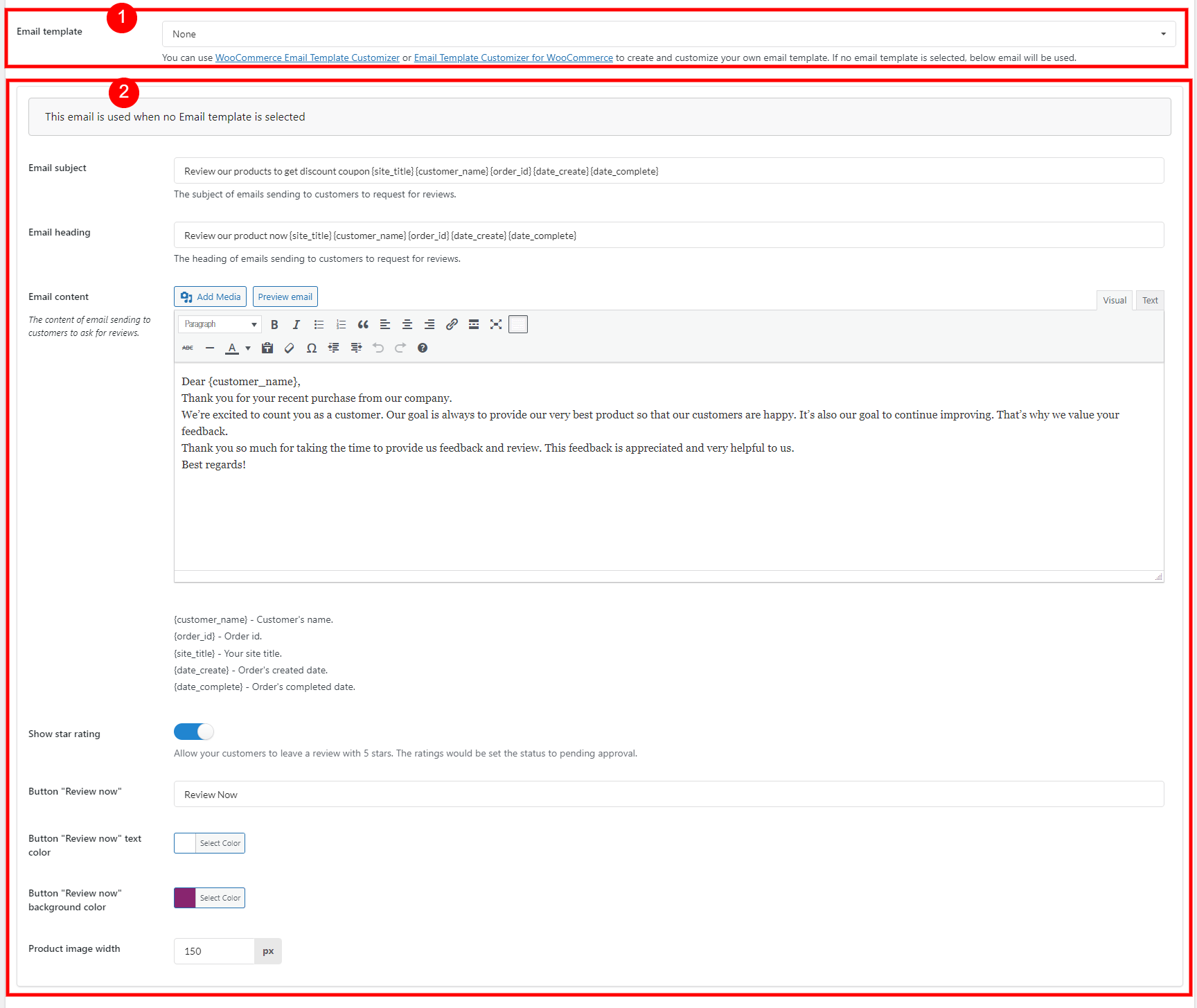
  2. The original review reminder email template for the WooCommerce Photo Reviews plugin is customizable using contents and the options listed below.
  • Email subject: The subject of emails sent to customers to ask for reviews.
  • Email heading: The heading of emails sent to customers to ask for reviews.
  • Email content: The content of emails sent to customers to ask for reviews. You can use shortcodes to display necessary information.
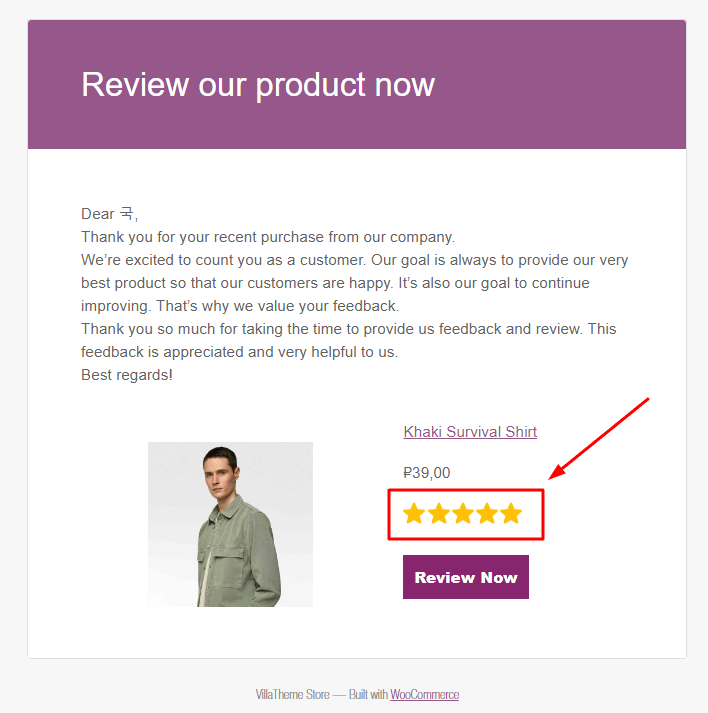
  • Show star rating: Allow your customers to leave a review with 5 stars. The ratings would be set the status to pending approval
    If this option is enabled, there’s 5-star rating in the email above the “Review Now” button like below:
  • Button “Review now”: change the text of the review now button in the review reminder email.
  • Button “Review now” text color: Change the color of the review now text in the review reminder email.
  • Button “Review now” background color: Change the color of the review now button background in the review reminder email.
  • Product image width: Adjust product image width in the review reminder email.


C. Auto login and Review page

The customer will be directed to the Review form page to review for the purchased product on your website when they click the “Review now” button in the review reminder email.  In this section, you will be asked to let the customer logged in or disable the auto-login with certain user roles.


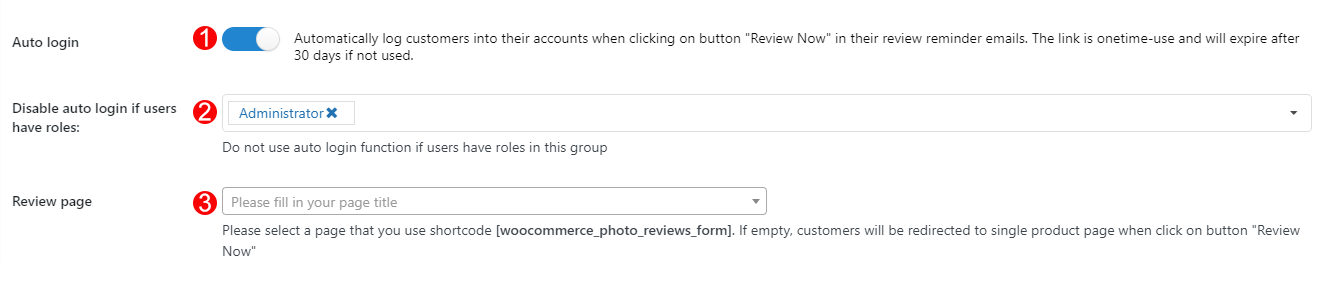
1. Auto-login: When customers click “Review Now” on the review reminder emails, their accounts should be automatically signed in. The link can only be used once and will disappear after 30 days if it isn’t used.

2. Disable auto-login if users have roles: You can disable the auto-login feature for certain user roles.

3. Review page: You can use the Review form shortcode to create a review page. Then select that page in this field. When a customer clicks on the Review now button in review reminder emails, they will be redirected to this page.

If you leave empty this field, customers will be redirected to the single product page of the purchased product to review when clicking on the “Review Now” button.


Coupon Email

Coupons can be rewarded to the customers after they purchased and left reviews for your products. In the Coupon tab, you will configure settings to: Send coupons; Rules to send coupons, Coupon types; and set an individual email for each coupon type.


A. General settings

Go to Photo reviews > Coupon tab. You will configure general settings for the coupon.

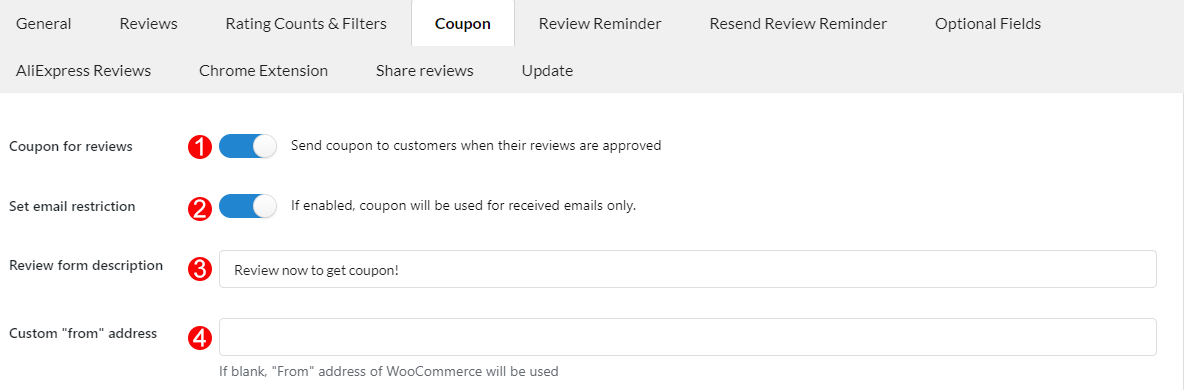
  1. Coupon for reviews: Enable this option to offer coupons to the customers if their reviews are approved.
  2. Set email restriction: Reviews can be posted by users (no login), non-purchased or verified customers through the admin permission in the Reviews tab > Restrict the number of reviews. If you enable this option, only the verified customers who received the Review reminder email and clicked on the Review now button to rate the product will be eligible to receive the coupon.
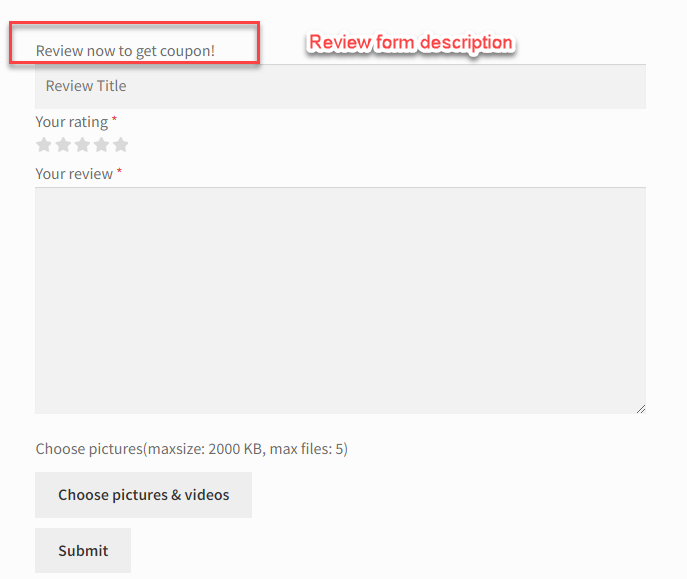
  3. Review form description: Change the title on the review form to offer a coupon to the customers.
  4. Custom “from” address: Coupon email will be sent from this email address. If you leave blank, “From” address of the WooCommerce “From” address will be used.

B. Coupon rules

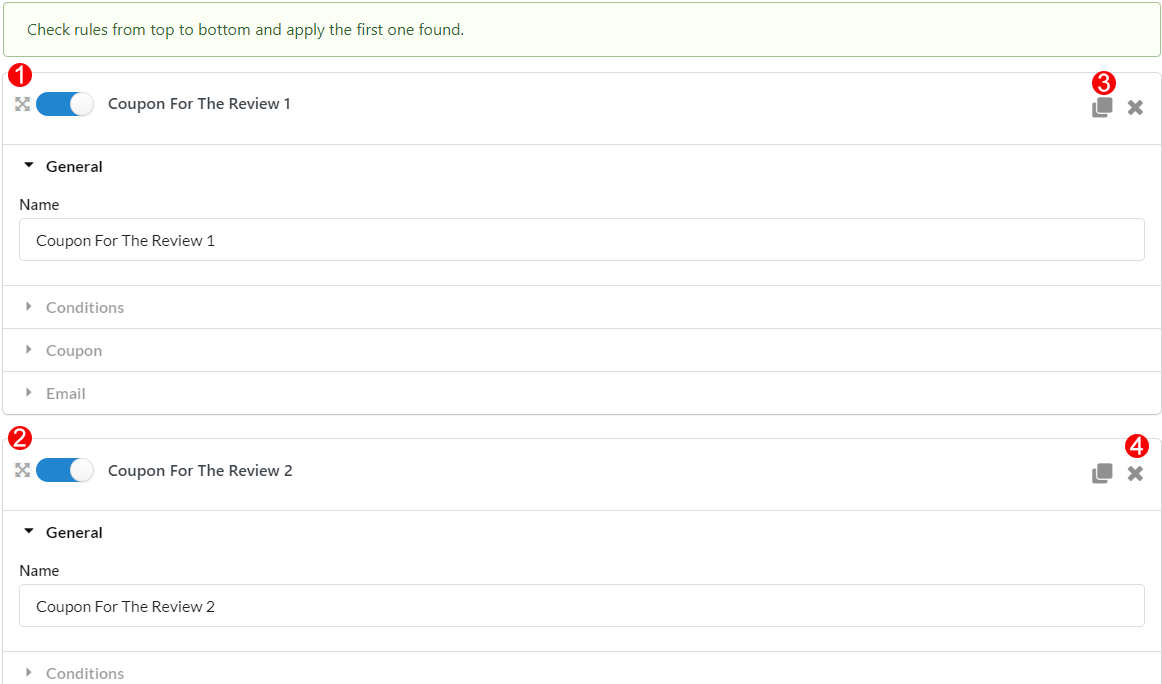
You can make rules to receive coupons, if a review is eligible a certain rule, the user/customer will receive a respective coupon. Rules are scanned from top to bottom and apply the first one found.

1. and 2. Create multiple rules to receive a specific coupon, add the name of each coupon rule. For example the rule 1 named: Coupon for review 1; And rule 2 named: Coupon for review 2.

3. Clone rules: Duplicate a new rule.

4. Remove rules: Delete a certain rule.


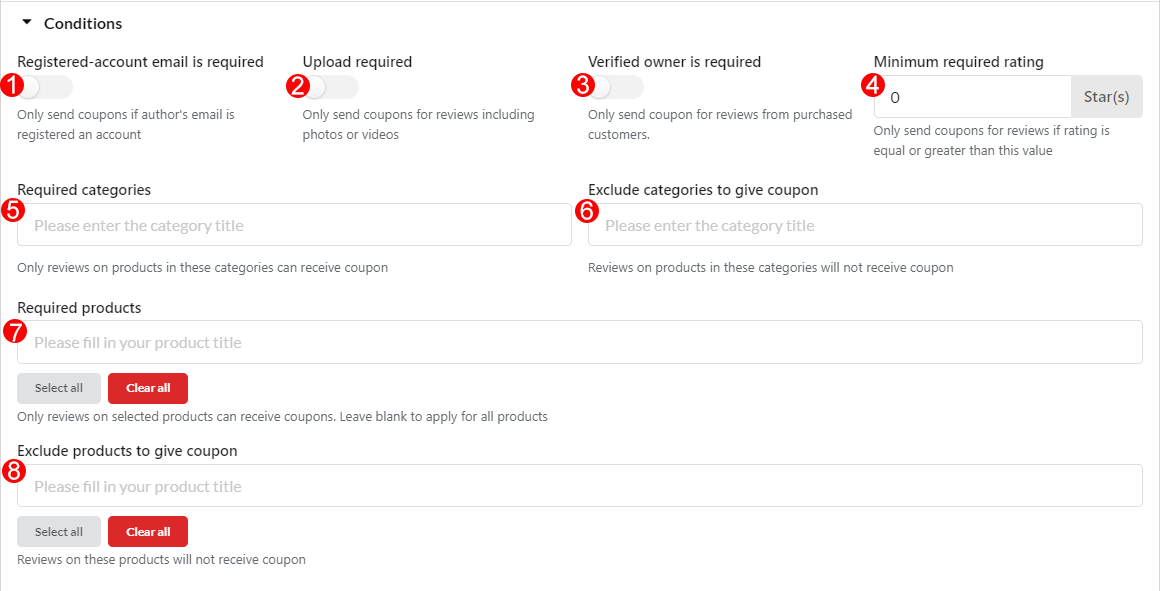
C. Conditions in each rule to receive the coupon.


  1. Registered-account email is required: Activate this setting if you want coupons to be sent only if the author’s email address is registered with an account.
  2. Upload required: Coupon will be offered only if the customer review contains photos or videos.
  3. Verified owner is required: Coupon will be offered only if the reviews are rated by purchased customers.
  4. Minimum required rating: Coupon will be offered only if the rating is equal or greater than this value.
  5. Required categories: Coupon will be offered only if the reviewed products in these categories.
  6. Exclude categories to give coupon: Coupon will not be offered for the reviewed products in these categories.
  7. Required products: In this field, coupons can only be received by reviewing the selected products. Leave blank to apply for all products
  8. Exclude products to give coupon: Reviewing the selected products will not receive coupons.


D. Coupon

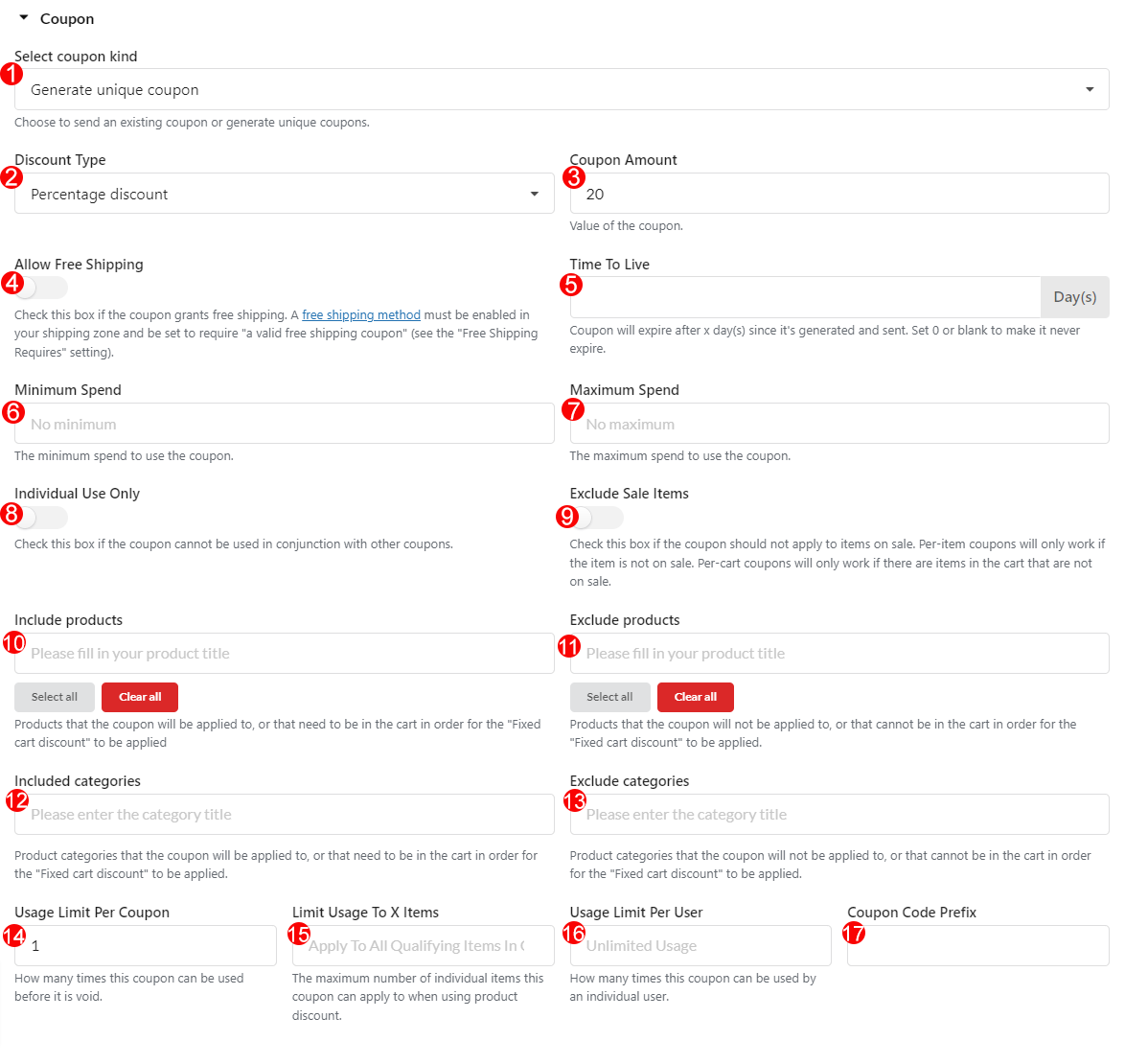
  1. Select coupon kind: There are 2 kinds of coupon that customer can receive after reviewing the product: Existing coupon or Unique coupon.
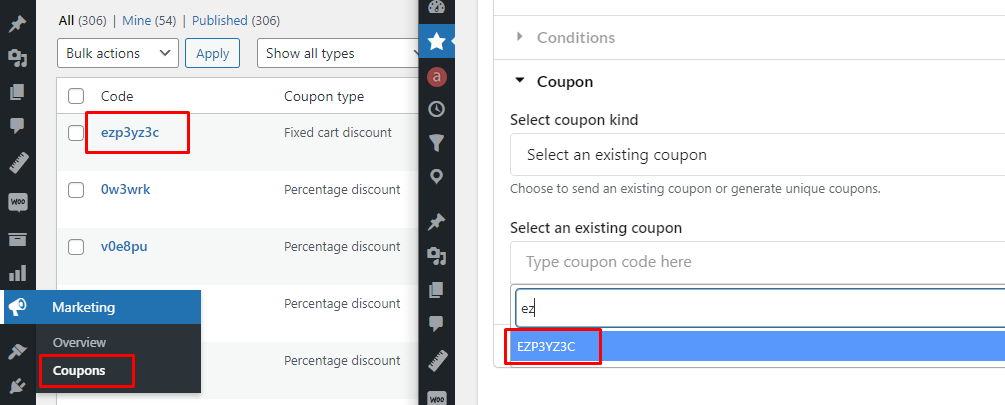
    • Existing coupon: This kind of coupon is existed in Dashboard > Marketing > Coupons. You can follow this guide to configure WooCommerce existing Coupons. All you need to do is to choose a coupon code from the existing coupon to be a coupon for reviewing.

    • Unique coupon: This kind of coupon is generated by this plugin. Below settings are for unique coupon.
  1. Discount Type: You can choose a type of discount: Percentage discount, Fixed cart discount, and Fixed product discount.
  2. Coupon Amount: Set a value of the coupon respectively with the discount type. For example: 10% discount, $5 fixed cart discount, $15 fixed product discount…
  3. Allow Free Shipping: Enable this option if the coupon grants free shipping. A free shipping method must be enabled in your shipping zone and be set to require “a valid free shipping coupon” (see the “Free Shipping Requires” setting).
  4. Time To Live: Coupon will expire after x day(s) since it’s generated and sent
  5. Minimum Spend:  Allows you to set the minimum subtotal needed to use the coupon.
  6. Maximum Spend: Allows you to set the maximum subtotal allowed when using the coupon.
  7. Individual Use Only: Tick the box if you don’t want this coupon to be used in combination with other coupons.
  8. Exclude Sale Items: Tick the box if you don’t want this coupon to apply to products on sale. Per-cart coupons do not work if a sale item is added afterward.
  9. Include products: Products that the coupon will be applied to, or that need to be in the cart in order for the “Fixed cart discount” to be applied
  10. Exclude products: Products that the coupon will not be applied to, or that cannot be in the cart in order for the “Fixed cart discount” to be applied
  11. Included categories: Product categories that the coupon will be applied to, or that need to be in the cart in order for the “Fixed cart discount” to be applied
  12. Exclude categories: Product categories that the coupon will not be applied to, or that cannot be in the cart in order for the “Fixed cart discount” to be applied
  13. Usage Limit Per Coupon: How many times a coupon can be used by all customers before being invalid.
  14. Limit Usage To X Items: How many items the coupon can be applied to before being invalid. This field is only displayed if there is one or more products that the coupon can be used with, and is configured under the Usage Restrictions.
  15. Usage Limit Per User: How many times a coupon can be used by each customer before being invalid for that customer.
  16. Coupon code prefix: Add the prefix text to distinguish the generated coupon. For example: review_code


E. Coupon Email

In the Email section, you will customize the coupon email template which is offered for reviewing of the customers.

There are 2 types of the email template you can use:

  1. Email templates from WooCommerce Email Template Customizer plugin.  
    • Use WooCommerce Email Template Customizer plugin to design the Coupon email – you can use either free or premium version of the email customizer plugin. Visit this documentation to learn how to customize the review coupon email templates.
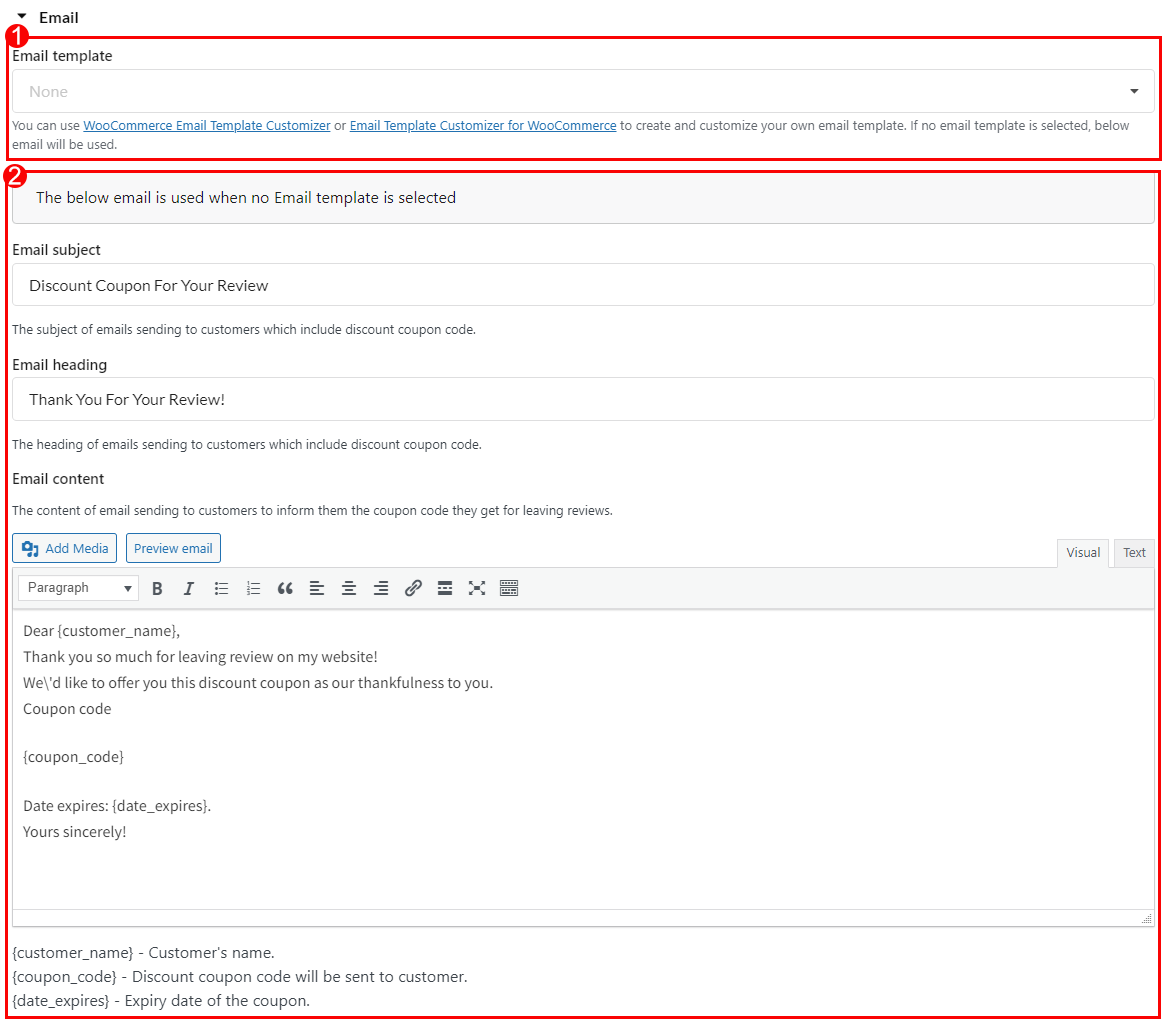
  2. The original coupon email template of the WooCommerce Photo Reviews plugin.

The coupon email will use the plugin’s default email template if there is no WooCommerce Email Template Customizer plugin’s template selected above. Below are some customization options for the WooCommerce Photo Reviews plugin’s original coupon email template.

  • Email subject: Subject lines for emails sent to customers that contain discount coupon codes.
  • Email heading: The heading of emails sending to customers which include discount coupon code
  • Email content: The information included in the email sent to customers informing them of the coupon code they receive for leaving reviews


Rating Counts & Filters

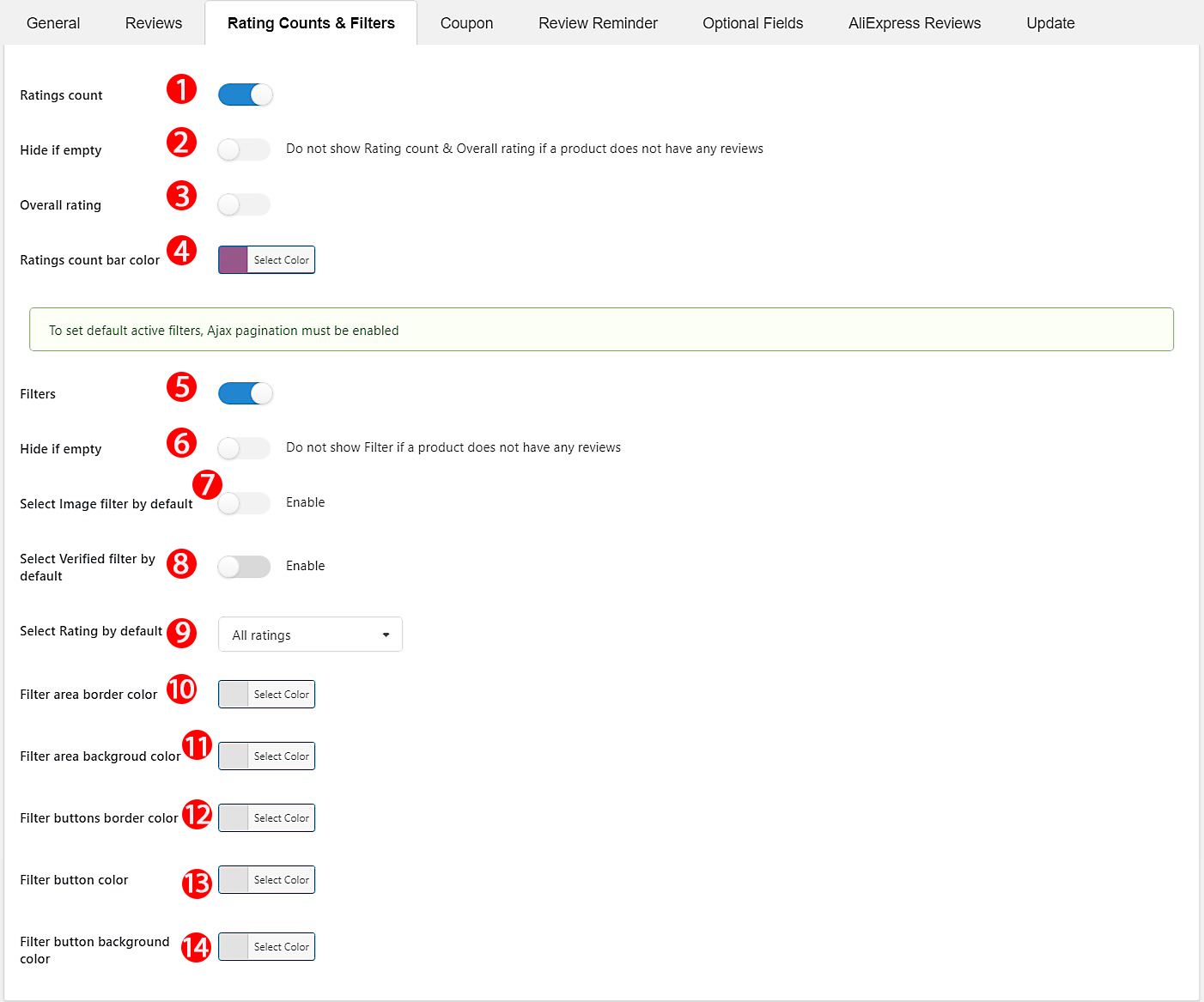
  1. Ratings count: Enable rating count on the front end.
  2. Hide if empty: Do not show Rating count & Overall rating if a product does not have any reviews
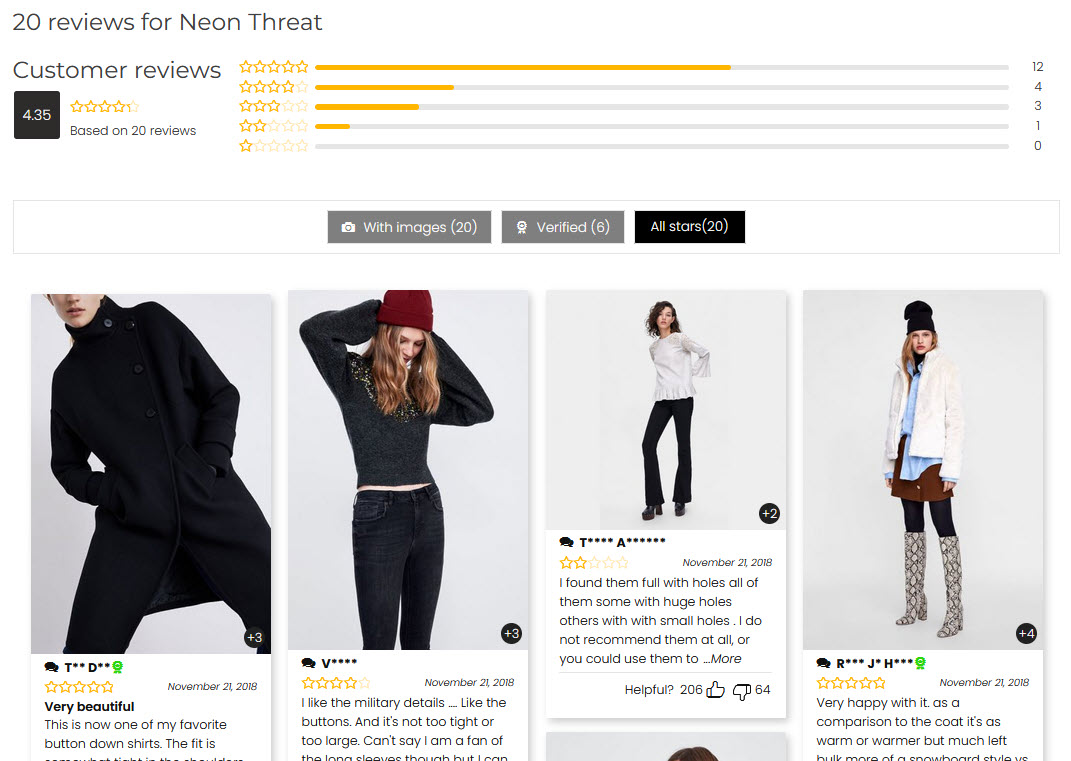
  3. Overall rating: This will display the last average rating of the product.
  4. Ratings count bar color: Select a color for rating count bar.
  5. Filter: Enable filter for reviews – Reviews with images, Reviews with particular rating, Reviews created by Verified owner
  6. Hide if empty: Do not show Filter if a product does not have any reviews
  7. Select Image filter by default: Enable this option to make the Image filter default
  8. Select Verified filter by default: Enable this option to make the Verified filter default
  9. Select Rating by default: Enable this option to make the Rating filter default with a particular rating or all ratings
  10. Filter area border color: Choose the Filter area border color.
  11. Filter area background color: Choose the Filter background color.
  12. Filter buttons border color: Choose the Button border color.
  13. Filter button color: Choose the Button color.
  14. Filter button background color: Choose the button background color.

Review Form Settings & Design Reviews


A. REVIEW FORM SETTINGS

1. How the Review form looks like.

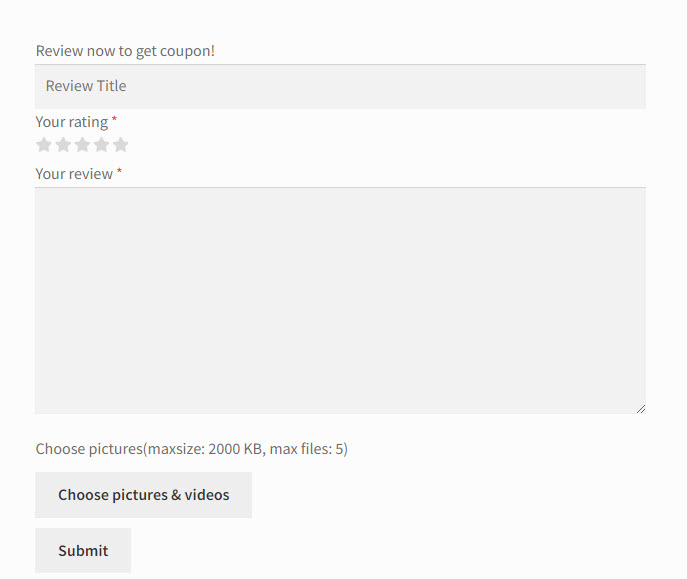
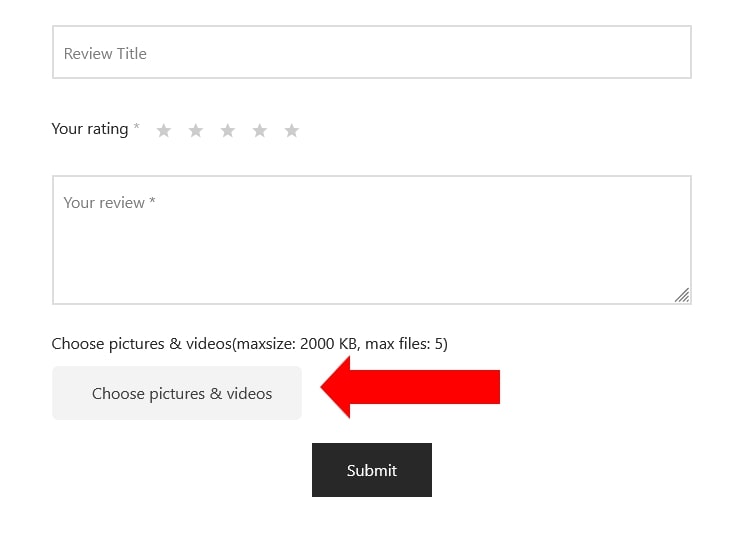
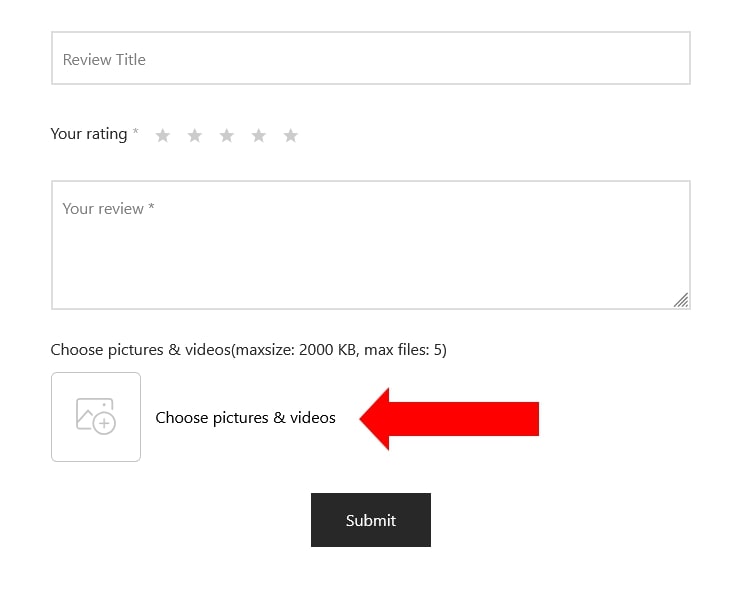
Customers leave their reviews on the review form normally including the Review title; Rating; Review content; Attach images or videos, then click on the Submit button to post the review. The photo below is what the review form looks like:

2. Settings of the Review form.

You can configure the review form in the Reviews tab and Optional Fields tabs in the plugin back end.

a. In the Review tab, you can manage the Review form settings with these options below:


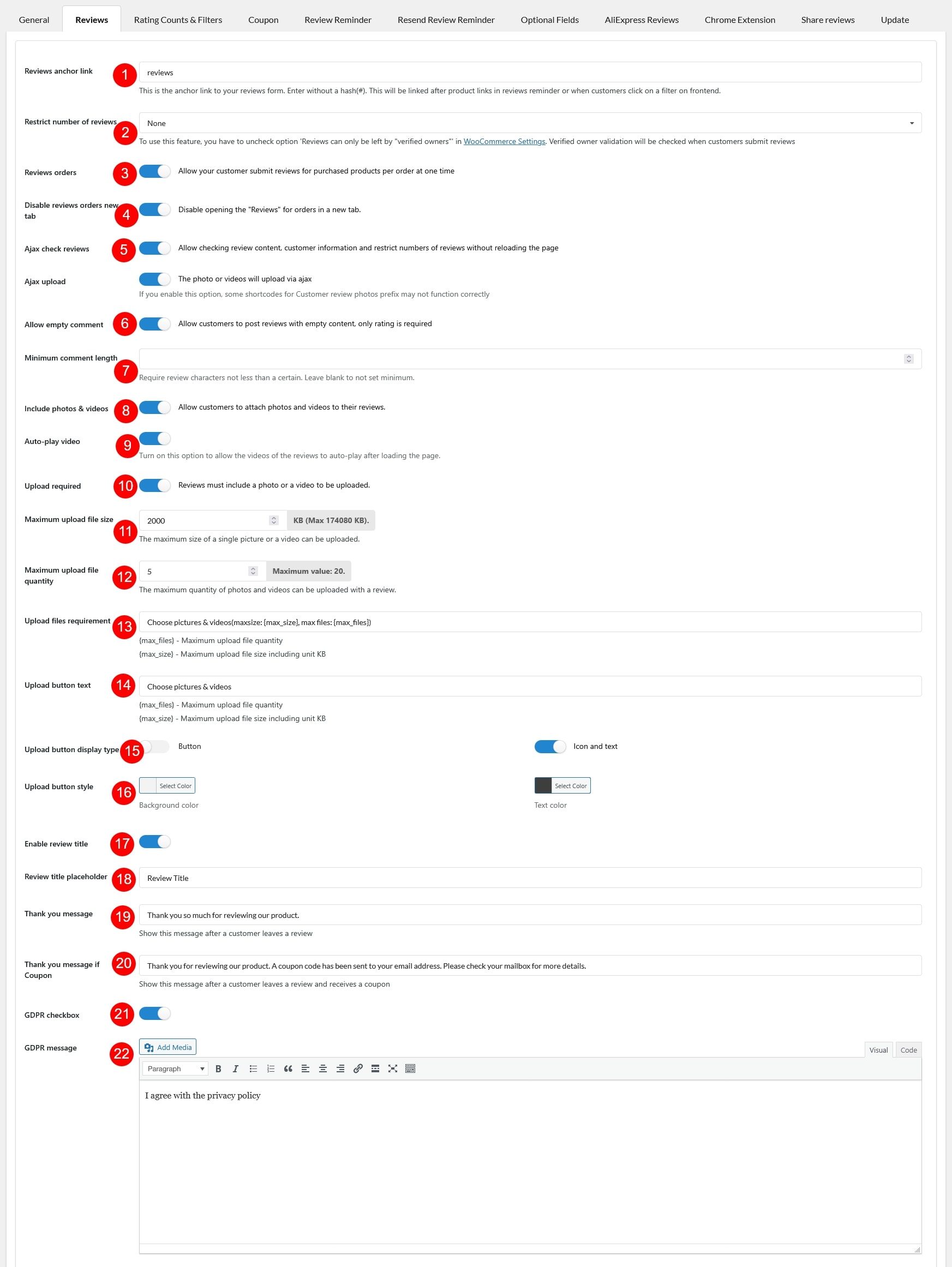
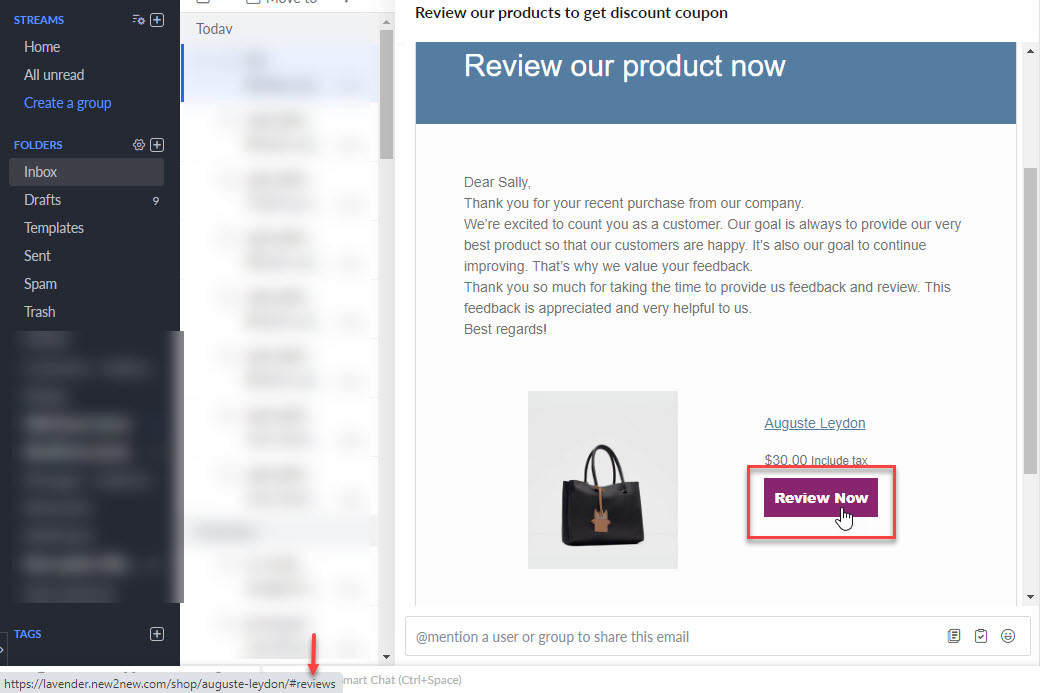
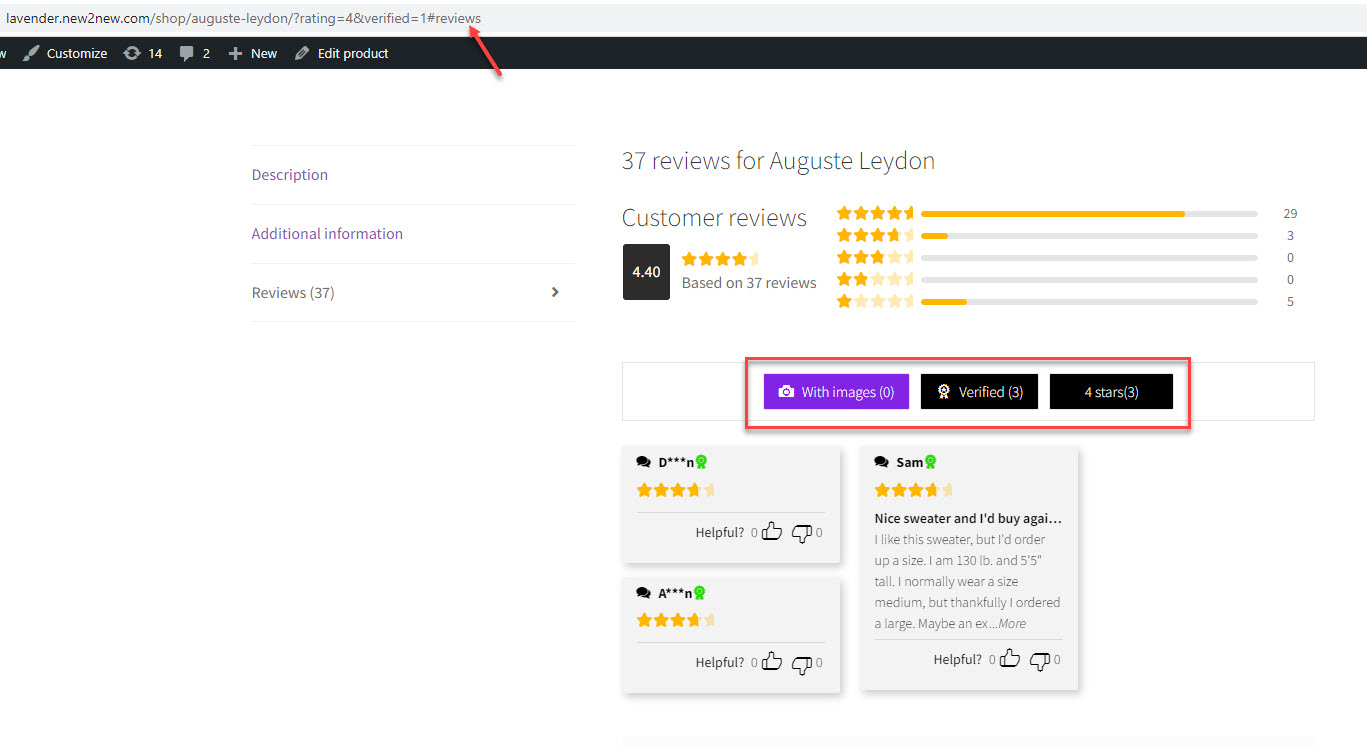
1. Review anchor link: The anchor link redirects to the review form to leave a review when the customers click on one of the 2 positions:

    • In the review reminder email: Click on the Review now button.
    • On a review filter on the front end.
Click on the Review now button to direct to the review form
Click on the filters to link to the review form


2. Restrict the number of reviews: Normally, reviews can just be posted by the customers who purchased the product, or in another word, they are verified customers. However, with the Restrict number of reviews, the admin can change how many reviews a customer/user can post.

  • None: Customers and users are not limited in how many reviews they can post.
  • One review no matter whether the customer bought that product or not: No matter whether the customers bought or not a product, they have 0ne chance to post a review.
  • One review and verified owner required (the customer must have bought that product): Only when customers who purchased the product, they are allowed to post one review.
  • By number of times the customer bought that product: Allow customers to post reviews in accordance with the times they bought a product.

* Note: To use this feature, you have to uncheck option ‘Reviews can only be left by “verified owners”‘ in WooCommerce Settings. Verified owner validation will be checked when customers submit reviews.


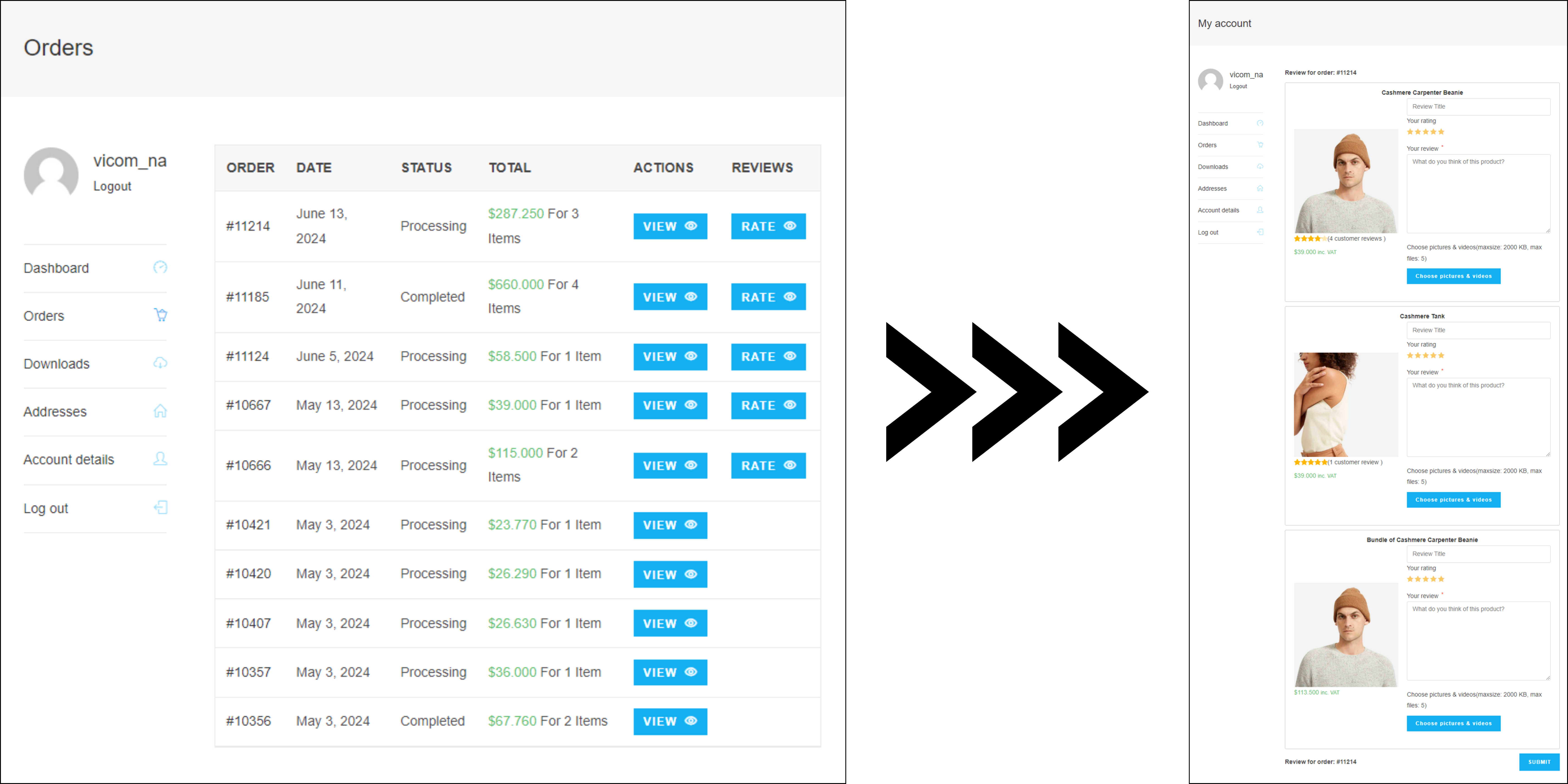
3.  Reviews orders: If the order has multiple line items to review, enable this option to allow your customers to submit reviews for all the order items in that order at one time. The option to leave reviews in bulk is available in the customer’s My Account page >> Orders (visit this documentation). Simply click the “Rate” button associated with the order they wish to leave reviews and they’ll be redirected to.


4. Disable reviews orders new tab:Enable this option to prevent the Rate button from opening a new browser tab when leaving a review under My Account > Orders.

5. Ajax check reviews: Allow checking review content, customer information and restrict number of reviews without loading the page.

  • Ajax upload: Enable this option to make the page not reload after uploading media to review

6. Allow empty comment:  Allow customers to post reviews with empty content, only rating is required.

7. Minimum comment length: Require the review characters not less than a certain. Leave blank to not set minimum.

8. Include photos & videos: Allow customers to attach photos and videos to their reviews

9. Auto-play video: Enable to automatically play review videos

10. Upload required: Reviews must include a photo or a video to be uploaded

11. Maximum upload file size: The maximum size of a single picture or a video can be uploaded

12. Maximum photo quantity: The maximum number of upload files can be posted with a review.

13. Upload images requirement: This text note is displayed on the review form to warn the customer about the maximum photo quantity and maximum photo size they can upload.

14. Upload button text: You can change the submit review text on the review form in this field.

15. Upload button display type: There’re 2 styles 

  • Button
  • Text and Icon

16. Upload button style: Design the submit review button, choose the background color and text color you want.

17. Enable review title: This option helps show or hide the title of the review form.

18. Review title Placeholder: Add the text of placeholder on the review title.

19. Thank you message: This message will show when the review is uploaded successfully

20. Thank you message if Coupon: If a customer leaves a review and receive a coupon for it, this message will show.

21. GDPR checkbox: Enable the GDPR checkbox with this option.

22. GDPR message: Add the content for the GDPR message


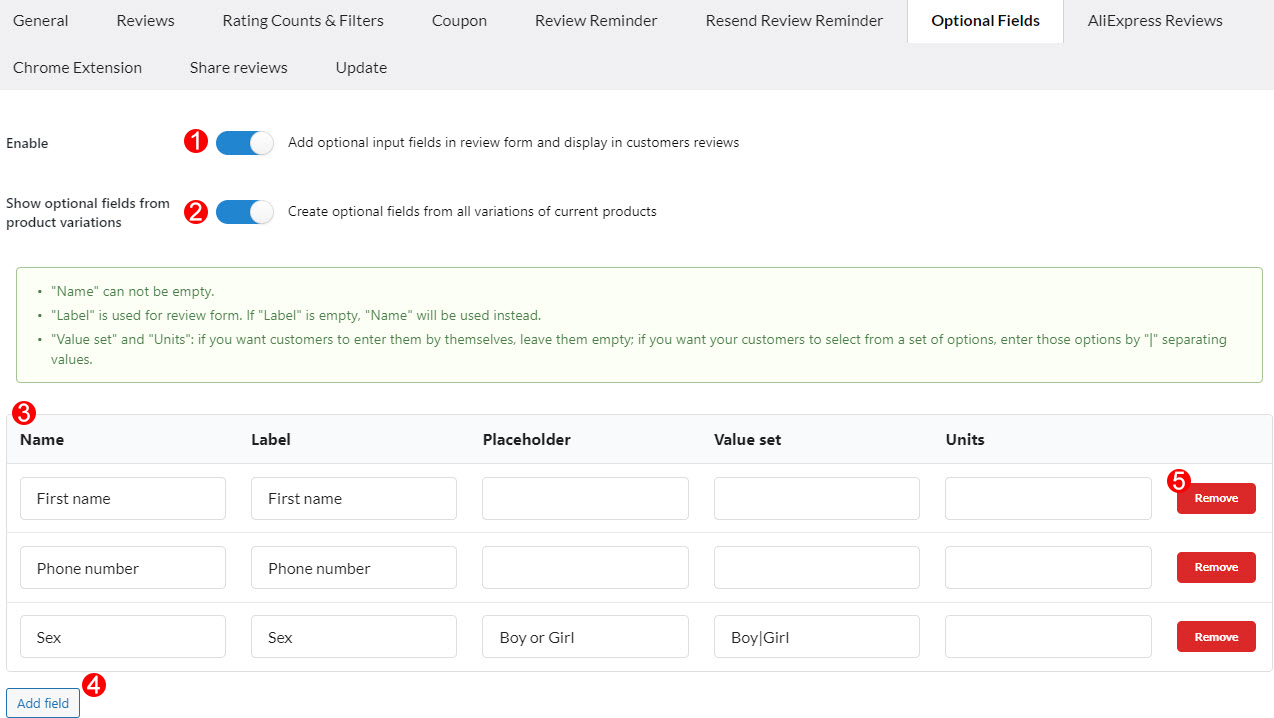
b. In the Optional Fields tab, you can create and add/remove custom fields to the review form.

  1. Enable: Enable if you want to add more the optional fields in the review form.
  2. Show optional fields from product variations: With this option, you can create the variations optional fields of the current variable product.
  3. Optional fields:
    • Name: Enter the optional field name.
    • Label: The label of the optional field, this label will be displayed on the front-end.
    • Placeholder: Add the text of the placeholder
    • Value set: Enter the values of this field. Customers can select between these values when they leave a review.
    • Units: This option is for the products which have a measurement system. For example cm, kg…
  4. Add new fields.
  5. Remove fields.


B. DESIGN REVIEWS

In the Reviews tab, the options below help to customize how reviews look on the front end.


a. General settings

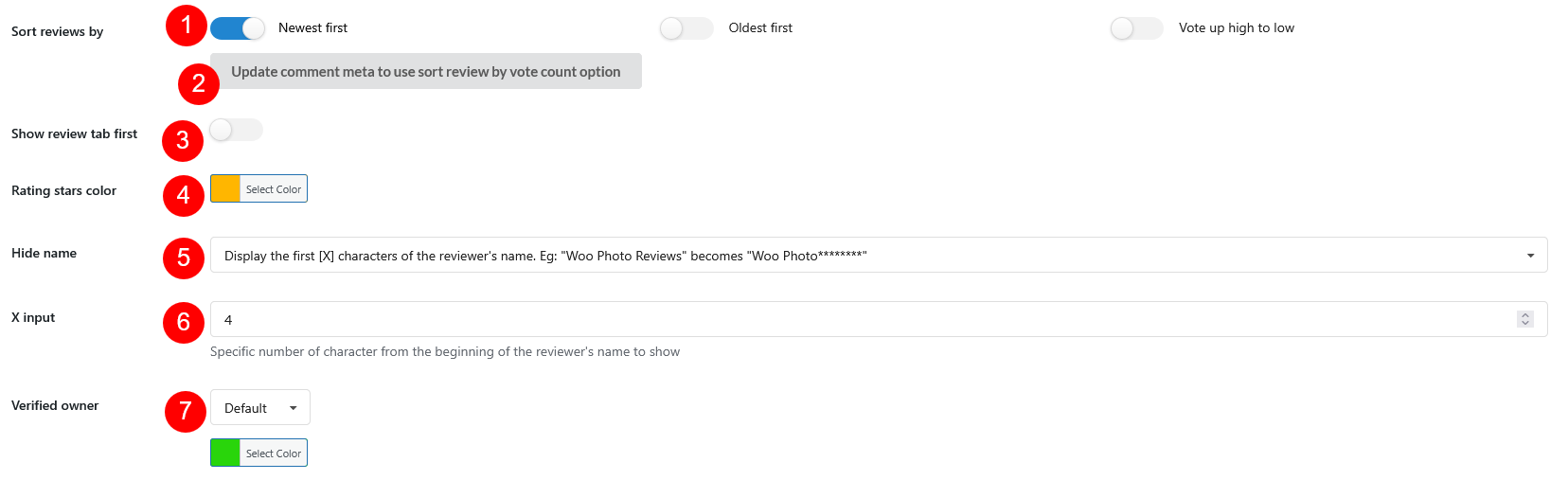
  1. Sort review by: You can sort to display reviews in order: Newest first; Oldest first; Or Vote up high to low
  2. Update comment meta to use sort reviews by the vote count option: Vote can be changed over time, so click update to recalculate the vote volume if you choose sorting review with the Vote up high to low option.

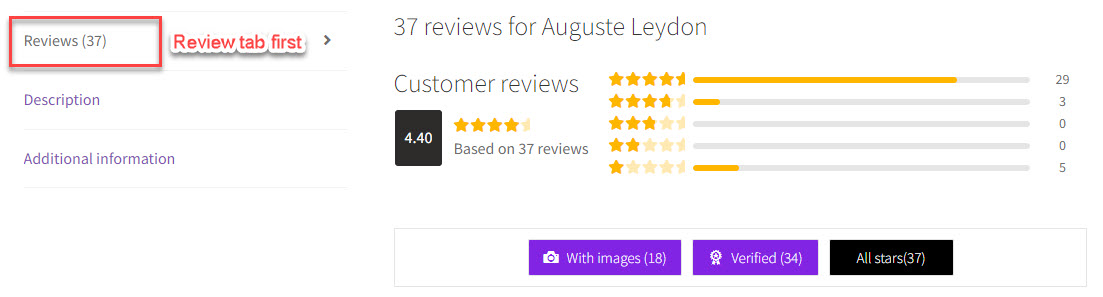
  3. Sort review tab first: The Review tab is displayed under the Description and Additional Information tab by default. Enable this option to display the review tab first.
  4. Rating star color: Change the color of the rating star.
  5. Hide name: You can hide name of the commentators. There are 3 options:
    • None: Not hide the commentator name.
    • Only display first letter of each word in author’name.Eg:”Woo Photo Reviews”becomes”W**P****R******”
    • Display full first name and initial for surname.Eg:”Photo Reviews”becomes”PhotoR”
    • Display full of the last name and initial for the first name. Eg: “Woo Photo Reviews” become “W.Reviews”
    • Display the first [X] characters of the reviewer’s name. Eg: “Woo Photo Reviews” becomes “Woo Photo********”
  6. X input: This option is available if Hide name is Display the first [X] characters of the reviewer’s name. Eg: “Woo Photo Reviews” becomes “Woo Photo********”. Specify the X value for it.
  7. Verified owner: Mark the commentators as the verified owners. You can color for the text and the badge icon, when using “Text” or “Badge”, but you can’t customize color when using “Default” option.
    1. Default: Use this option if you want to use your initial Verified Owner badge instead of a custom badge supported by our plugin
    2. Text: Enter the specific text, for example: Verified owner
    3. Badge: A custom badge icon, for example:

b. Image caption

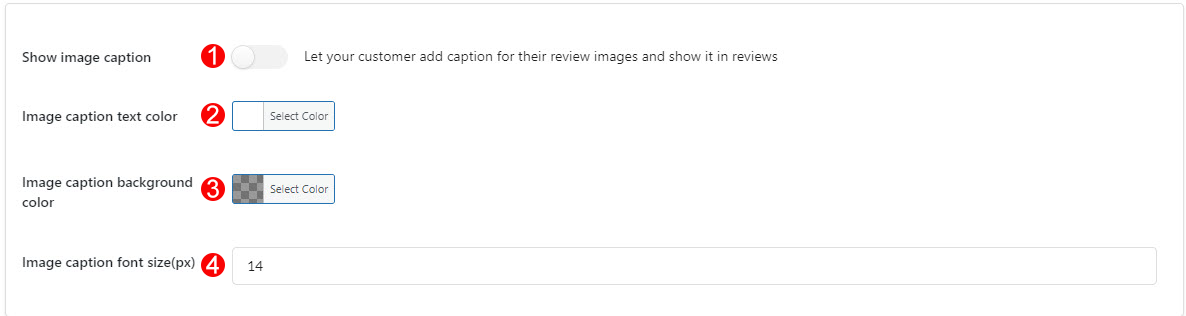
  1. Show image caption: enable the image caption option, allows your customers to post a caption with each review picture.
  2. Image caption text color: change the image caption text on front-end.
  3. Image caption background color: change the caption background color.
  4. Image caption font size(px): select the caption text font-size.


c. Helpful button

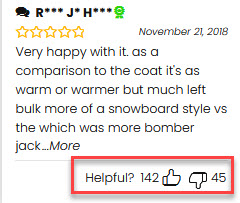
  1. Helpful buttons: enable to display the helpful button on each review.
  2. Helpful buttons title: change the text of the helpful button title on front-end.


d. Front-end design

Each style in “Front-end style” has their own settings. We list all available options below

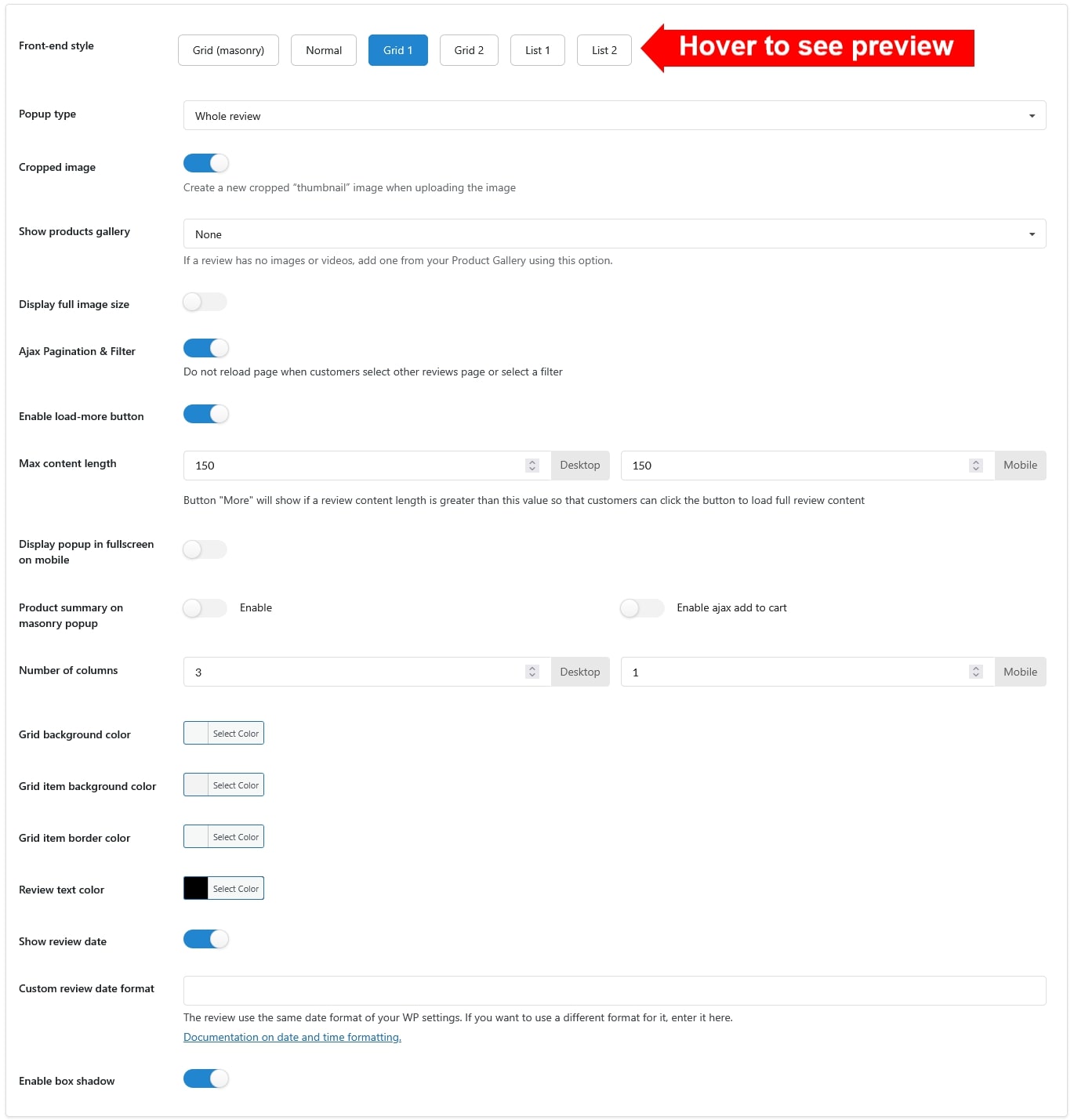
  • Front-end style: Select the front-end style. Each style has their own settings. Hover over the style option to see its preview
    • Grid (masonry)
    • Normal
    • Grid 1
    • Grid 2
    • List 1
    • List 2
  • Popup type: There are three styles you can select to let the images appear when the customer clicks on the review images:
    • Whole review: Display full review content when clicking on this review image.
    • Only image: Zoom out just this review image.
    • Off: Not zoom the review image.
  • Cropped image: You can create a new cropped “thumbnail” image when uploading the image.
  • Show products gallery: If a review doesn’t include images or videos, you can display product images from your gallery instead.
    • None: Don’t show any gallery images
    • Show one random image of the Product Gallery
    • Only show first image of the Product Gallery
  • Display full image size: Enable to display the photo of reviews with full size.
  • Ajax Pagination & Filter: Enable this option to not reload the whole page when customers click next review pages or filters.
  • Enable load-more button: By using this feature, the Load more button will appear, and when clicked, more reviews will be displayed.
  • Max content-length: Set the maximum length for a review content, if a review content length is greater than this value so that customers can click the button “More” to load full review
  • content.
  • Display popup in fullscreen on mobile: Enable to show the review popup fully on the mobile.
  • Display product summary on masonry popup:  Display the product information on the review pop-up when choosing the Whole review popup style.
    • Enable Ajax Add to cart: Not reload the whole page when adding the product to the cart on the masonry popup.
  • Number of columns:
      • Number of columns on PC: Select how many columns of reviews you want to display with the Grid (Mansory) style on PC
      • Number of columns on Mobile: Select how many columns of reviews you want to display with the Grid (Mansory) style on mobile.
  • Grid background color: select the background color of the review module.
  • Grid item background color: select the background color of the item color.
  • Grid item border color: select the border color of the item color.
  • Review text color: change the review text color.
  • Show review date: Select if you want to display the review date.
  • Custom review date format: Select the review date format.
  • Enable box shadow: Enable this option to create the box-shadow effect when a review is selected.
  • Image popup: When customers click on the review image in the normal style, you can choose the image appears under below thumbnails or lightbox
  • Reviews container: Leave this field blank if ajax load more reviews works properly. If nothing happens when you click on button load more, product review template have been customized on your site. Just find the specific class or id of the closest container-the closest element(usually an “ul” or “ol” element) that wraps all reviews. Use dot(.) if it’s a class name and use hash(#) if it’s an id.

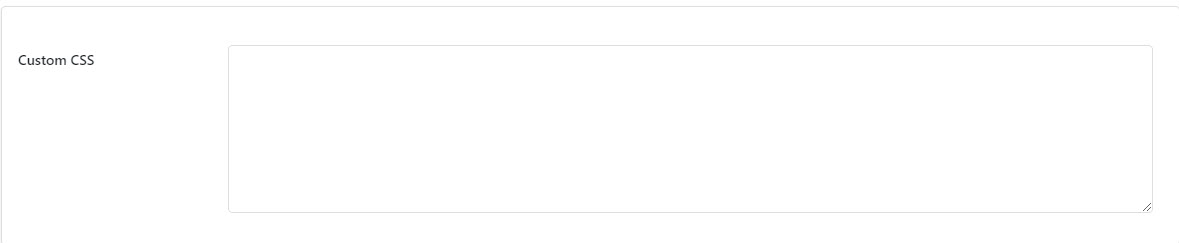
e. Custom CSS: Allows you to enter CSS code to change the plugin front-end as you want


General settings

Go to Dashboard/ Photo Reviews to configure the plugin general settings.

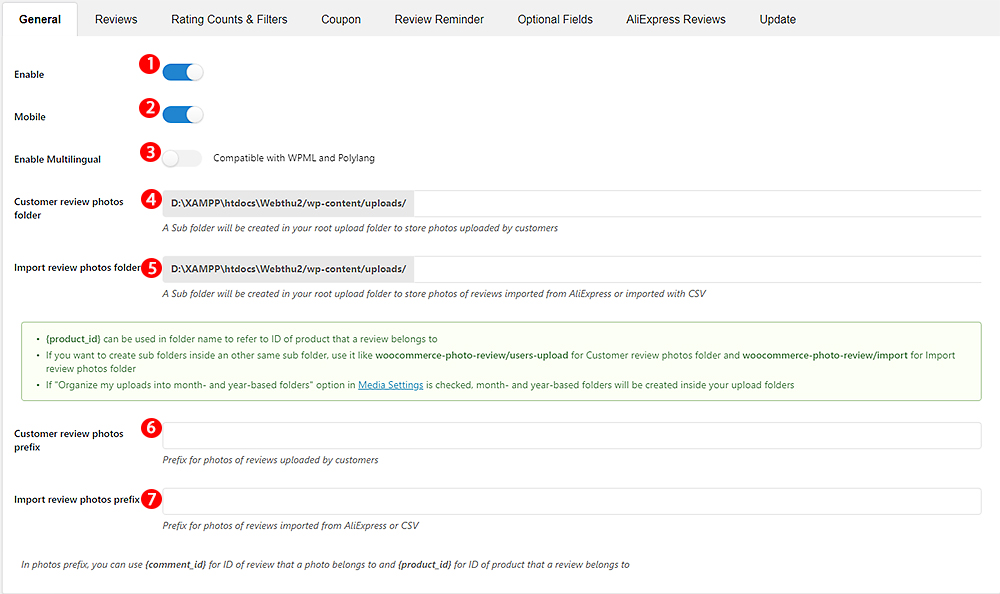
In the General tab

  1. Enable: Enable/Disable the plugin.
  2. Mobile: Enable/Disable photo reviews on mobile devices.
  3. Enable Multilingual: This feature will help you to display the front-end message and emails in different languages.
  4. Customer review photos folder: A Sub folder will be created in your root upload folder to store photos uploaded by customers.
  5. Import review photos folder: A Sub folder will be created in your root upload folder to store photos of reviews imported from AliExpress or imported with  CSV.
  6. Customer review photos prefix: Prefix for photos of reviews uploaded by customers.
  7. Import review photos prefix: Prefix for photos of reviews imported from AliExpress or CSV.