Grid (masonry)
Normal
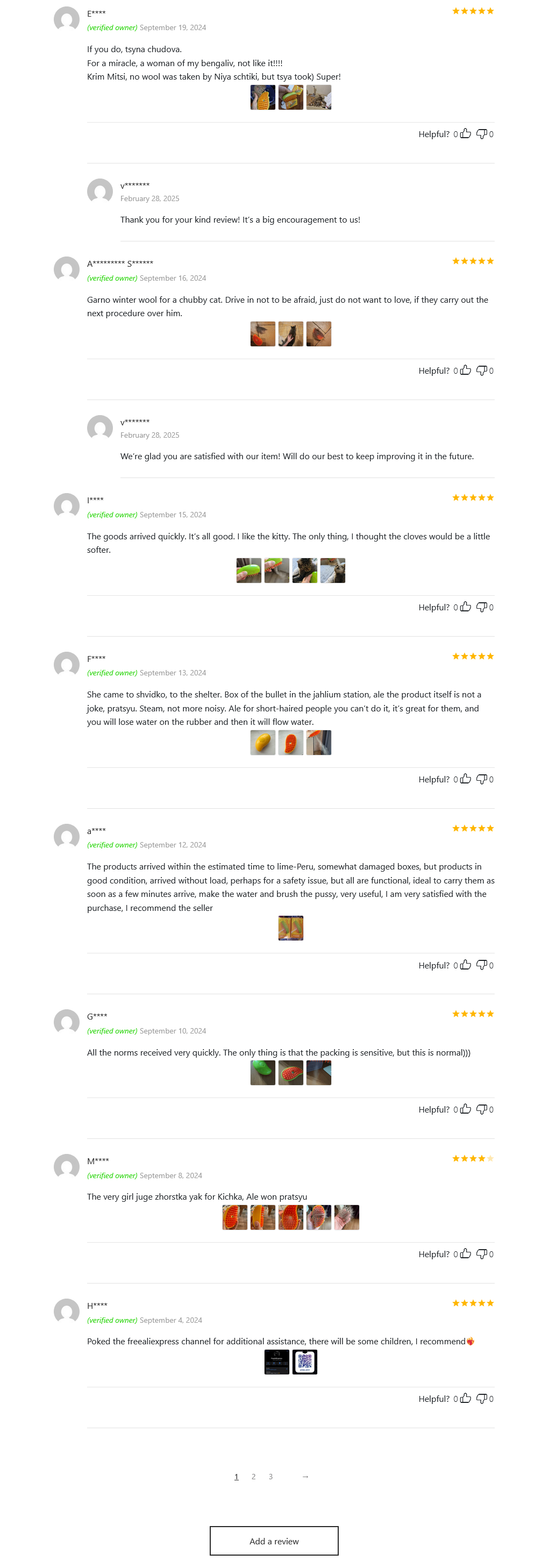
Grid 1
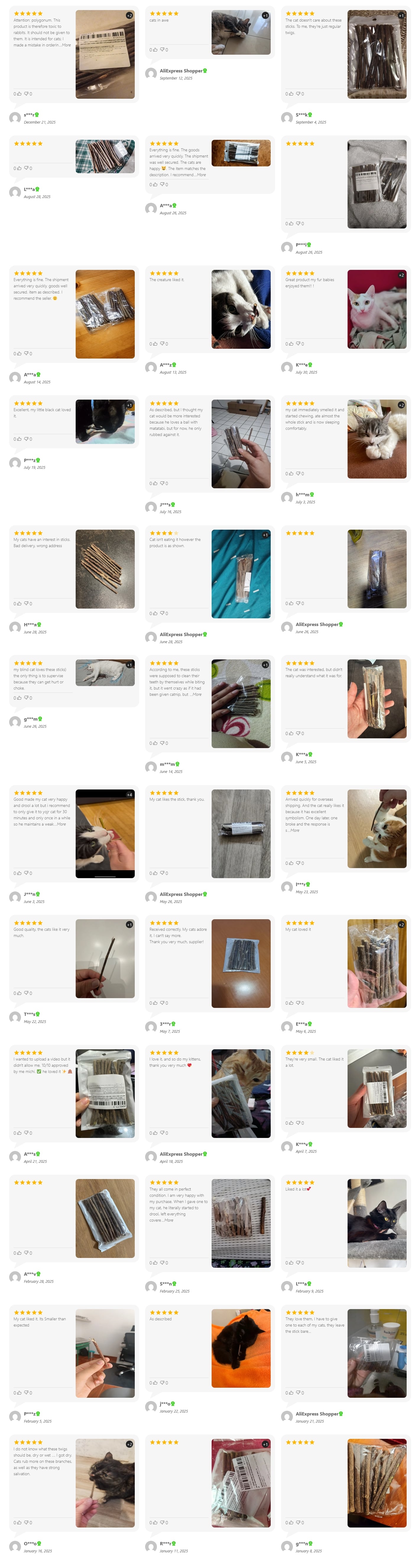
Grid 2
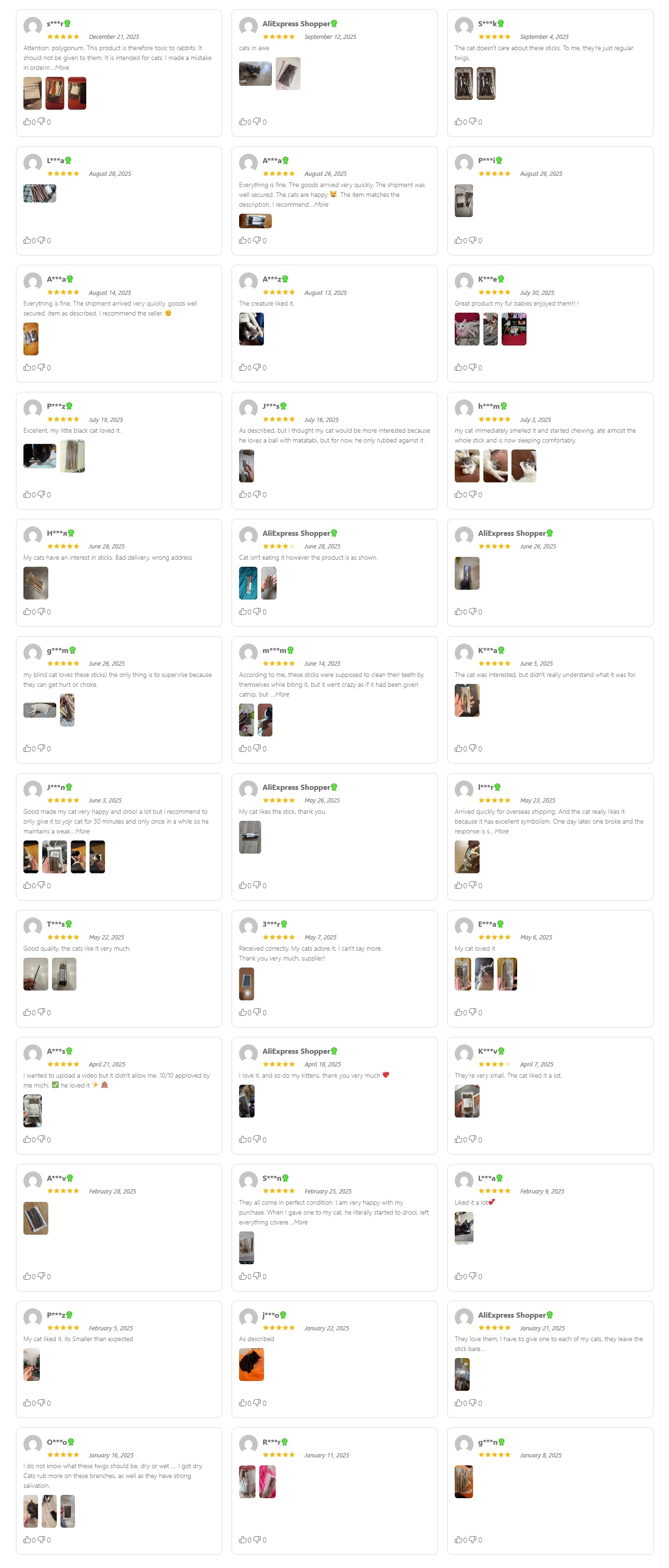
List 1
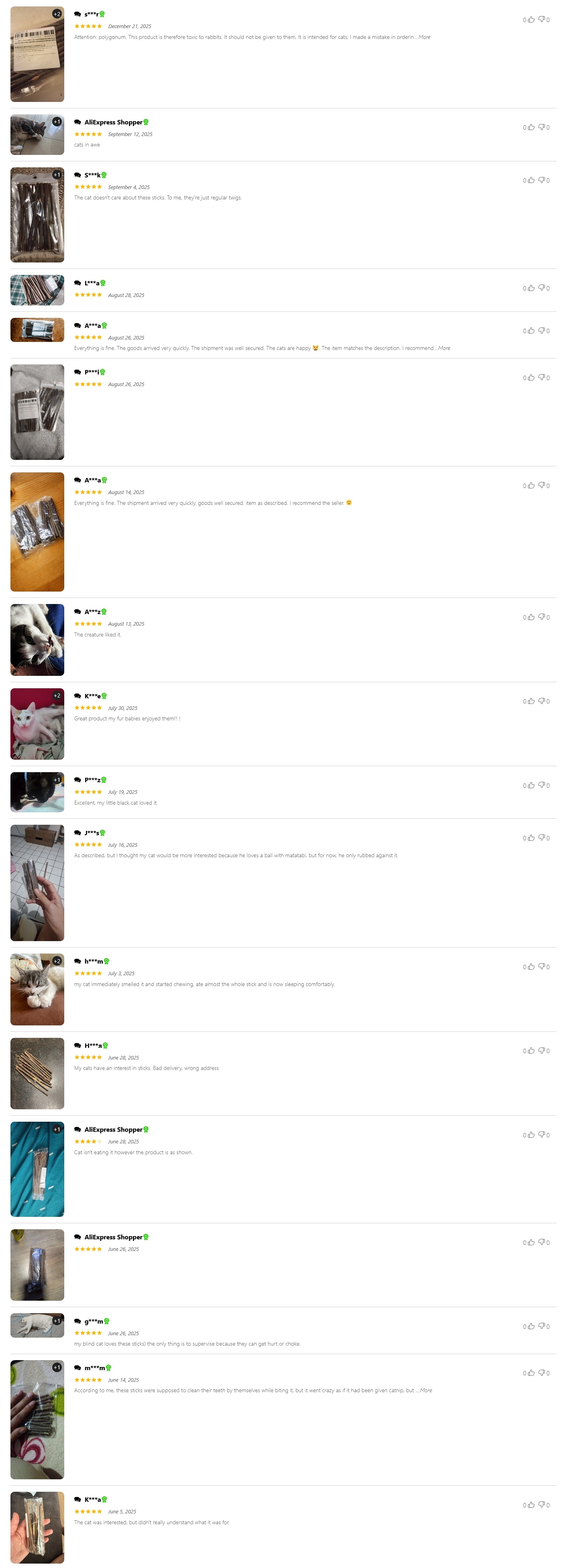
List 2
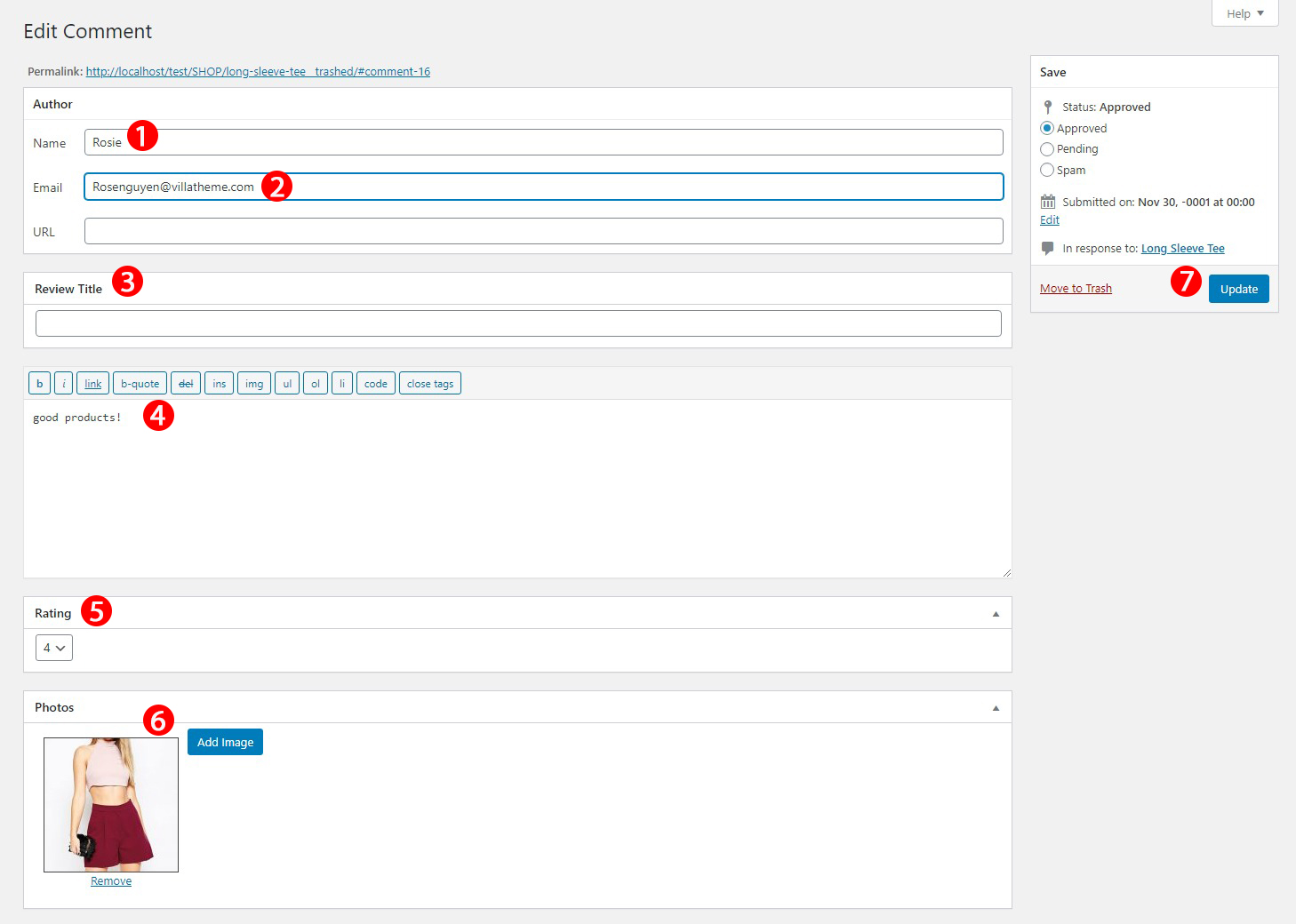
Go to Dashboard > Products > Reviews, hover over the review you want to edit, and click on the Edit button.
A window will be opened with options for editting a comment/review.
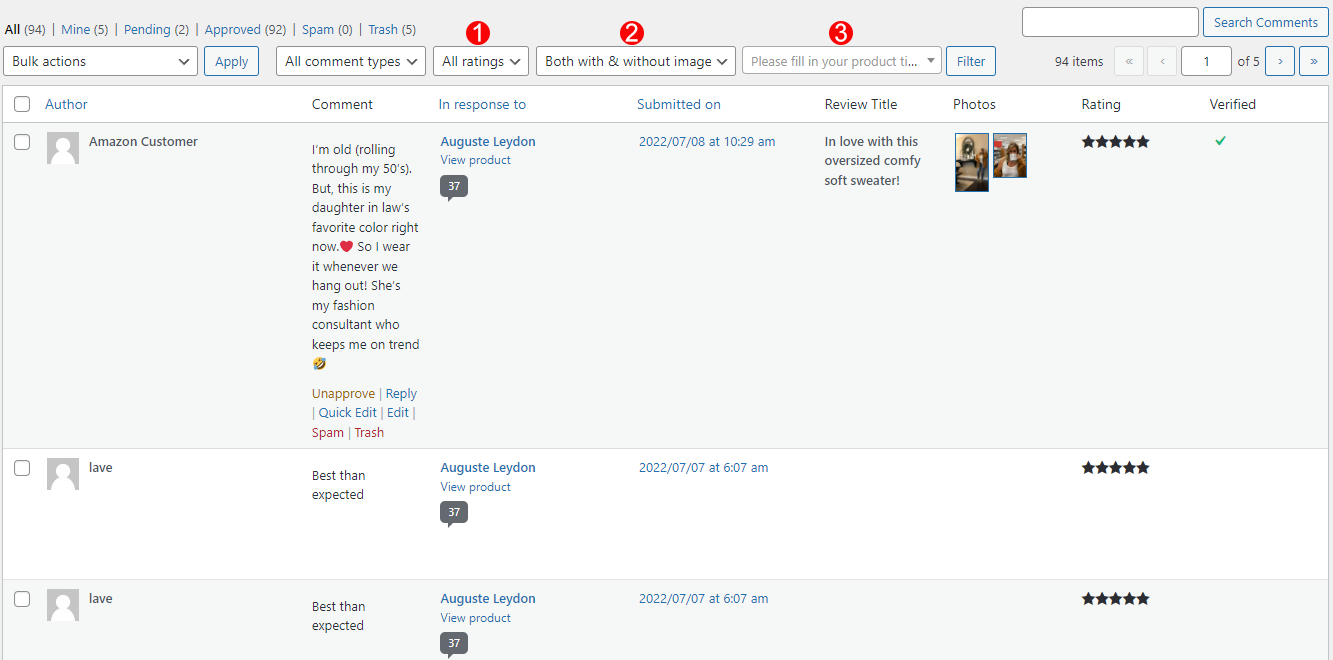
The plugin provides filters in the backend, which helps you save time when searching for reviews with mutual factors.
Step 1: Go to Dashboard > Comment
Step 2: Select the filter. See the specific explanation below.
Step 3: Click “Filter” button
DOWNLOAD REVIEW IMAGES
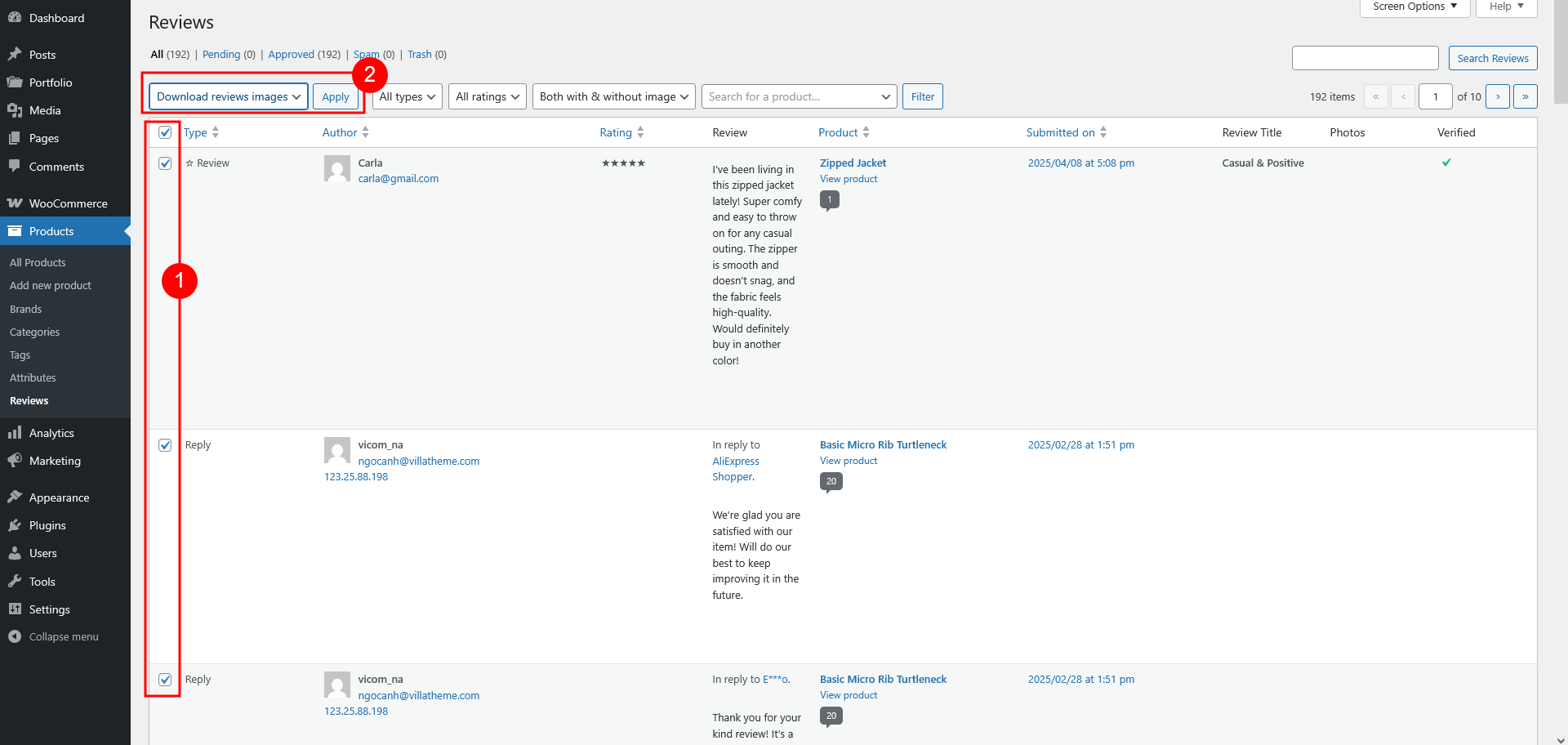
If you want to download the images of imported reviews from AliExpress to your server, go to Dashboard > Products > Reviews and check on all the comments you want to download review images then choose Bulk actions/ Download reviews images/ Apply.
SET VERIFIED REVIEWS
If you want to set many reviews as verified owner, go to Dashboard > Products > Reviews and check on all the comments you want to set as verified then choose Bulk actions/Set review verified/Apply.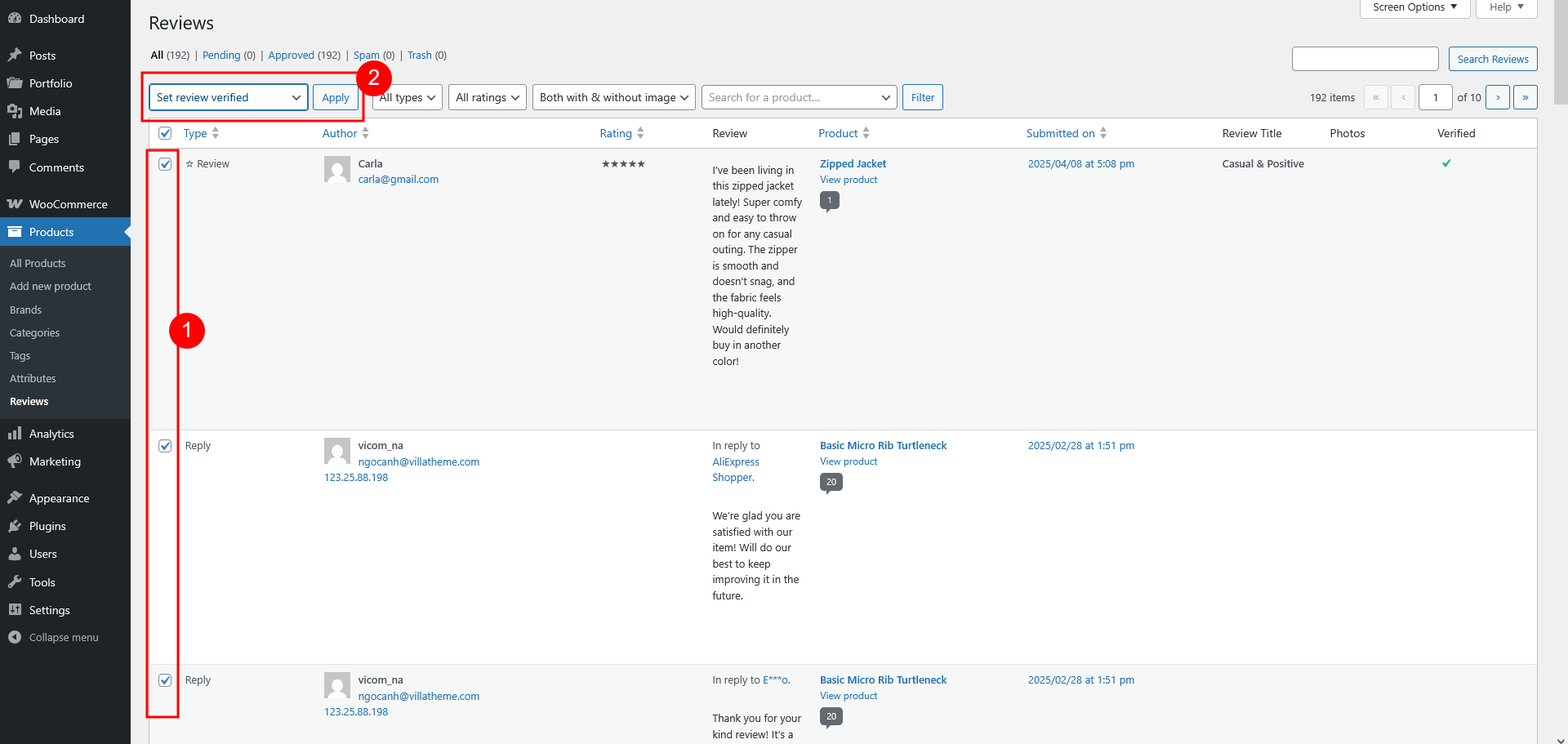
After customers purchase items, their order items will be visible on their ‘Orders’ list – ‘My account’ page.
The Review buttons will appear on My account page for the customer to review the items if these order’s statuses are matched with the statuses selected in the Review Reminder tab > Button Review on My account/orders.

When their order status changes and the Review Reminder email is sent, they can now leave a review on their Orders list.
Step 1: Go to My account > Orders
Step 2: Hover the “Rate” button > Select the item you want to leave a review
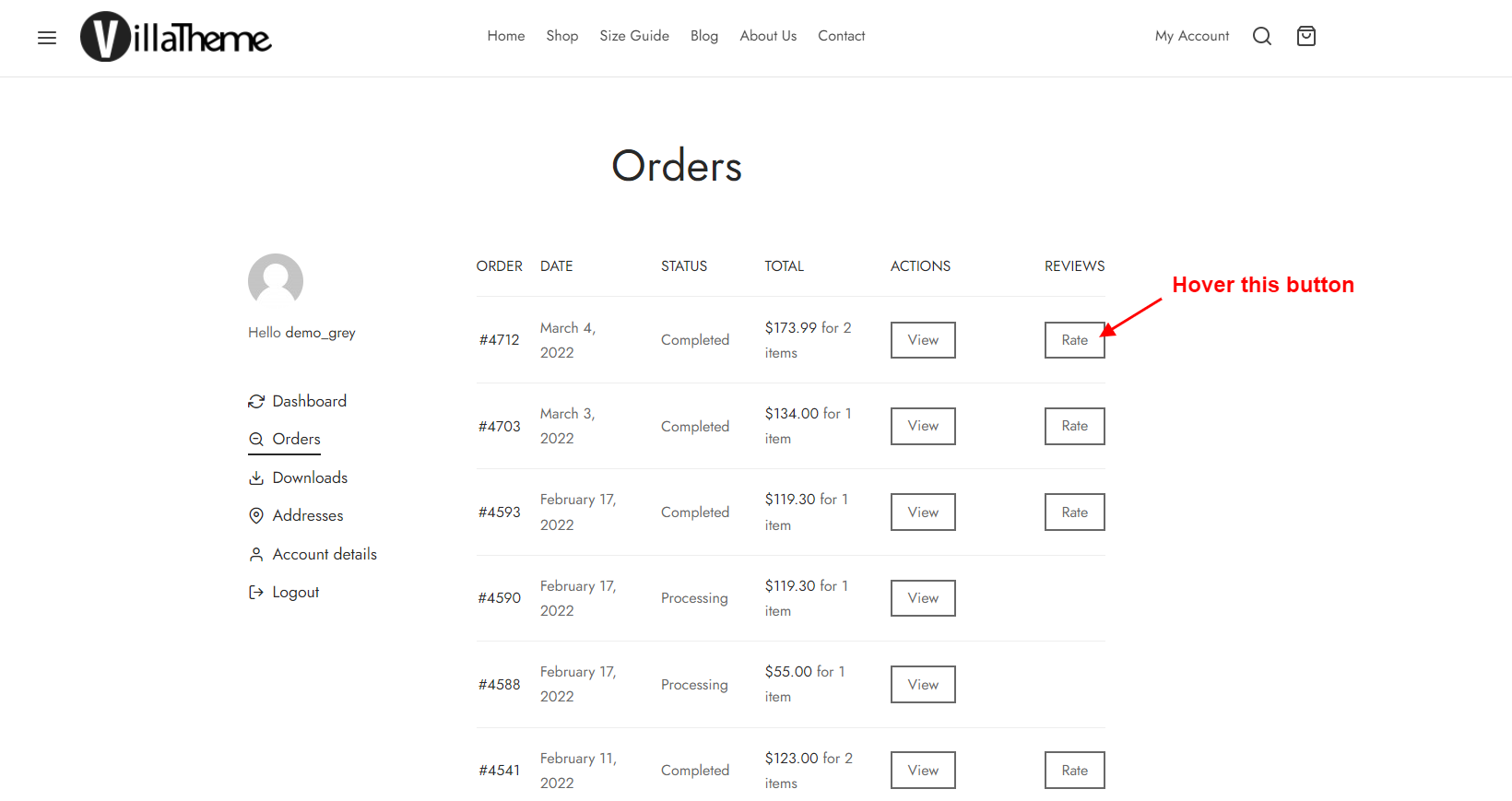
Step 3: You’ll be redirected to the Review section of the item you selected, you can leave a review there.
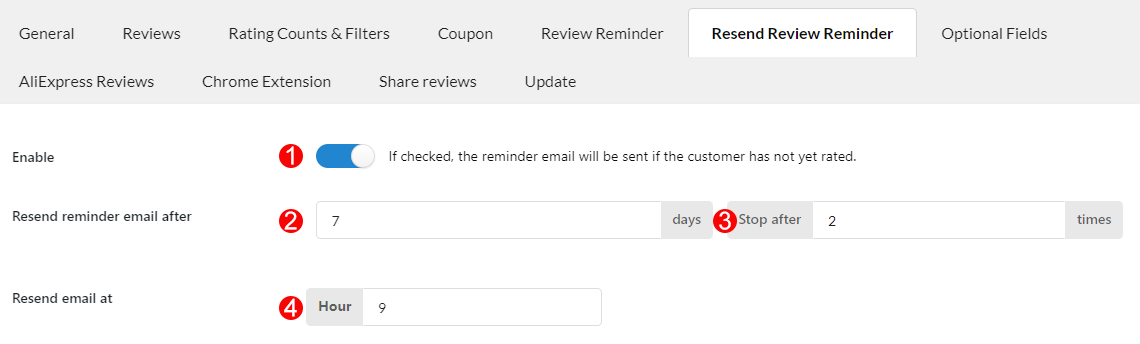
In case you sent a Review Reminder email to customers to ask for a review, but they have not left any yet, this feature would be helpful. It helps if you want to remind them of leaving reviews for the items they purchased, by resending the email in case they somehow did not leave one.
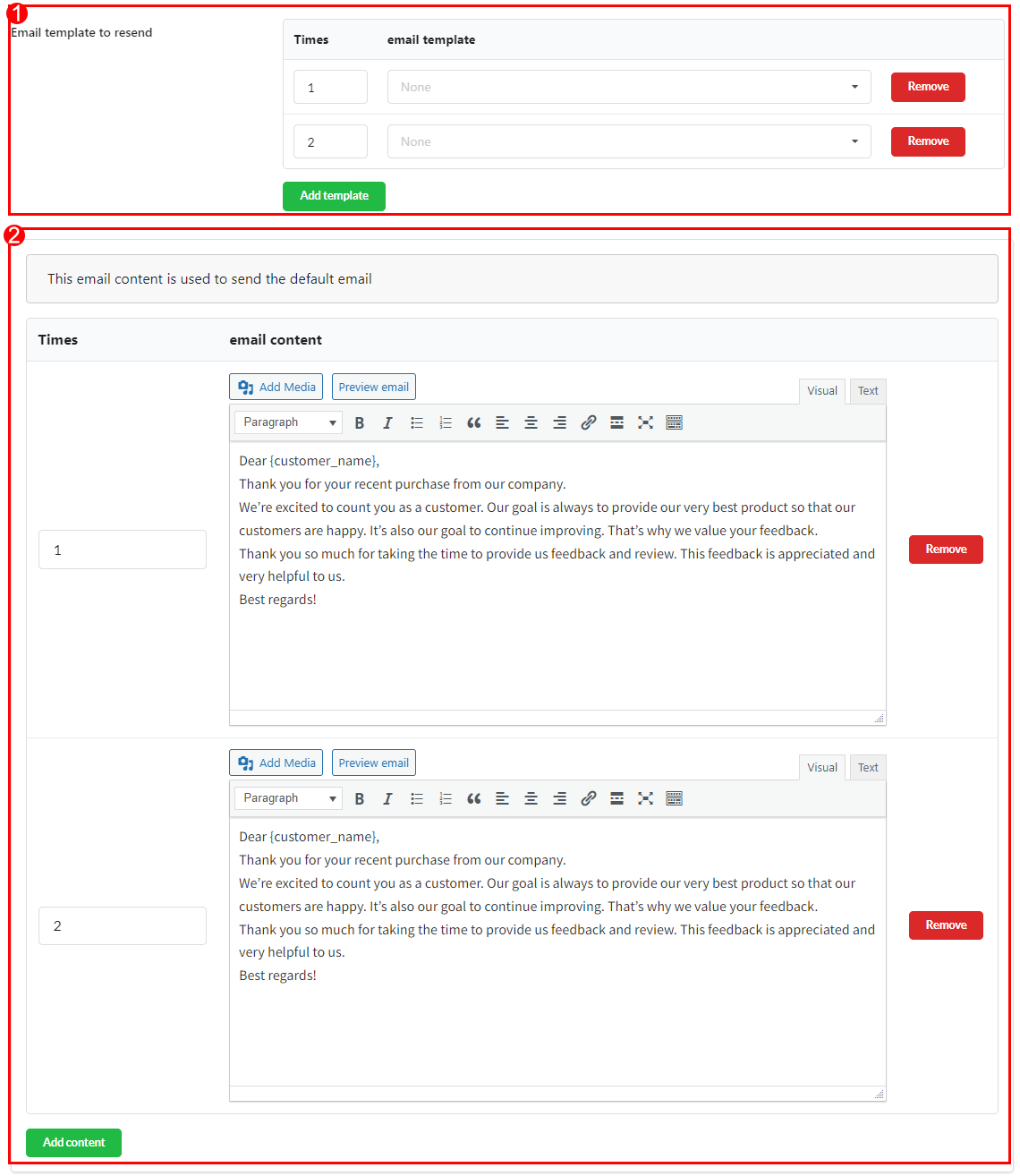
Go to Resend review reminder tab to configure resending review reminders and email resending templates.
B. Resend review reminder email templates
There are 2 types of the email template you can use to resend review reminder emails, you will customize the resend review reminder email templates using the WooCommerce Email Template Customizer plugin or the original resend review reminder email template in the WooCommerce Photo Reviews plugin.
| Template | Usage |
| /viwcpr-comment-field-html.php | Add the custom fields(title, upload photo, policy, custom field) to the review form |
| /viwcpr-filters-html.php | Filter reviews |
| /viwcpr-overall-rating-html.php | Overall rating of the product, [wc_photo_reviews_overall_rating_html] shortcode |
| /viwcpr-pagination-basic-html.php | Ajax pagination for the reviews page |
| /viwcpr-pagination-loadmore-html.php | Ajax pagination with the load-more button for the reviews page |
| /viwcpr-quickview-single-product-summary-html.php | Product summary on masonry popup |
| /viwcpr-quickview-template-html.php | Masonry popup |
| /viwcpr-review-form-html.php | Review form shortcode – [woocommerce_photo_reviews_form] |
| /viwcpr-shortcode-reviews-rating-html.php | Star rating shortcode – [wc_photo_reviews_rating_html] |
| /viwcpr-shortcode-template-basic-html.php | Normal reviews for reviews shortcode [wc_photo_reviews_shortcode] |
| /viwcpr-template-basic-html.php | Reviews style – Normal |
| /viwcpr-template-masonry-html.php | Reviews style – Masonry |
Follow this guide on how to override VillaTheme plugins’ templates via a theme.
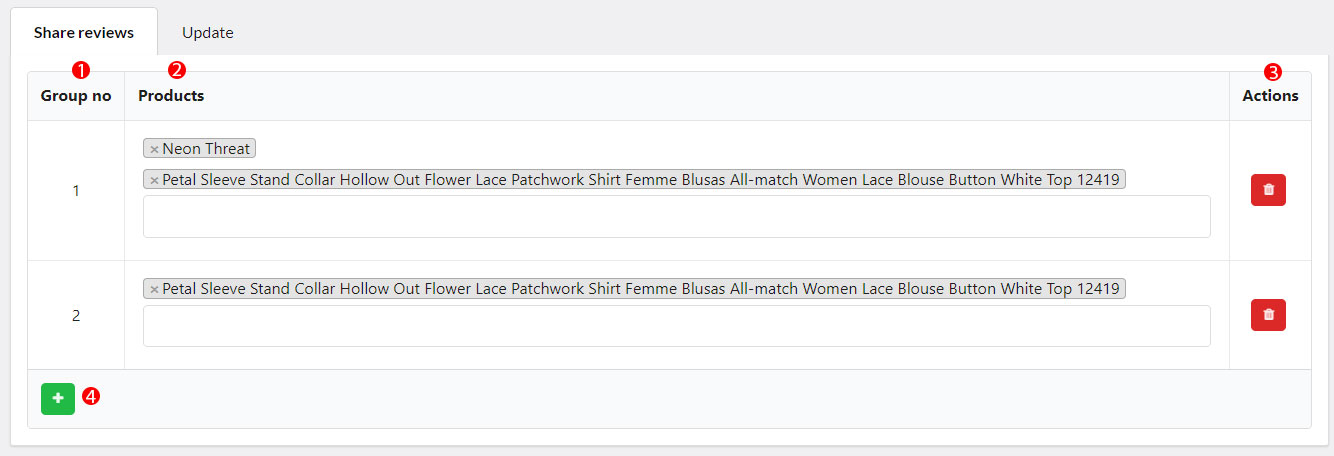
Share reviews feature is an advanced feature which allows you to share the same reviews for a range of products in the same list.
The WooCommerce Photo Reviews plugin allows you to import product reviews from AliExpress, Amazon, and Temu directly into your WooCommerce store using the Import Reviews to Woo Chrome Extension. This feature helps store owners build trust quickly by adding authentic customer reviews (with photos and videos) from trusted marketplaces.
Supported Marketplaces
Requirements
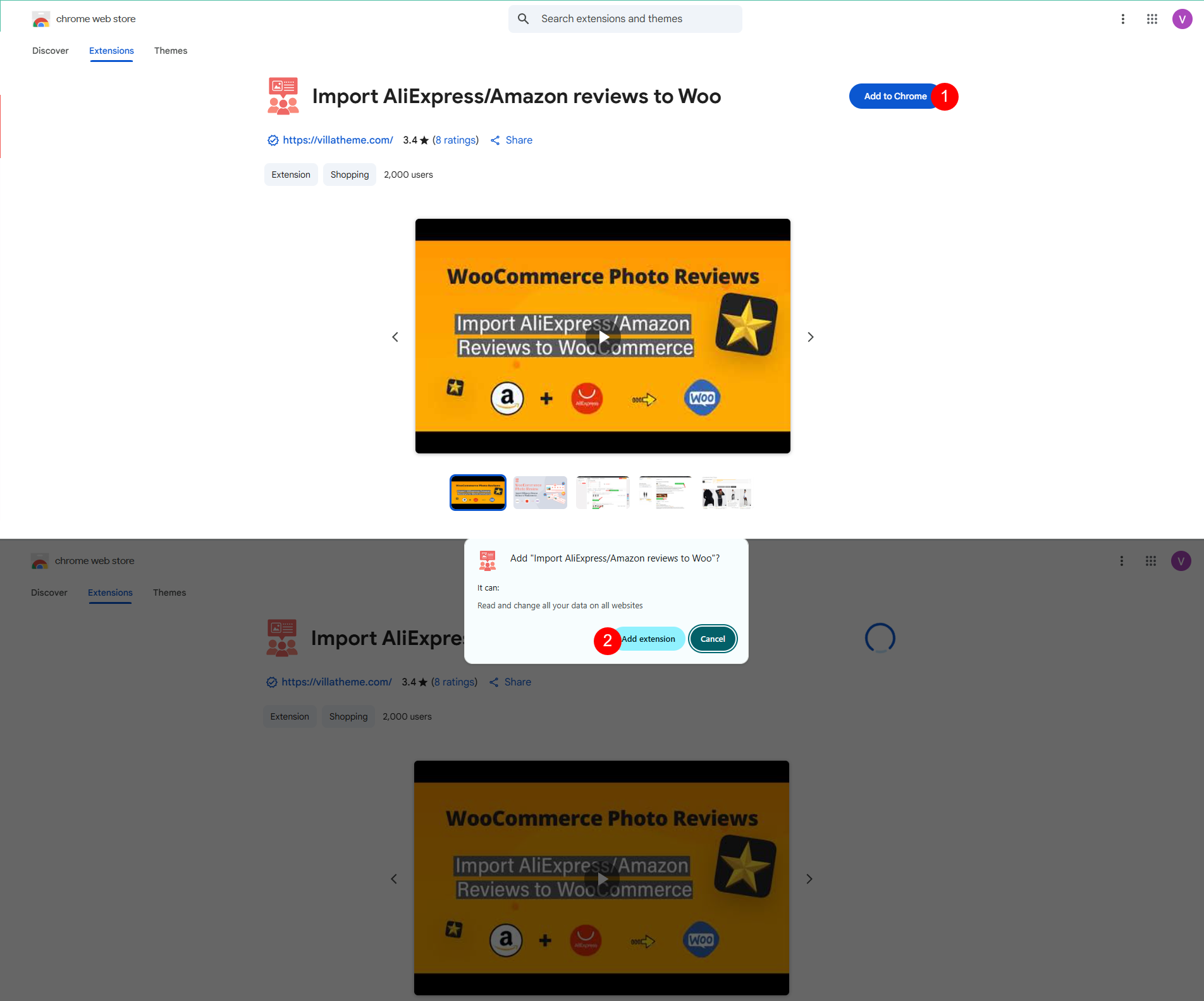

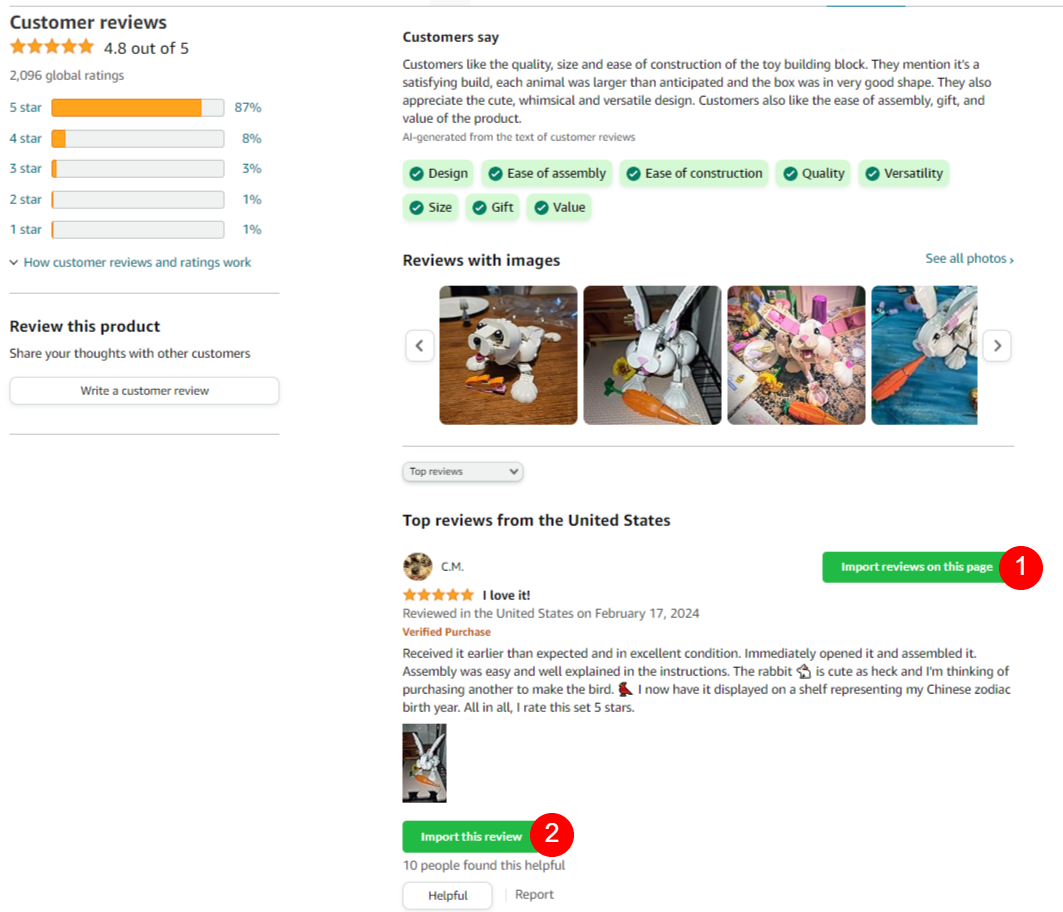
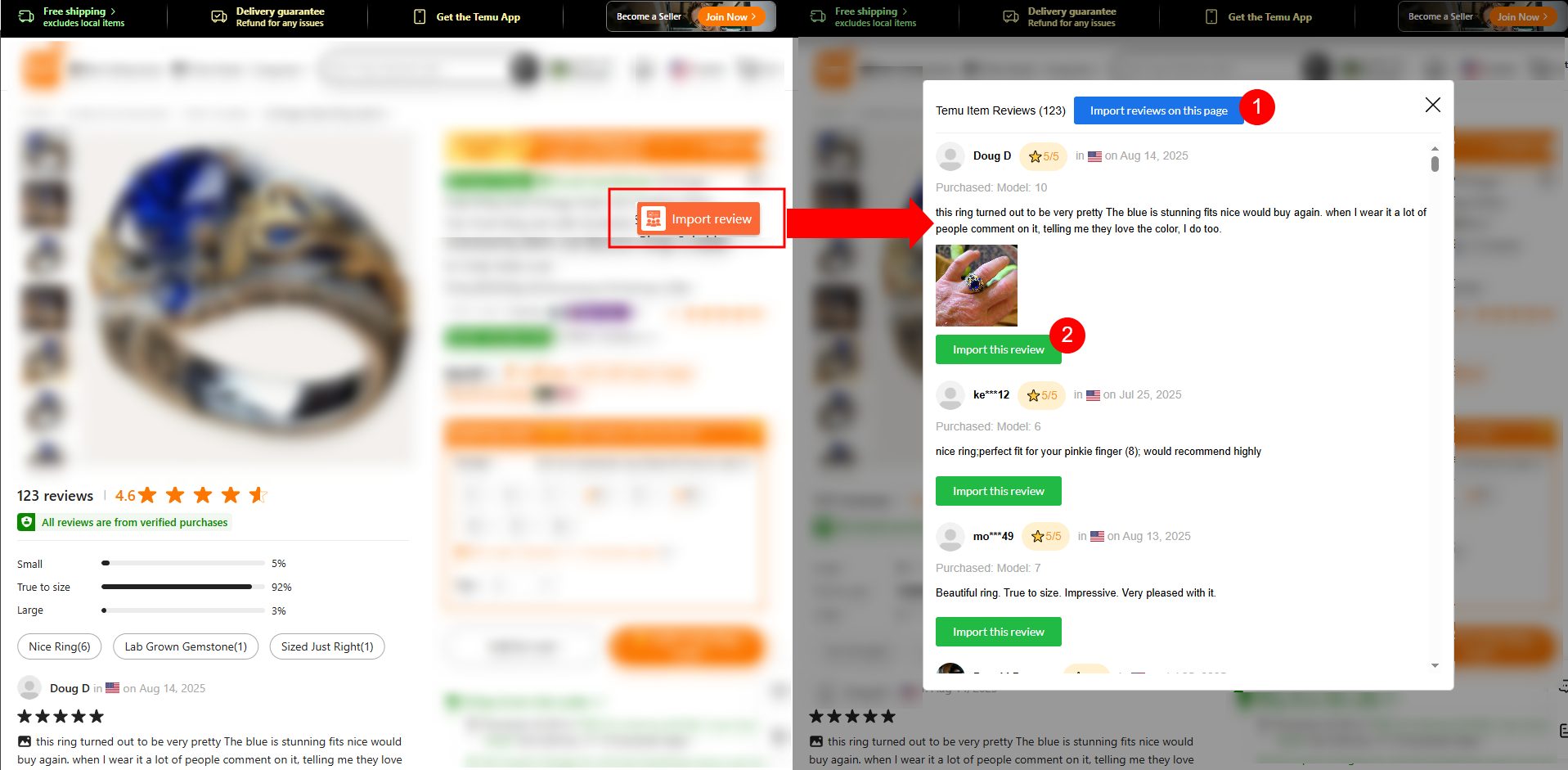
Open the product page on AliExpress, Amazon, or Temu in your Chrome browser.
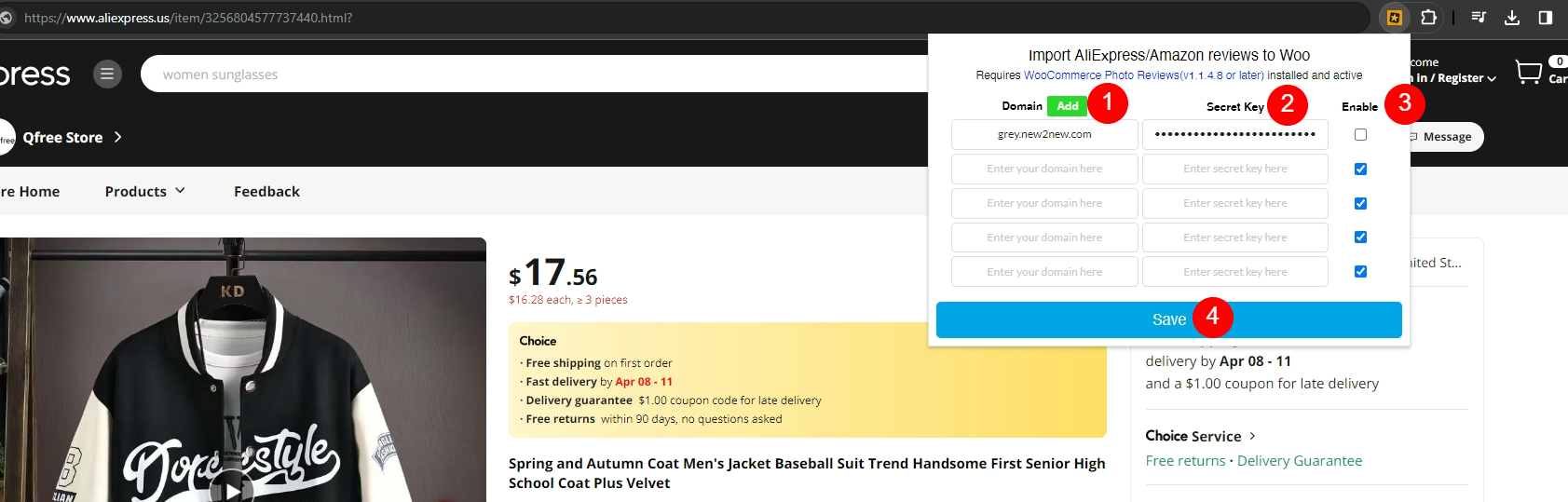
Important note: Please ensure you set up the Chrome Extension settings below before importing reviews here
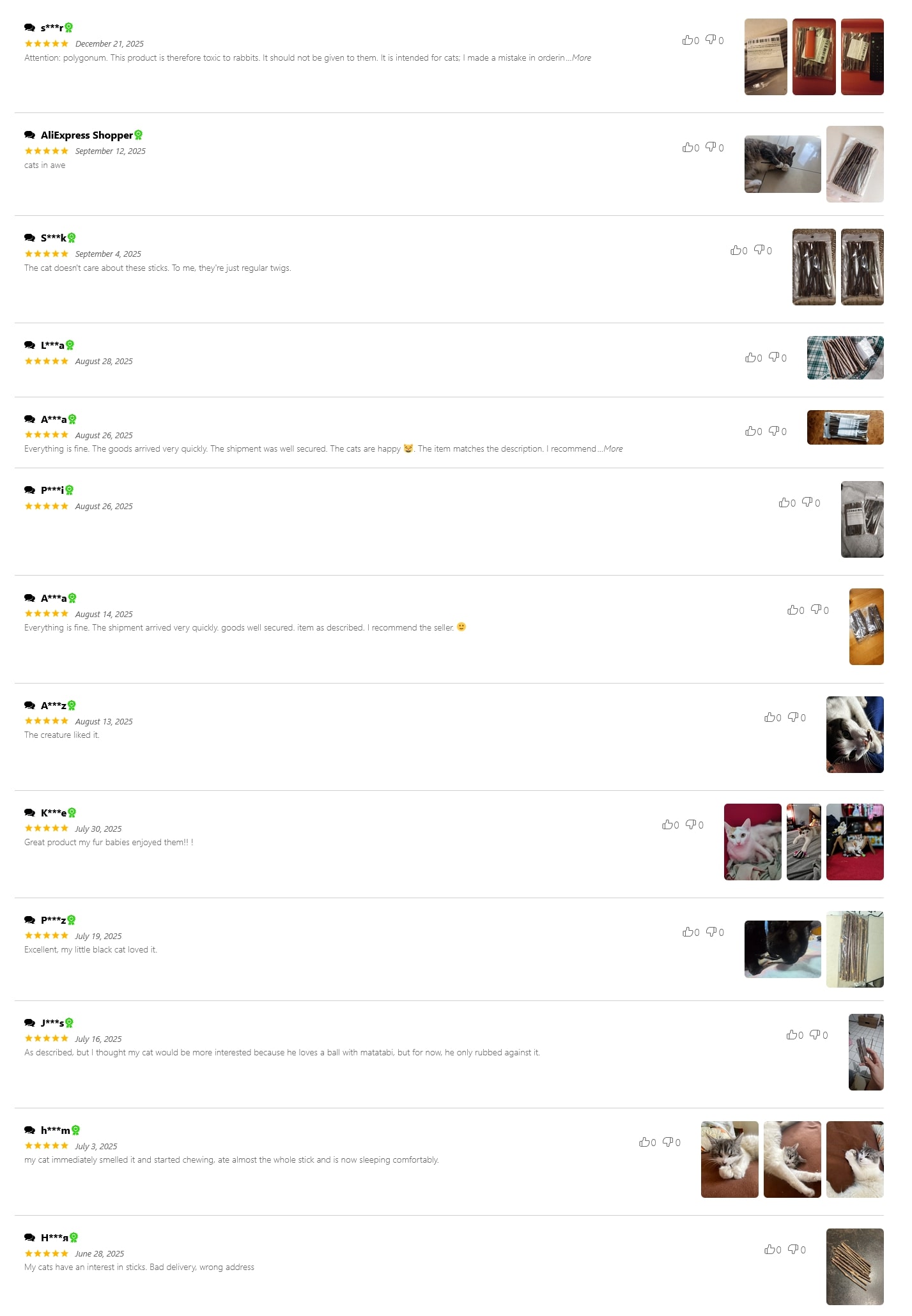
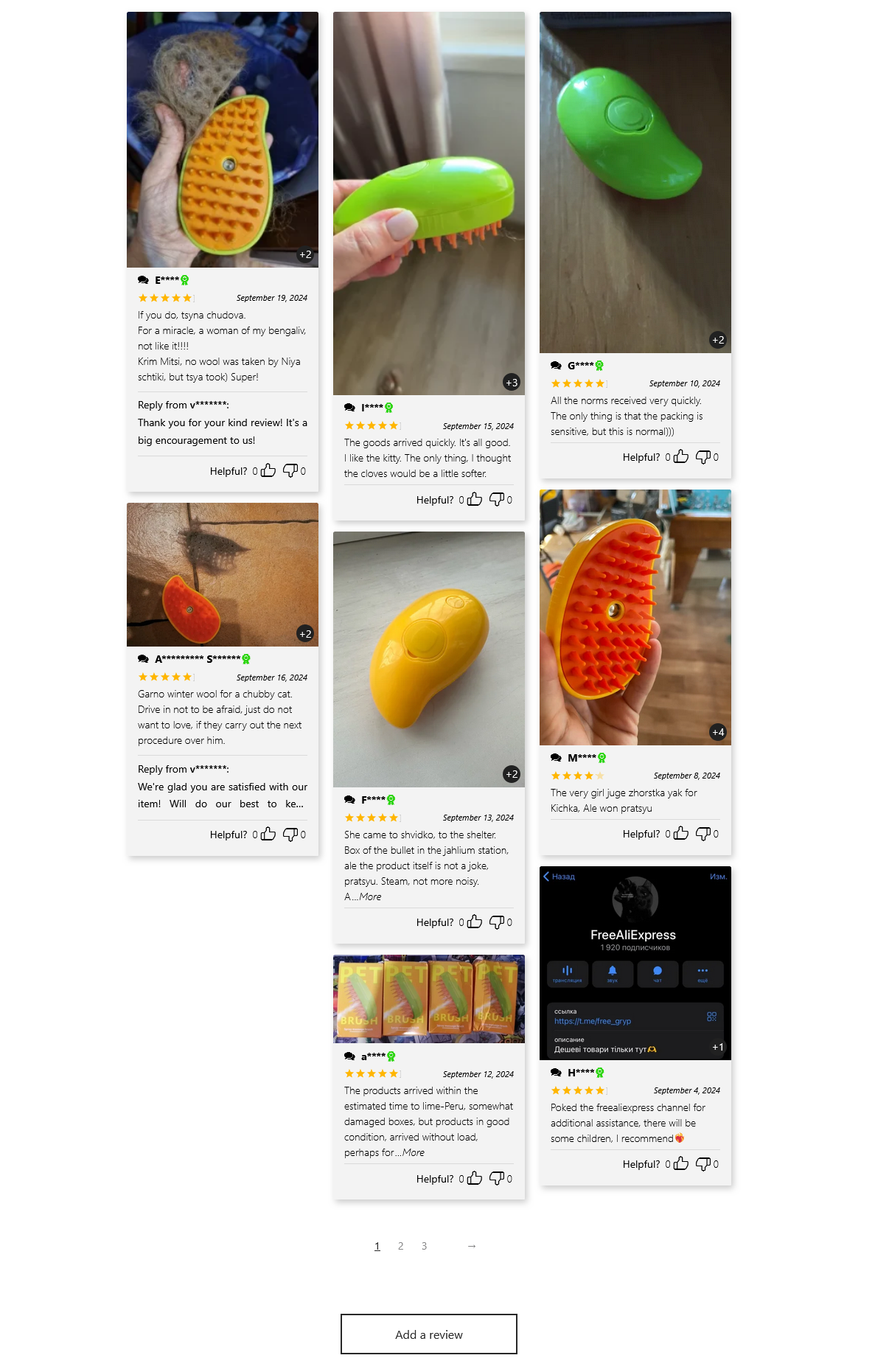
Reviews on AliExpress:
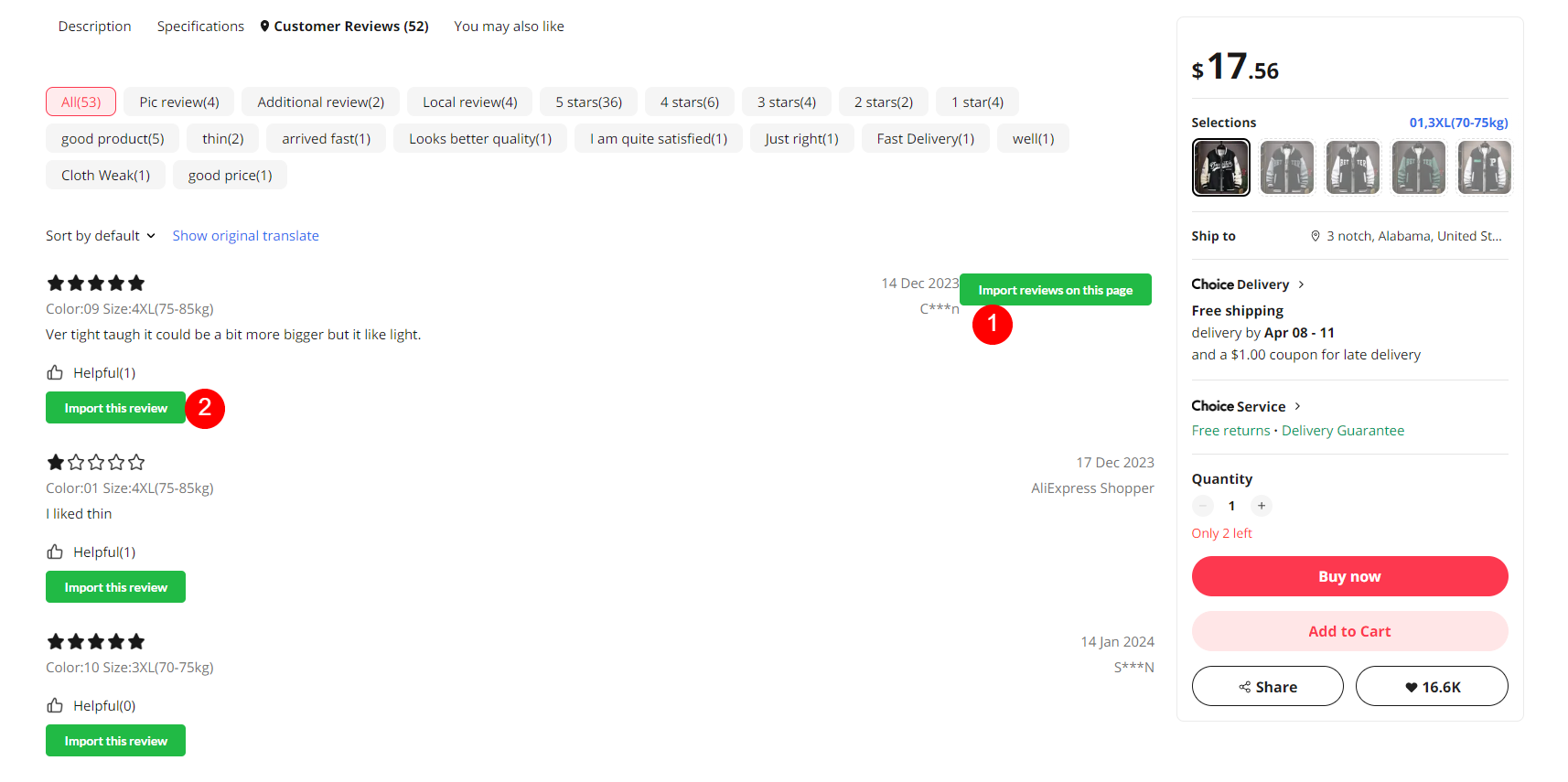
Reviews on Amazon:
Review on Temu
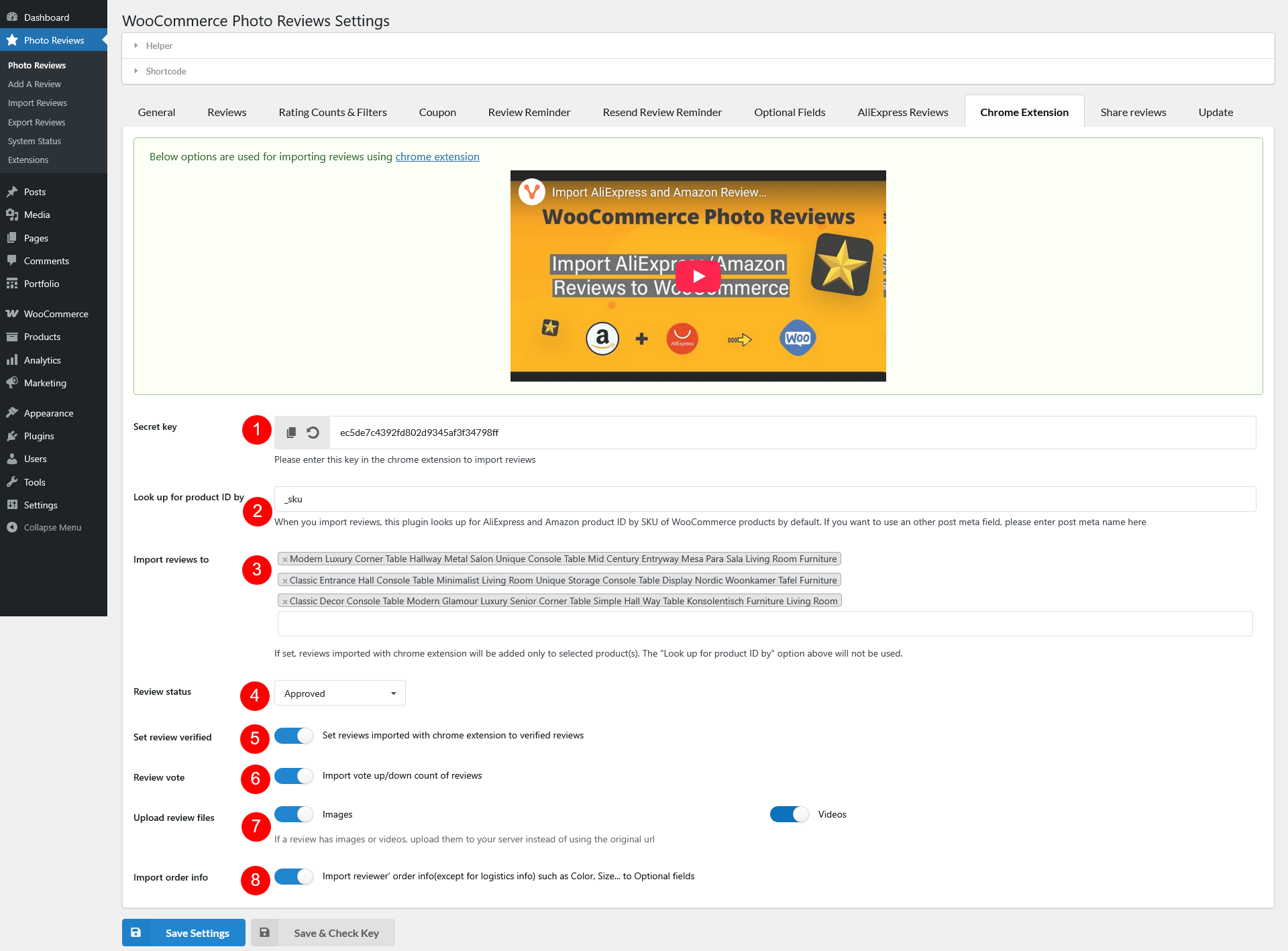
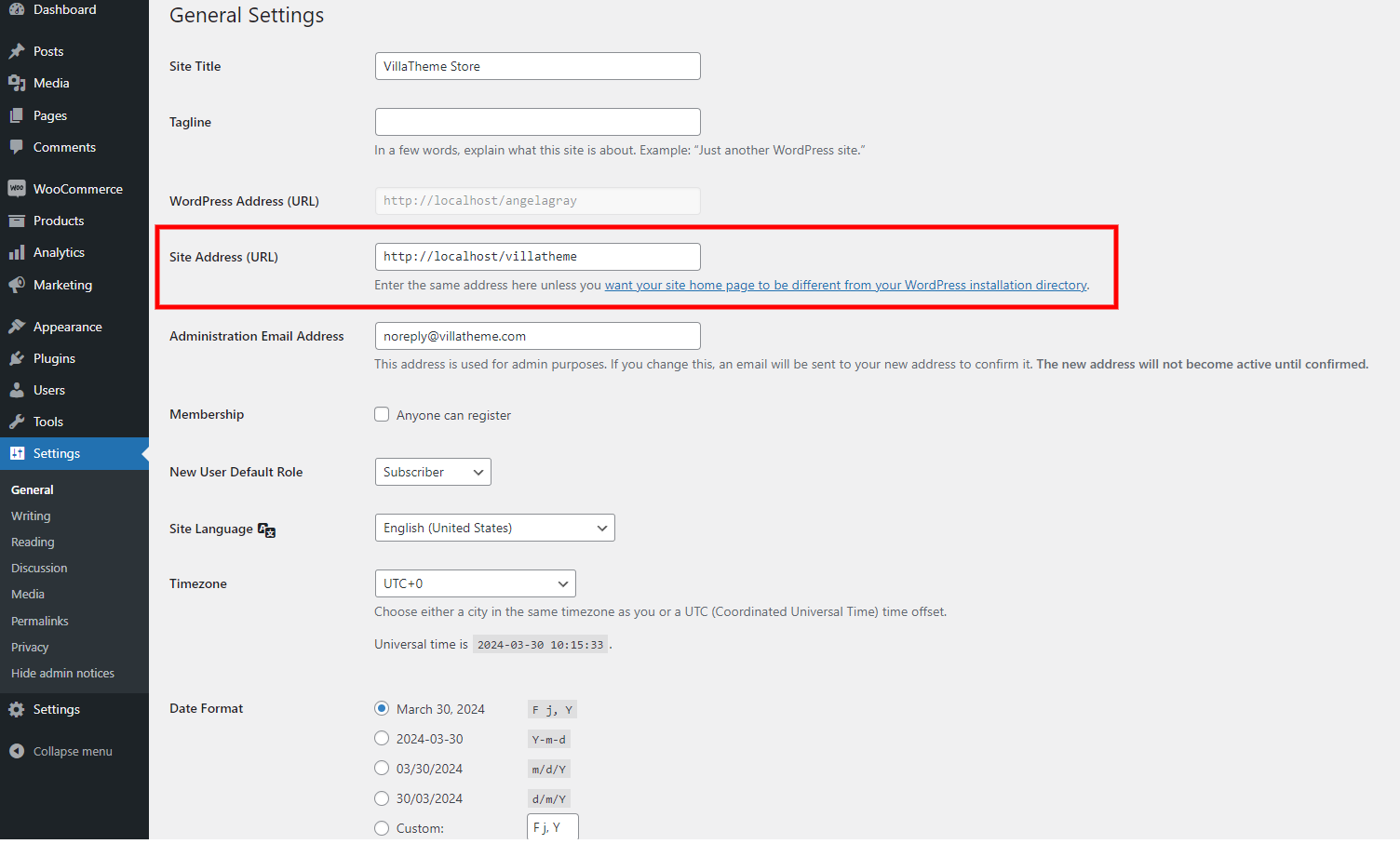
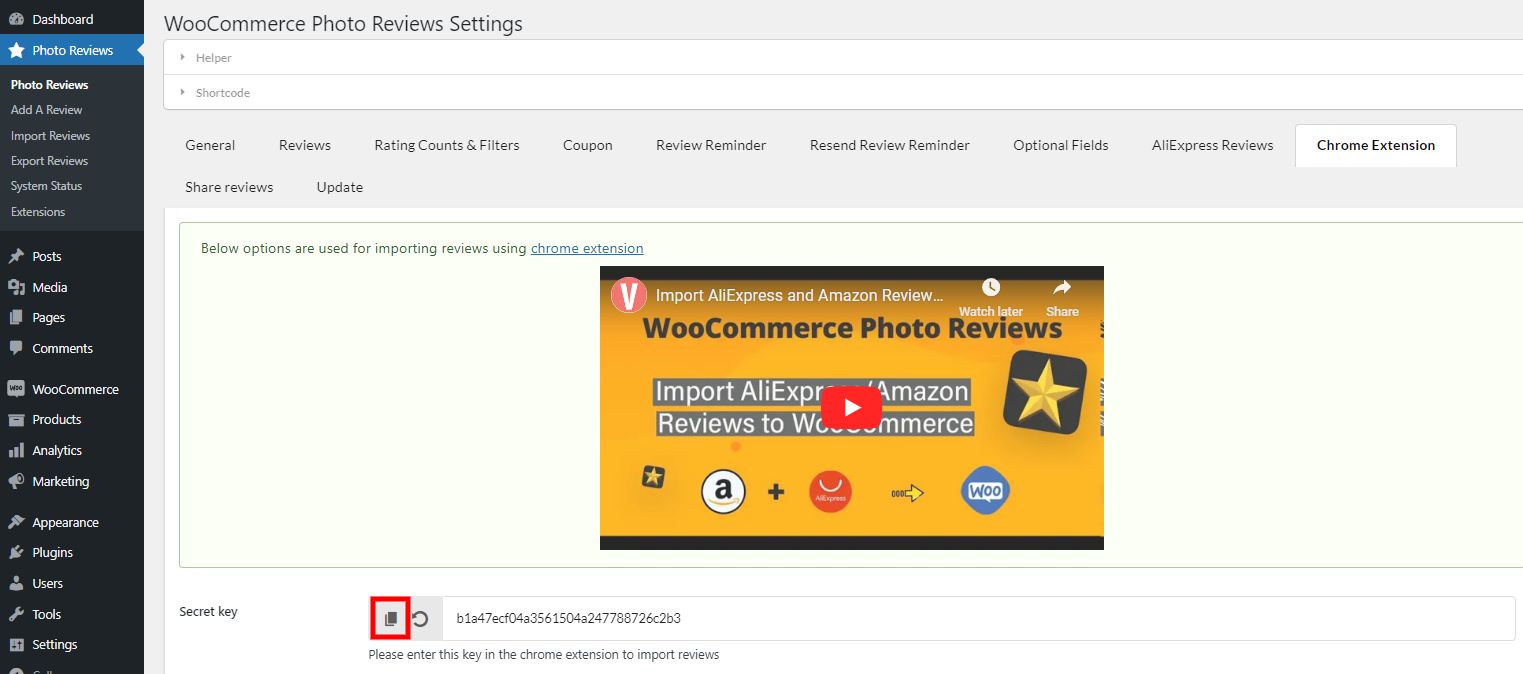
1. Secret key: Copy this secret key and insert into the extension, see this guide video below.
2. Look up for product ID by: When you import reviews, this plugin looks up for AliExpress and Amazon product ID by SKU of WooCommerce products by default. If you want to use an other post meta field, please change this field.
3. Import review to: If set, reviews imported with chrome extension will be added only to selected product(s). The “Look up for product ID by” option above will not be used.
4. Review status: All imported review will be set this status, you can choose approved or pending.
5. Set review verified: Set reviews imported with chrome extension to verified reviews
6. Review vote: Import vote up/down count of reviews
7. Upload review files: If a review has images or video, upload them to your server instead of using the original image URL
8. Import order info: Import reviewers’ order info (except for logistics info) such as Color, Size… to Optional fields
👉 How to Import AliExpress, Temu & Amazon Reviews with Chrome Extension (WooCommerce Photo Reviews)
Thank you for your attention!
If you have any question, please create a topic at our FORUM, we will support within 24 hours.
| Plugin | Author | Compatible |
| WooCommerce Email Template Customizer | VillaTheme | Fully compatible |
| Elementor | Elementor | Fully compatible |
| Antispam Bee | Pluginkollektiv | Fully compatible |
1. WooCommerce Email Template Customizer
You can create Review reminder email templates and Coupons for reviews email templates using the WooCommerce Email Template Customizer available both in the free and premium versions.
Step 1: Download and install the WooCommerce Email Template Customizer.
Step 2: In the WooCommerce Email Template Customizer, Add new to build a new template. In this blank template, build a new template to make yourself, or select the templates you want – Coupon for Review or Review Reminder.
Step 3: In the WooCommerce Photo Reviews plugin, select the created templates in the Coupon email or Review reminder email
All full steps are presented in this guide.
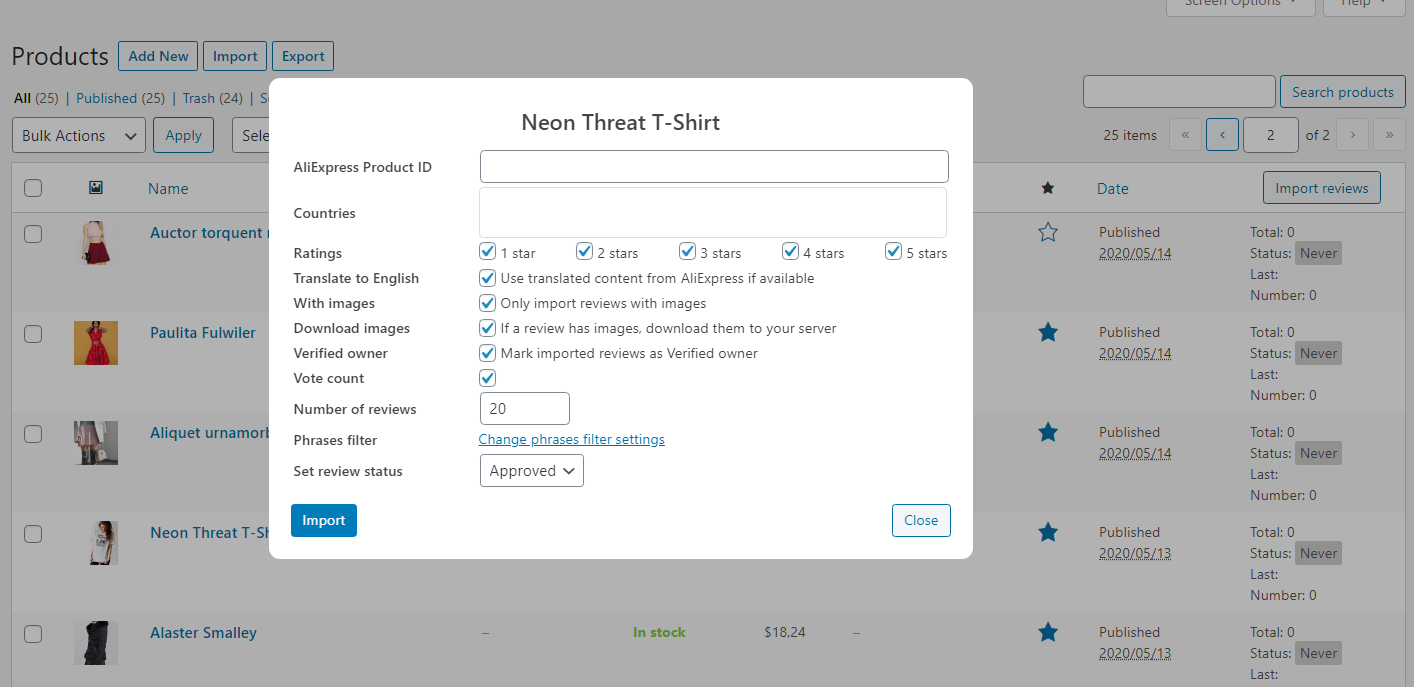
To import reviews from AliExpress, go to Dashboard/ Product and check on all the products you want to import reviews then click on the import reviews button on the manage tabs.
To import reviews for a single product, hover in the area next to the date column of the product then click on the import button.
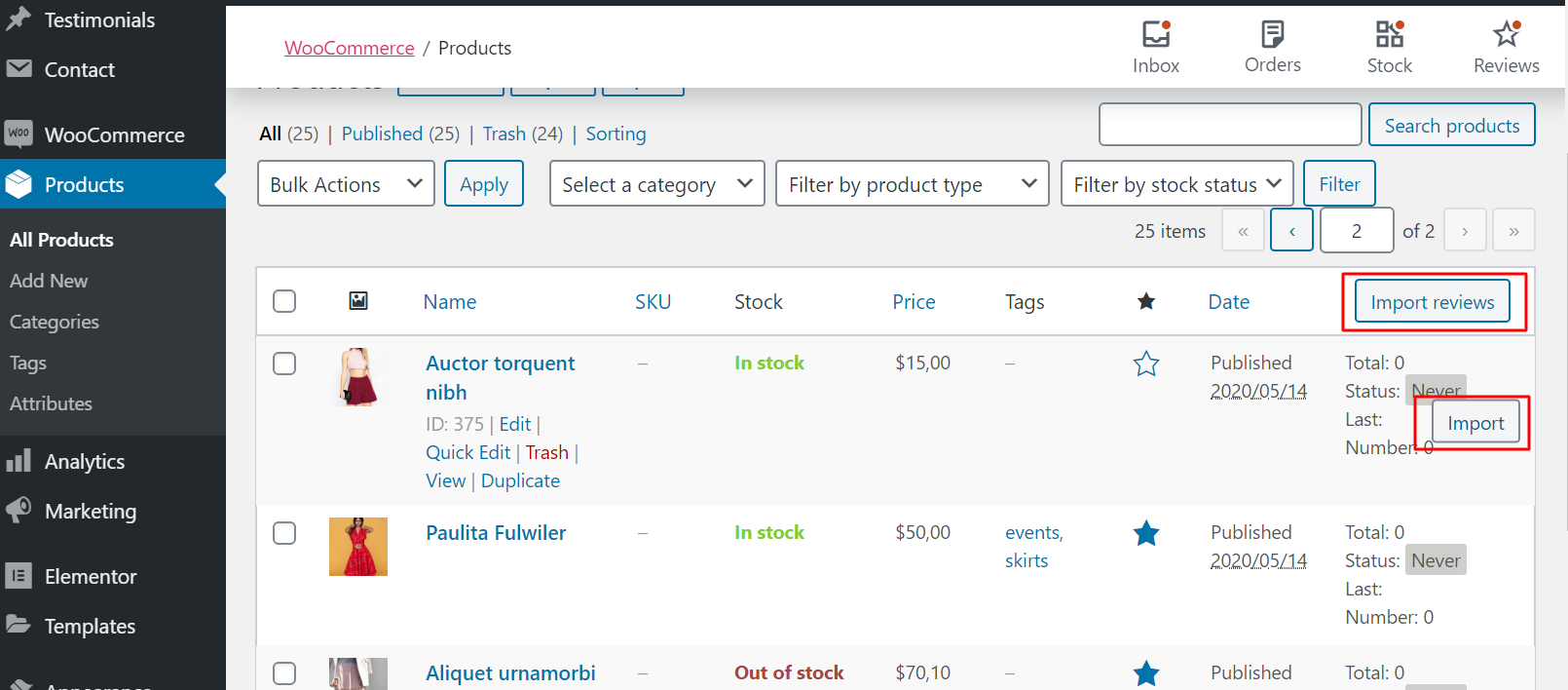
A window will open with options for you to start import reviews.
B. Aliexpress review masks
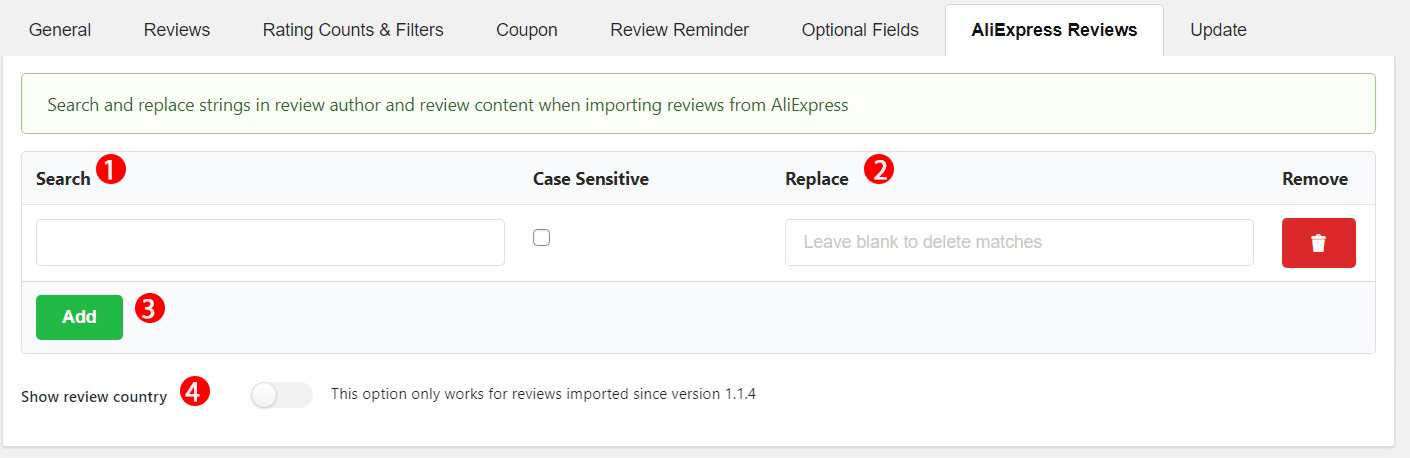
Search and Replace a word or a sentence in the review author and review content when importing reviews from AliExpress
Go to Dashboard/Photo Reviews setting/AliExpress Reviews
C. Apply Phrases Filter
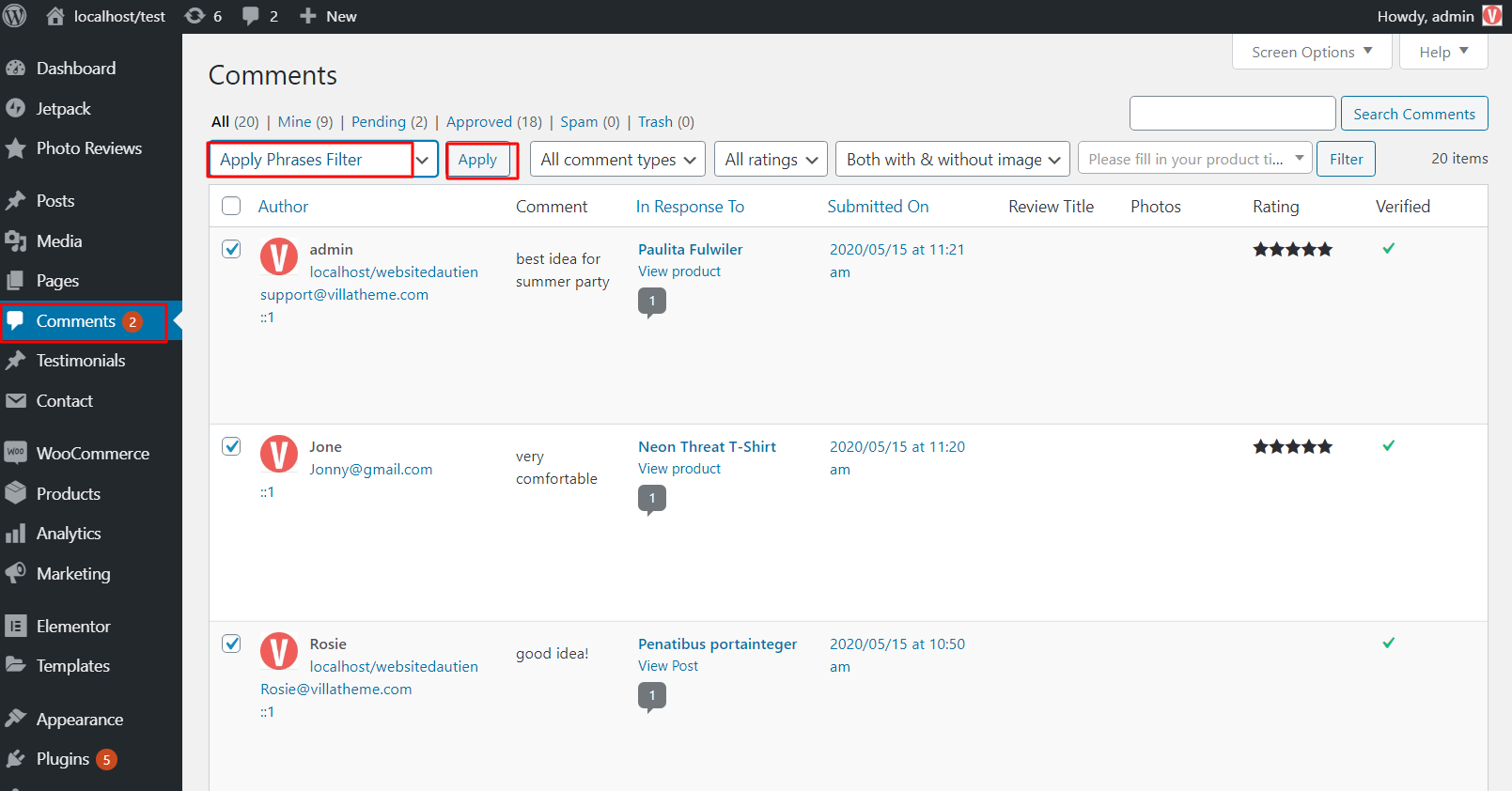
If you want to do search and replace with other reviews which were not imported from AliExpress, go to Dashboard/comments and check on all the comments you want to change then choose Bulk Actions/Apply Phrases Filter/Apply.
* The guide video on how to import AliExpress reviews with WooCommerce Photo Reviews.