Go to Dashboard >> DEPART >> Deposit Rules
In this section, you can create and manage global rules for deposit payments. Each rule specifies conditions, under which certain payment plans apply, based on criteria such as product categories, user roles, or individual products.
Manage Deposit Rules
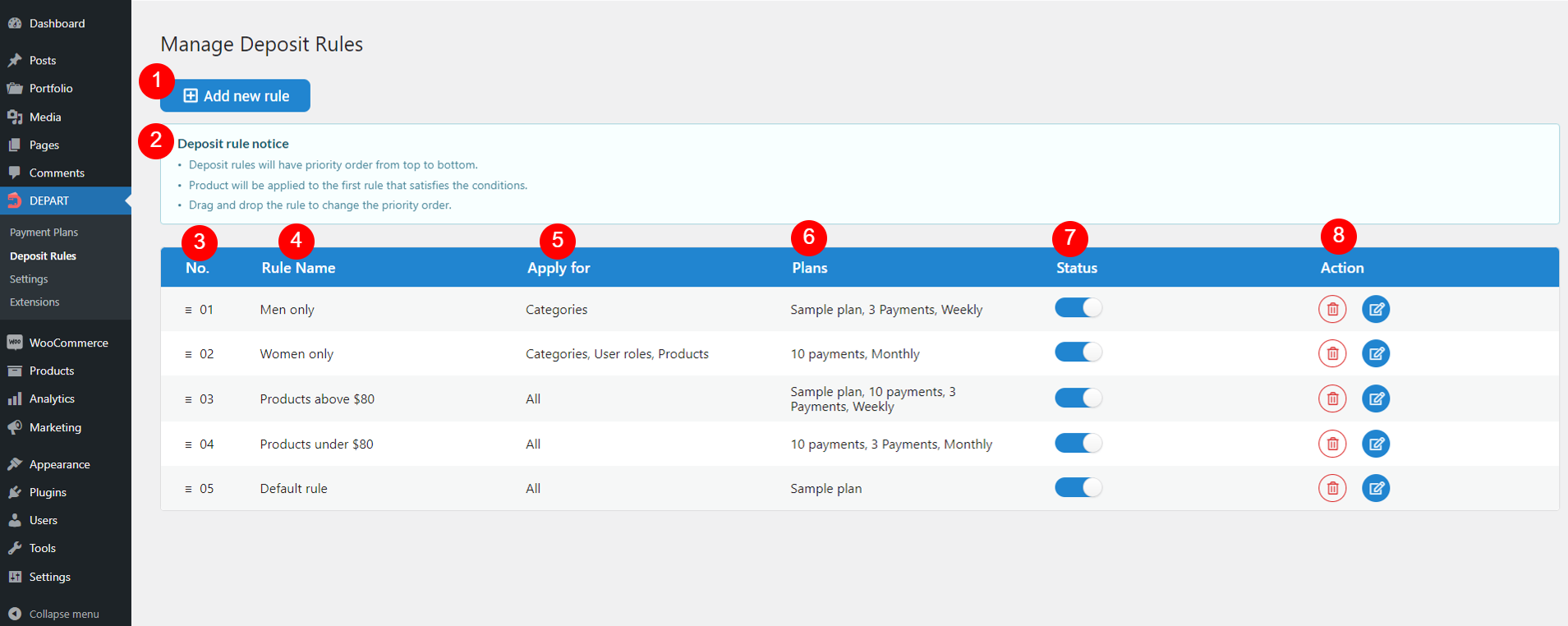
- Add new rule: Click this button to add a new empty rule
- Deposit rule notice: Important notes for deposit rules.
- No.: A unique number assigned to each rule. Hover over the rule or its number, then drag and drop to change the rule’s position.
Note: This number is to defined rule priority – The higher number, the lower priority - Rule Name: Give the rule a name in rule editor.
- Apply for: Specifies the parts this rule applies to, such as categories, user roles, or products.
- Plans: Displays the payment plans selected for the rule
- Status: Enable or disable the rule.
- Action:
- Trash icon
 : Remove the rule
 - Edit icon
 : Click to go to the rule’s editing page (EDIT RULE page).
- Trash icon
EDIT RULE
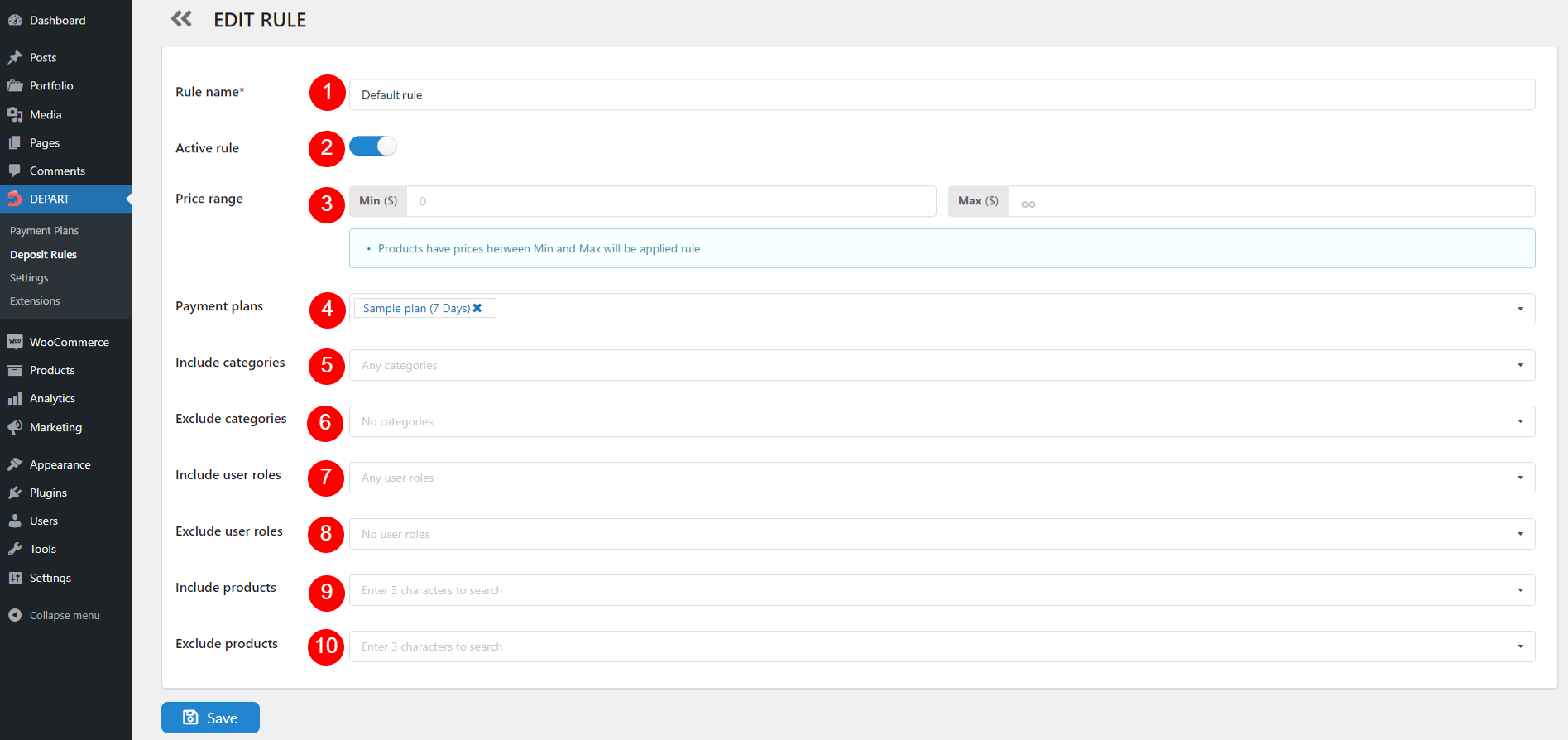
- Rule name: Enter a name for the rule in the rule editor. This field is required and defined by the admin.
- Active rule: Enable or disable this option to activate or deactivate the rule. This setting is also reflected under “Status” in the Manage Deposit Rules section
- Price range: Specify the minimum and maximum price range for products to which this rule will apply.
Note:- Each rule can only have one price range setup. To apply similar conditions to different price ranges, create separate rules.
- Leave both the Min and Max fields blank to apply the rule without limiting the price range.
- Leave the Min field blank to apply the rule to products priced from 0 and higher.
- Leave the Max field blank to apply the rule to products priced at any amount higher than value in Min.
- Payment plans: Select the payment plans that will be applied when the conditions of this rule are met.
- Include categories: Choose the product categories that will be included under this rule.
- Exclude categories: Choose the product categories that will be excluded from this rule.
- Include user roles: Specify the user roles that will be included under this rule.
- Exclude user roles: Specify the user roles that will be excluded from this rule.
- Include products: Select specific products that will be included under this rule.
- Exclude products: Select specific products that will be excluded from this rule.