In this part, we will see what we can do with deposit orders in:
WooCommerce Orders list
In Orders list under WooCommerce dashboard, scroll down to see what you can do:
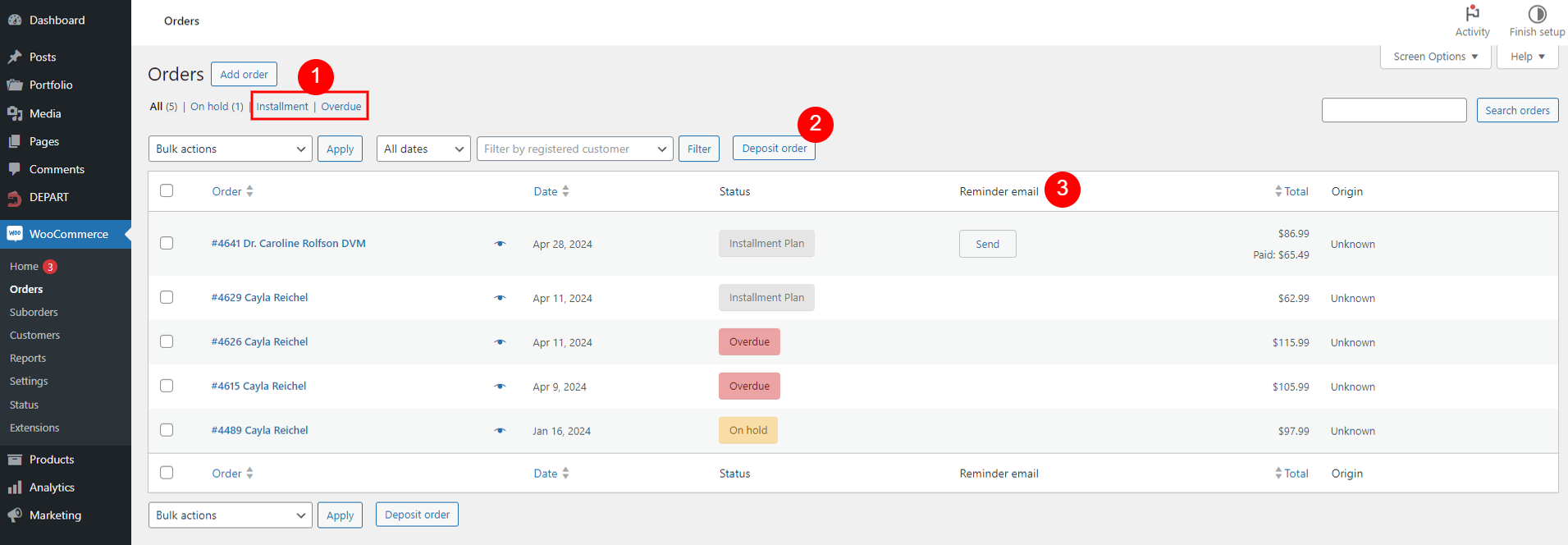
- For the two custom order statuses created by DEPART mentioned in this documentation, you can click here to quickly filter orders with these statuses, just like common WooCommerce orders
- Click the “Deposit Order” button to filter deposit orders that include products with a payment plan.
- The “Reminder Email” column appears when you enable the “Show reminder email column” option under General Settings and check the “Reminder email” checkbox in Screen Options (located at the top right corner of your screen). Here, you can manually send the “DEPART – Partial Payment Reminder” email to the customer.
Order editor
When you access the order editing page of a deposit order, you can see the deposit amount, the future payment amount, and any fees for order items with a payment plan.
And scroll down to the “Installment Plan” table below to see the details.
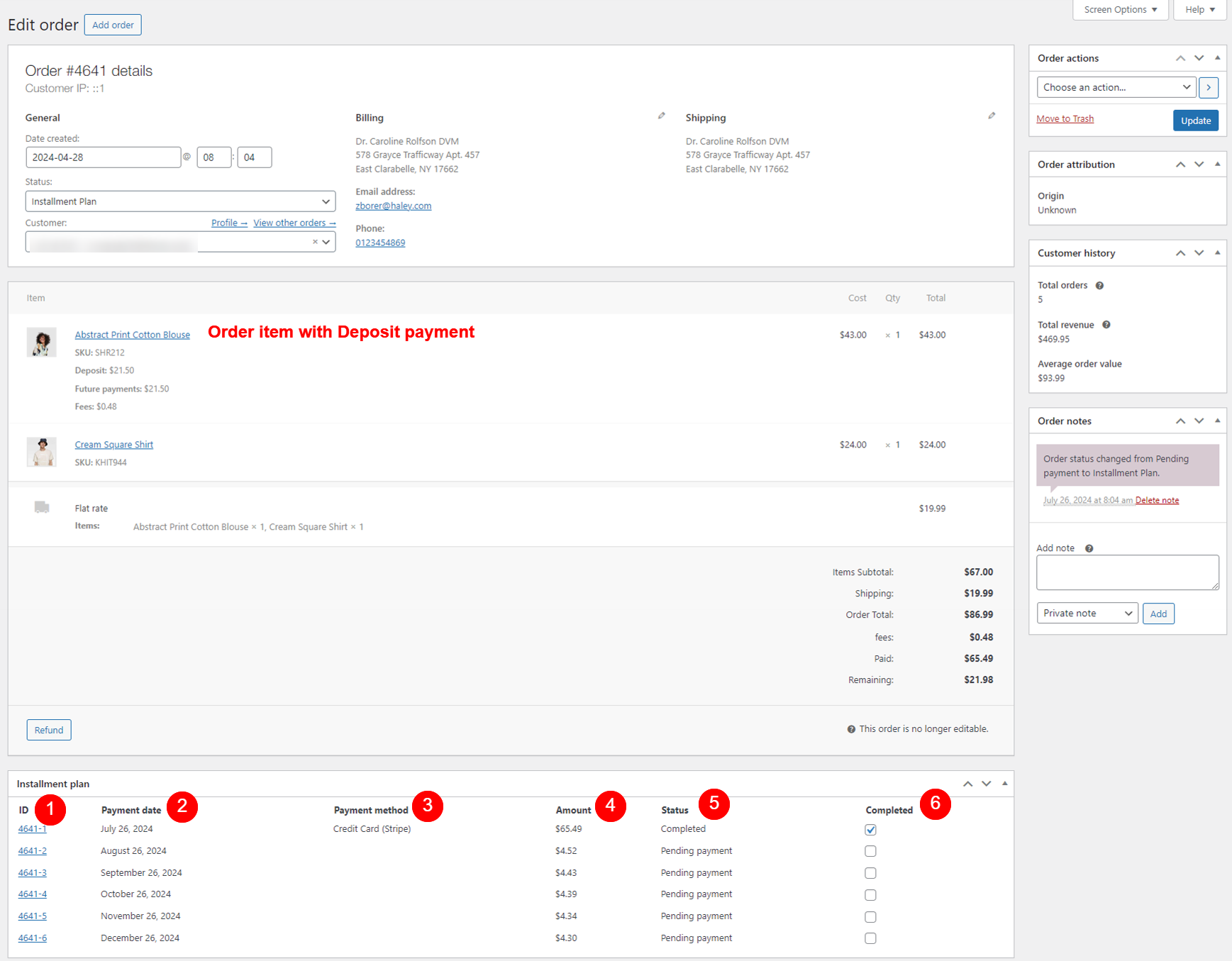
- ID: The IDs of the suborders created with the parent order.
- Payment date: The date of payment for each suborder.
- Payment method: The payment method used for each installment plan.
- Amount: The amount of each installment plan. Value under this column already includes fee if any.
- Status: The current payment status of each payment plan.
- Completed: Check the “Completed” checkbox to manually mark a suborder as completed, then click “Update”.