Go to Bopo Bundle > Layout to configure how bundles are displayed on the product page.
A. Bundle view
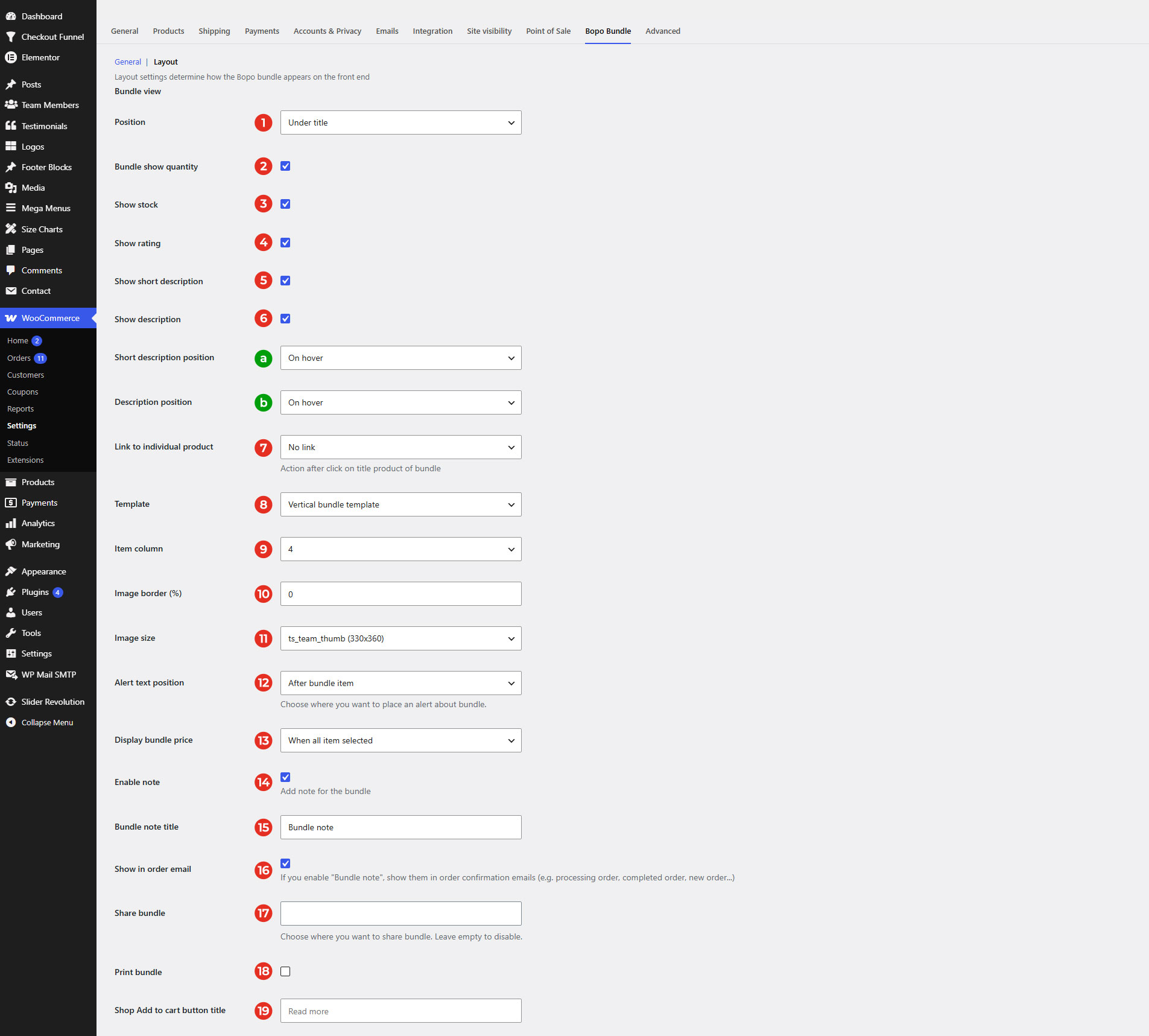
1.Position: You can choose where the bundle appear with available positions: Under product title; Under price & rating; Above add to cart; Under add to cart; Product tab.
2. Bundle show quantity: Enable to display the bundle quantity in order that customers can increase/descrease bundle item quantity.
3. Show stock: Toggle to show/hide stock quantity of the bundle items
4. Show rating: Toggle to show/hide overall rating of the bundle items
5. Show short description: Toggle to show/hide bundle item short description
6. Show description: Toggle to show/hide the bundle item description
a. Short description position: If “Show short description” is enabled, select where the short description is displayed – On hover or After product detail
b. Description position: If “Show description” is enabled, select where the description is displayed – On hover or After product detail
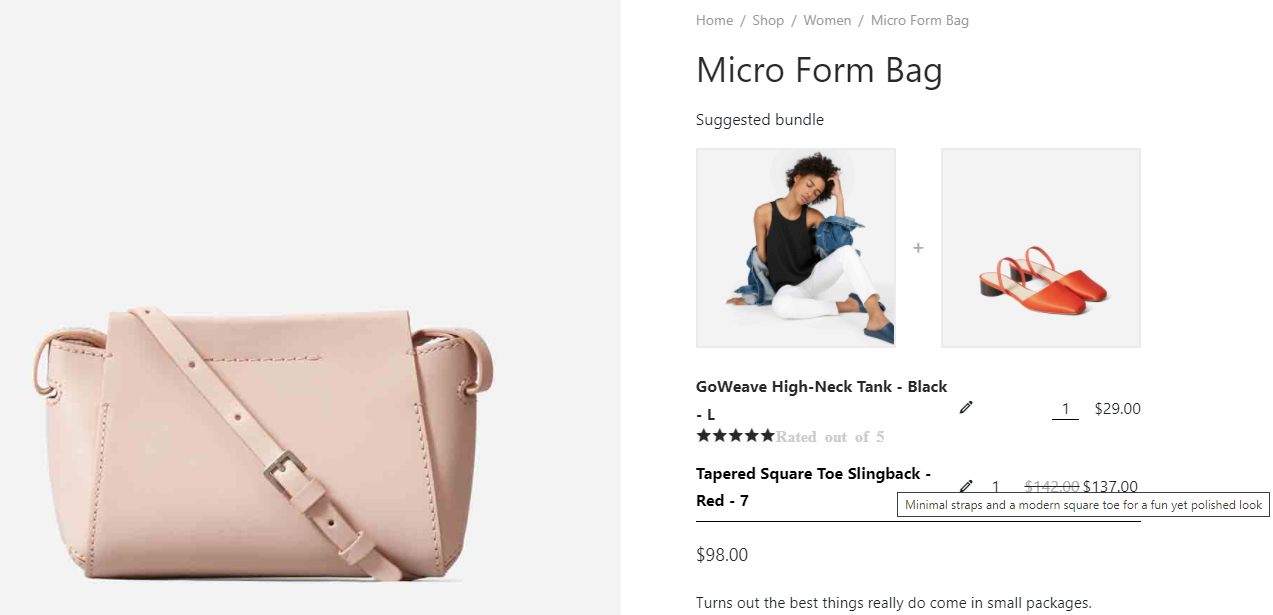
7. Link to an individual product: After clicking on the product title of the bundle item, choose what happens:
- No link.
- Open to a new tab.
- A bundle product changing popup.
8. Template: There are 3 templates to choose from – Image Block, Horizontal or Vertical.
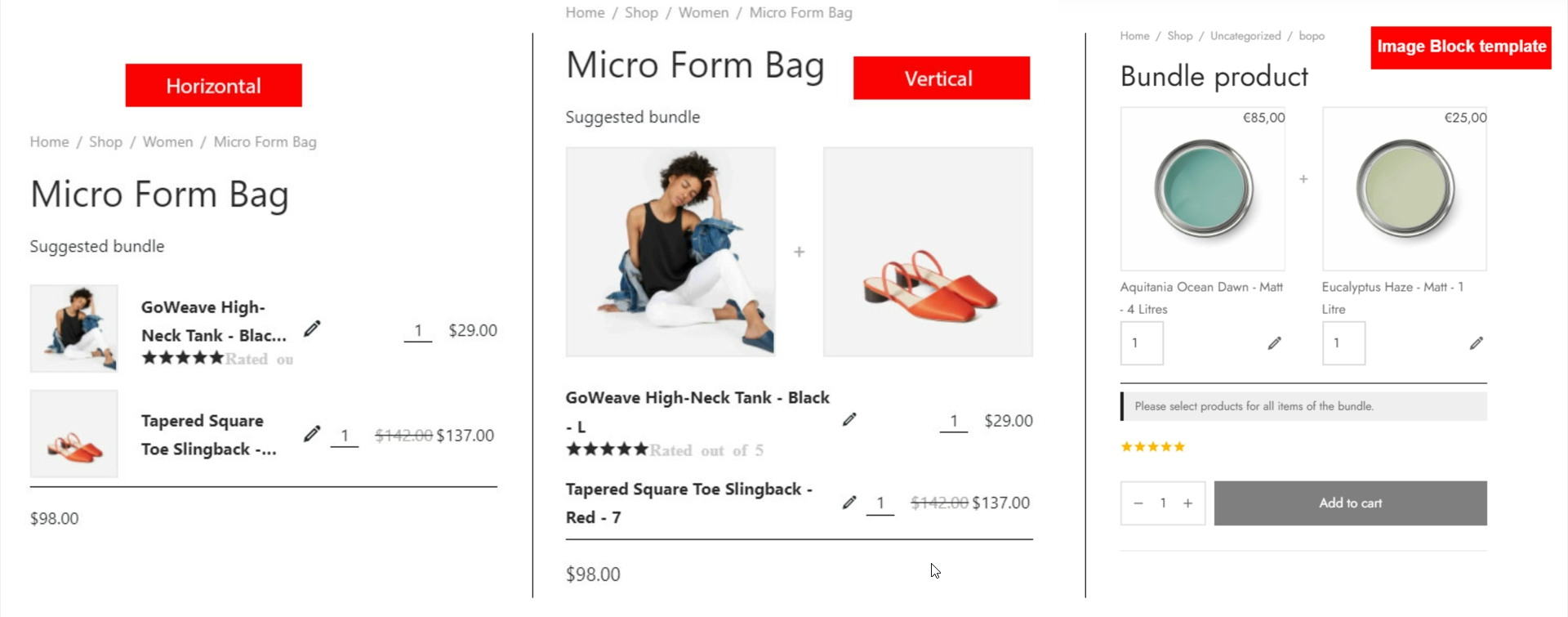
9. Item column (Vertical and Image Block templates): If you select the vertical template, the item column option will appear which allow you to set up the number of item columns on the bundle list.
10. Image border: Adjust product image border
11. Image sizes: You can select one of the image sizes of bundle item images:
- 2048×2048
- Post thumbnail (150×150)
- WooCommerce thumbnail (autoxauto)
- WooCommerce single (900xauto)
- WooCommerce gallery thumbnail (100×100)
- Shop catalog (autoxauto)
- Shop single (900xauto)
- Shop thumbnail (100×100)
12. Alert text position: This alert helps to notify customers to select items to add to the cart in case selecting all items is required. You can choose where to display this alert: After bundle item, or Before bundle item.
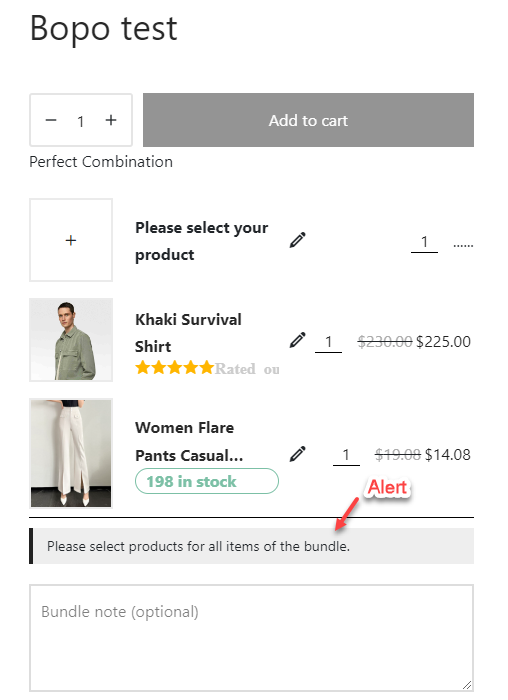
13. Display bundle price: This option is for the price of the whole bundle product
-
- Always show: Always show the bundle product price even when no bundle item is selected
- When one item selected: Only show the bundle product price when at least one bundle item is selected
- When all item selected: Only show the bundle product price when all bundle items are selected
14. Enable note: Enable this option if you want to add a note for the bundle
15. Bundle note title: Enter title for the bundle note
16. Show in order email: If enable “Bundle note”, show them in order confirmation emails (e.g. processing order, completed order, new order…)
17. Share bundle: Select social share option for bundle. Right now, we’re supporting: Facebook, Twitter, Email, Pinterest, VKontakte, Tumblr, Linkedln
18. Print bundle: Enable this option to print bundle
19. Shop Add to cart button title: Edit the Add to cart button title on Shop page/product list
B. Popup change product
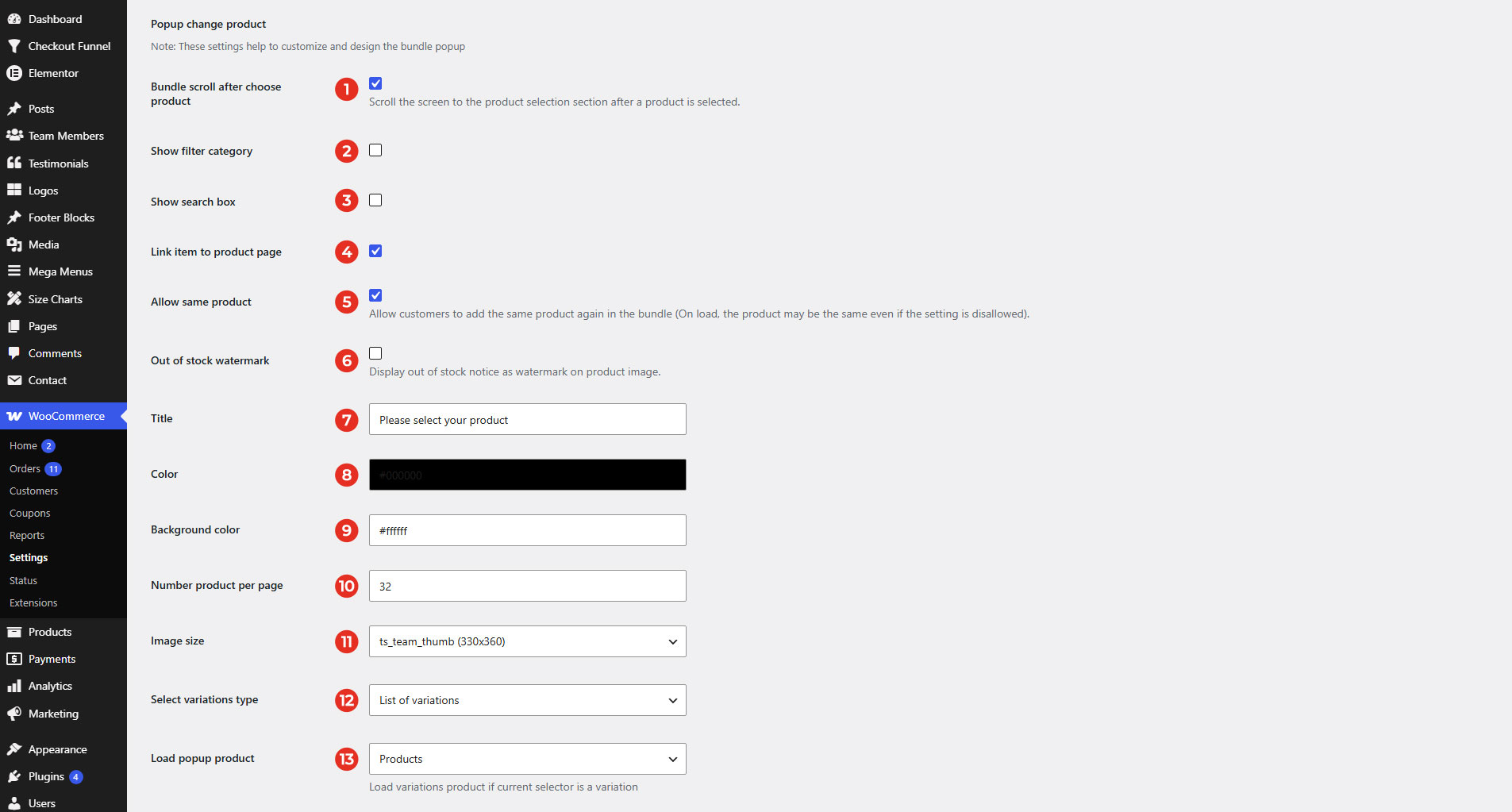 1. Bundle Scroll after choose product: After a product is selected, close the popup and scroll to the selected product in the main view.
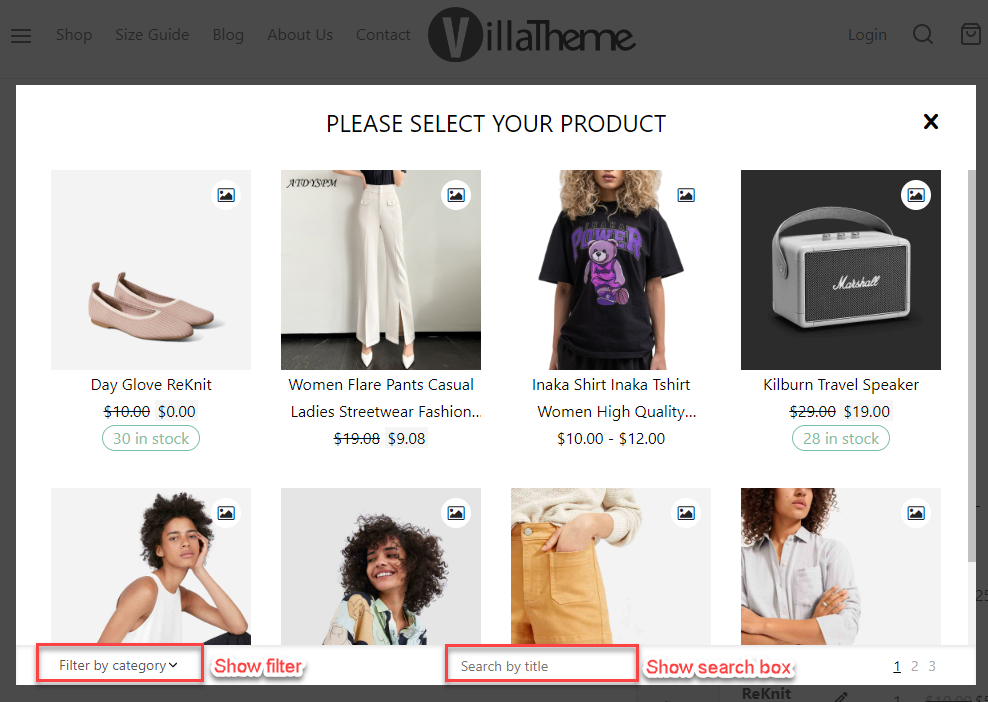
2. Show filter category: Display a filter by category for customers to search for desired categories.
3. Show search box: Customers can use a search box to find products by title.
4. Link item to product page: Enable/Disable product link on select item popup
5. Allow same product: Enable/Disable customer select duplicate item on select item to bundle
6. Out of stock watermark: Display out of stock notice as watermark on product image.
7. Title: Change the title which displays at the header of the popup
8. Color: Change the color of the text on the popup
9. Background color: Change the color of the background on the popup
10. Number of products per page: Enter the number of products per page you want to paginate on the popup.
11. Image size: Select the image size
12. Select variation type: You can choose how variations display on the popup: List of variations or select box.
13. Load popup product: Load variation products as parent product or variation if the current selector is a variation
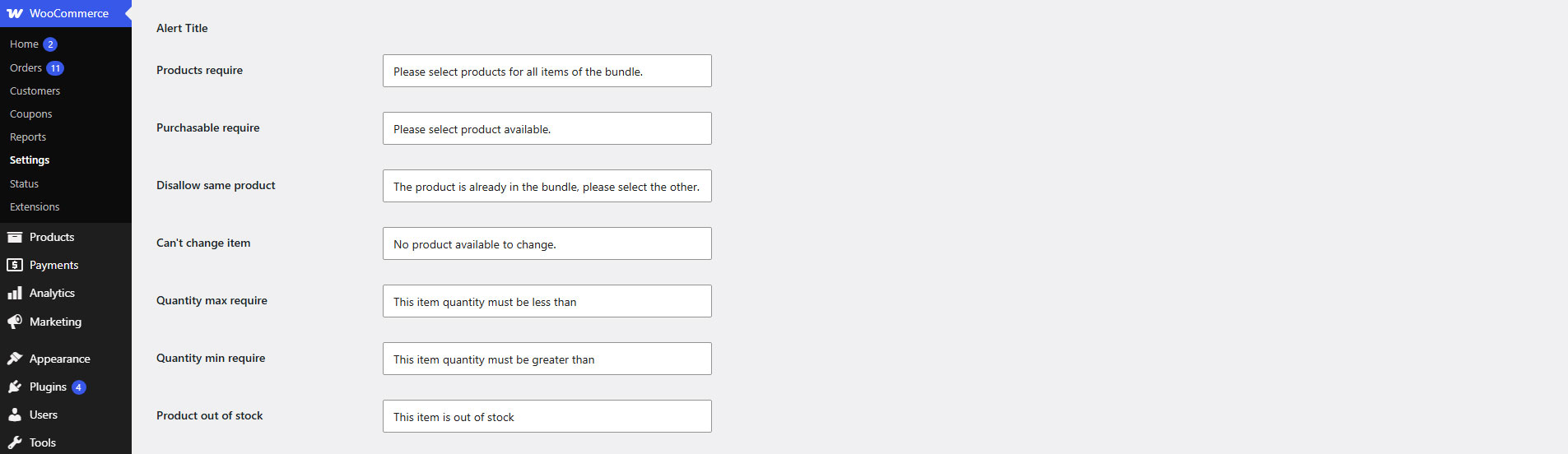
C. Alert messages
You can rewrite alert messages in your language and fit for your desire.
D. Design how the bundle is displayed on the front end
You can add custom CSS to customize the appearance of the interface.
