You can use the Image Element to display images within your email templates. Sometimes, the image is hidden. Read this guide or refer to this article for more details.
Common issue
When displaying images in email templates, there are a few common issues that may arise due to server restrictions or email client settings. Below are some potential issues and their solutions:
Case 1: Images Require User Action to Display
- Issue: Some email servers or clients may require the recipient to manually click a button to display images within the email.

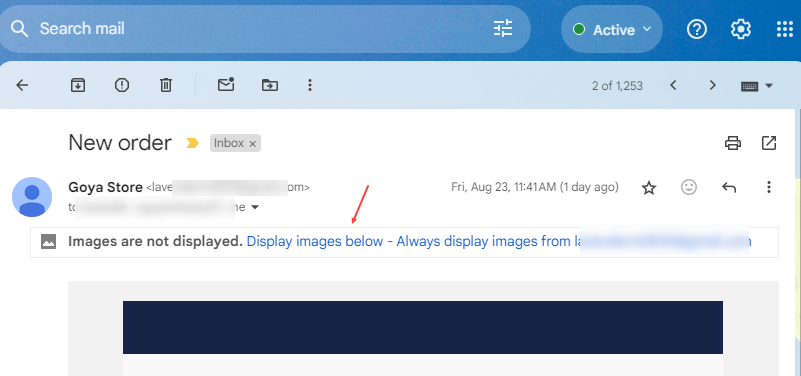
- Suggested Solution: Instruct your email recipients to click the “View/Display Images” option within their email client to display the images, or review the email service settings if there’s any option that shows/hides external images by default.
Case 2: The mail service doesn’t support the image format
- Issue: Images do not appear even when the recipient allows them to display
- Common causes: The image file extension is not supported. E.g. Supported formats can include but not limited to PNG, JPG, or JPEG. If the image is an SVG, it’ll be ignored
- Suggested Solution:
- Review the document of the email service in use
- Check the image format if it’s supported
- If no, convert them to a supported one
Case 3: Images Blocked Due to Email Trust or Authentication Factors
- Issue: The behavior may vary between email providers. Images are blocked and the email may display warnings such as:
- “This message appears suspicious”
- “Images in this message are hidden”

- Why this happens: Email providers perform multiple trust and security checks before loading external content. Images may be blocked when the email fails or partially fails these checks, such as:
- Missing or misconfigured email authentication (SPF, DKIM, DMARC)
- Sender email address does not match the website domain
- Images loaded from unsecured (HTTP) or untrusted sources
- Server or hosting limitations affecting email reputation
- If these factors reduce the trust score of the message, images may be blocked by default.
- Suggested Solutions
- Reviewing and configuring SPF, DKIM, and DMARC records
- Sending emails from an address that matches your domain
- Ensuring all images are served over HTTPS from trusted sources
- Using an authenticated SMTP service instead of the default WordPress mail function
- Testing email delivery across different email clients
By addressing these potential issues, you can ensure that images display correctly in your email templates, providing a better experience for your recipients.