VIMA – Multi Customer Addresses for WooCommerce


Created: 01/2026

Latest updated: 01/2026 – Updated version: 1.0.1

By: VillaTheme

Thank you for purchasing our plugin. If you have any questions that are beyond the scope of this documentation, please feel free to request support at our Support Forum. Thanks so much!

Required:

  1. WordPress 5.0+
  2. PHP 7.0+
  3. WooCommerce 7.0+


Go to Plugin/ Add New and search for the plugin with its title VIMA – Multi Customer Addresses for WooCommerce


Take a look at this tutorial

By default, WooCommerce allows customers to save only one shipping address per account. This limitation can be inconvenient for customers who frequently ship orders to different locations, such as home, office, or multiple recipients.

What the VIMA – Multi Customer Addresses for WooCommerce Plugin Does

VIMA – Multi Customer Addresses for WooCommerce extends WooCommerce’s address system by allowing logged-in customers to save, manage, and select multiple shipping addresses.

Customers can choose the correct shipping address during checkout, making repeat purchases faster and more convenient, while store owners provide a smoother and more flexible shopping experience.

Key Features

  • Multiple shipping addresses per customer: Allow customers to add, edit, and delete multiple shipping addresses.
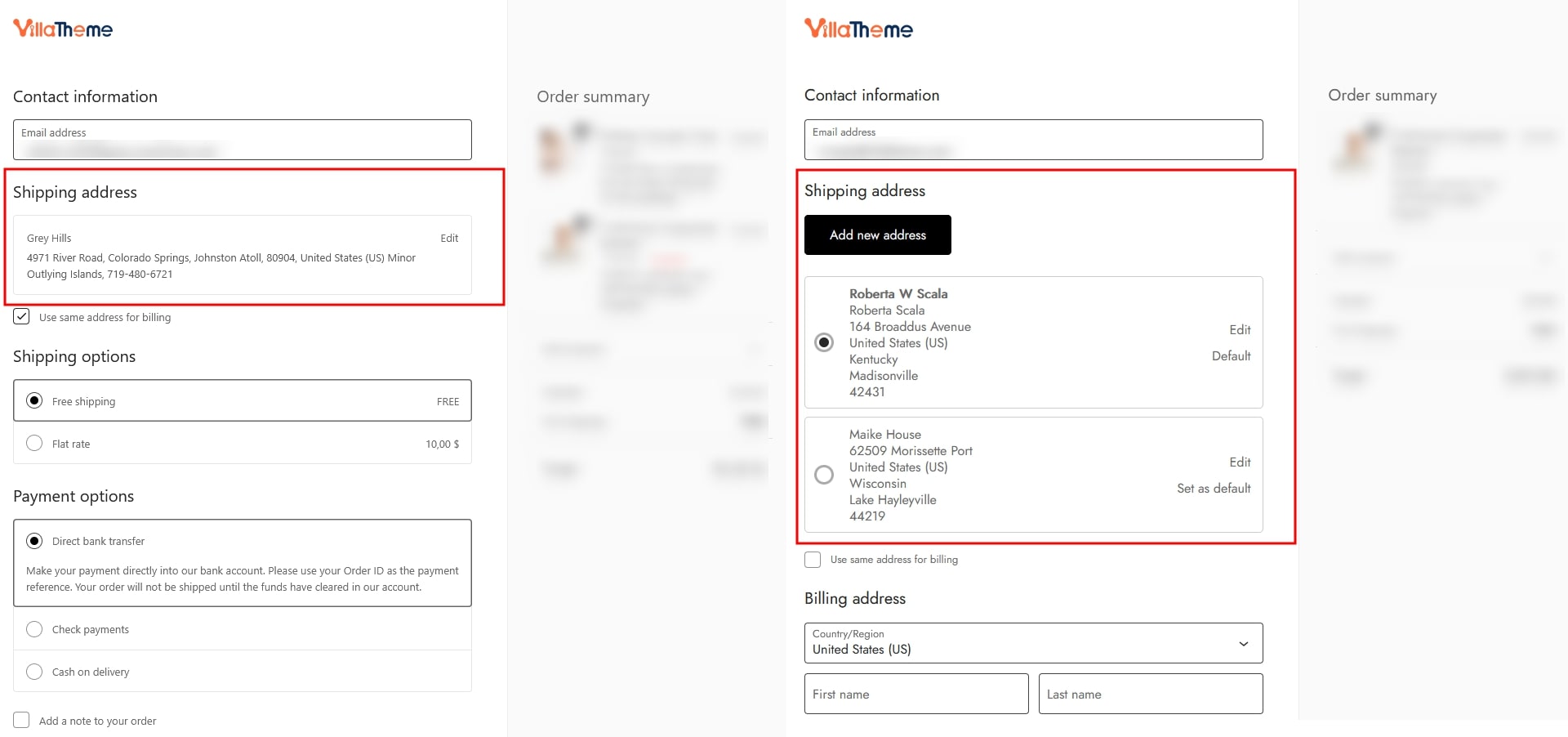
  • Seamless checkout address selection: Let customers select a saved address directly during the checkout process.
  • Default address control: Customers can set and change their default shipping address at any time.
  • Address management is automatically added to My Account → Addresses.
  • Shortcode support: Display the address list and input form anywhere using the [vima_address_list] shortcode.
  • Flexible address limits: Control how many shipping addresses a customer can save.
  • Customizable address fields: Choose which address fields are displayed to customers.


Benefits

With the VIMA plugin, you can:

  • Improve the checkout experience for returning customers
  • Reduce checkout friction for customers with multiple delivery locations
  • Increase customer satisfaction and repeat purchases
  • Offer a more professional and flexible WooCommerce store
  • Eliminate the need for customers to repeatedly edit shipping details


Once the plugin is installed and activated, it automatically extends WooCommerce’s address system to support multiple shipping addresses for logged-in customers. No additional setup is required to get started.

Adding Shipping Addresses

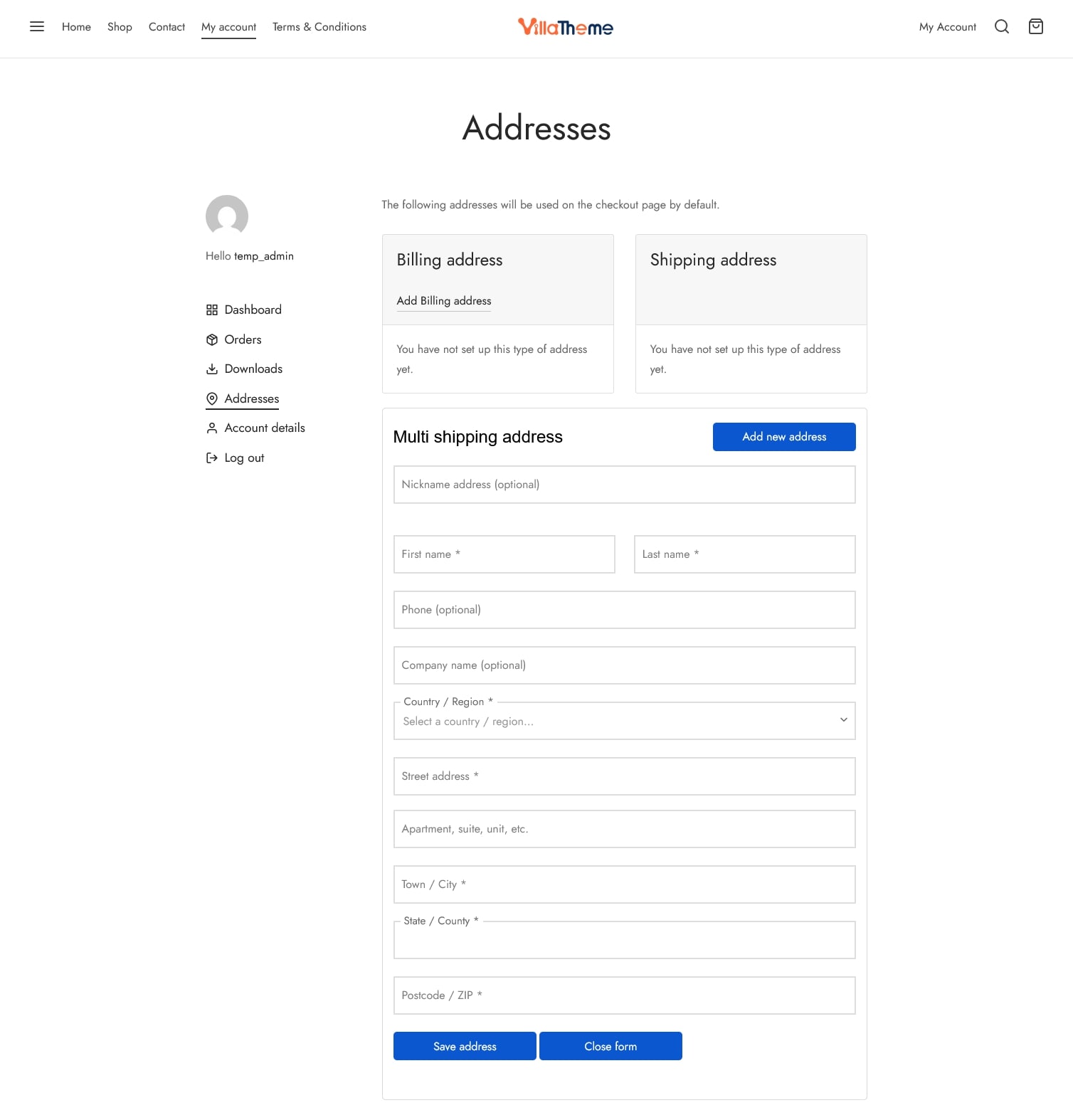
After activation, a new address form is automatically available under My Account → Addresses. Customers can use this form to add multiple shipping addresses
 

(Optional) Create a Custom Address Page

Administrators can create a dedicated address management place to make it more visible to customers. Simply insert the shortcode: [vima_address_list]  to any page/area where one is supported and let it show to the front end. You can make a custom Addresses page. Publish the page and place it in a prominent location, such as the main menu or account menu

That page will display:

  • The address list
  • The form for adding new shipping addresses

For guests, they would have to sign in to view their addresses


Viewing Saved Addresses

Saved addresses are displayed:

  • In My Account → Addresses
  • On any page where the [vima_address_list] shortcode is used

Customers can manage all their shipping addresses from these locations – Add new shipping address, remove existing ones, edit them, or set one as the default shipping address.


Selecting an Address at Checkout

During checkout:

  • Customers can select one of their saved shipping addresses. The selected address is automatically applied to the shipping details
  • Customers can set a preferred default address for future checkouts


This makes repeat purchases faster and more convenient.


General settings

This tab controls the core behavior of the multiple address feature, including whether customers can save multiple shipping addresses, how a default address is selected, and how the “Add New Address” button appears on the frontend.
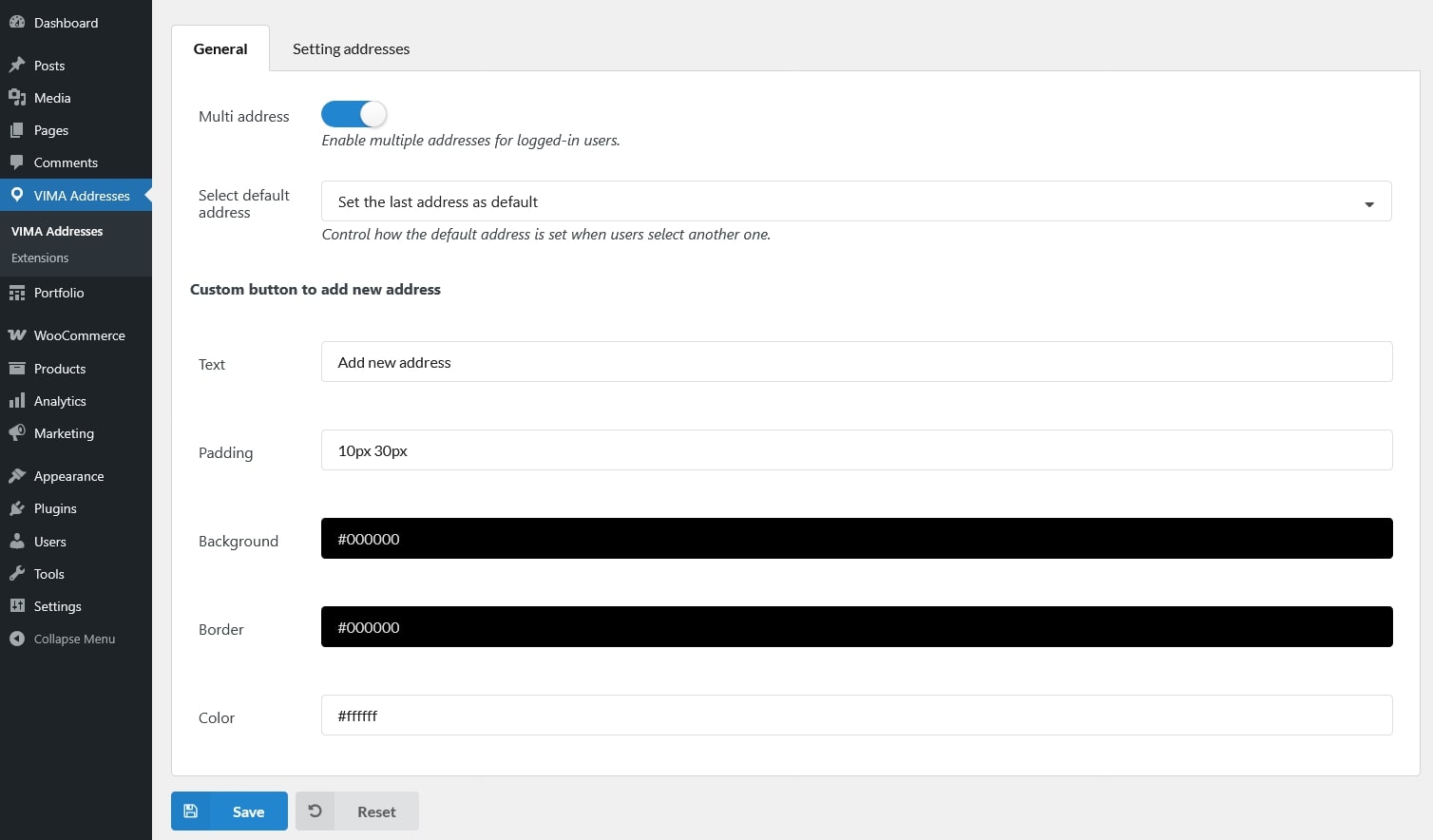
  • Multi address: Allow customers to save and manage more than one shipping address in their account and select an address during checkout.
  • Select default address: Control how the default address is set when a customer selects a different address.
    • Set the last address as default: Automatically make the most recently selected address the customer’s default address.
    • Keep an address selected by the user: Use the address explicitly chosen by the customer as the default for future checkouts
  • Custom button to add new address: Customize the appearance of the “Add New Address” button.
    • Text: Change the button label shown to customers.
    • Padding: Adjust the spacing inside the button.
    • Background: Set the background color of the button.
    • Border: Customize the button border style.
    • Color: Set the text color of the button.


Setting addresses

This tab controls how customer addresses are displayed and managed, including where to insert the addresses and the form, how many shipping addresses a customer can save, and which address fields are shown.
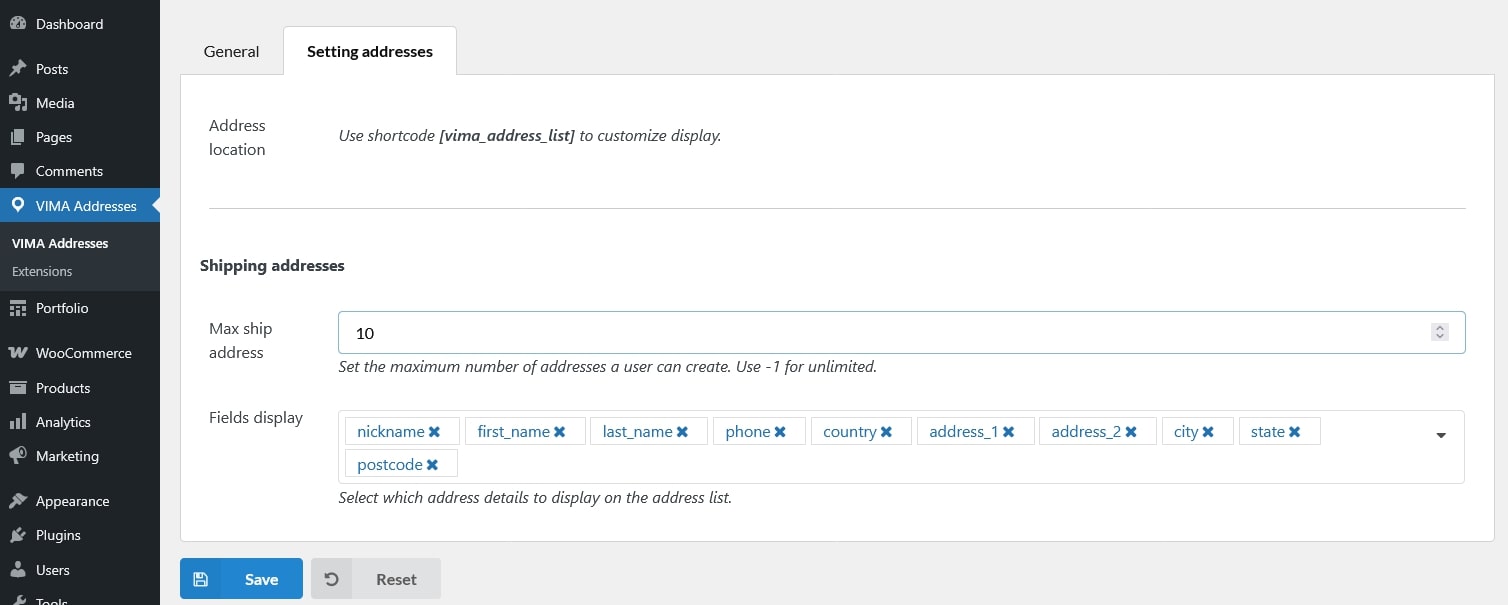
  • Address location: Use the shortcode [vima_address_list] to display the list of saved addresses and the address input form. You can place this shortcode on any page (for example, a custom “My Addresses” page).
  • Shipping addresses
    • Max ship address: Set the maximum number of shipping addresses a customer can create. Use -1 to allow unlimited addresses
    • Fields display: Choose which address fields are shown in the address list. Only the selected fields will be displayed to customers. Supported fields include:
      • Nickname
      • First name
      • Last name
      • Phone
      • Country
      • Address line 1
      • Address line 2
      • City
      • State
      • Postcode
      • Company


Extra Information


Thank you for your attention!

If you have any question, please create a topic at our FORUM, we will support within 24 hours.