Sticky Add To Cart for WooCommerce


What is Sticky add to cart for WooCommerce?

Sticky Add to Cart for WooCommerce display a sticky add to cart bar on top/bottom of your product pages. Your customers can add the product to cart anytime without scroll up/down to find the add to cart button. This plugin helps your customers to add a product to cart as fast as possible, increase the conversion rate of your store.

FEATURES:

WOOCOMMERCE STICKY ADD TO CART

Sticky Add to Cart for WooCommerce plugin display a sticky cart bar on the top or the bottom of your site. Allow customer to add the current product to cart without moving to find the Add to Cart button.

  • Display on mobile: choose if you want to display the bar on mobile devices.
  • Display on desktop: choose if you want to display the bar on desktop.
  • Position: choose to display the WooCommerce Sticky Add to Cart bar on top or bottom of your pages.
  • 2 templates: the plugin provides 2 front-end design templates
  • Sticky bar background color: pick the sticky add to cart bar background color.
  • ADD TO CART button text color: select the color of the add to cart button text.
  • ADD TO CART button background color: select the color of the add to cart button background.
  • Product name color: select the color of product names.
  • Product price color: select the color of product original price.
  • Product sale price color: select the color of product sale price.
  • Product image shape: choose the product image shape design default, rounded, circle.
  • AJAX Add to Cart button: allow customers to add product from the sticky bar without reloading the page.

RECENT VIEWED ITEMS

The plugin displays recent viewed products module on shop page, single product pages. Customer can go back to the previous product without looking for it.

  • Enable: choose to enable/disable the recent viewed products module.
  • Product quantity: select how many recent products you would like to display.
  • Background color: select the recent view module background color.


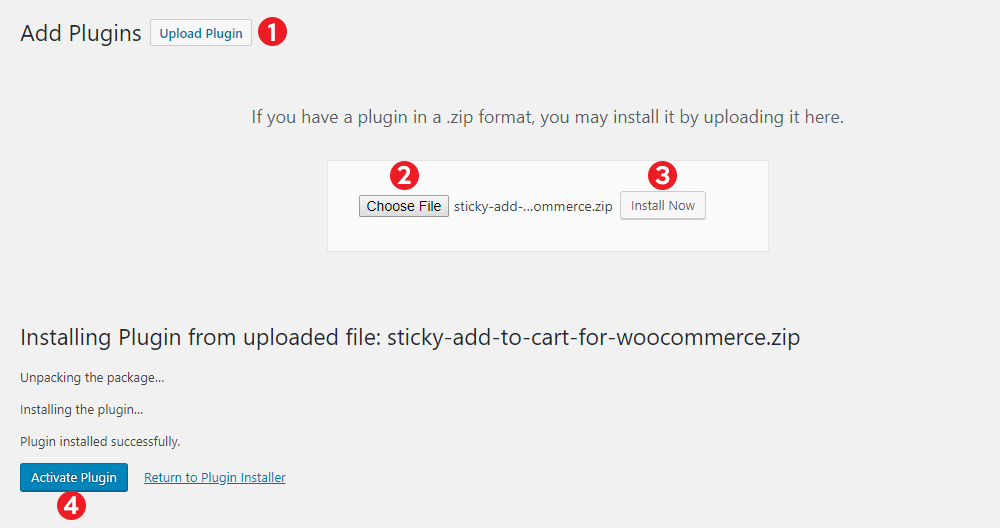
Installing the plugin using the installable zip file.
 

Sticky Add to Cart

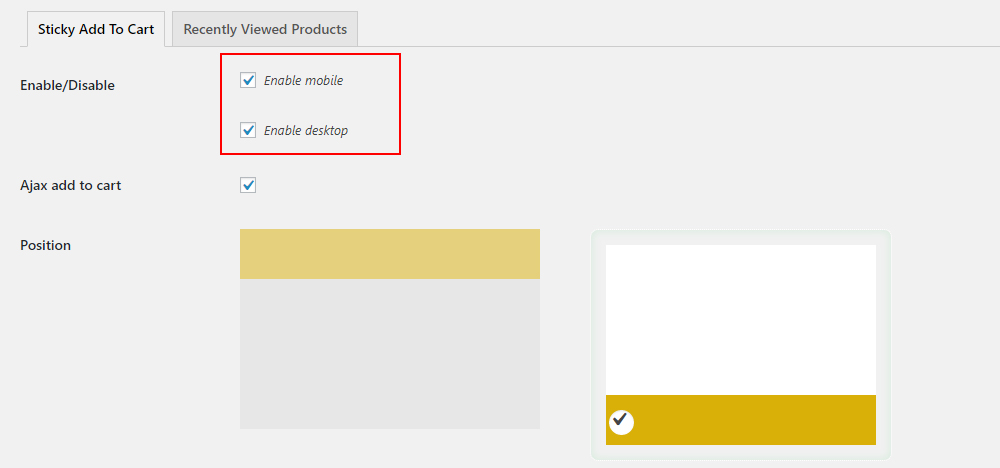
To use the sticky add to cart option, you just need to go to Dashboard/ Sticky Add To Cart/ and select to enable the bar on desktop/mobile.
Recent Viewed Products

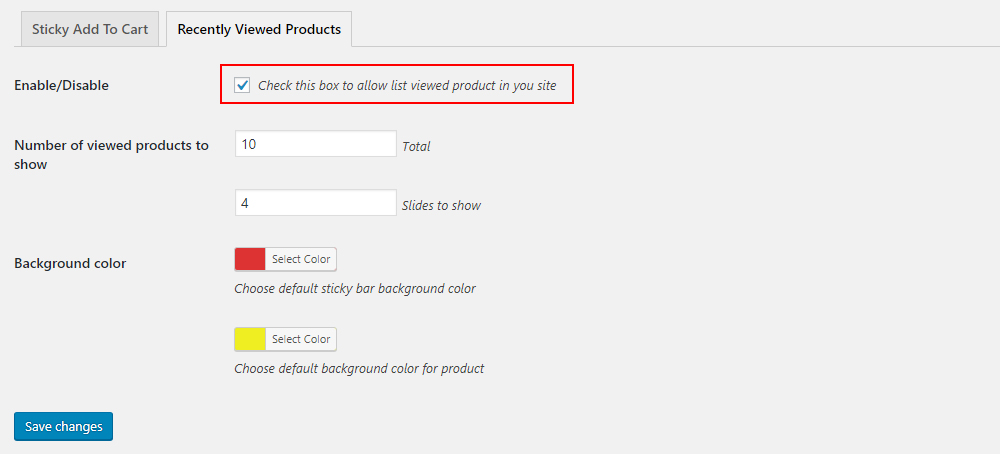
To use the Recent Viewed Products features, just move the next tab and select to enable it.
Sticky Add to Cart

Go to Dashboard/ Sticky Add To Cart/ Sticky Add To Cart to change sticky bar settings.
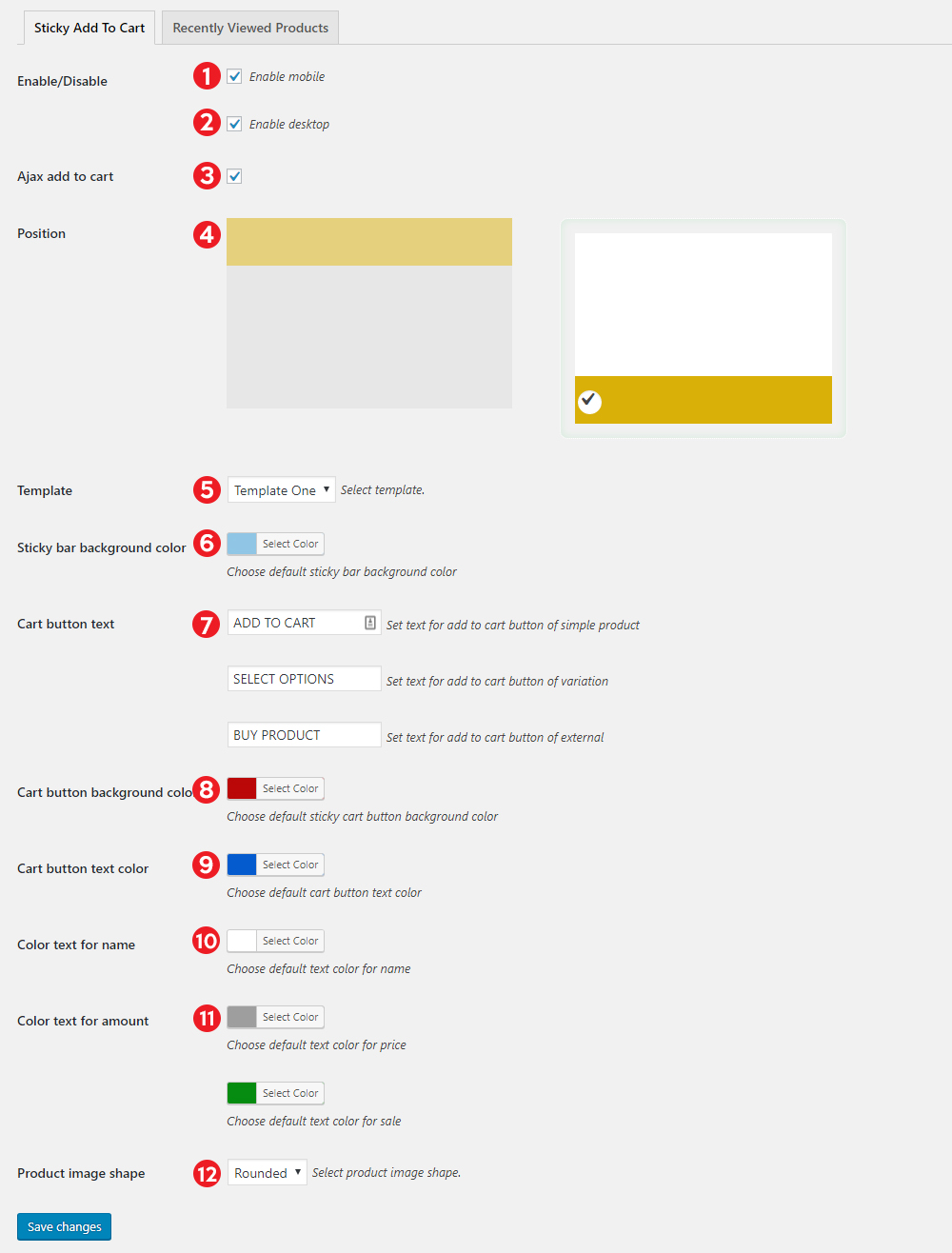
  1. Enable mobile: select if you want to display the bar on mobile devices.
  2. Enable desktop: select if you want to display the bar on desktop devices.
  3. Ajax add to cart: by enabling this option, customers will be able to add products to cart on the bar without reloading.
  4. Position: Select a position to display the bar. On top or bottom of the page.
  5. Template: select a front-end template. There are 2 templates for you to choose from.
  6. Sticky bar background color: select the sticky add to cart background color.
  7. Cart button text: type in your add to cart button text. There are 3 different custom text for simple product, variable product and external/affiliate product.
  8. Cart button background color: pick the add to cart button background color.
  9. Cart button text color: pick the add to cart button text color.
  10. Color text for name: the product name displayed on the bar.
  11. Color text for amount: the color of product original price and sale price.
  12. Product image shape: there are 3 option default (square), rounded and circle.

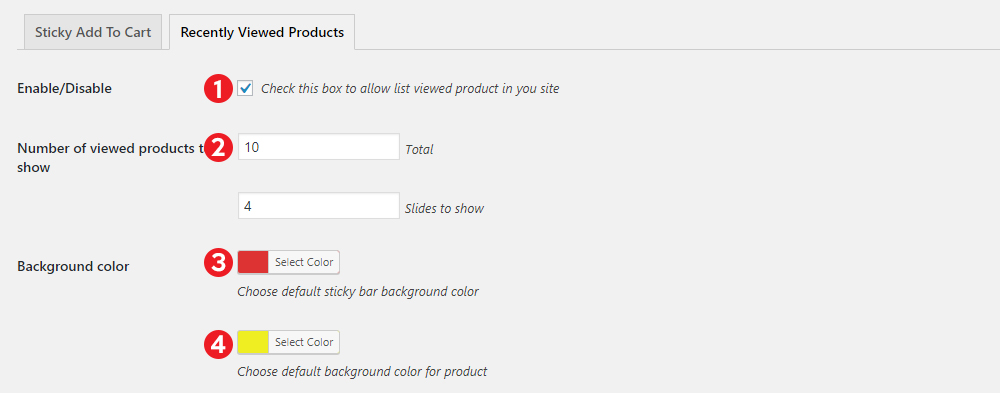
Recent Viewed Products

  1. Enable/Disable: select if you want to display the recently viewed product on product pages and shop page.
  2. Number of viewed products to show: select how many recent viewed product you want to show to customers. You can select the total and the quantity to show at once.
  3. The current viewed product module background color.
  4. The background color of the product image.

Extra Information


Thank you for your attention!

If you have any question, please create a topic at our FORUM, we will support within 24 hours.