In some cases, customers may report that images in emails sent from your site are hidden or that the email shows a warning such as “This message appears suspicious” in Gmail, Outlook, or other email clients.

These issues generally fall into one of the following three cases. For a more detailed explanation, including background information and extended troubleshooting guidance, please refer to the full Knowledge Base article
Case 1: Images Require User Action to Display
What You See
Images are included in the email but are not shown automatically. The recipient may see messages such as:
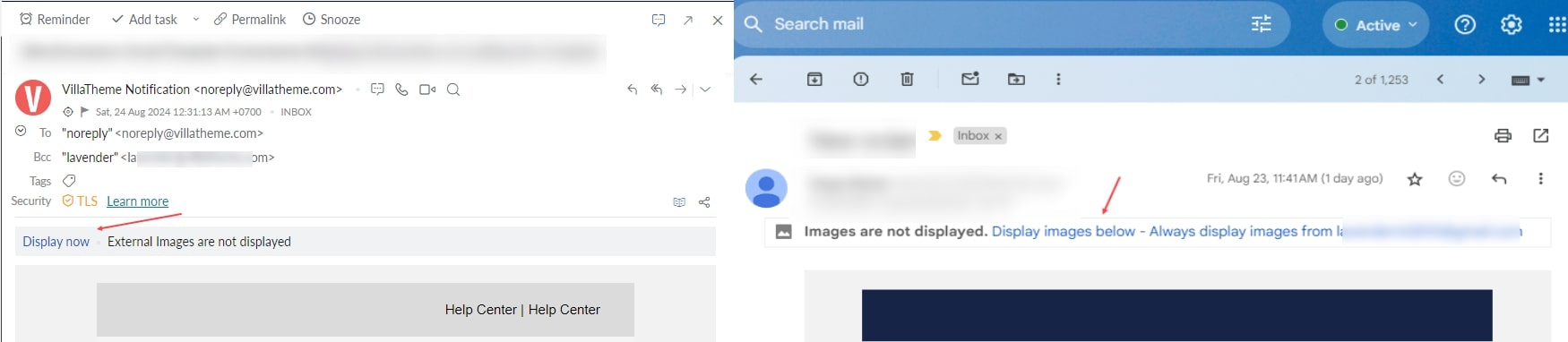
- “Display now”
- “Click here to display images”
- “Display images below”
Once the user allows images, they appear correctly.
This behavior is common. It is a normal security feature and does not necessarily indicate an error.
Suggested Solutions
You may instruct your users to:
- Click the click the “View/Display Images” option within their email client to display the images
- Review or adjust email service settings because some offer settings to show/hide external images
Case 2: The Mail Server Does Not Support the Image Format
What You See
Images do not appear at all, even after the recipient attempts to allow or display them.
Why This Happens
Some email services do not support certain image formats inside emails. For example, SVG images are often blocked or ignored due to security and compatibility limitations. Each email provider supports a different set of image formats.
Suggested Solutions
You may want to:
- Review the documentation of the email service being used
- Check which image formats are supported
- Convert unsupported formats to widely supported ones
- Commonly supported formats include:
- PNG
- JPG / JPEG
Using supported formats often resolves the issue.
Case 3: Images Blocked Due to Email Trust or Authentication Factors
What You See
Images are blocked and the email may display warnings such as:
- “This message appears suspicious”
- “Images in this message are hidden”
The behavior may vary between email providers.
Why This Happens
Email providers perform multiple trust and security checks before loading external content. Images may be blocked when the email fails or partially fails these checks, such as:
- Missing or misconfigured email authentication (SPF, DKIM, DMARC)
- Sender email address does not match the website domain
- Images loaded from unsecured (HTTP) or untrusted sources
- Server or hosting limitations affecting email reputation
If these factors reduce the trust score of the message, images may be blocked by default.
Suggested Solutions
You may consider:
- Reviewing and configuring SPF, DKIM, and DMARC records
- Sending emails from an address that matches your domain
- Ensuring all images are served over HTTPS from trusted sources
- Using an authenticated SMTP service instead of the default WordPress mail function
- Testing email delivery across different email clients