Shopify Custom App Changes (Effective January 1, 2026)
From January 1, 2026, merchants can no longer create legacy custom apps. All new custom apps must be created and managed through the Shopify Developer Dashboard. This change does not affect existing custom apps that were created earlier.
Create an app
Step 1: Access the App dashboard
- In your Shopify admin, go to Settings
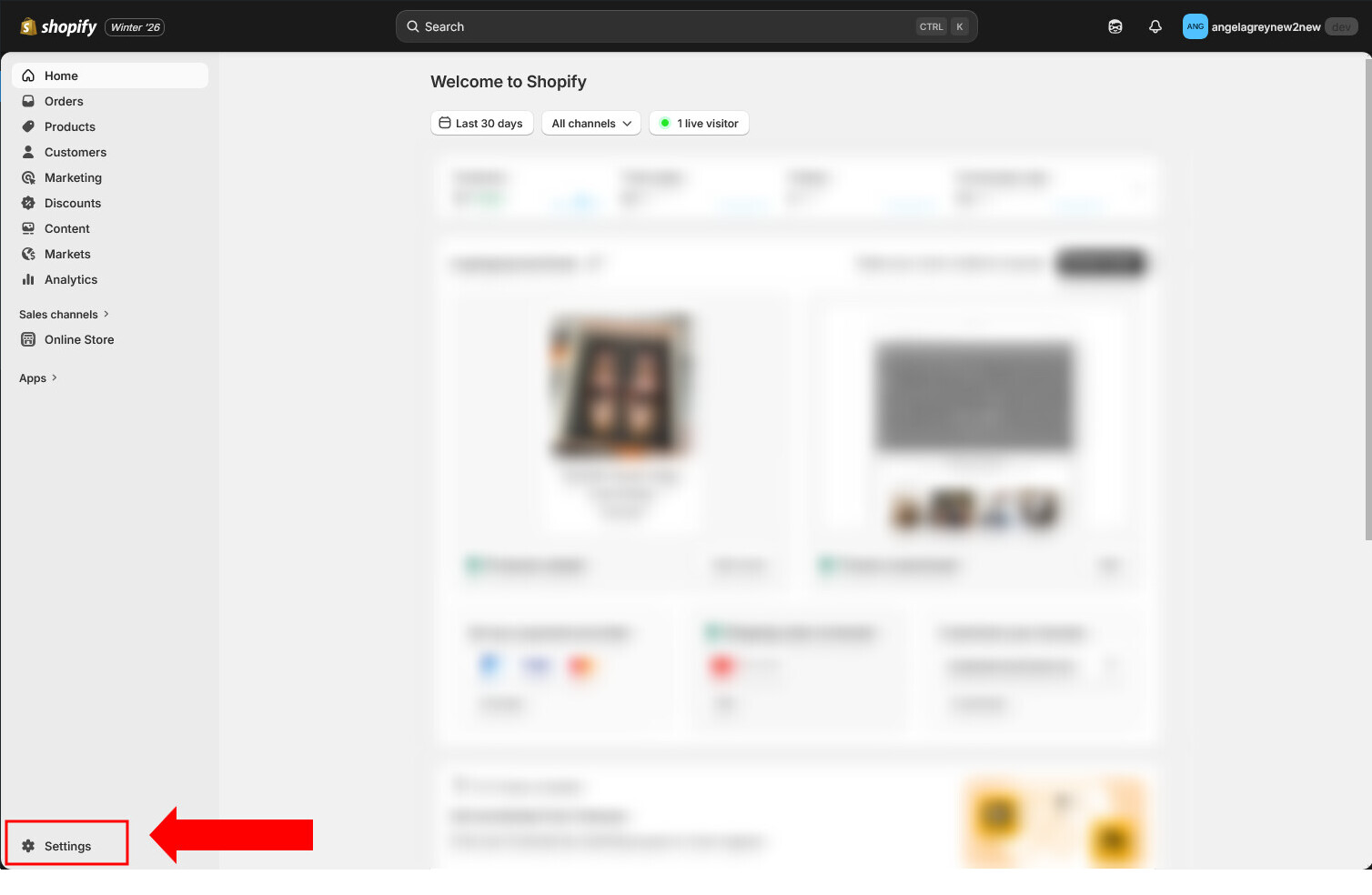
- Apps → Develop apps
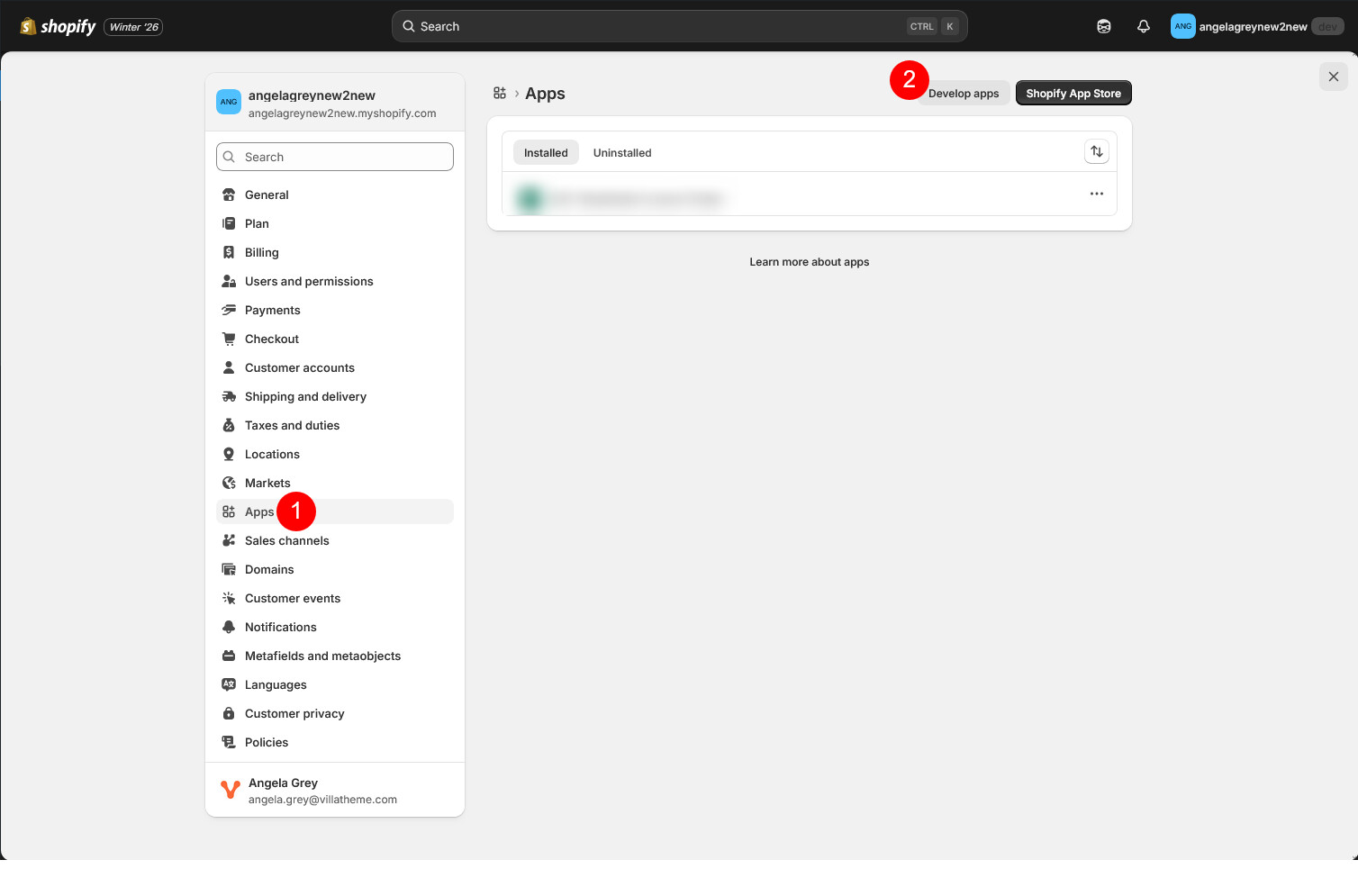
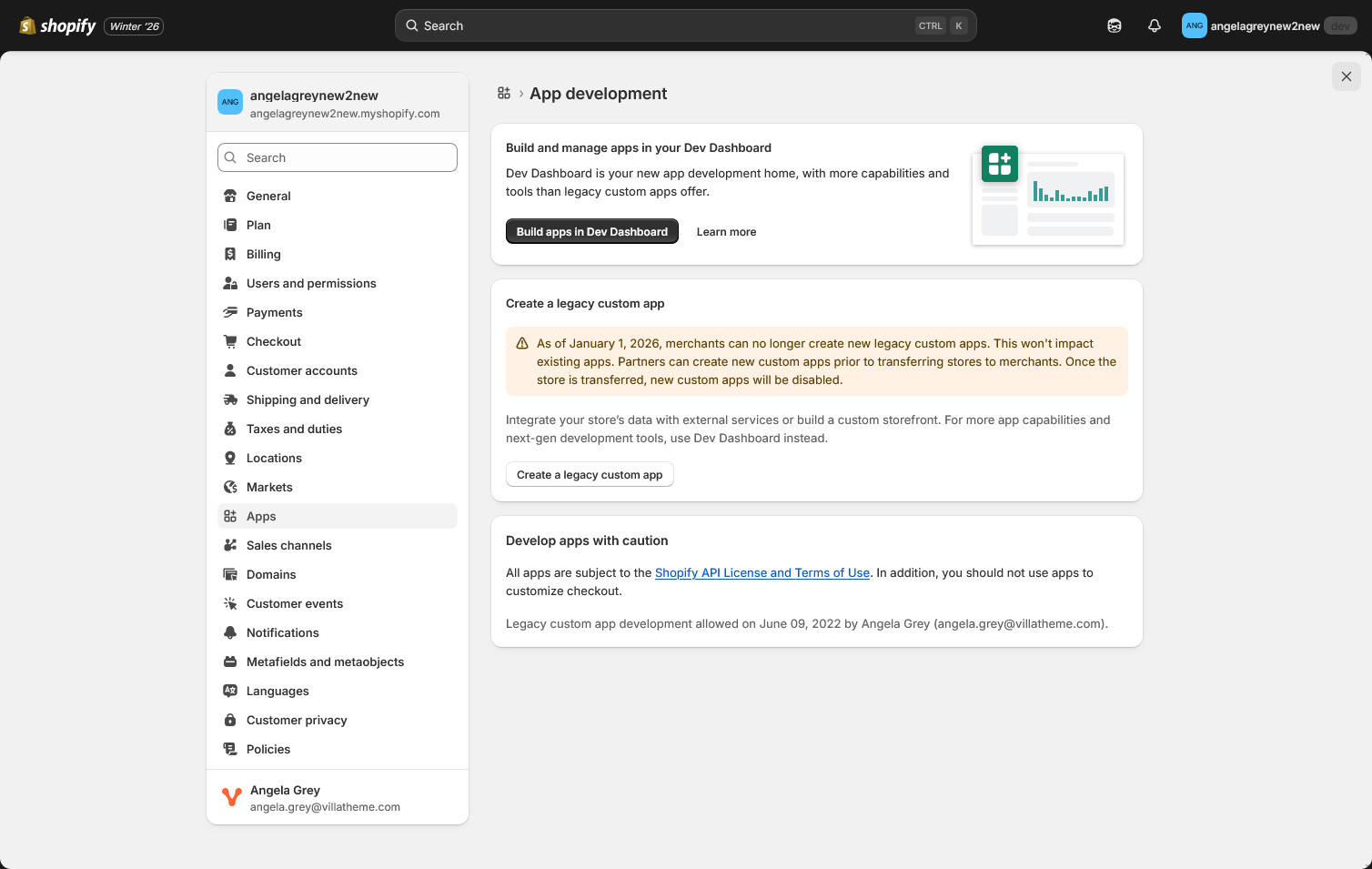
- Existing merchants may still see a “Create a legacy custom app” section along with a notice explaining that legacy apps are deprecated. Some older stores may still allow legacy app creation, but new users will not.
- On this page, click “Build apps in Dev Dashboard” to continue.
Step 2: Create the App
- Click Create app
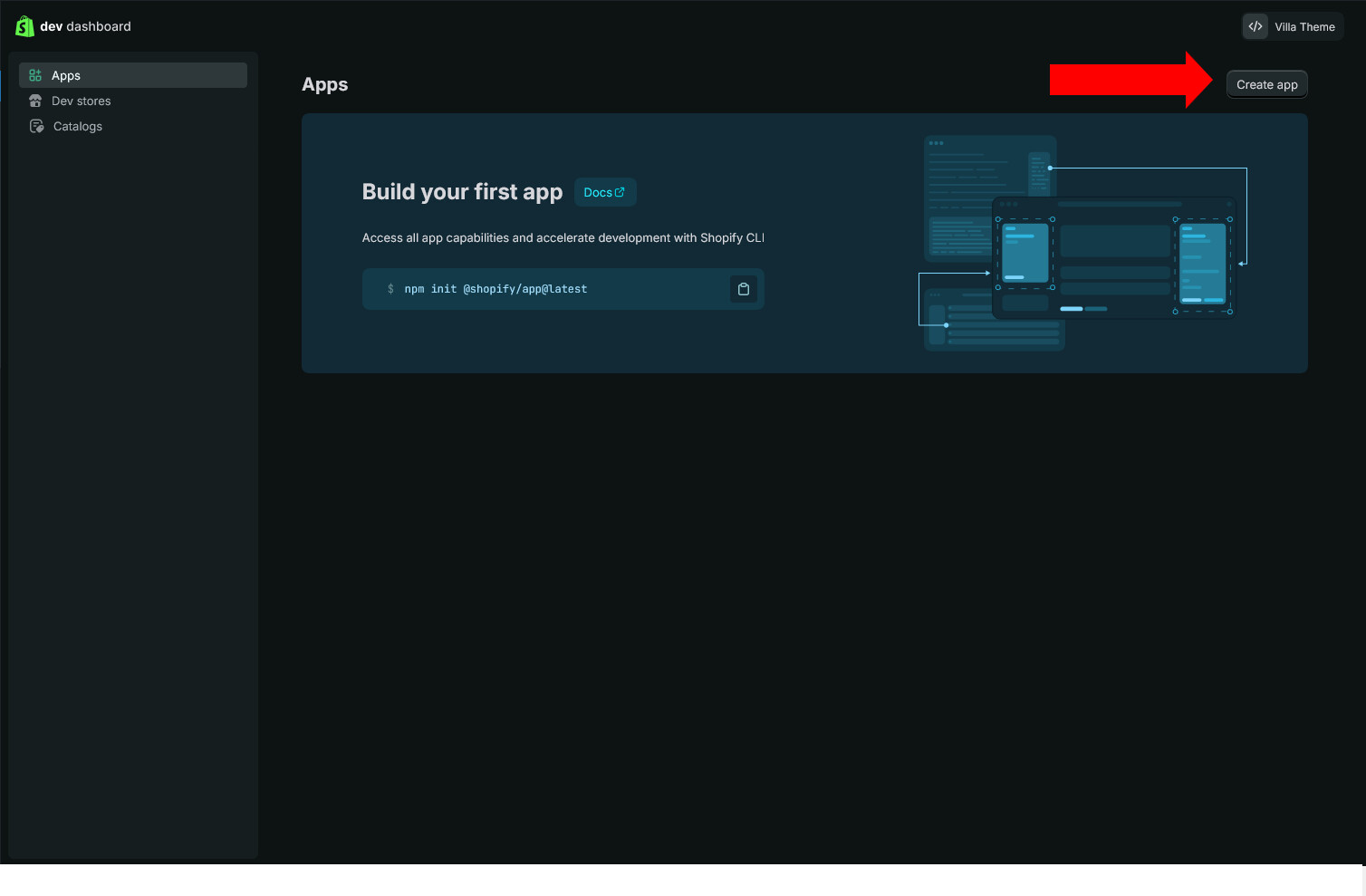
- Enter an App name
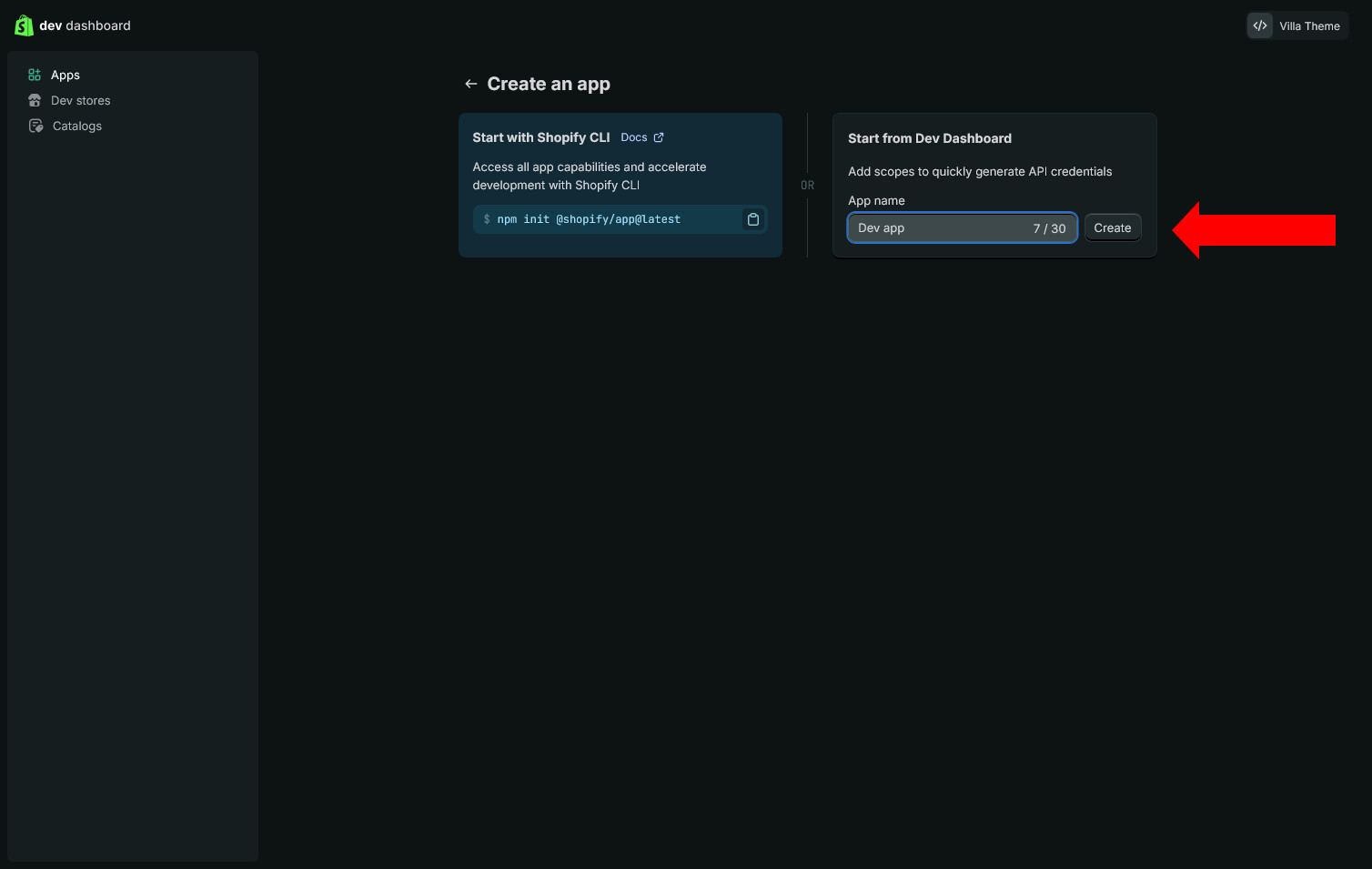
Click “Create” and you’ll be redirected to the app’s Versions dashboard.
Step 3: Configure App Settings
- App URLs
- Use a valid HTTPS URL
- Do not use the example domain shown in Shopify’s placeholder text
- API Scopes
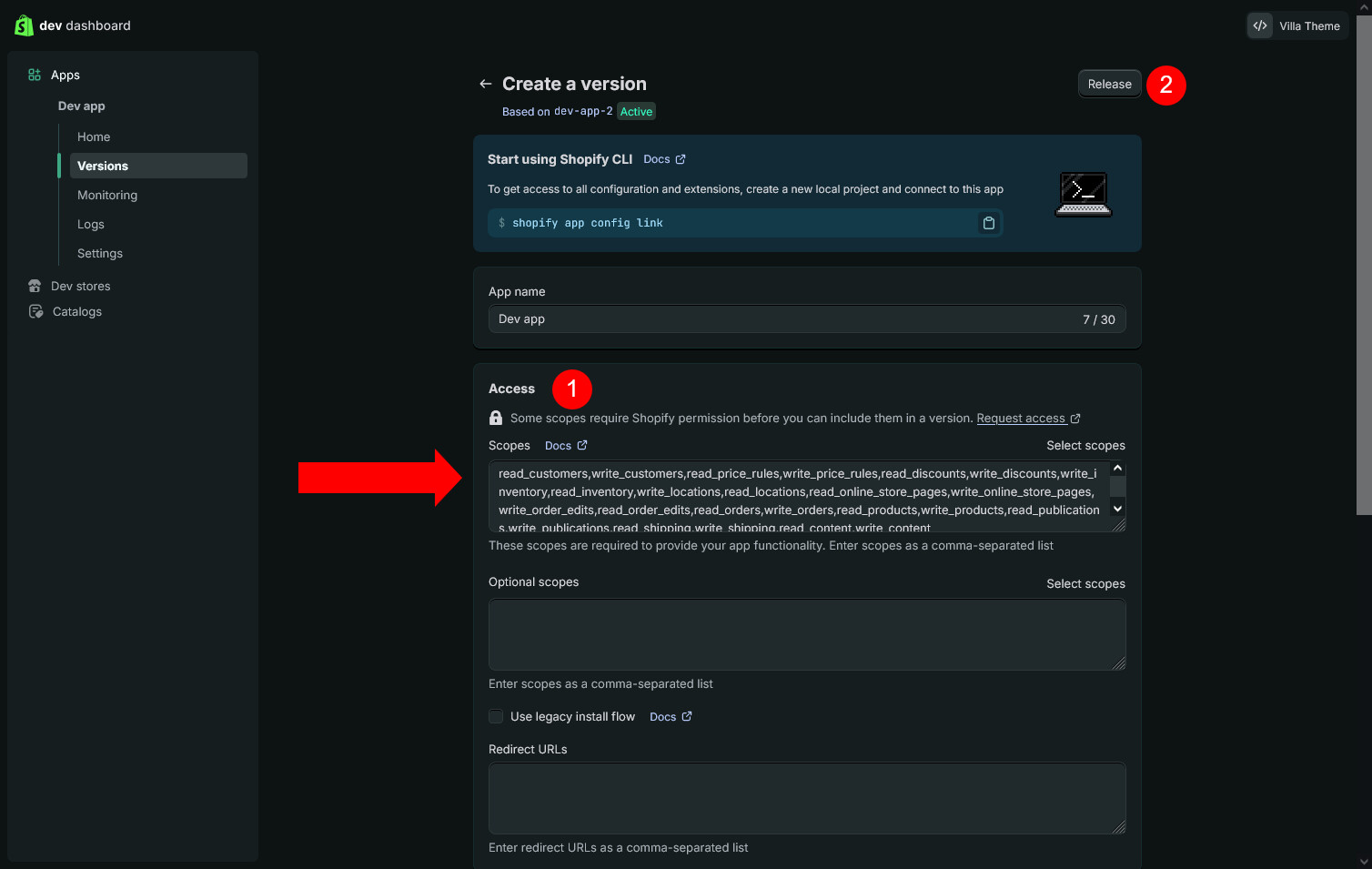
- Go to Access → Scopes
- Optional scopes can be ignored
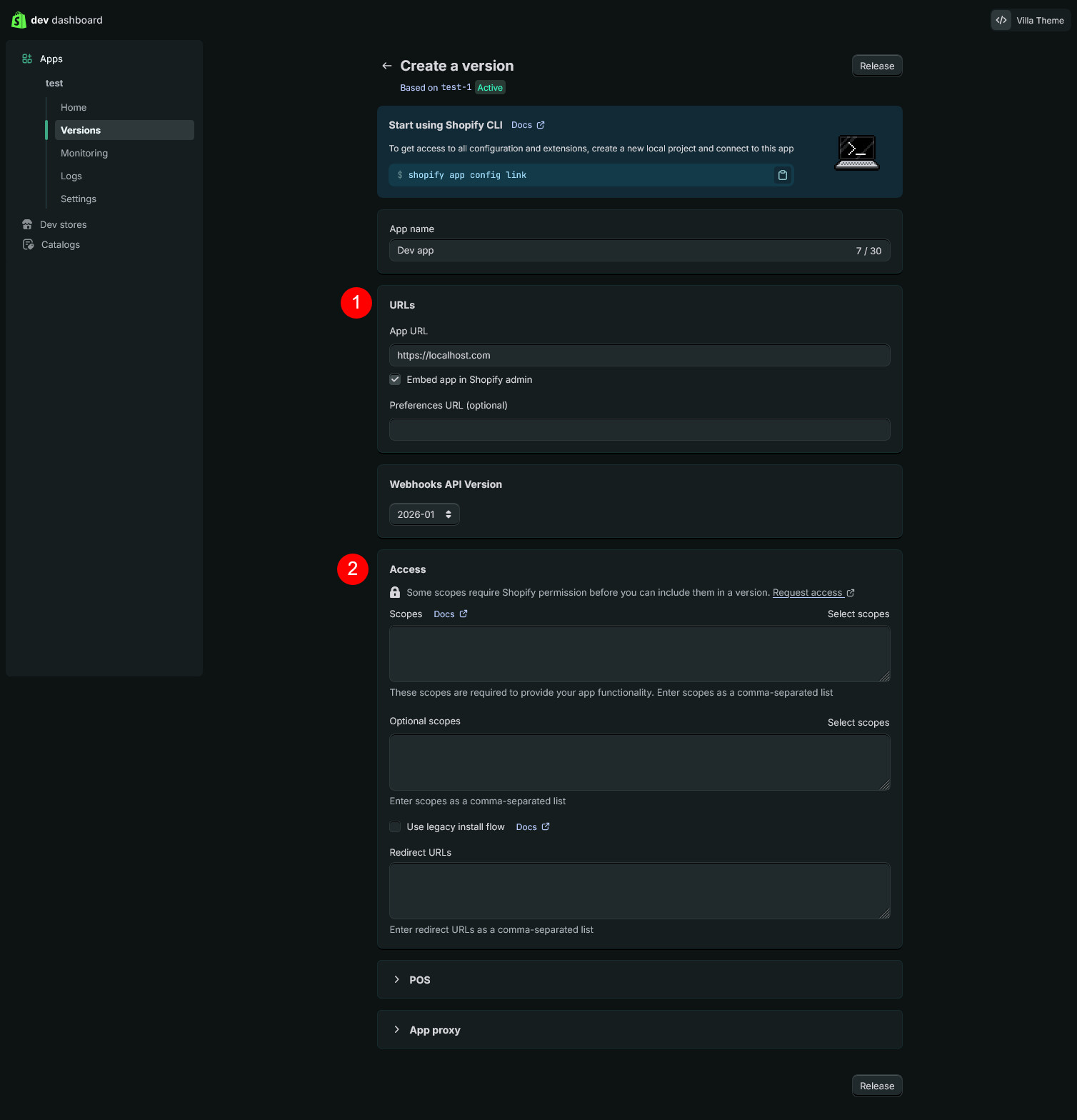
Click Select scopes to choose permissions, or manually enter them as a comma-separated list
Scope selection tip: If you only want to import products from Shopify to WooCommerce, you can limit permissions to product-related scopes only (for example: read_products, write_products).
Full scopes for importing all data:
read_customers,write_customers,read_price_rules,write_price_rules,read_discounts,write_discounts,write_inventory,read_inventory,write_locations,read_locations,read_online_store_pages,write_online_store_pages,write_order_edits,read_order_edits,read_orders,write_orders,read_products,write_products,read_publications,write_publications,read_shipping,write_shipping,read_content,write_content
You can copy and paste this list directly into the Scopes input field.
Step 4: Release the App Version
- Click Release
- Version name and release notes are optional. If left empty, Shopify will auto-generate a version name
- Once released, the app is successfully created.
Install the App to Your Store
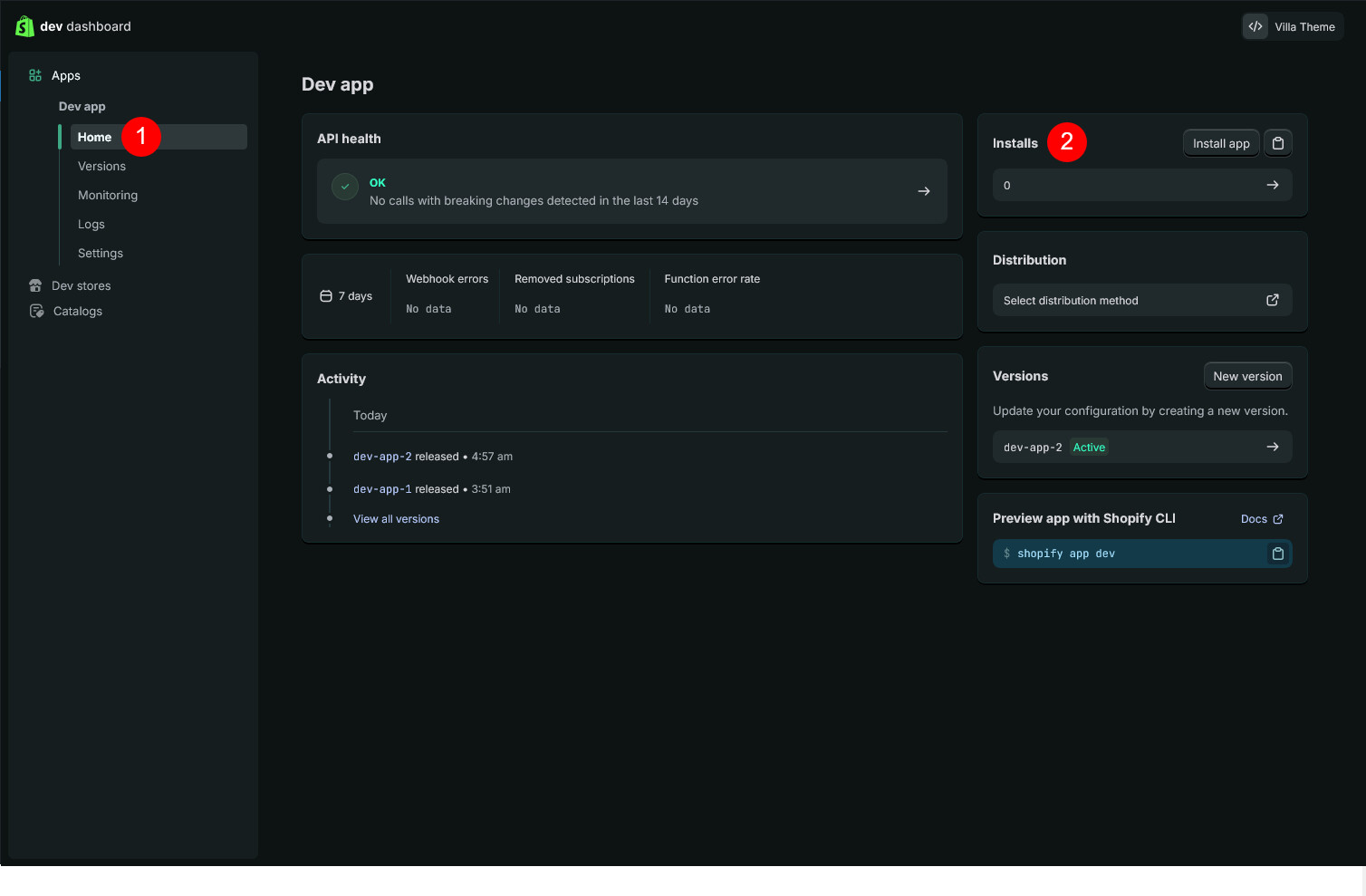
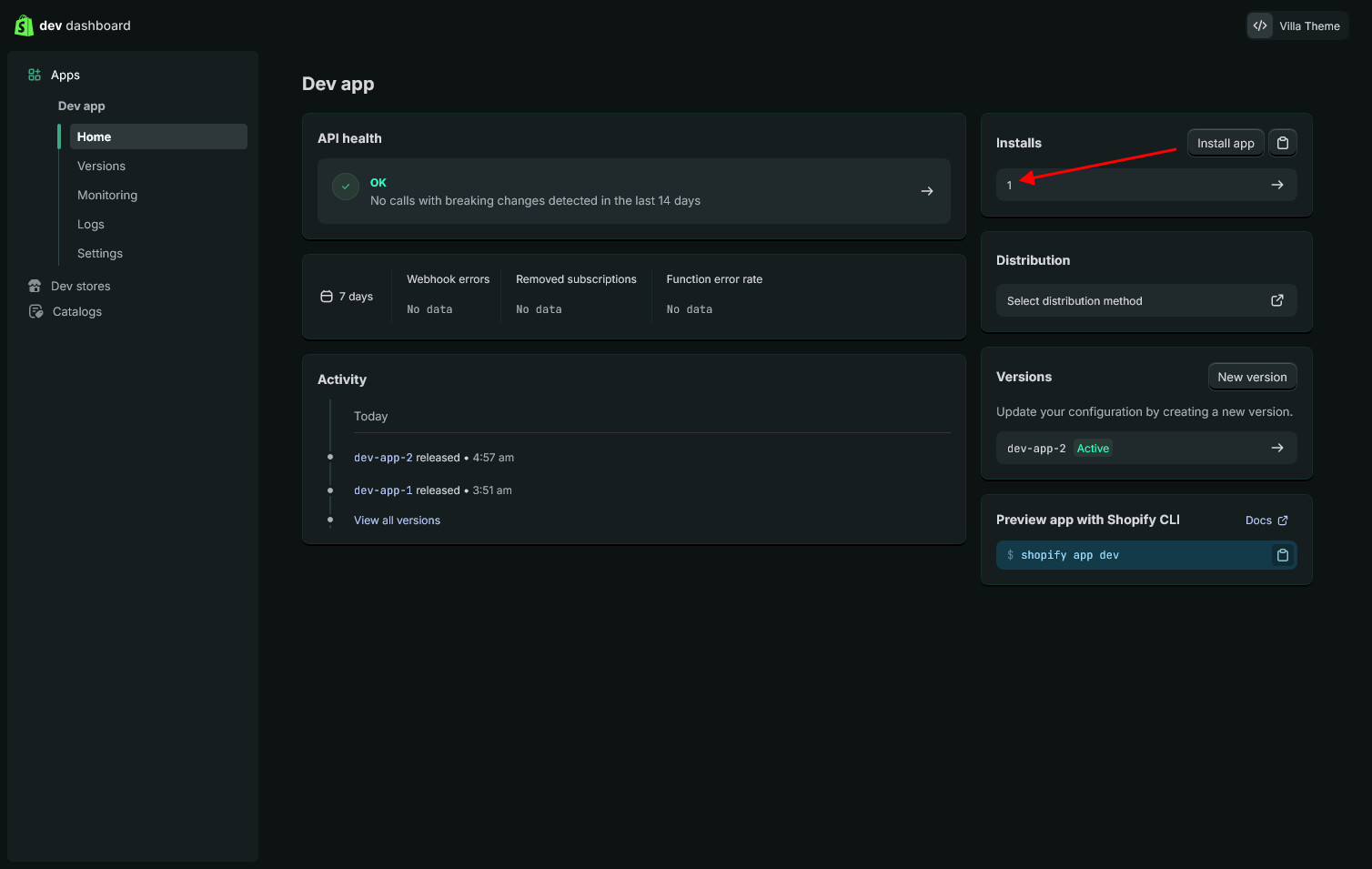
- Go to Home in the app’s Dev Dashboard
- You’ll see Installs: 0 → Click Install app
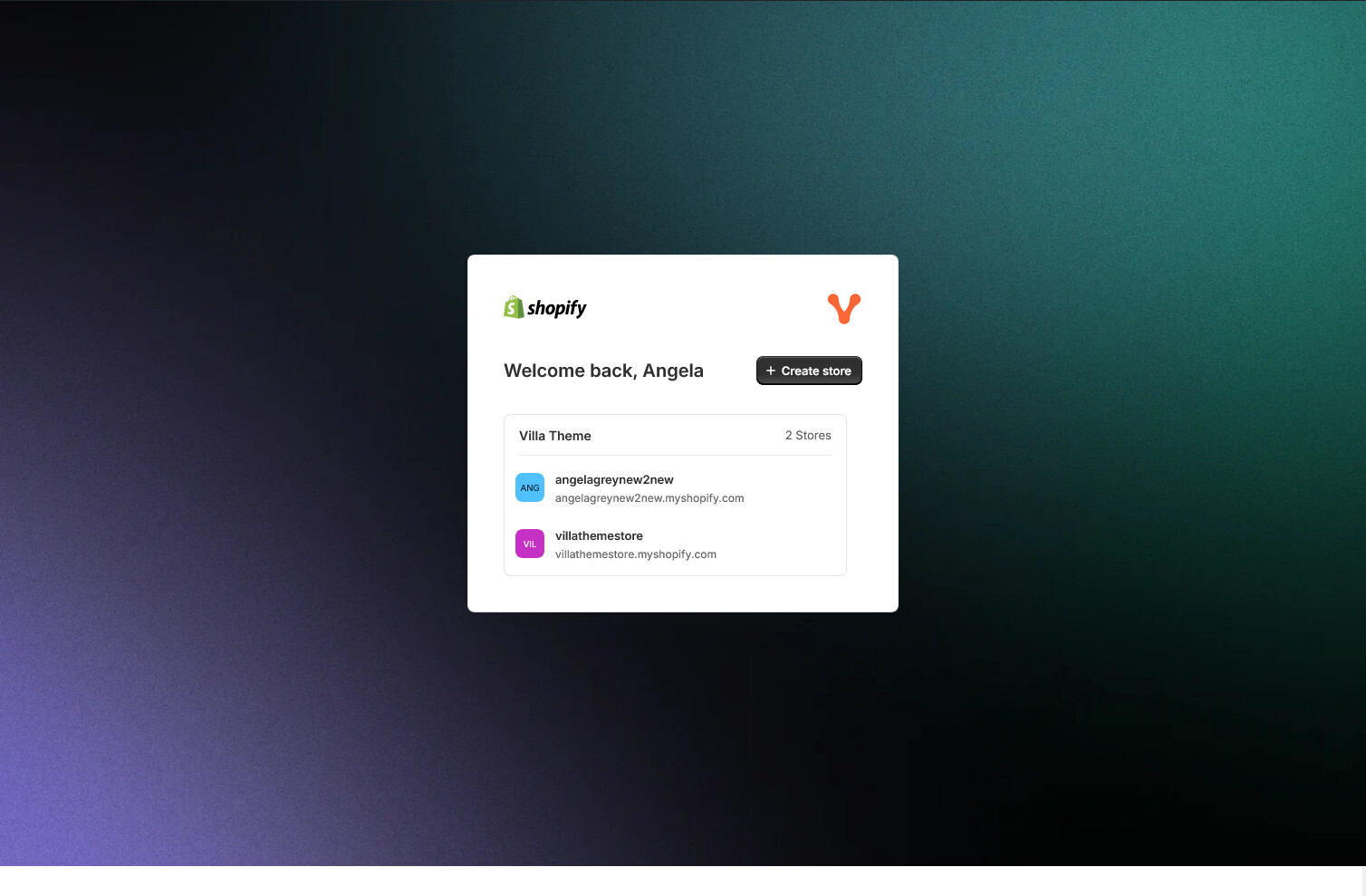
- Select the Shopify store
- Review permissions → Click Install to confirm
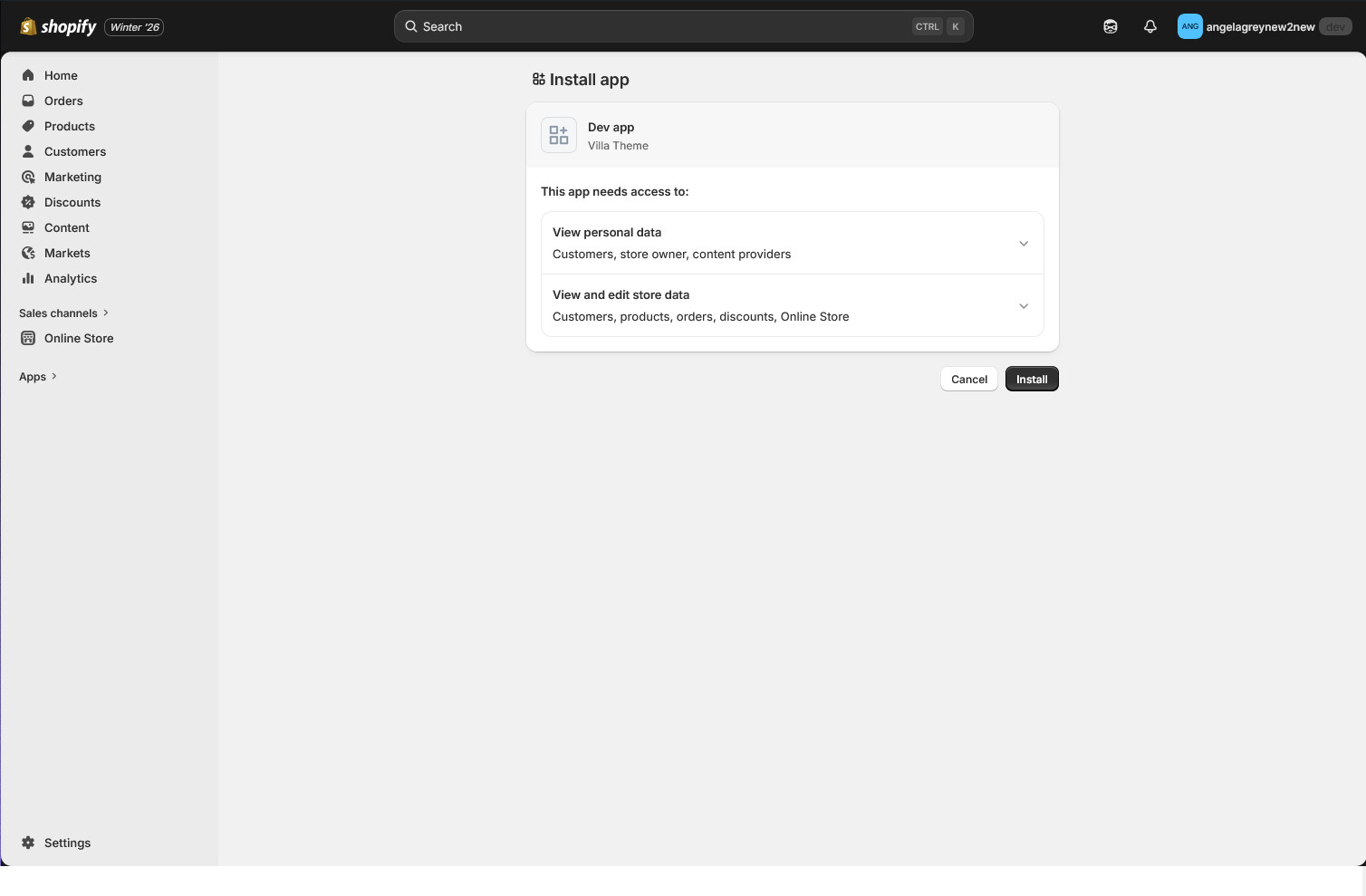
- After installation, the install count will update (e.g. Installs: 1).
Get API Credentials
After the app is installed:
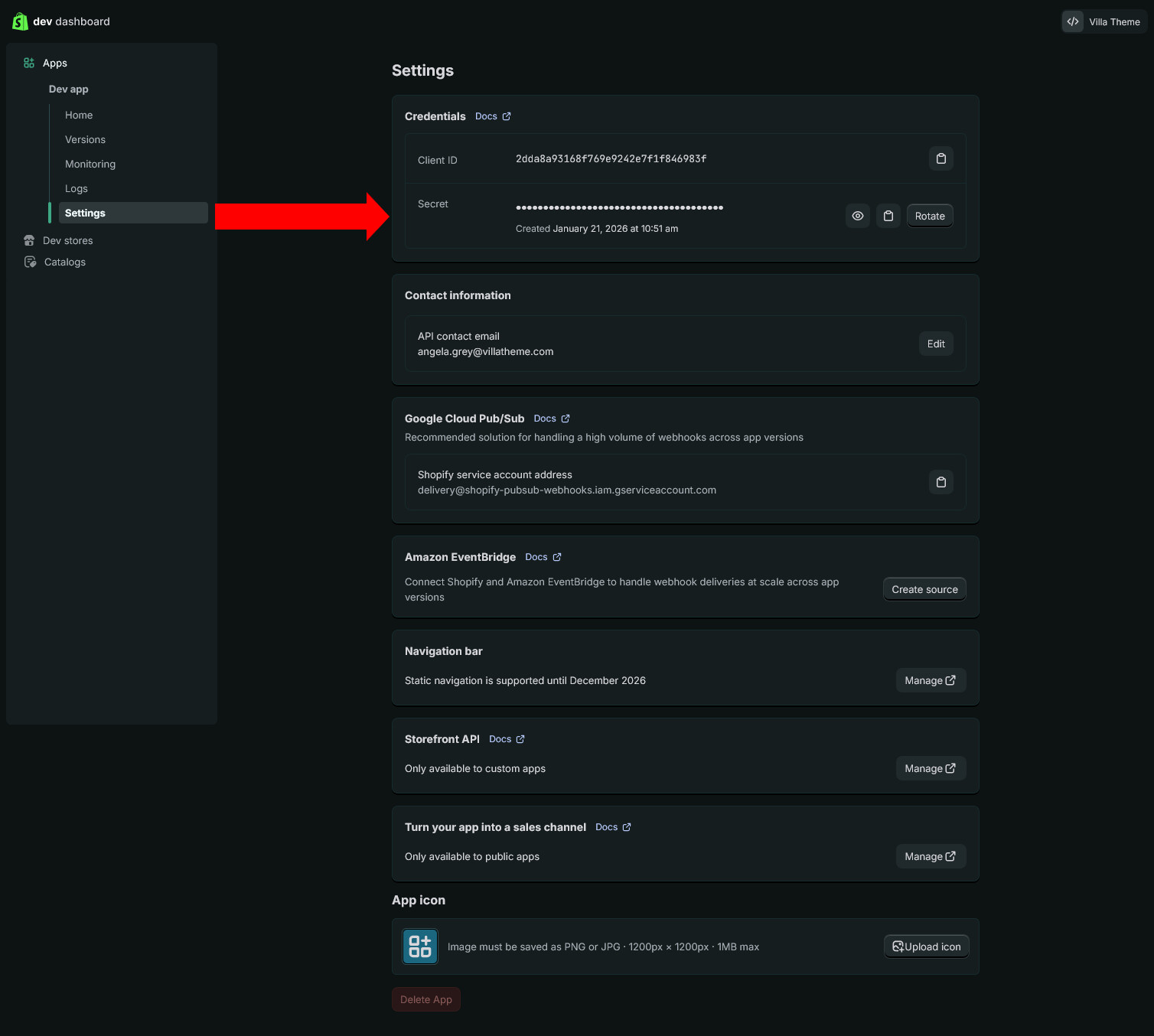
- Go to Dev Dashboard → App → Settings
- Copy the Client ID and Client Secret
- Use these credentials in the S2W plugin settings
Bonus: Edit App Scopes
To update the API scopes for your Shopify custom app:
Step 1:
- Go to Shopify Developer Dashboard
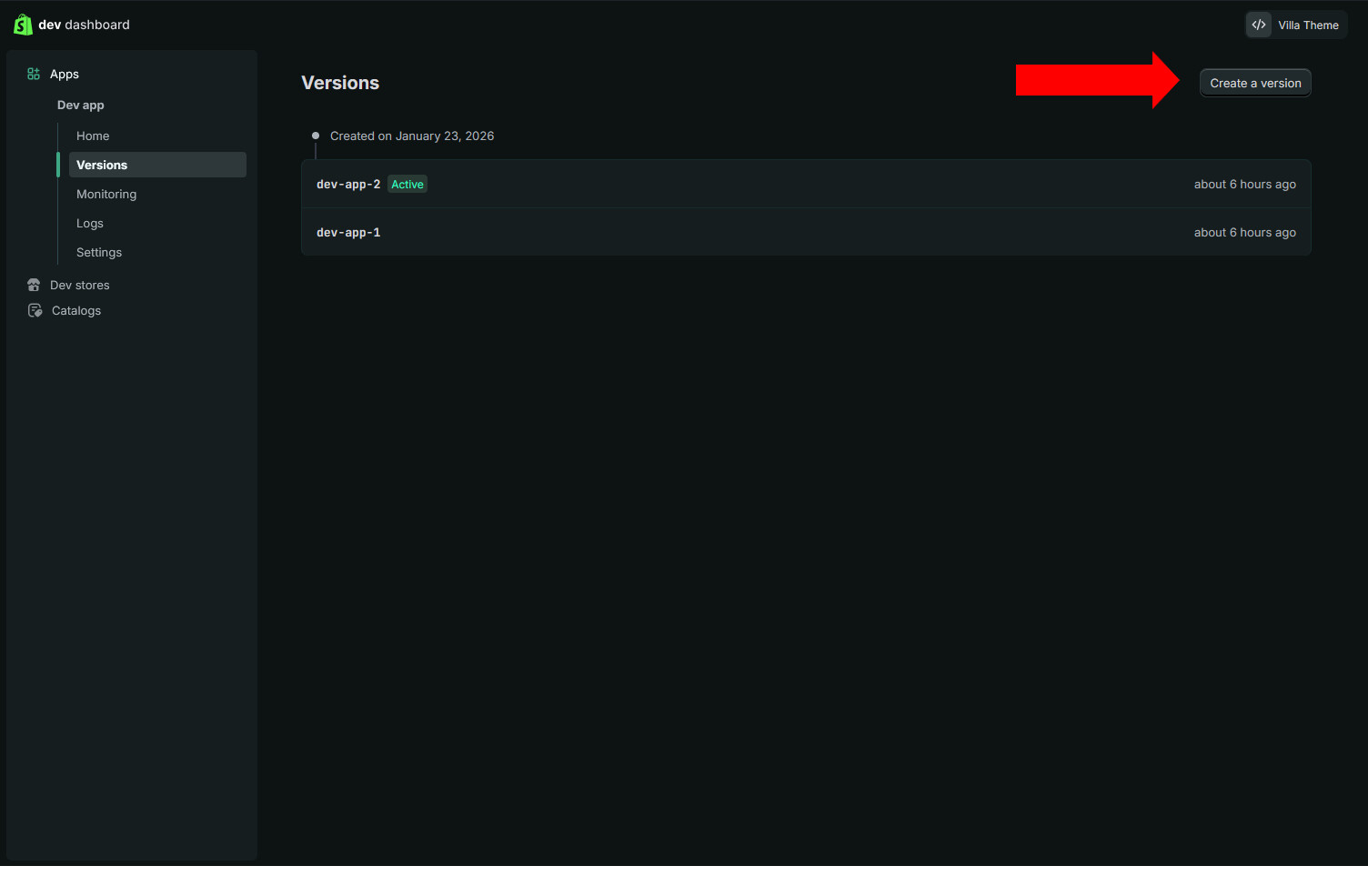
- Open your app and navigate to Apps → Versions
- Click Create a version
Step 2:
- On the version configuration page, edit the required API scopes
- Click Release to apply the changes
That’s it. The updated scopes will take effect after the new version is released.