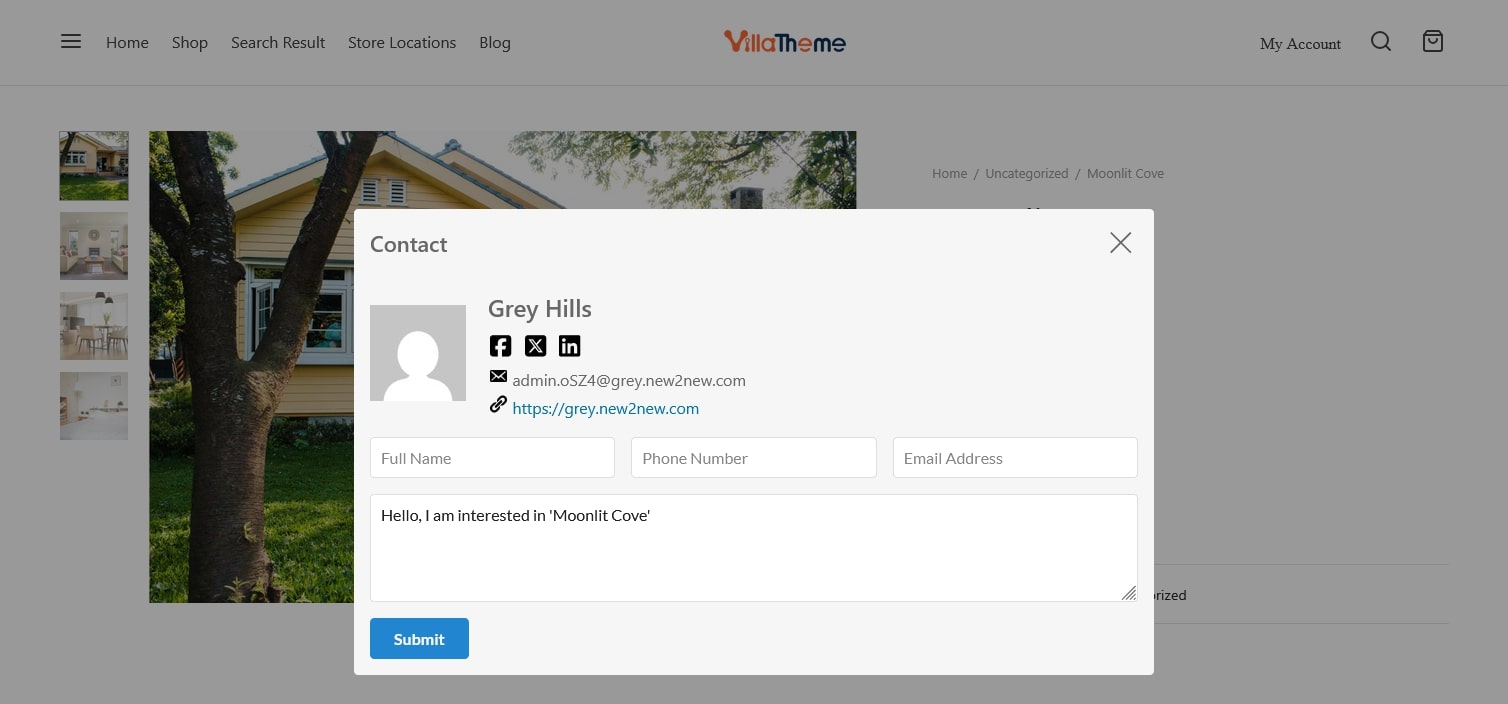
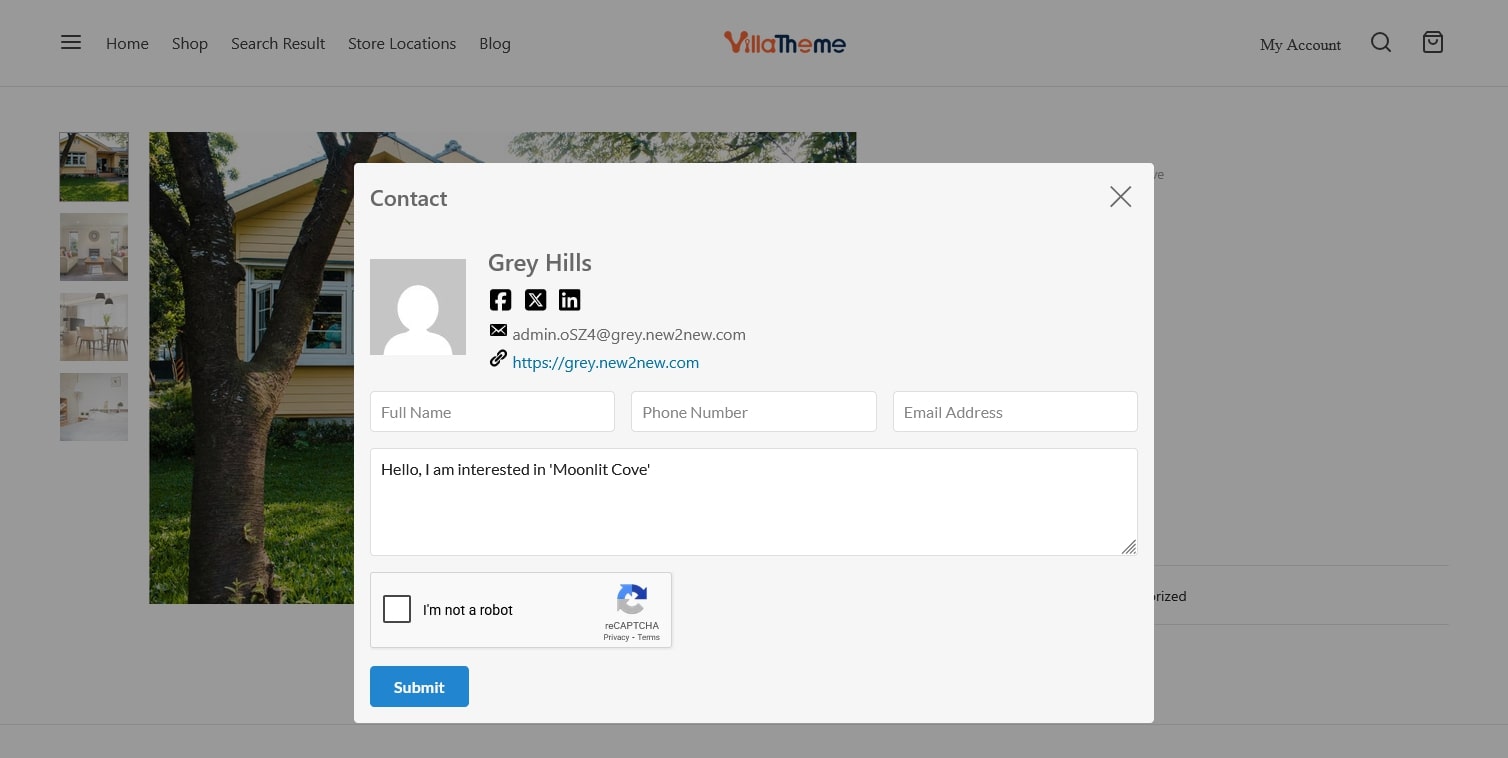
Go to Dashboard > WooCommerce > Settings > Rees settings > Google ReCAPTCHA
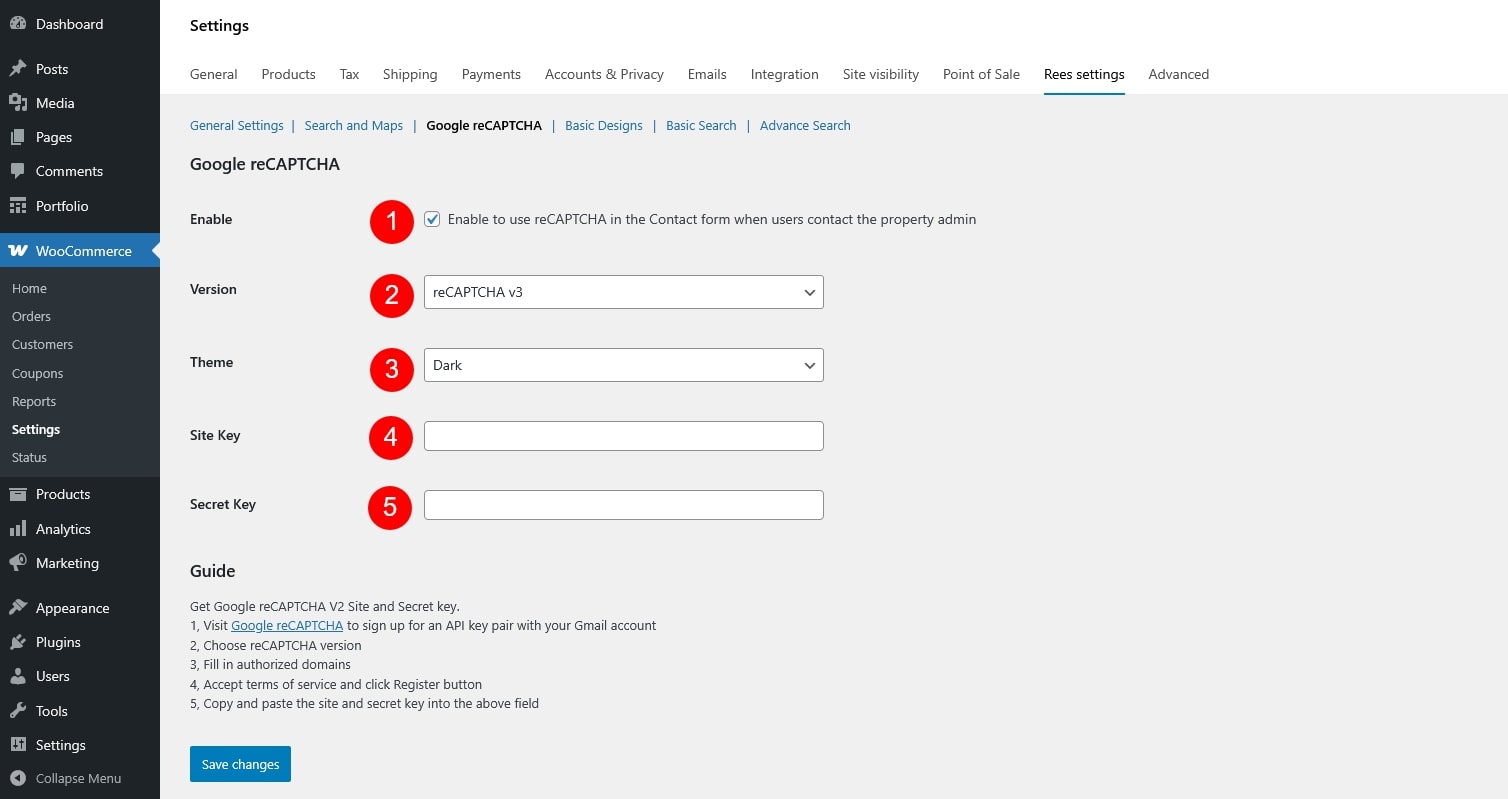
- Enable: Turn reCAPTCHA on or off for the supported forms.
- Version: Choose the reCAPTCHA version you want to use
- ReCaptcha 2: “I’m not a robot” Checkbox. This requires the user to click a checkbox indicating the user is not a robot. This will either pass the user immediately (with No CAPTCHA) or challenge them to validate whether or not they are human. This is the simplest option to integrate with and only requires two lines of HTML to render the checkbox.
- ReCaptcha 3: reCAPTCHA v3 allows you to verify if an interaction is legitimate without any user interaction. It is a pure JavaScript API returning a score, giving you the ability to take action in the context of your site: for instance requiring additional factors of authentication, sending a post to moderation, or throttling bots that may be scraping content.
- Theme: Select the appearance of the reCAPTCHA widget (Light or Dark). Applies to v2 only.
- Site Key: The public key provided by Google, used on the frontend to display reCAPTCHA.
- Secret Key: The private key provided by Google, used on the server to verify the reCAPTCHA response with Google.
Get Google reCAPTCHA V2 Site and Secret key
- Visit page to sign up for an API key pair with your Gmail account
- Choose reCAPTCHA v2 checkbox
- Fill in authorized domains
- Accept terms of service and click Register button
- Copy and paste the site and secret key into the above field
Both Site Key and Secret Key must be generated from the Google reCAPTCHA admin console and entered correctly for reCAPTCHA to work