Go to Dashboard > WooCommerce > Settings > Rees Settings > General Settings
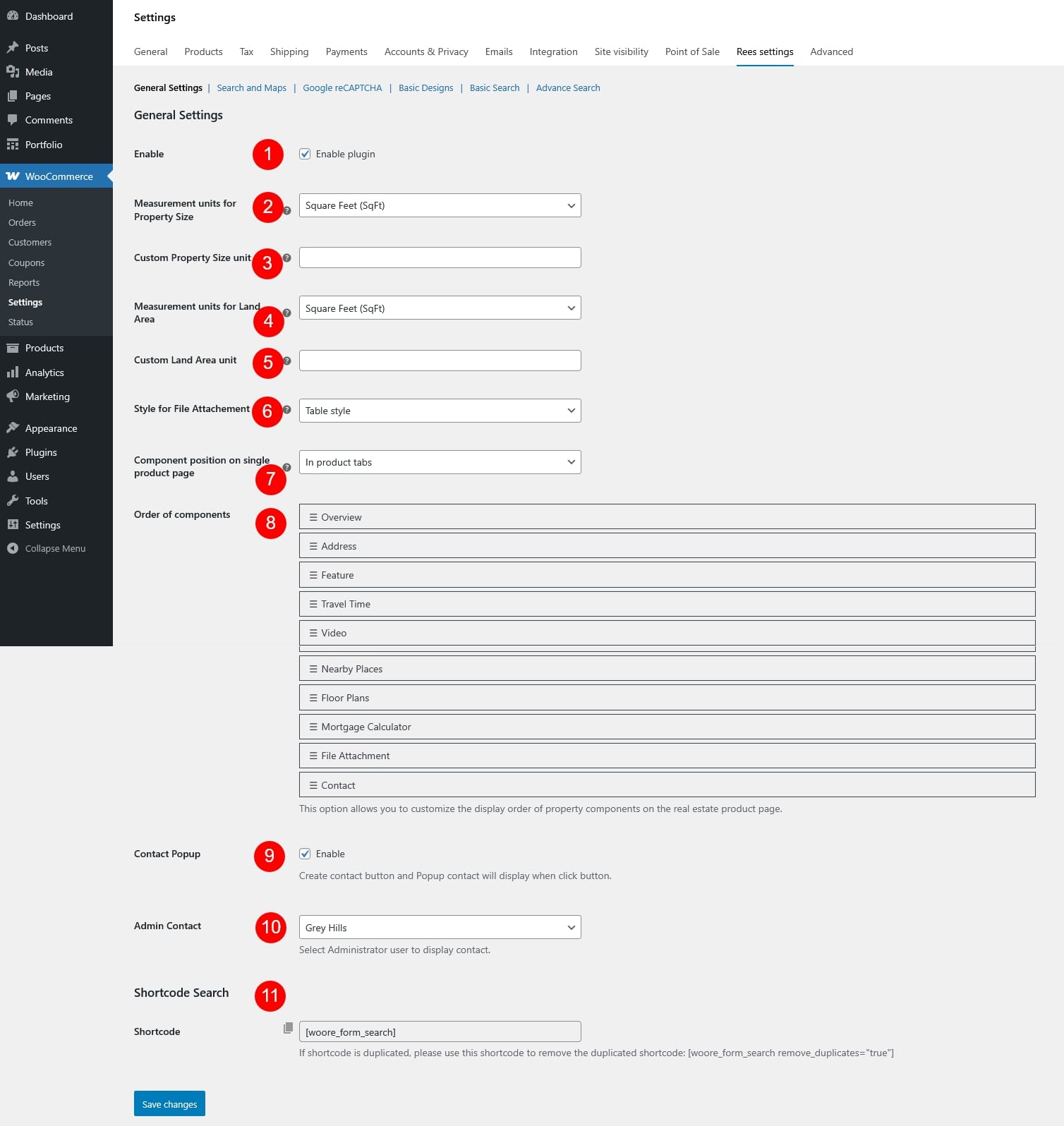
- Enable: Turn the real estate features on or off. When disabled, all property-related components and functions provided by the plugin will not be displayed on the frontend.
- Measurement units for Property Size: Choose the unit used to display the property size throughout the site. Available options include:
- Square feet (SqFt)
- Square meters (m²)
- Custom unit
- Custom Property Size unit: If Custom unit is selected for property size, enter the unit name here, e.g. sq, yd, hectare… This unit will be shown next to the property size value
- Measurement units for Land Area: Select the unit used to display the land area of the property. Available options include:
- Square feet (SqFt)
- Square meters (m²)
- Custom unit
- Custom Land Area unit: If Custom unit is selected for property size, enter the unit name for the land area size
- Style for File Attachment: Choose how attached files are displayed on the property page
- Table style: Displays attachments in a structured table format
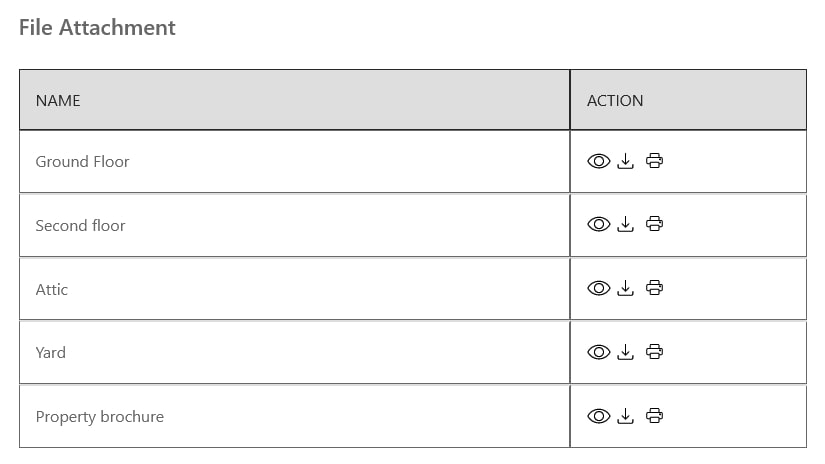
- List style: Displays attachments in a simple list format
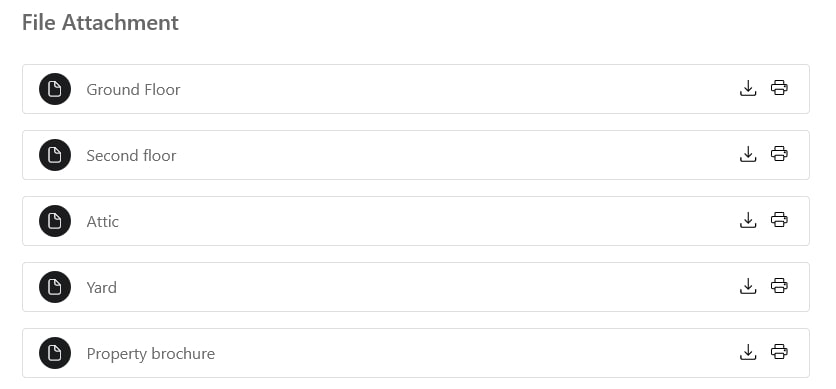
- Table style: Displays attachments in a structured table format
- Component position on single product page: Select where the property information component will appear on the single product page. This allows you to control how property details are presented within the page layout
- On product tabs: Above all product tabs like Description, Reviews, Additional Information…
- In product tabs: Add a separate tab for the details, named “Property Information”
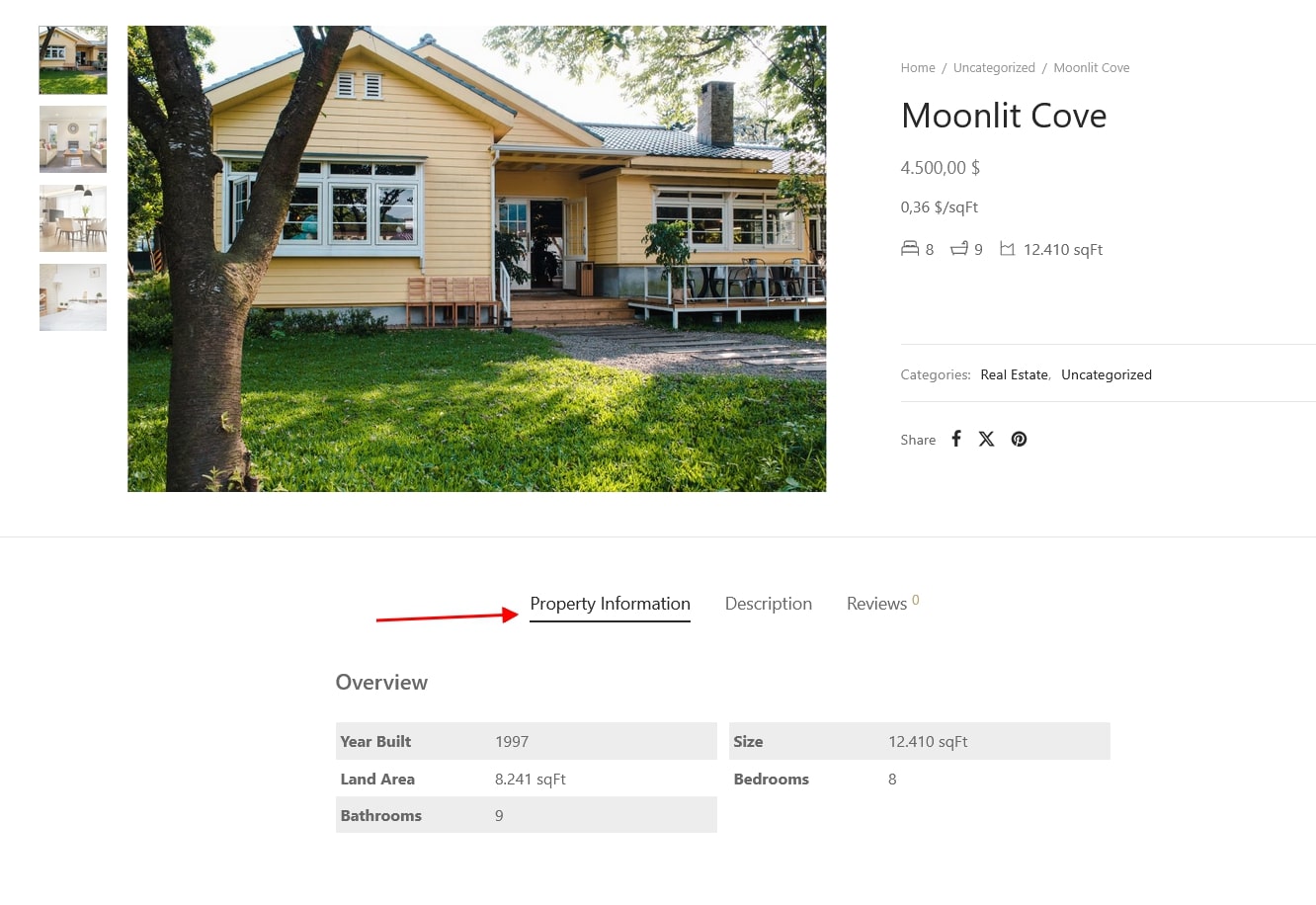
- In description tab: Inside the description tab
- Order of components: Reorder the property information components to control the display sequence on the product page, drag and drop the components to sort their order as you need.
- Contact Popup: Enable a contact button on the single product page, when clicked, a popup contact form will appear, allowing visitors to quickly reach out to the agent for inquiries about the property.
- Admin Contact: Select the administrator user whose contact information will be displayed in the contact popup.
- Shortcode Search:
- Click the provided shortcode to copy and paste it into any page, post, or widget where you want the property search form to appear.
- If the search form is displayed multiple times due to duplicated shortcodes, use the following shortcode to remove duplicates: [woore_form_search remove_duplicates=”true”]