To import data from Shopify to WooCommerce, you need to fill in your Shopify API information. You’ll need the following:
- Shopify Store Domain
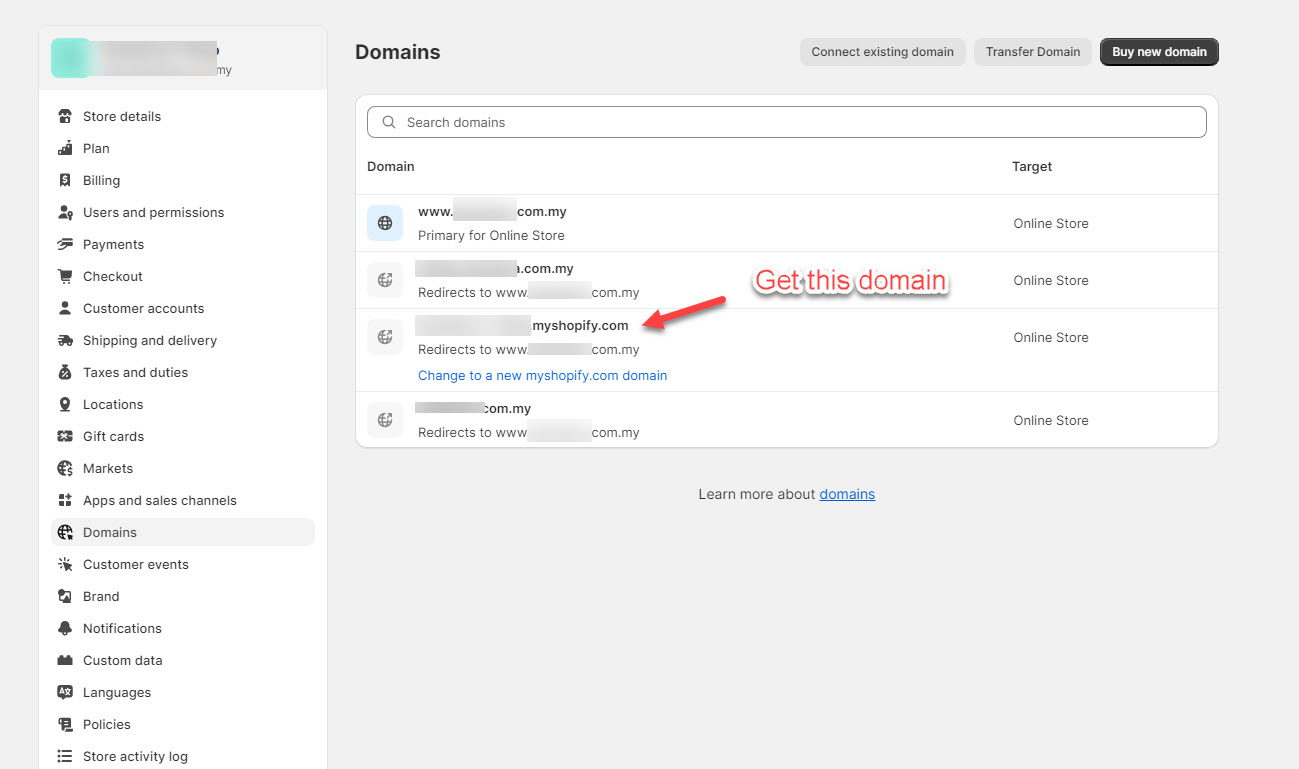
- From your Shopify admin, go to Settings → Domains
- Copy your store domain in this format: myshop.myshopify.com
- Shopify API Credentials: S2W works with one of the following credential types (not all of them). Learn how to get Client ID and Client Secret of the new app in this document
- Client ID and Client Secret (new apps since Jan 1st, 2026)
- Access Token (for Custom App since 2022)
- API Key and API Secret (Password) for Private app – no longer deprecated
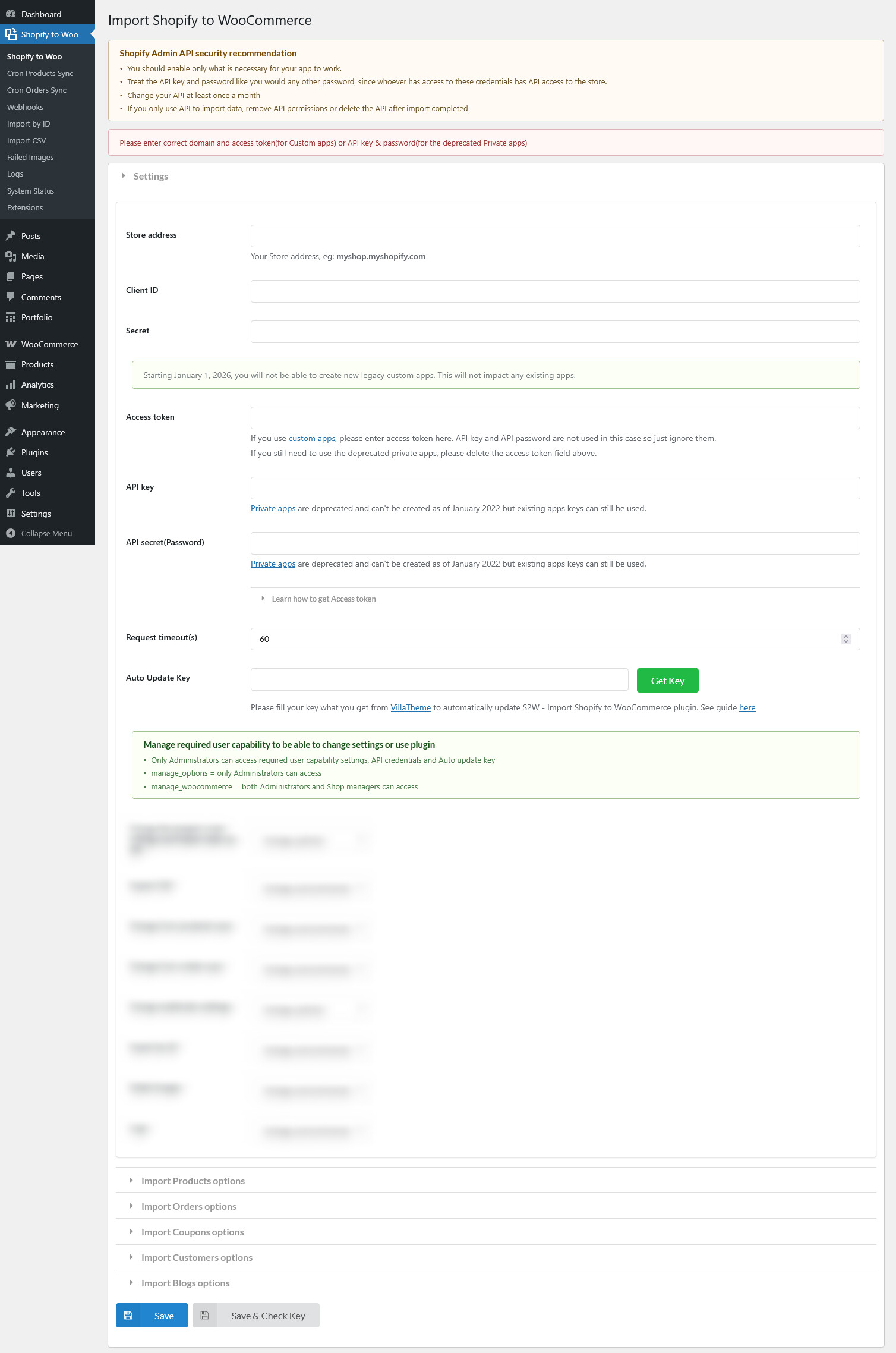
Note:
- Access Token and API Key/API Secret belong to legacy custom apps, which Shopify no longer supports for new app creation.
- If you are an existing user already using a legacy app, you can continue using those credentials without any issues.
- Shopify controls access to specific information types, particularly when it comes to apps that handle Personally Identifiable Information (PII). The restriction primarily affects the import of customer details (more details in this article). To properly import customer details, your Shopify plan must be Shopify or higher, otherwise you won’t have access to Custom Level 2 PII apps.
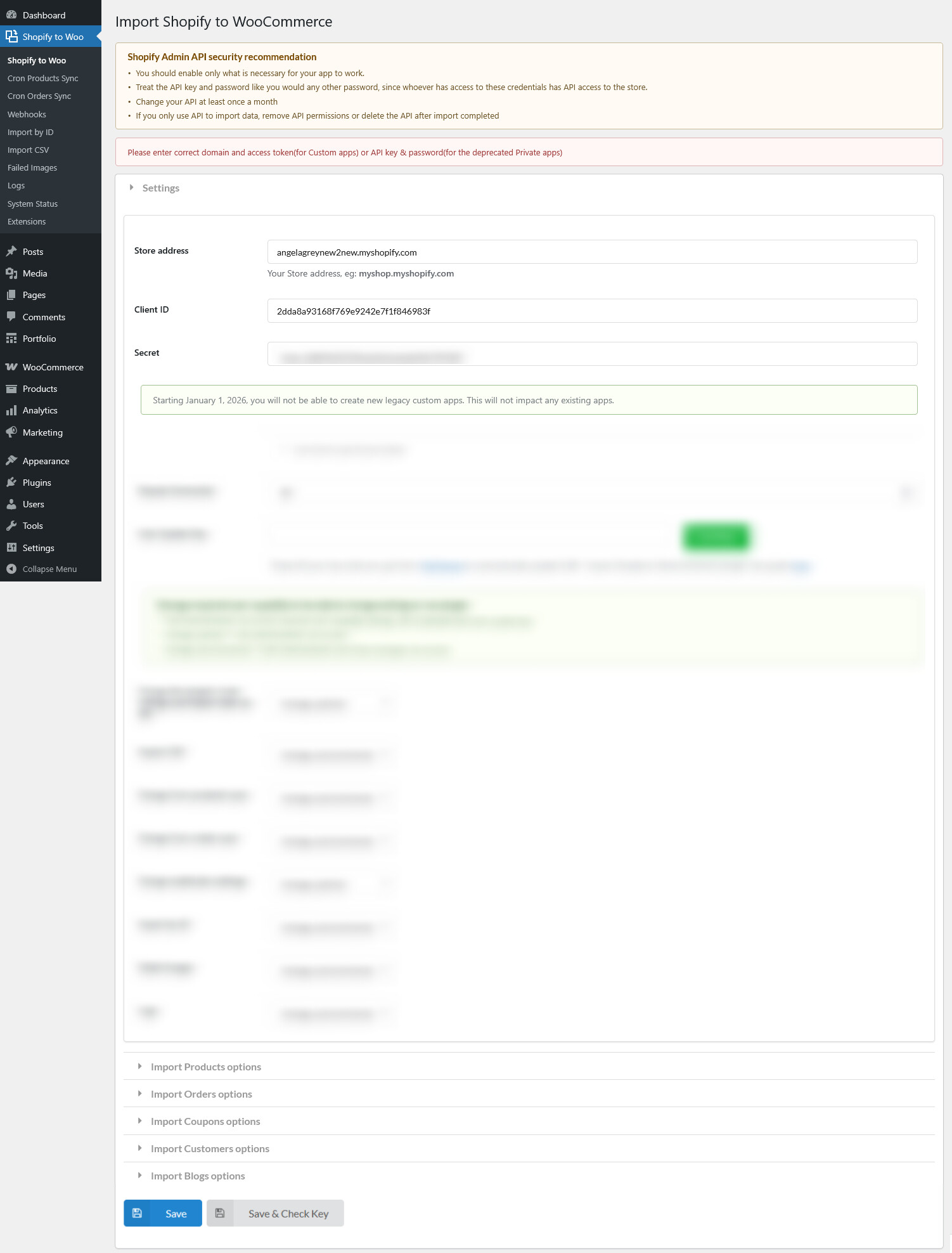
Once you’ve obtained the Client ID and Client Secret and the connection is successful, you can start importing data from Shopify to WooCommerce
If you want to check again the settings you configured for a particular store, no need to scroll up and find them manually, simply click View settings.
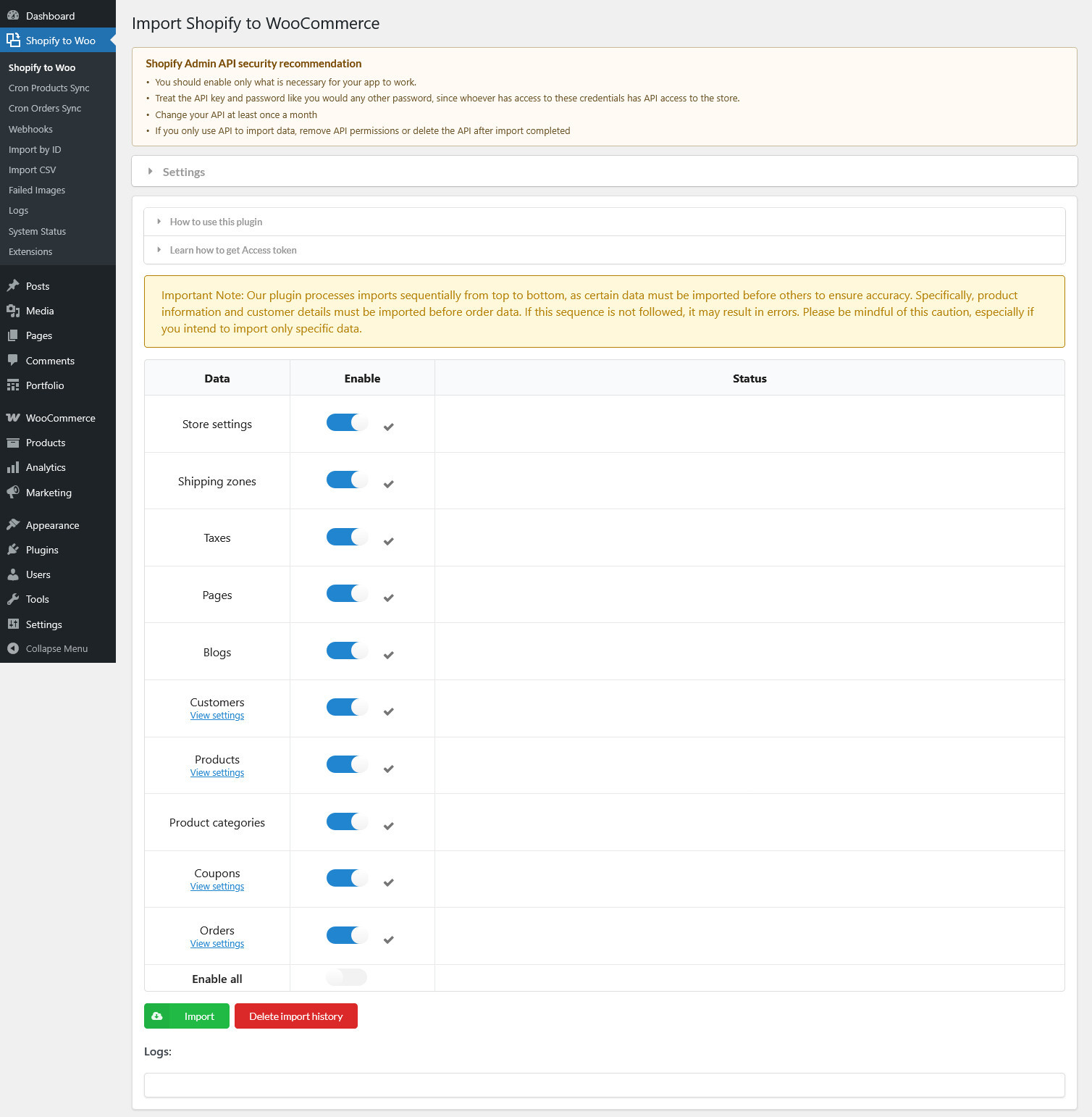
Once you click “Import”, the plugin will import the data to all Shopify stores, if you want to leave out some stores, do it with “Enable all”
This document focuses on creating a new custom app using Shopify’s latest updates. You can learn the video on how to create a custom app and connect Shopify API.