
Created: 2026.06
Latest updated: 2026.06 – Updated version: 1.0.0
By: VillaTheme
Thank you for purchasing our plugin. If you have any questions that are beyond the scope of this documentation, please feel free to request support at our Support Forum. Thanks so much!
**IMPORTANCE NOTICE**
We have tested CURCY Multi Currency for WooCommerce with many WordPress themes, plugins, and 3rd party WooCommerce extensions, but it’s impossible to test them all, so some may still have compatibility issues. Please read the Compatibility documentation section. Should you notice any problem, please contact us with the details and screenshots. We’ll do our best to find the solution!
CURCY – Multi Currency for WooCommerce is a currency converter plugin for WooCommerce, which allows you to display prices and accept payments in multiple currencies. The plugin can detect customers’ countries and languages, and apply prices in their native currency. It is also convenient for users to switch between different currencies using a currencies bar to find their preferred currency among the available options.
Important Update: The plugin settings have been integrated directly into WooCommerce > Settings (instead of a separate menu item) for a more seamless and unified management experience.
The plugin is flexible with many currency options for front-end display and exchange rate management:
WooCommerce Multi Currency can automatically detect customers’ native currency based on their country or language.
*Important: Please note that auto-detect country features may not work properly with websites/servers that use aggressive caching. Please try out the free version to test compatibility with your site.
CURCY allows you to configure specific currencies for the checkout process.
*Important: To display a payment gateway on the checkout page, that gateway must support your store’s default currency. (e.g., If your default currency is ZAR, PayPal cannot be enabled even if Multi-Currency converts ZAR to USD on the front-end, because PayPal does not natively support ZAR).
Set rules to display clean and attractive “beauty prices” on the front-end:
1. WordPress 5.0+
2. PHP 7.0+
3. WooCommerce 7.0+
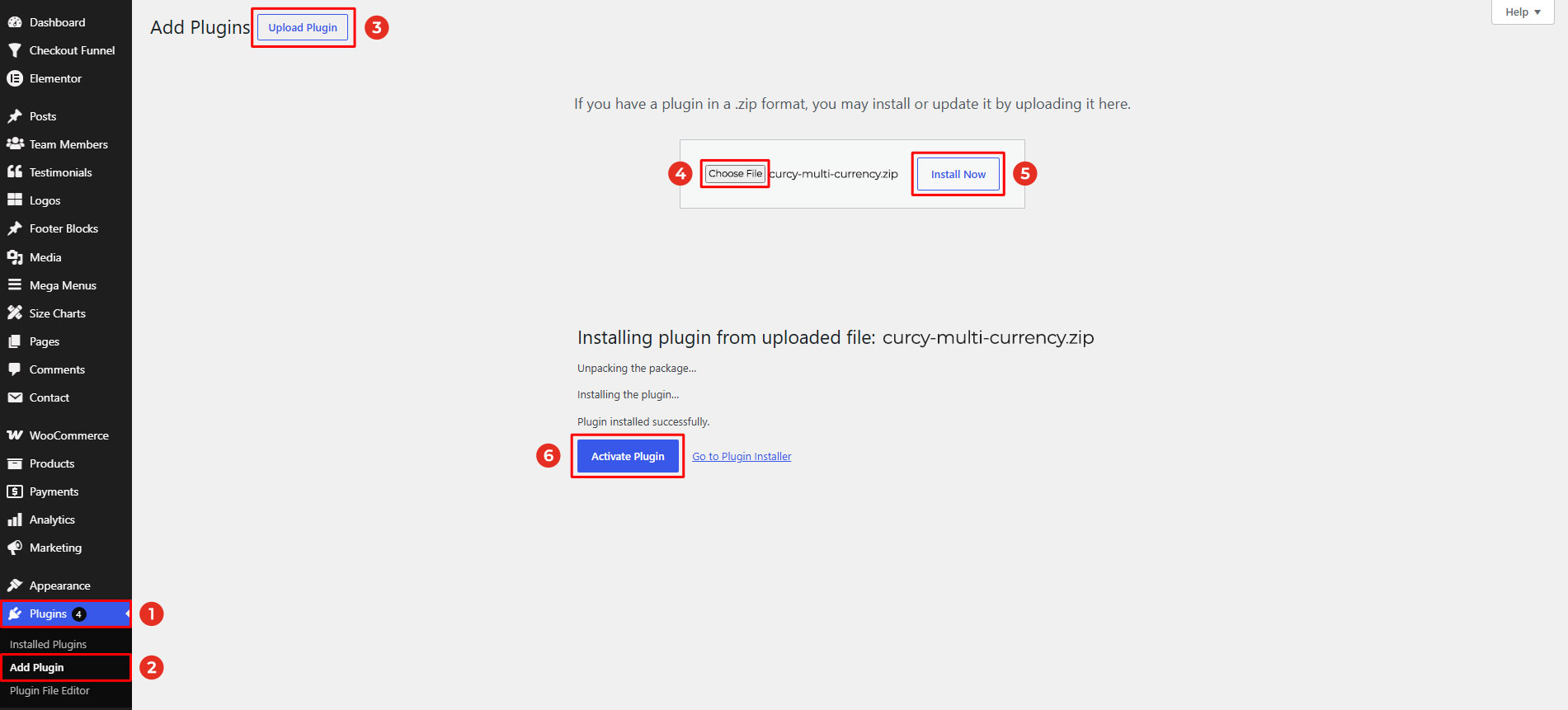
Get the plugin installation package from your account download page and save it to your desktop.
Go to Plugins/ Add New/ Upload Plugin/ Choose file/ Select curcy-multi-currency.zip file/ click “Install Now“/ click “Active plugin“.
Install and Set up Video
Done! Let’s start using the plugin.
After installing the plugin, please go to WooCommerce / Settings / Multi Currency / General >> Enable the plugin to start using the plugin.
Make sure to click “Save” to save the settings.

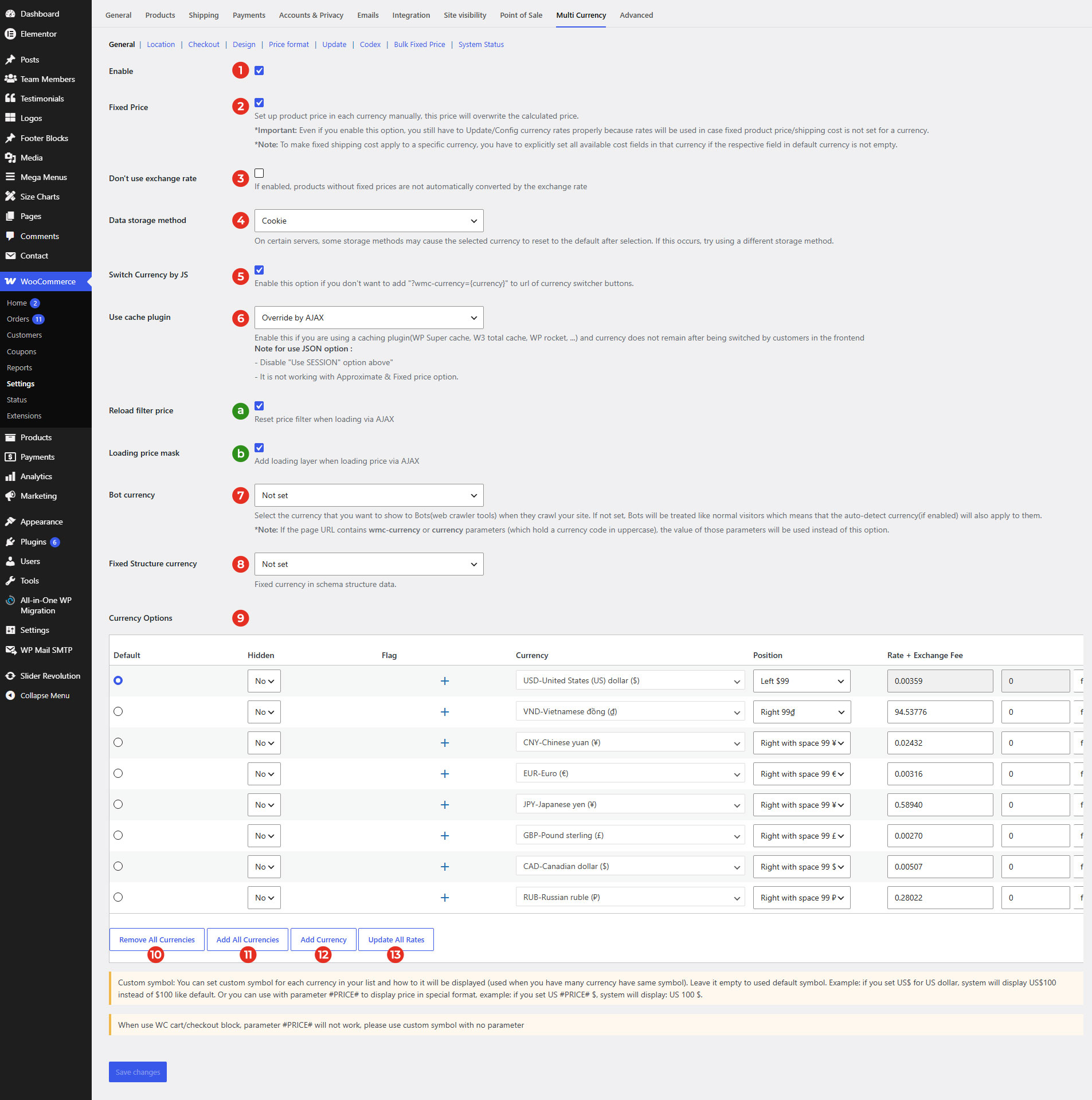
After activating the plugin, start building a list of currencies in the General settings. This is an important part as the currency list is the basis, all other functions of the plugin will work based on this list.
This needs to be done in the “Currency Options” table at the end of the tab.
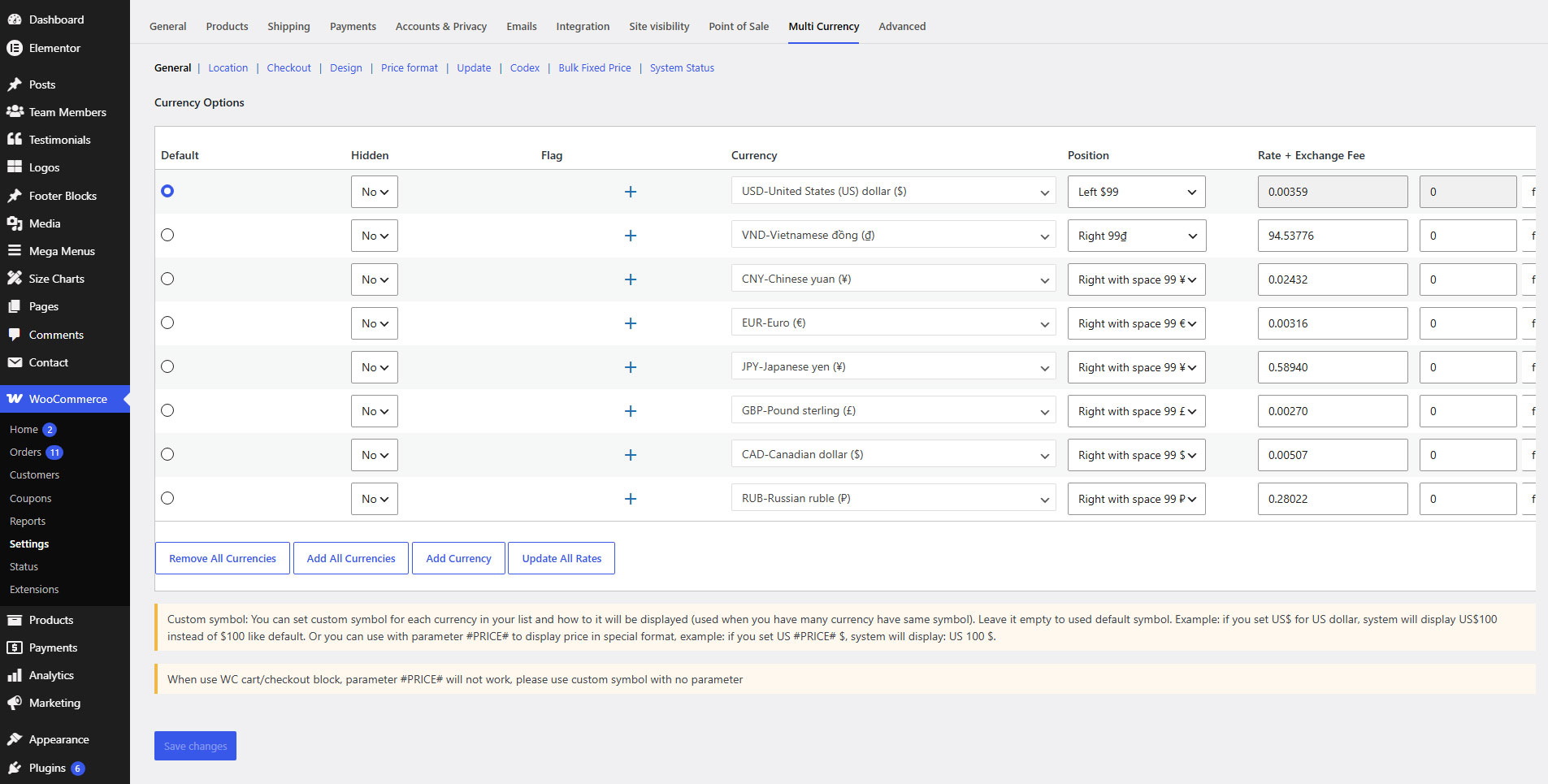
Step 1: Go to the WooCommerce / Settings / Multi Currency / General tab of the plugin settings
Step 2: In the “Currency Options” table, click “Add currency” to add more currencies you need.
Step 4: Configure each currency.
Step 5: Click “Save settings“.
Please regard this documentation – part (9) Currency option – for a specific explanation of each option.
CURCY allows the admin to add a fixed price to the product price for each currency you have on your list. You can use this feature for:
First, enable the “Fixed Price” option in the plugin settings.
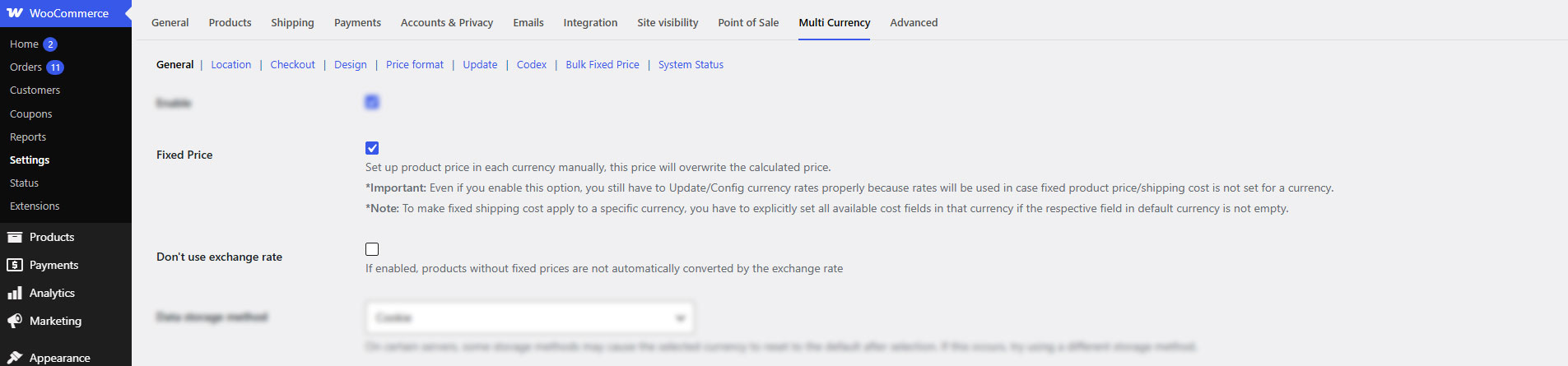
Now, there will be fields to add the price in different currencies in the product data. The fixed price of the product in each currency can be added, it will overwrite the price converted using the exchange rate when users switch currencies.
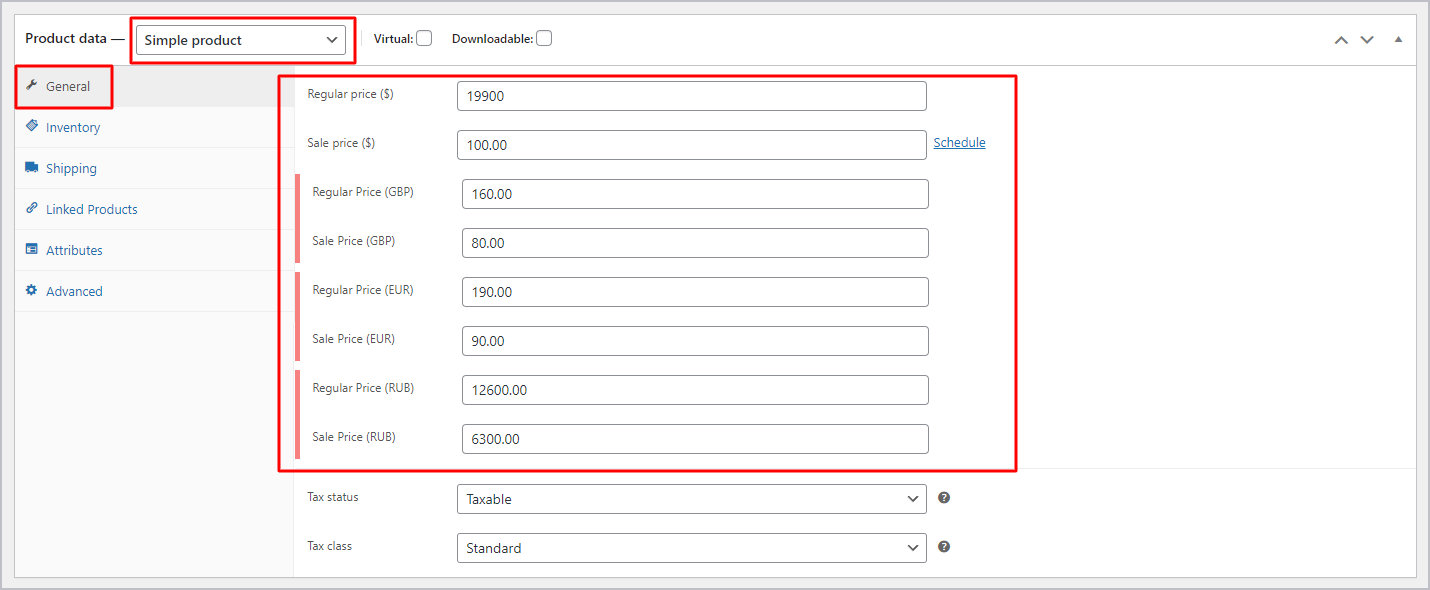
1. To add fixed prices for particular products, follow these steps below:
With the “Simple product” type
With the “Variable product” type:
Add the fixed price for all variations of the product as below:
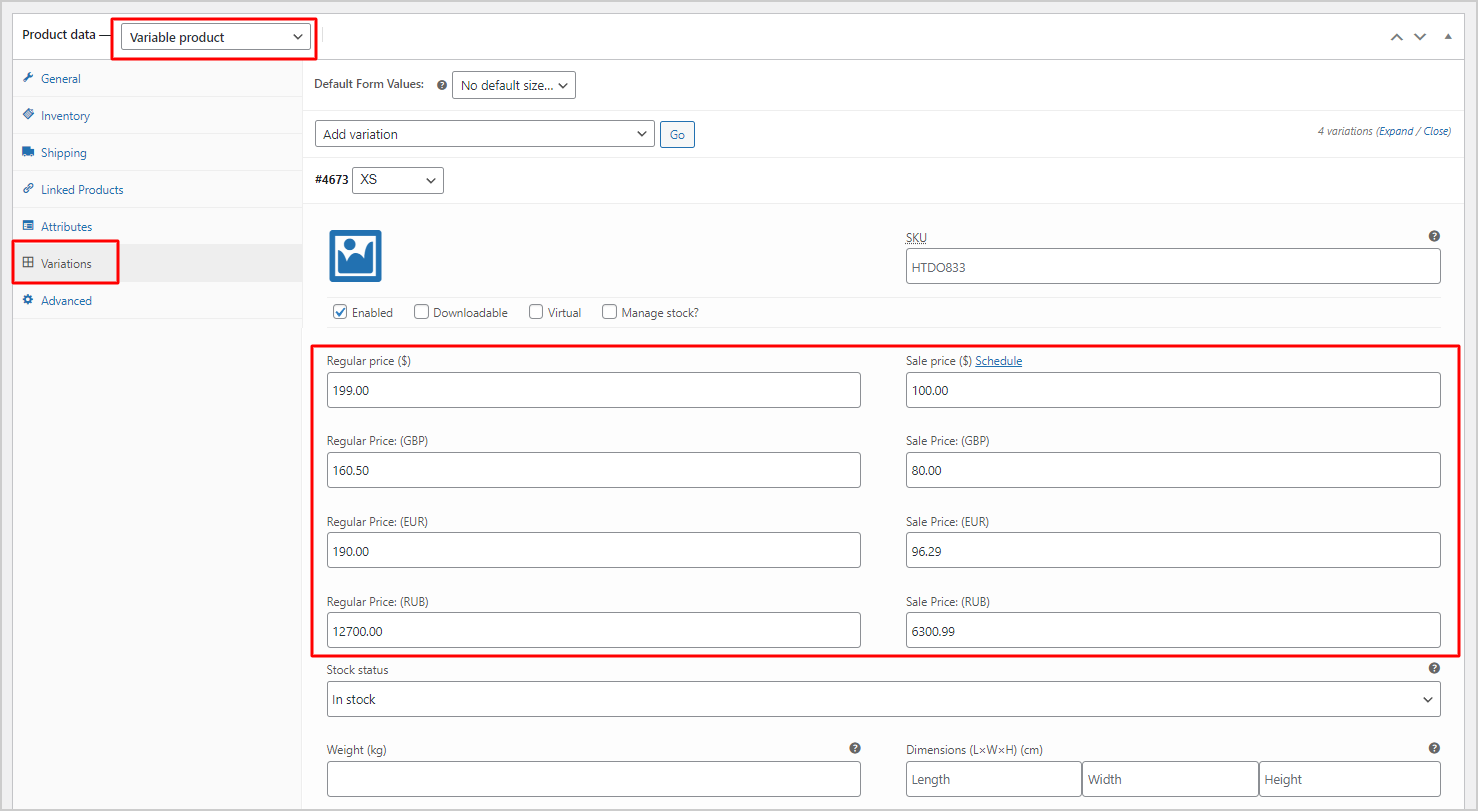
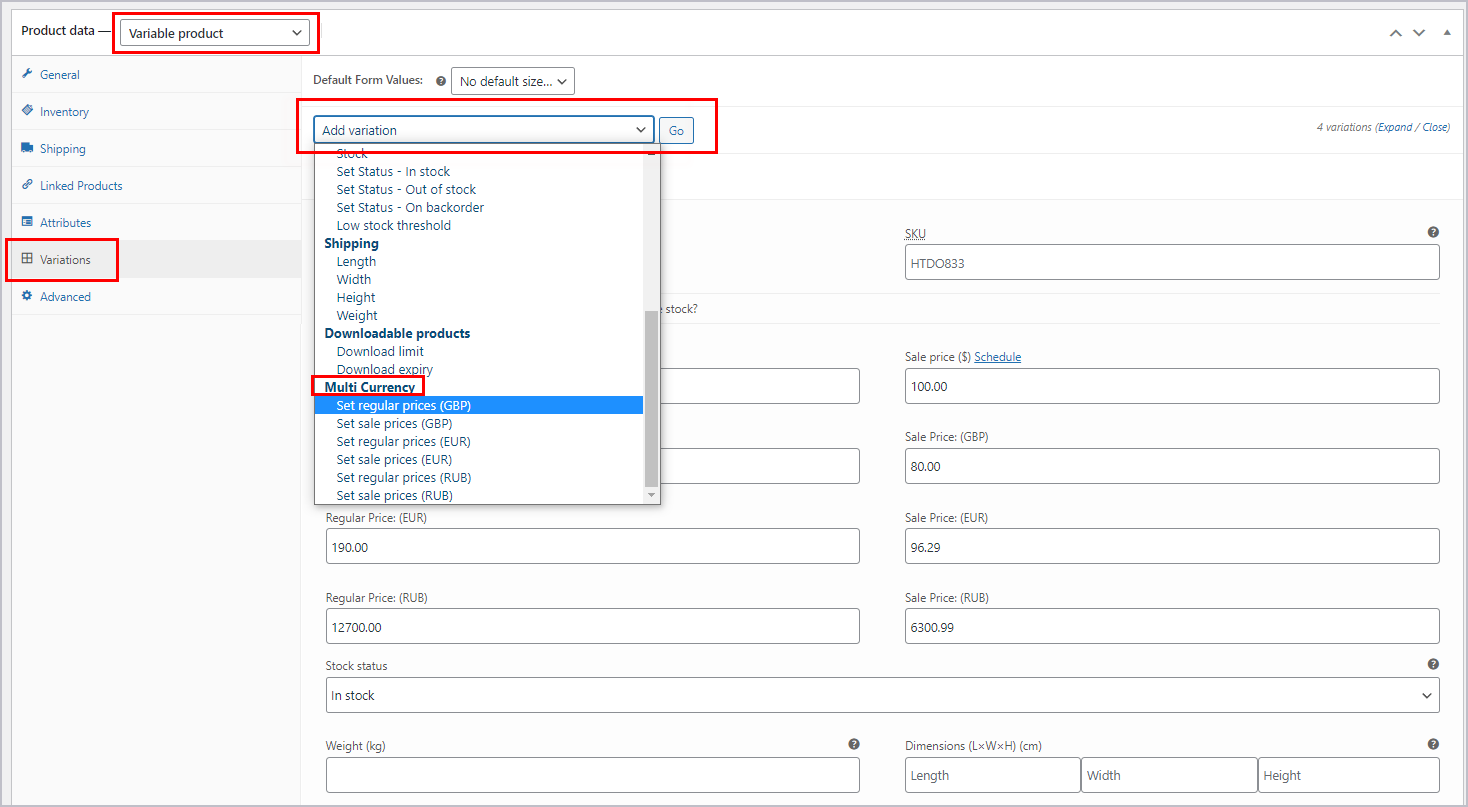
Another way, you can add a fixed price in one currency for ALL variations of that product:
Go to Product data > Variations > In the “Add variation” option > Scroll down to see the option to set regular/sale prices in each currency of Multi Currency
2. To add fixed prices in bulk using a CSV file, visit this documentation for specific steps.
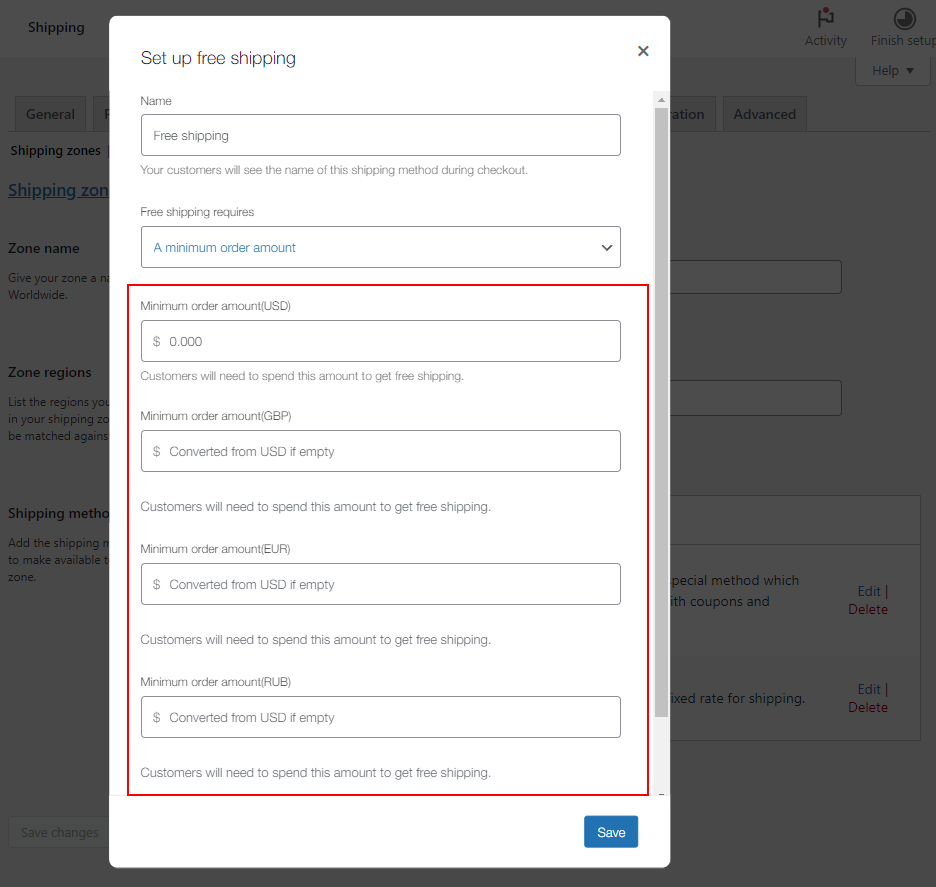
“Fixed price” feature works for not only WooCommerce products, but also WooCommerce shipping methods: Flat rate and Free shipping.
Once you enabled Fixed price and create “Free shipping” shipping method in WooCommerce Shipping settings, if you select any option among the 3 below in “Free Shipping Requires” dropdown:
>> You are able to adjust the fixed required amount for this shipping method in each currency.
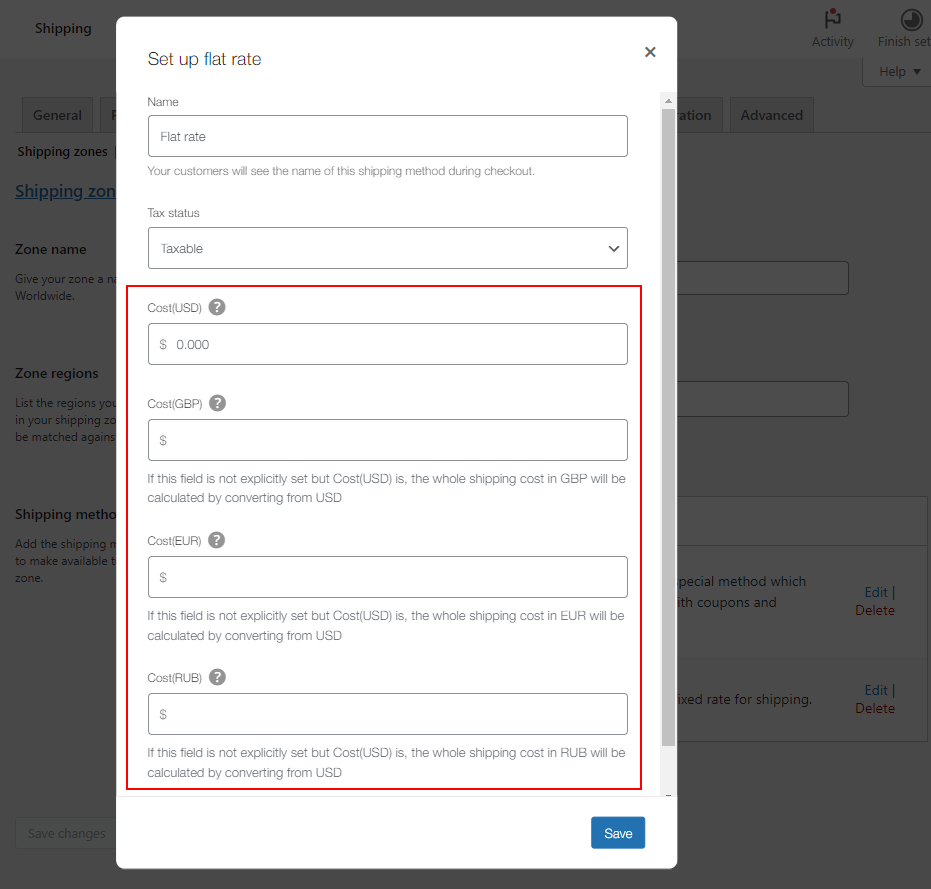
Similar to Free Shipping, if you create and configure “Flat rate” shipping method in WooCommerce Shipping settings and use Fixed price feature of our plugin, then you can enter fixed flat rate in each currency like this:
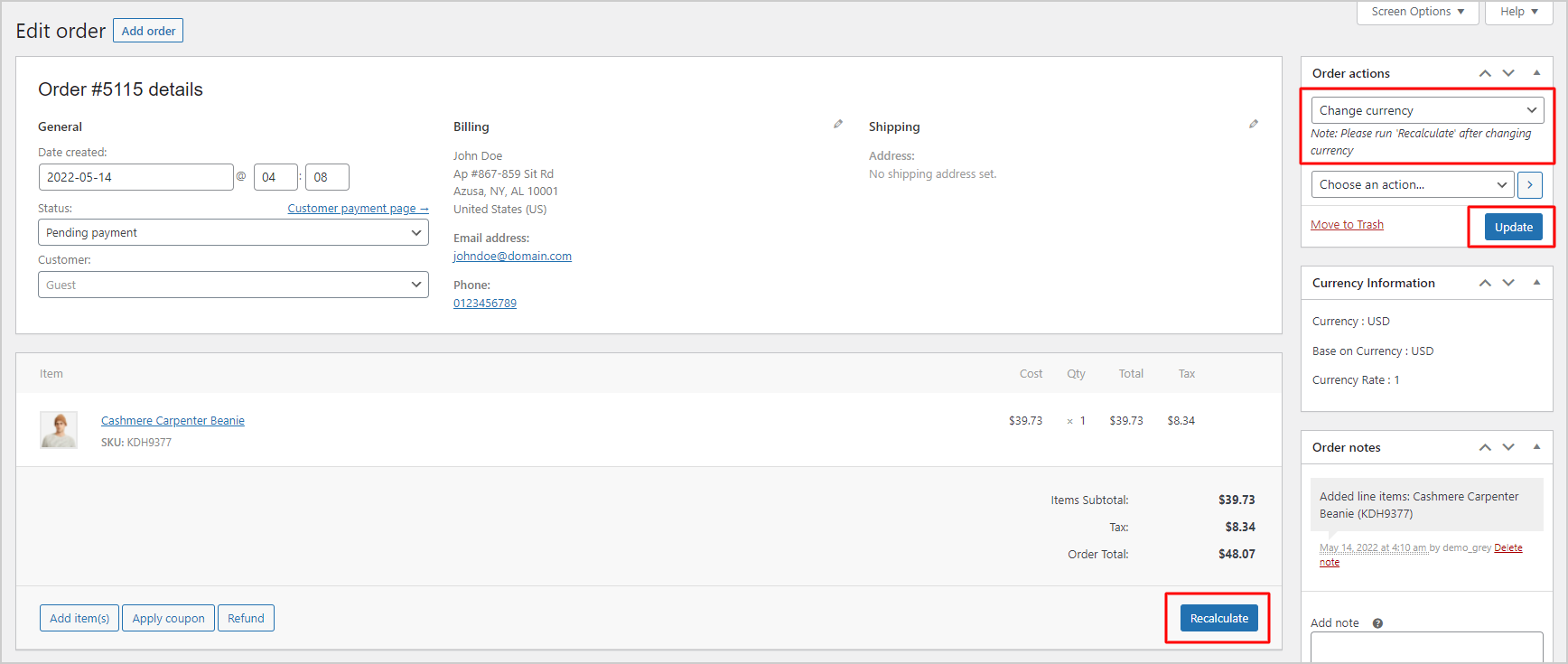
After an order is placed, the admin can change the currency order in the Orders settings, following these steps below:
Go to WooCommerce / Settings / Multi Currency / General tab, you can set up the main features of CURCY
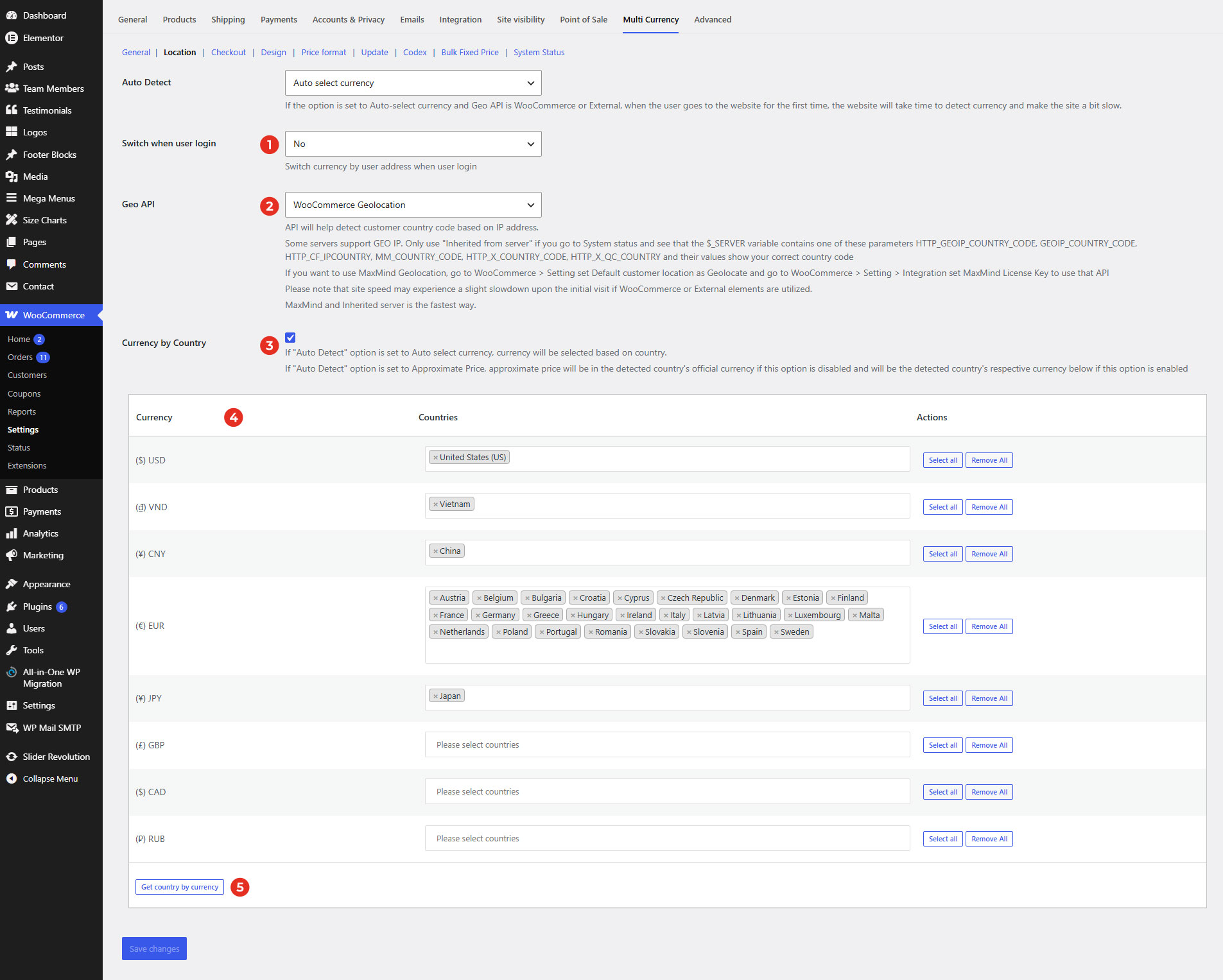
?wmc-currency={currency}. Enable this option to remove the query. It is good for SEO.Go to WooCommerce / Settings / Multi Currency / Location. Here, you can set up the plugin to automatically select currency based on customers’ country or language.
It shows the default currency, and won’t be changed automatically based on any criteria
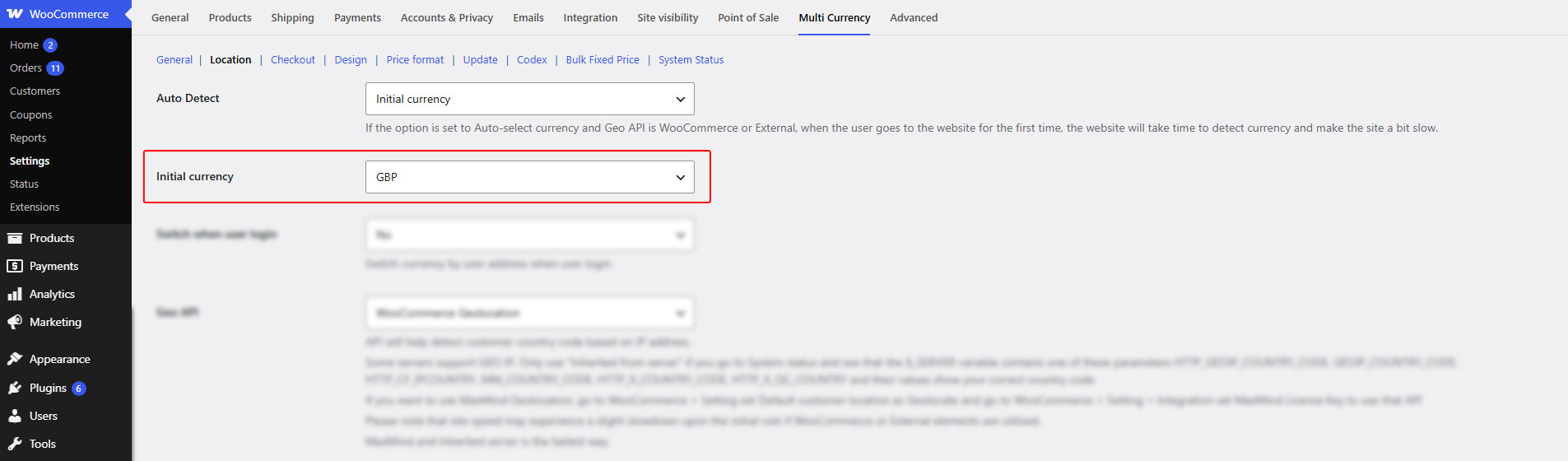
This feature automatically displays the currency set under ‘Initial Currency’, regardless of the customer’s location. To use it, choose ‘Initial Currency’ as the detection method and select your preferred currency in the ‘Initial Currency Selection’ dropdown. User can still change to other currency
Show prices in the default currency and an additional one. The plugin will detect customers’ country based on their IP, then display an approximate price in their native country under WooCommerce price. Geo API, Currency by Country and Currency/Countries options have the same function as “Auto select currency”.
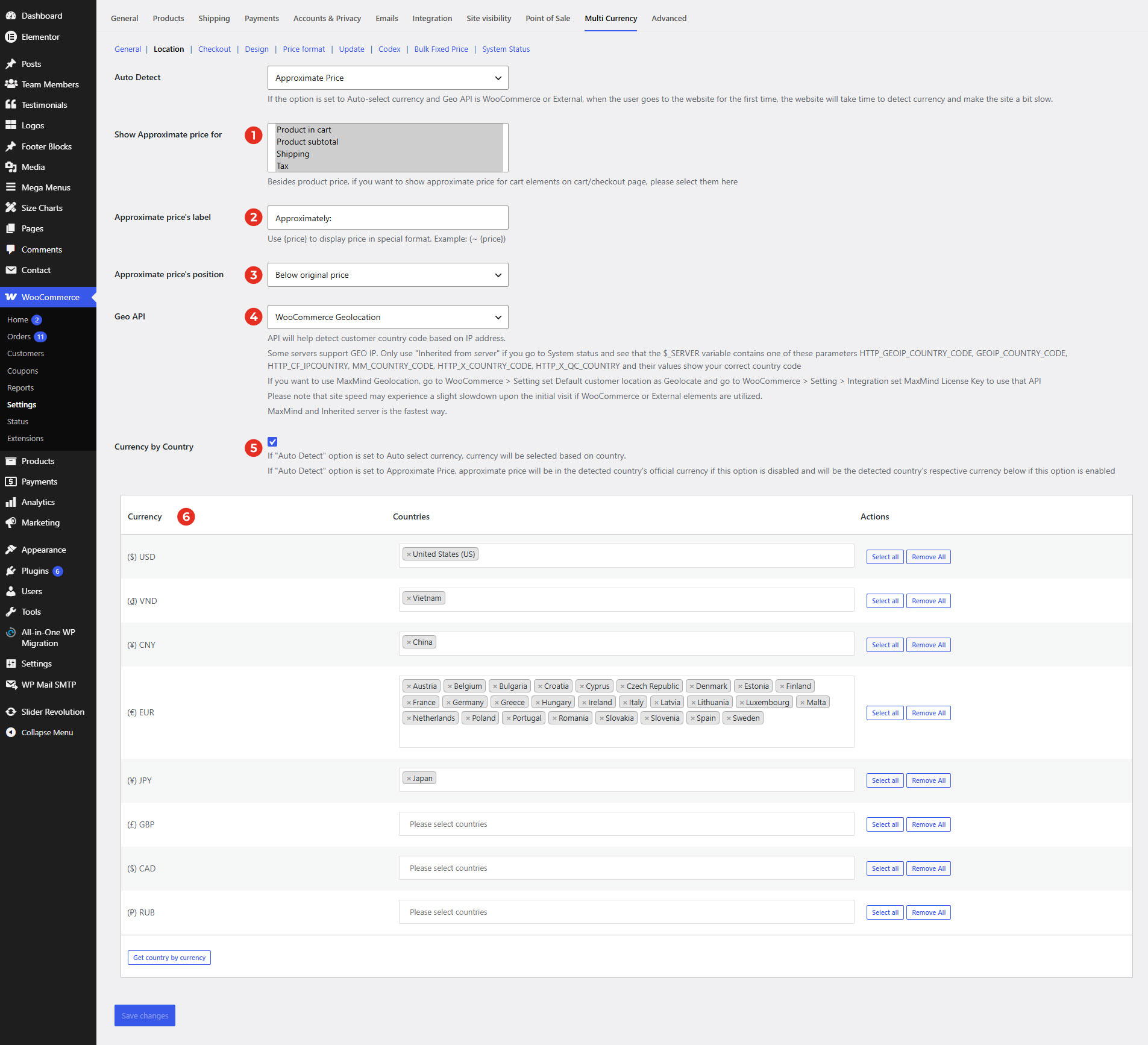
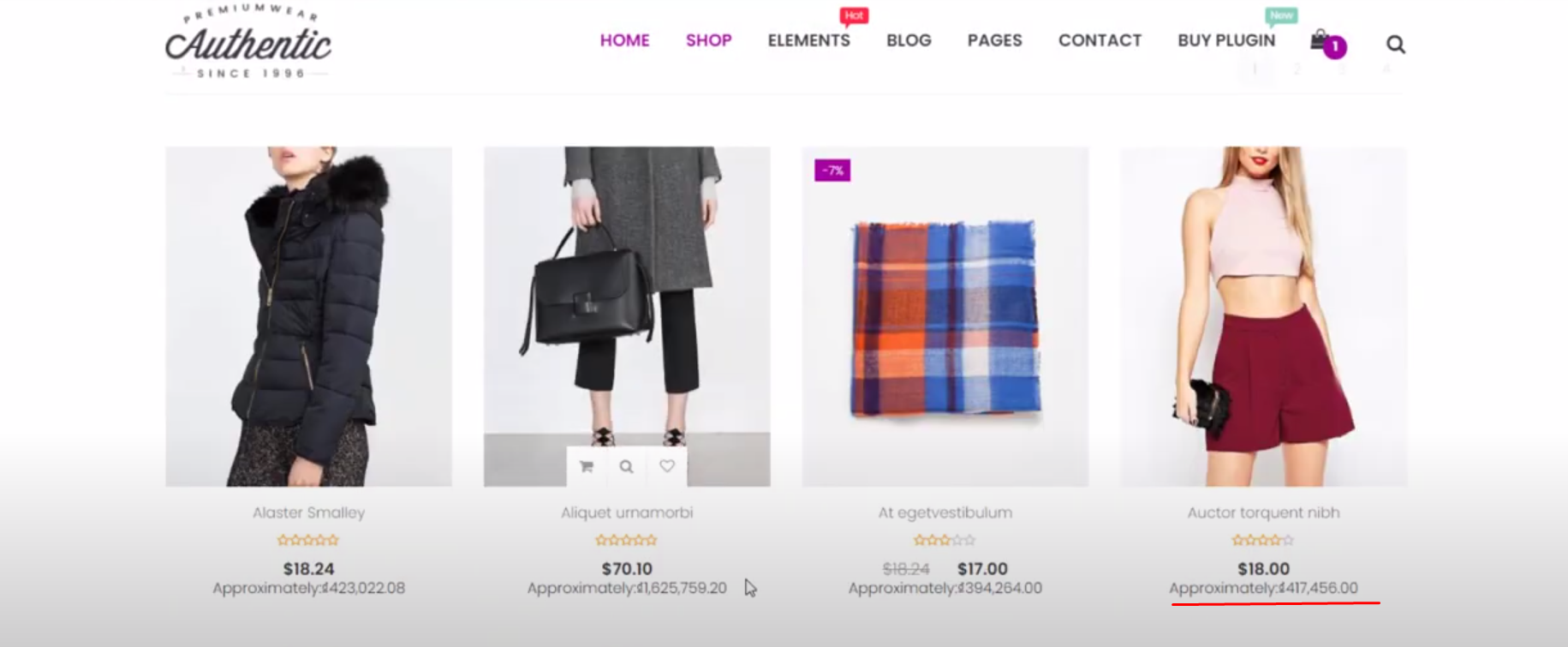
As in the image below, the approximate price is displayed below the original price, with the label “Approximately” 
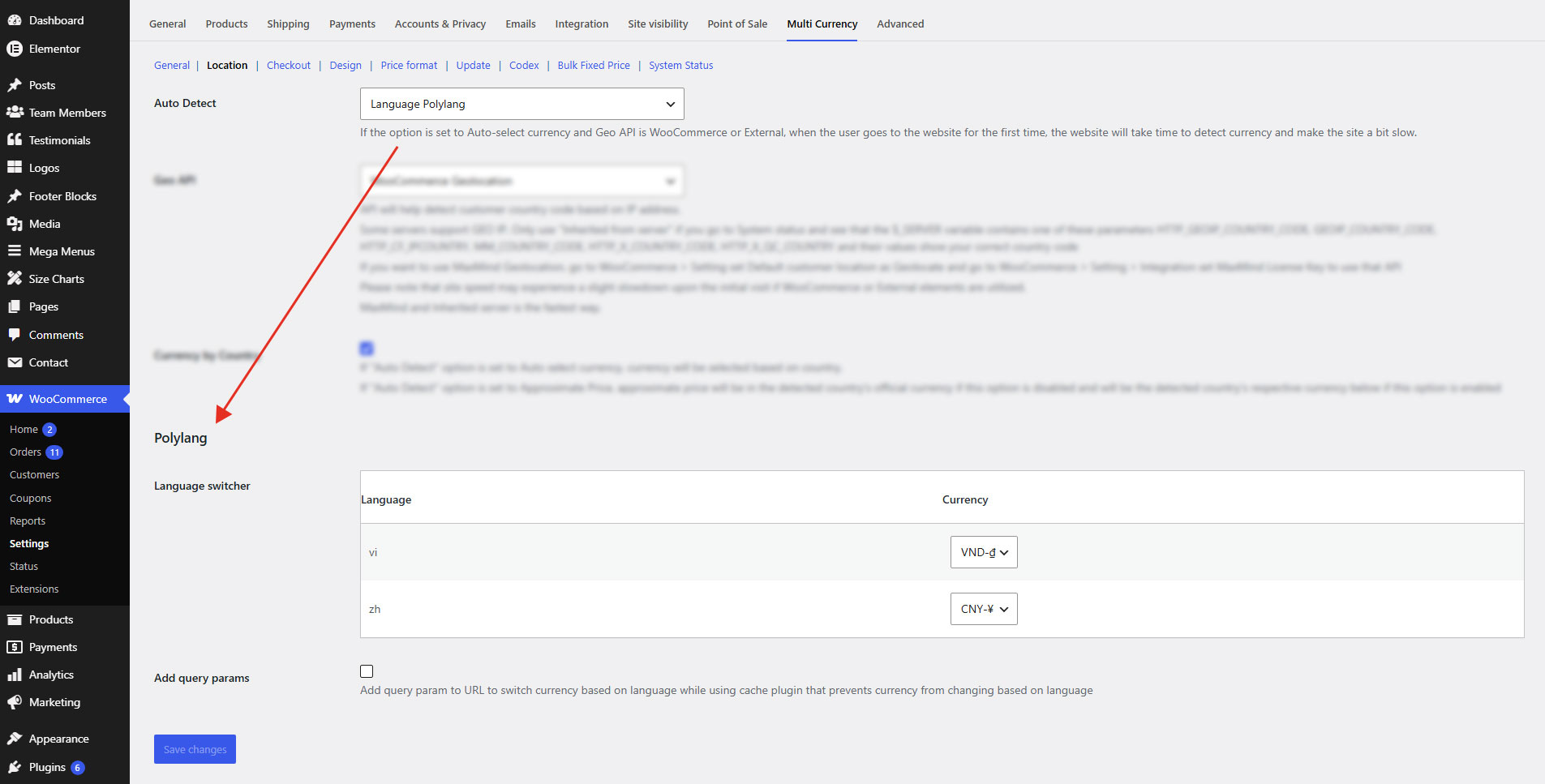
Auto-select currency based on Polylang language. You can refer to this video guide.
This feature also allows the currency to change automatically when the site language is switched. After installing and configuring the TranslatePress plugin, you can assign a specific currency to each language in this setting
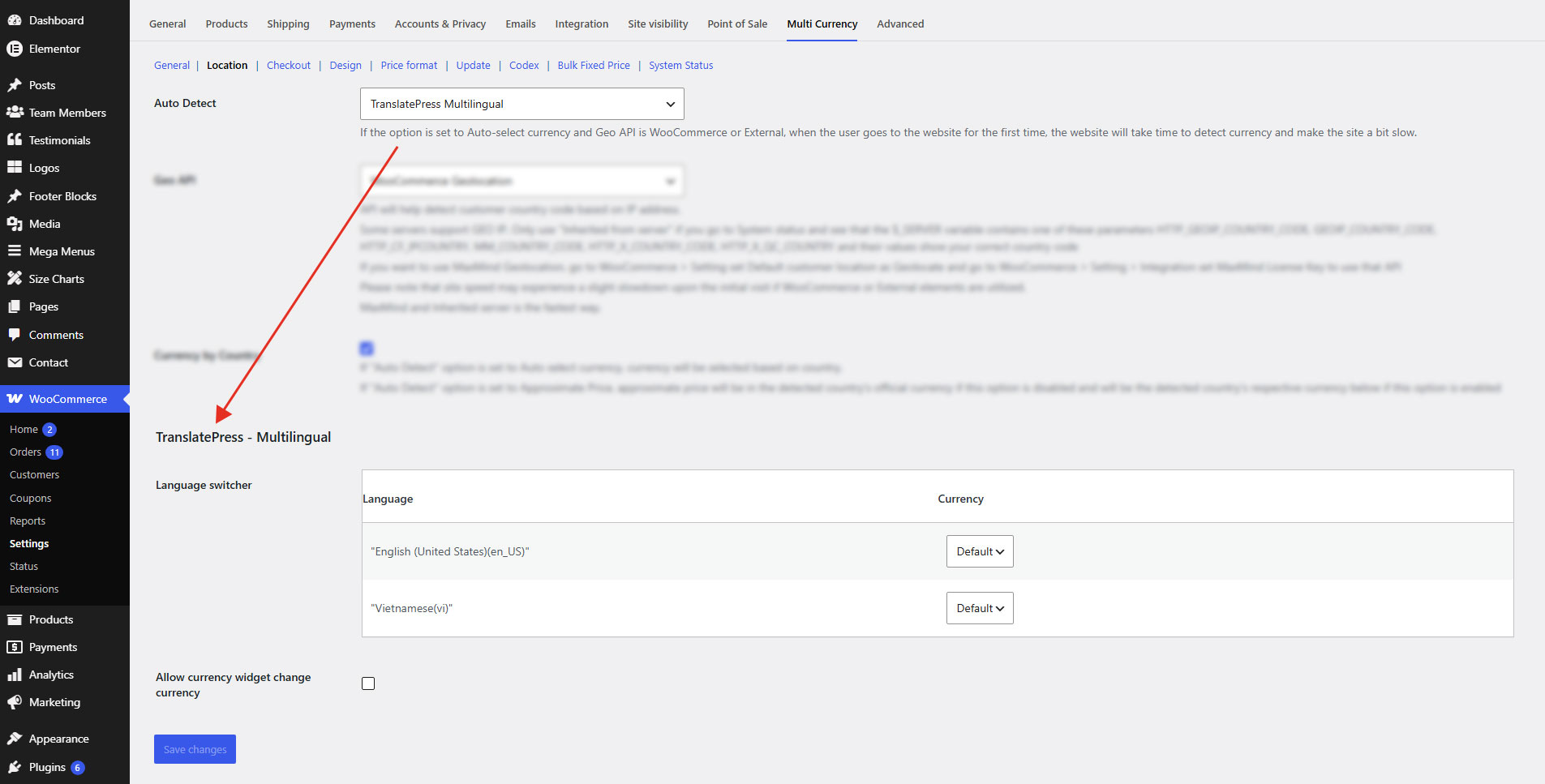
Change currency when the user changes languages, just like Polylang. See this tutorial video.
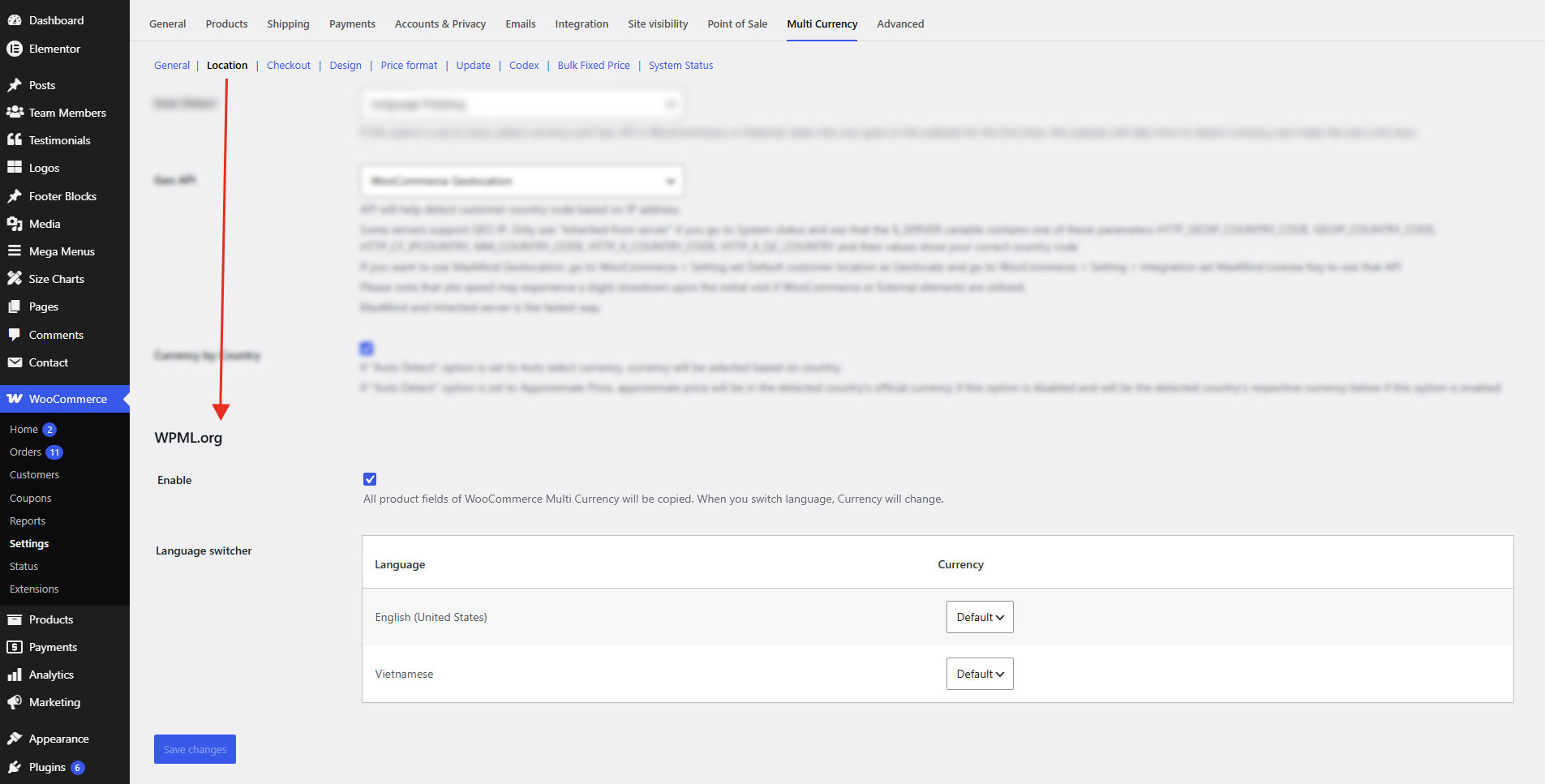
This is the video version of configuration guide.
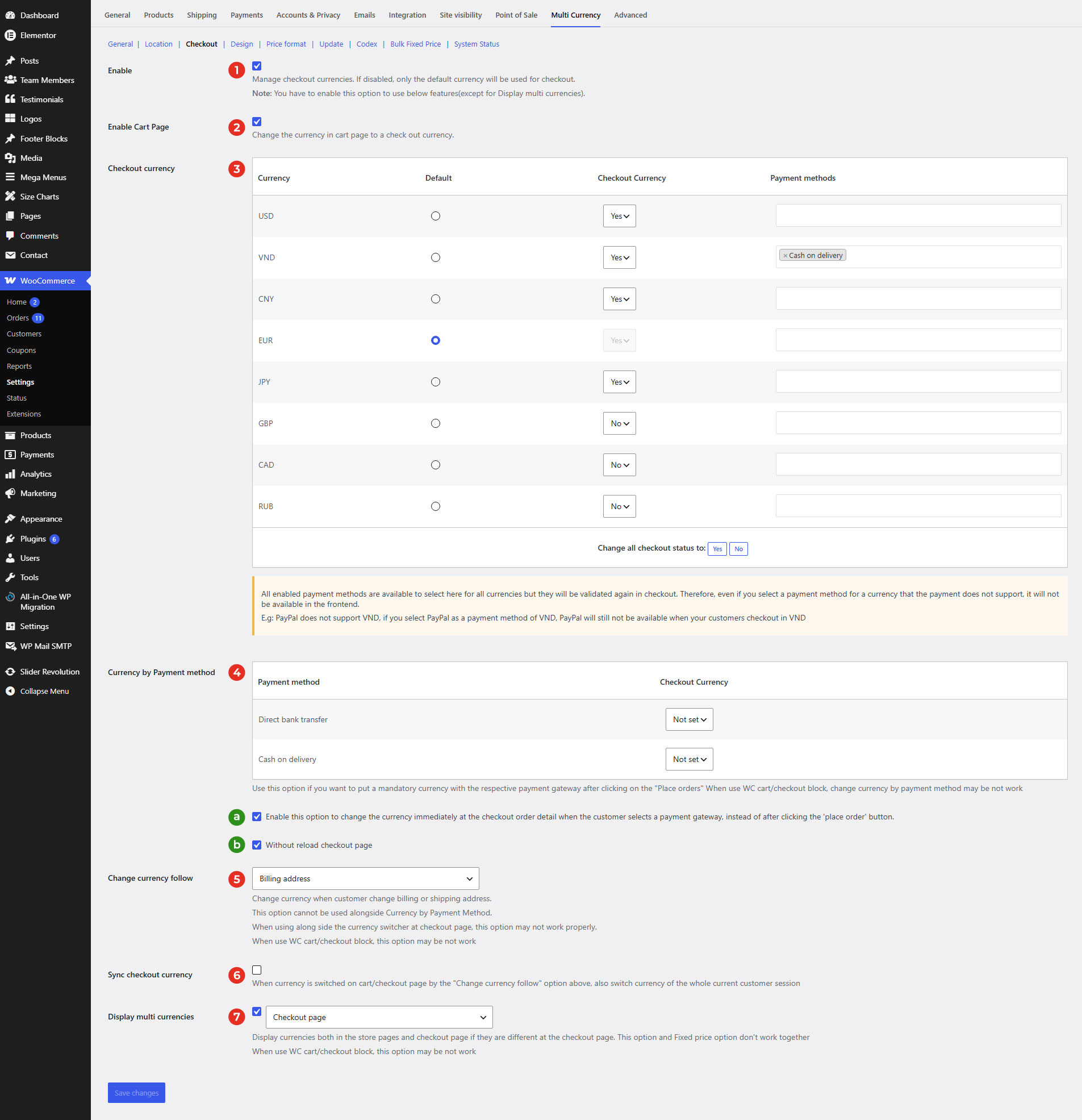
In Checkout tab, you can select which currencies will be able to check out. And which payment methods are able to check out with each currency.
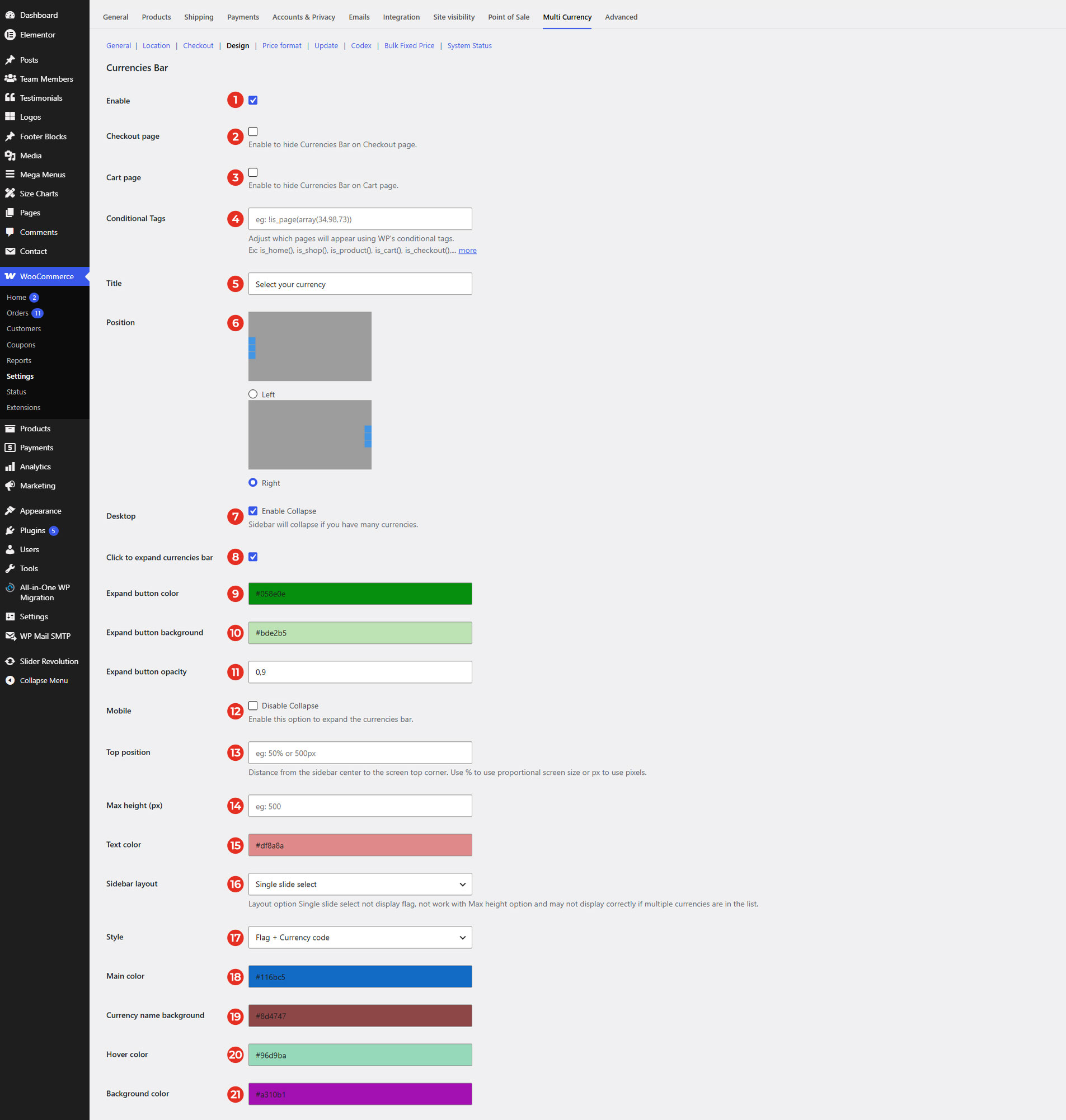
Go to WooCommerce / Settings / Multi Currency / Design, this is where you can configure the front-end interface of the plugin.
Settings for Currencies Bar – the sidebar currency list, displayed in the left or right middle section of the site, on any pages
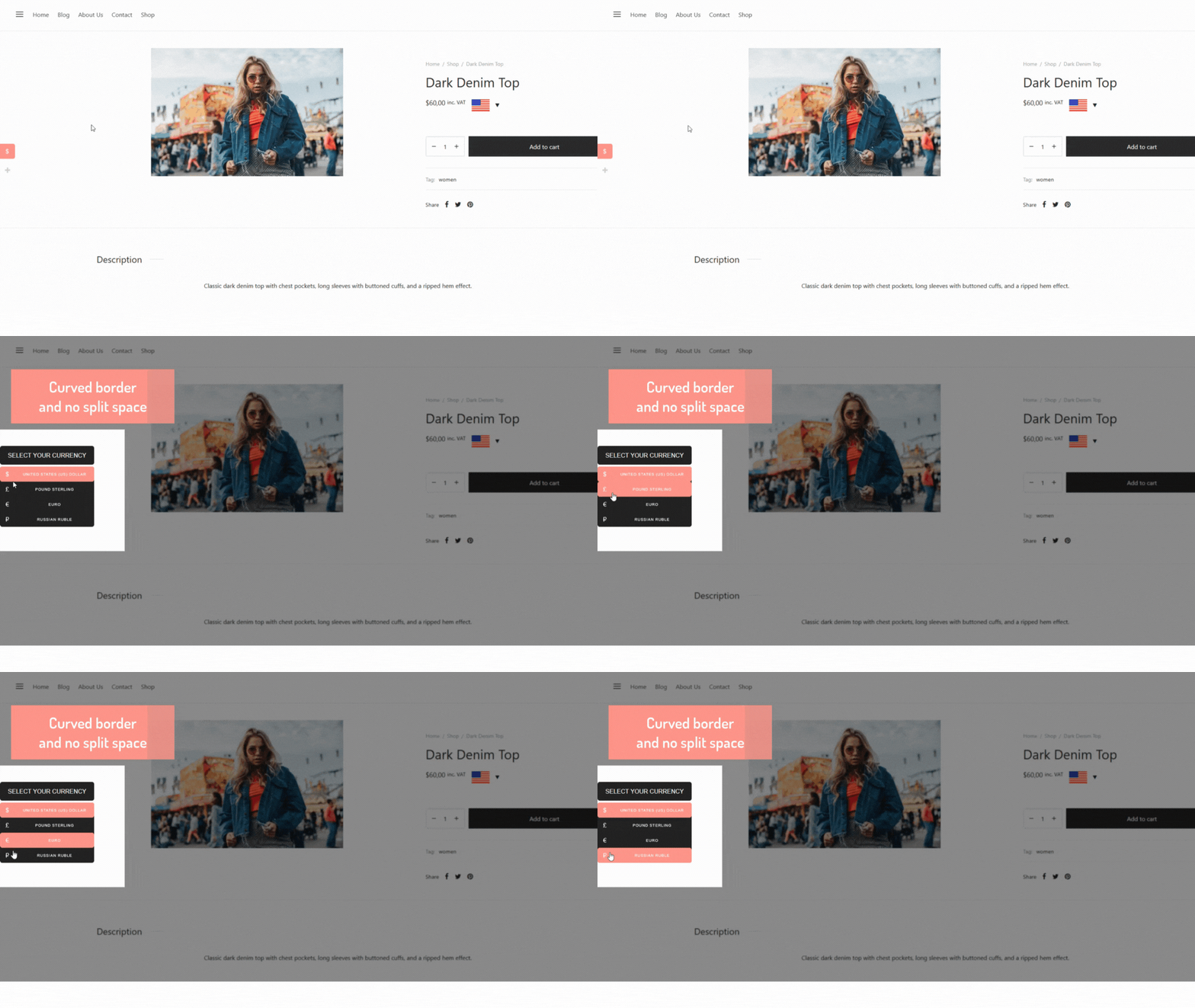
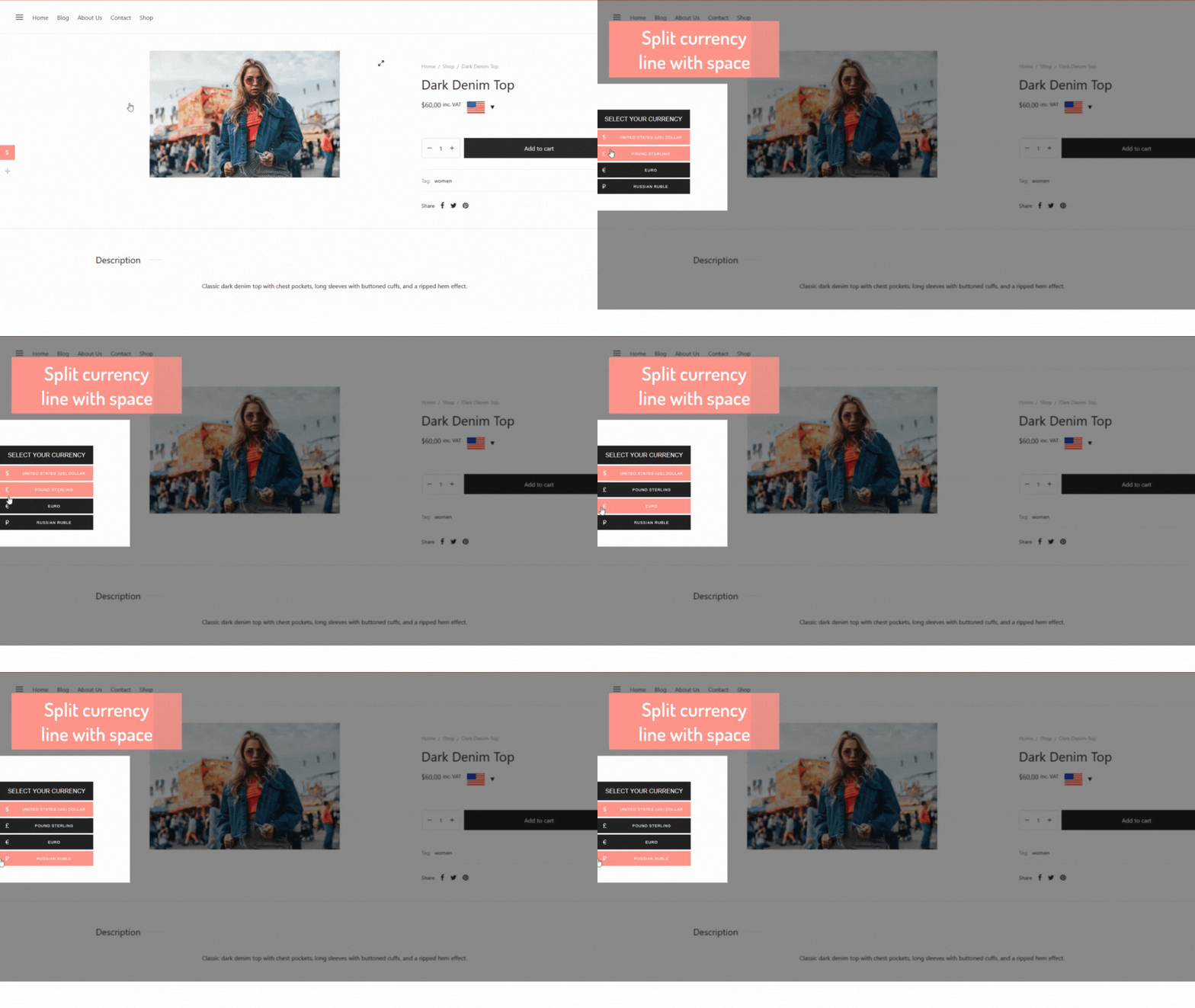
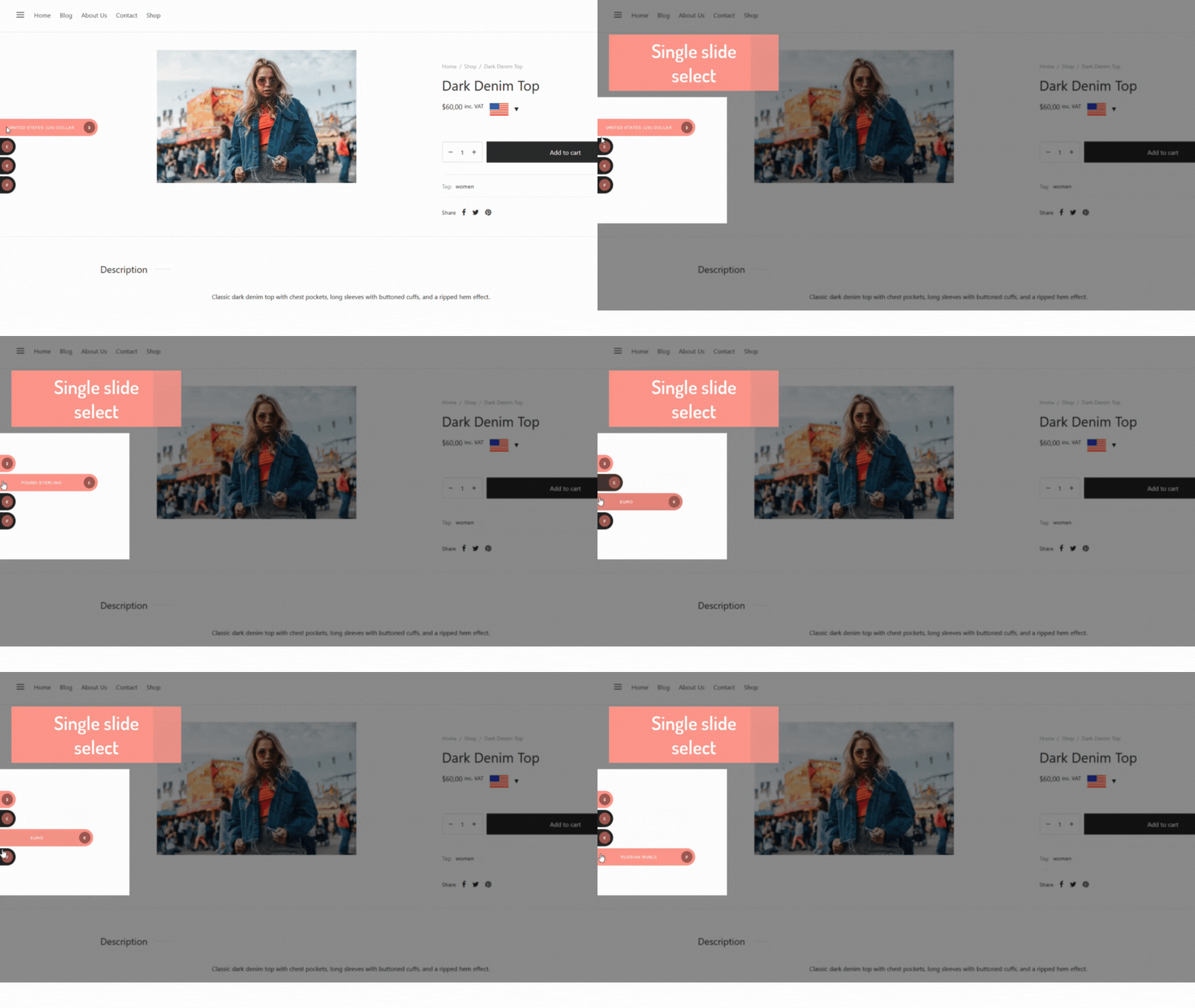
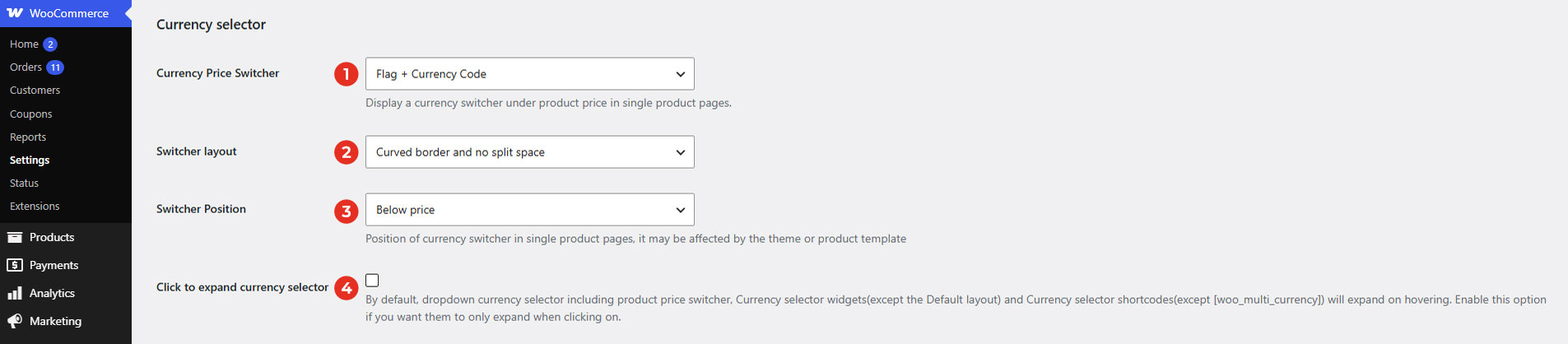
Settings for the Currency Price Switcher, which is visible on single product pages only.
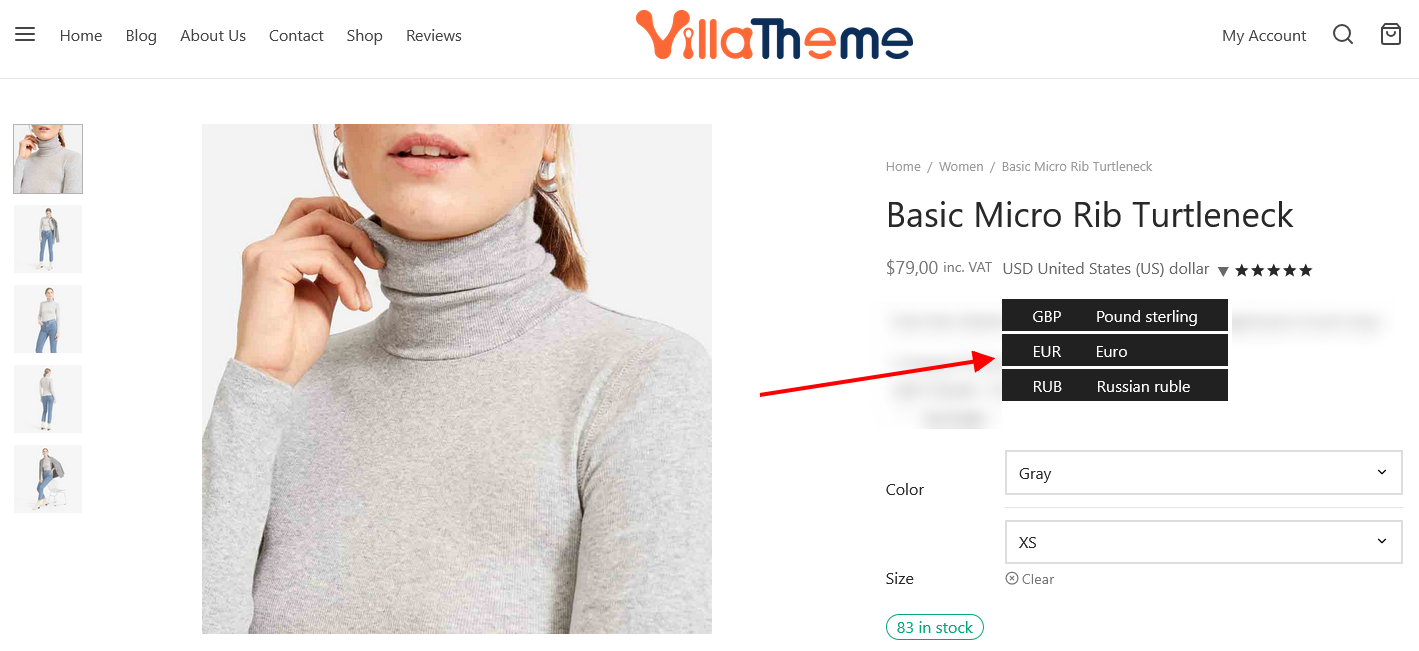
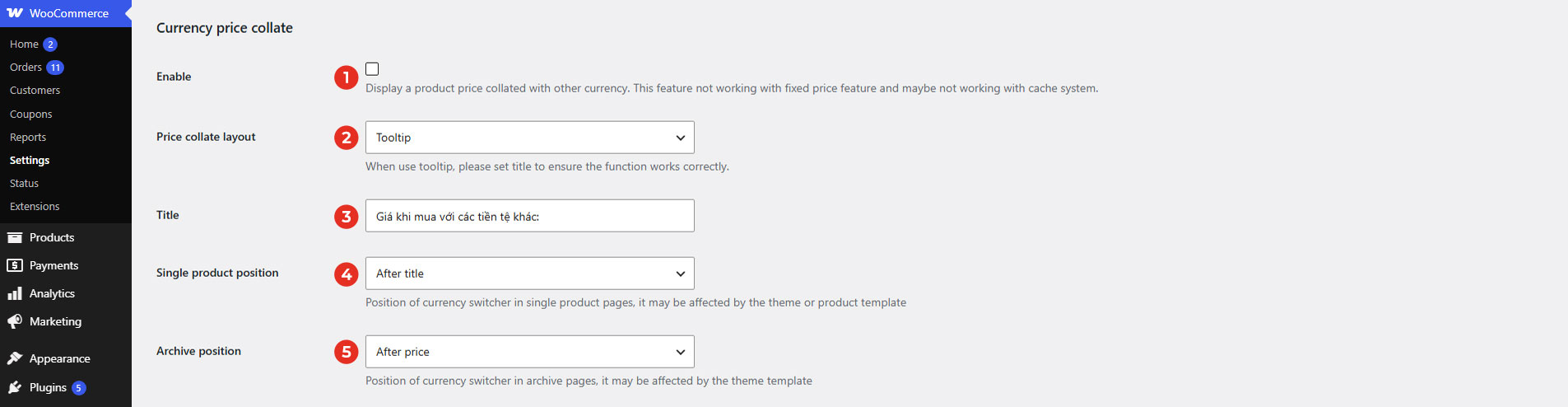
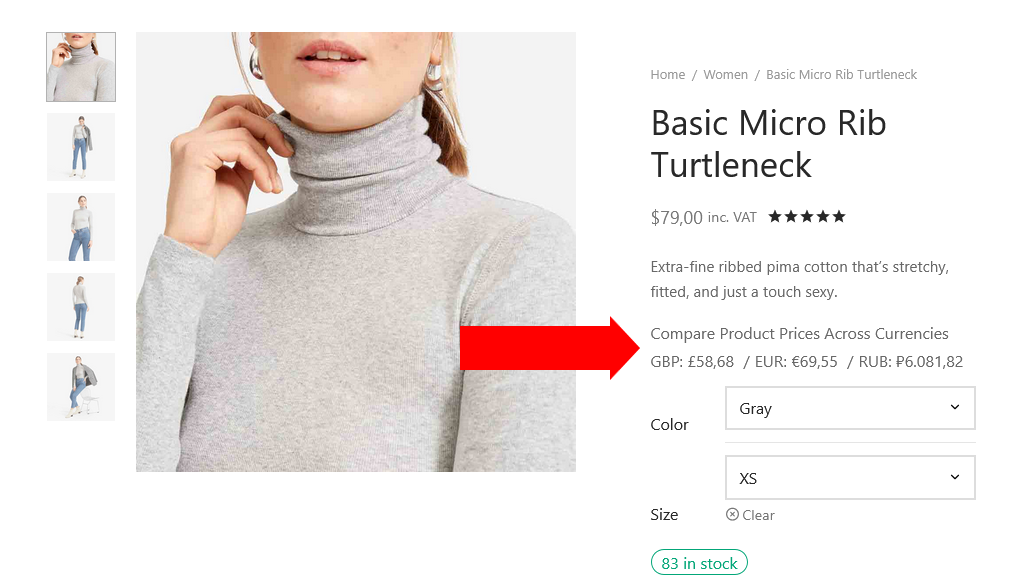
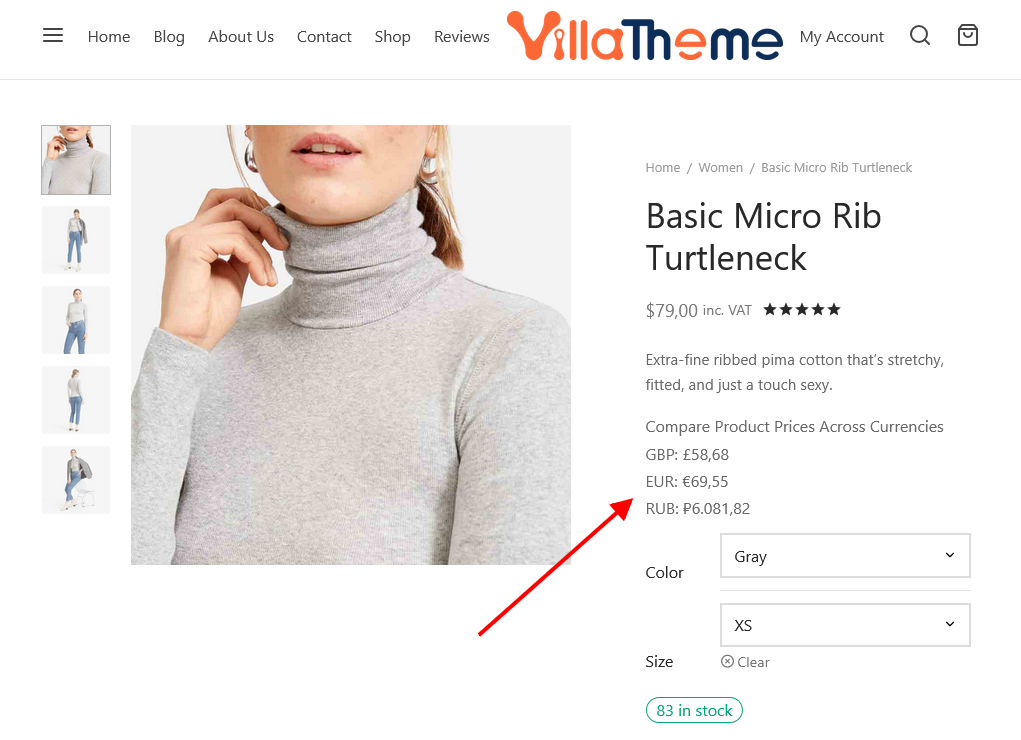
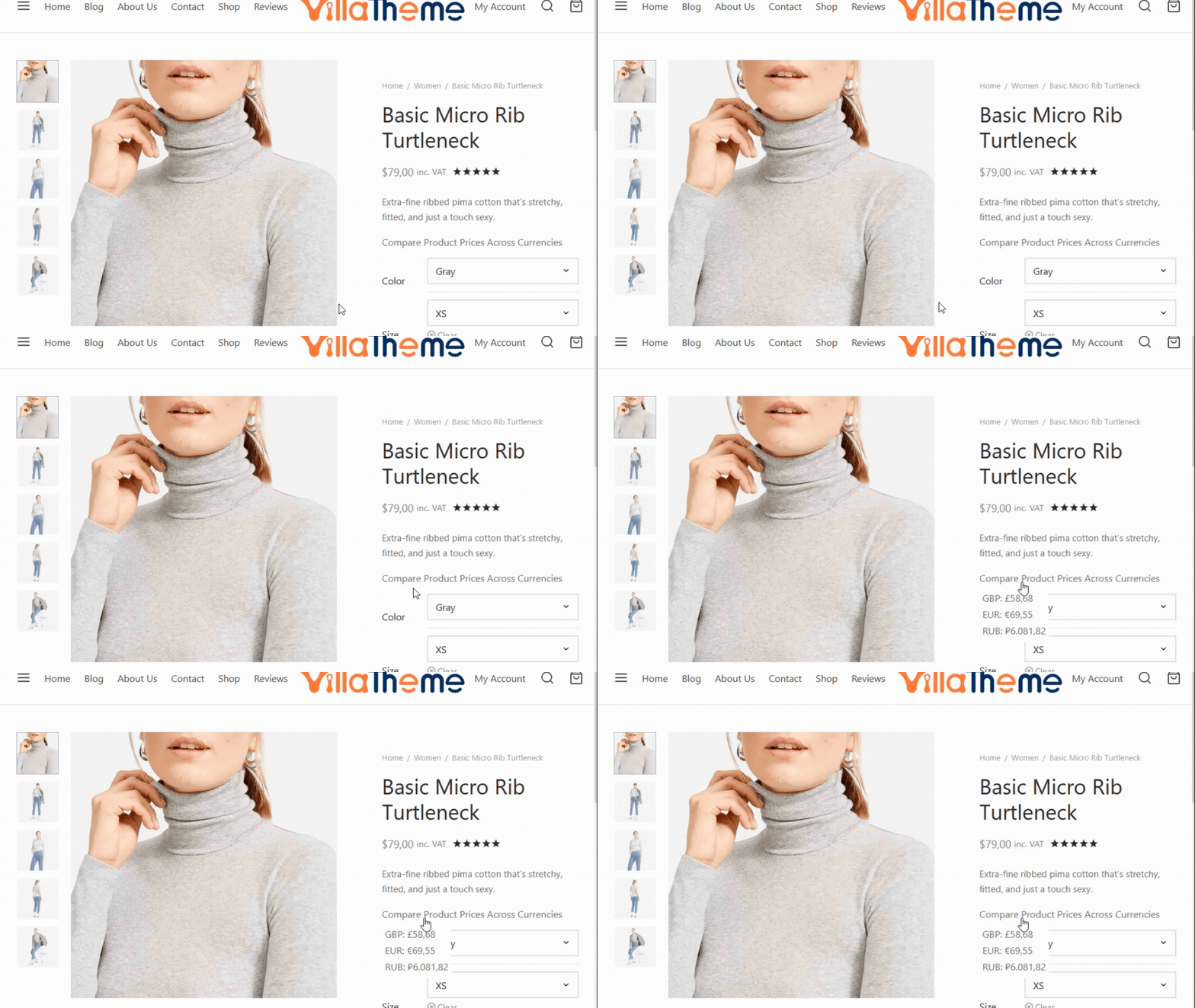
Settings for currency tool created by dragging widget under Appearance.

Settings for Currency Selectors created by shortcodes.


This setting allows you to make your price more beautiful, you will set the rules to create your desired product price.
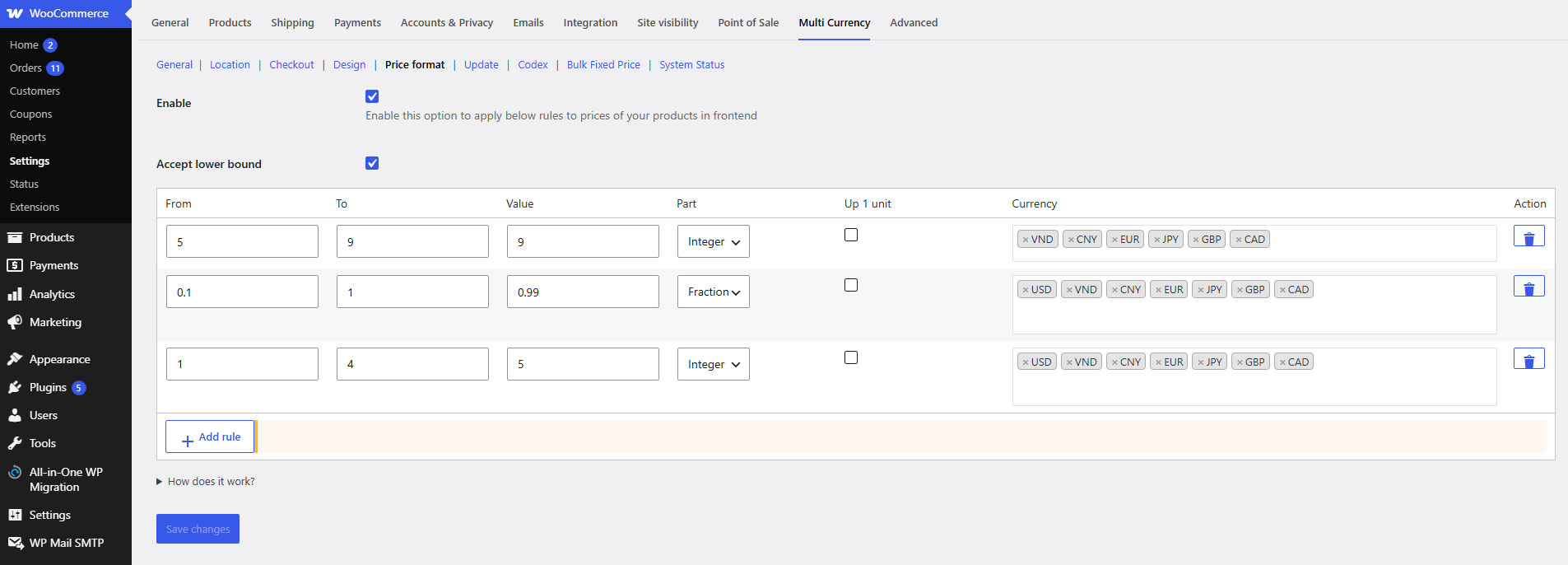
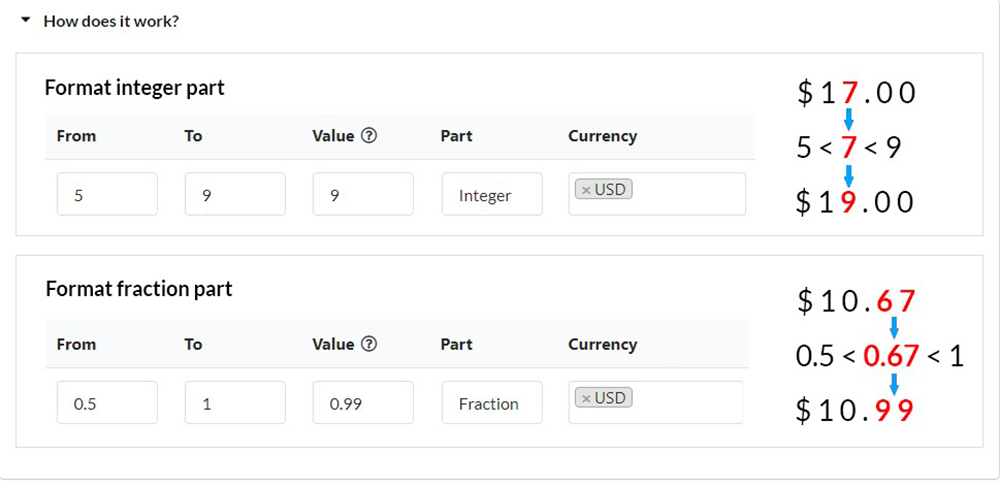
* Note: This feature is not applied for shipping.
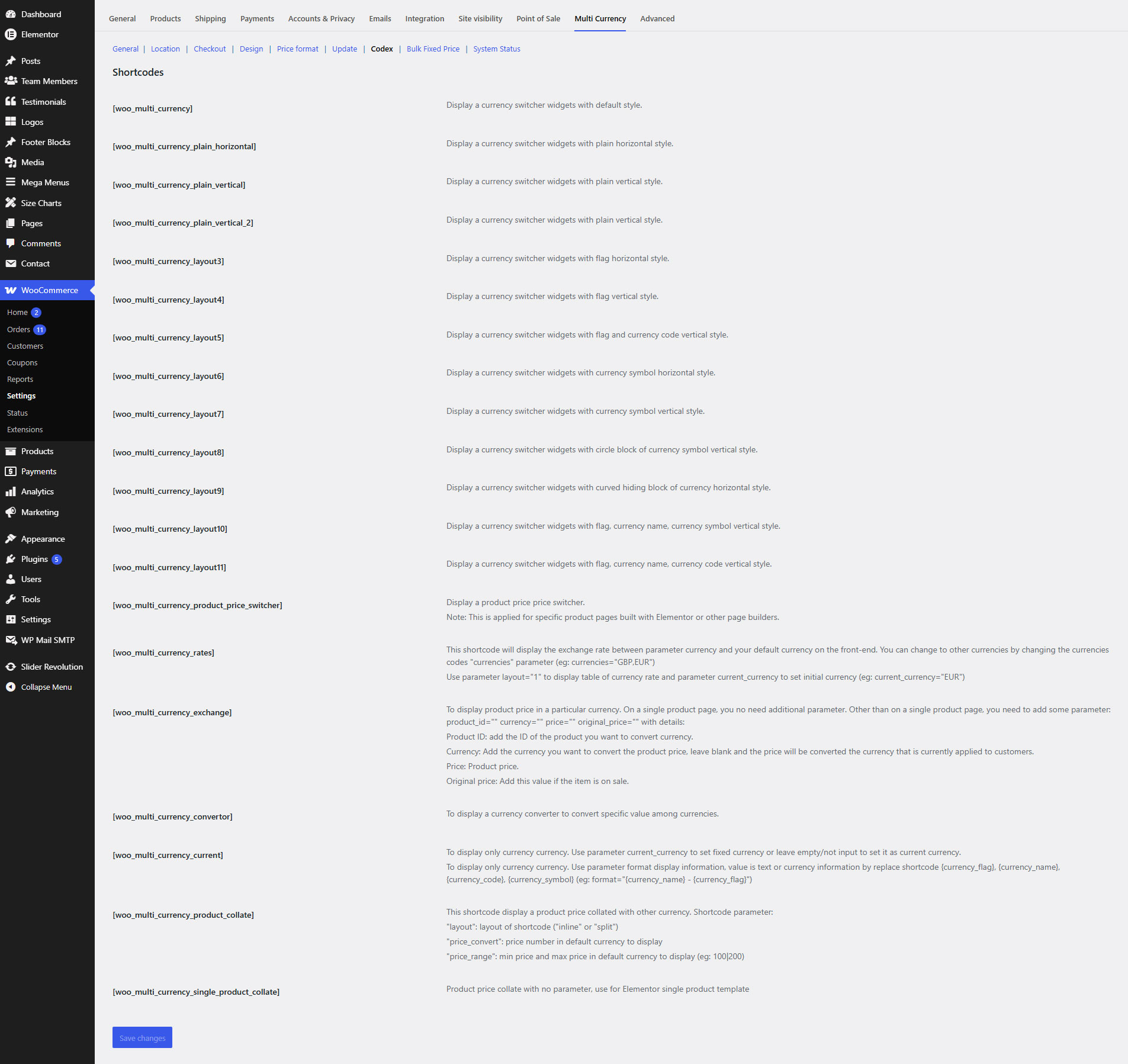
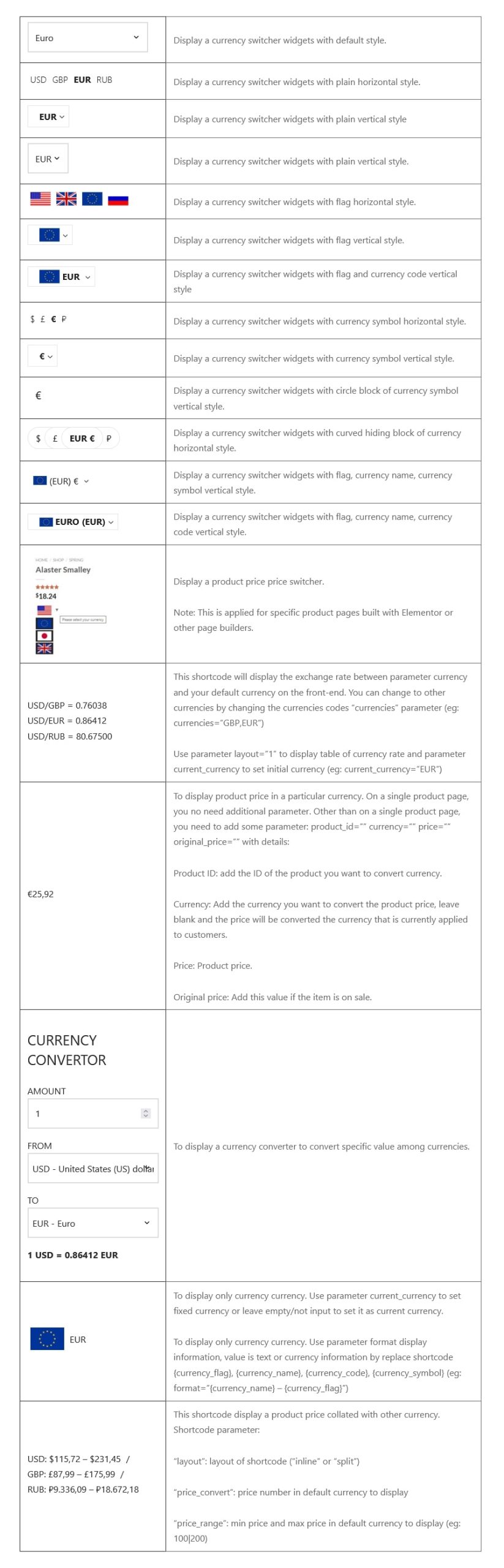
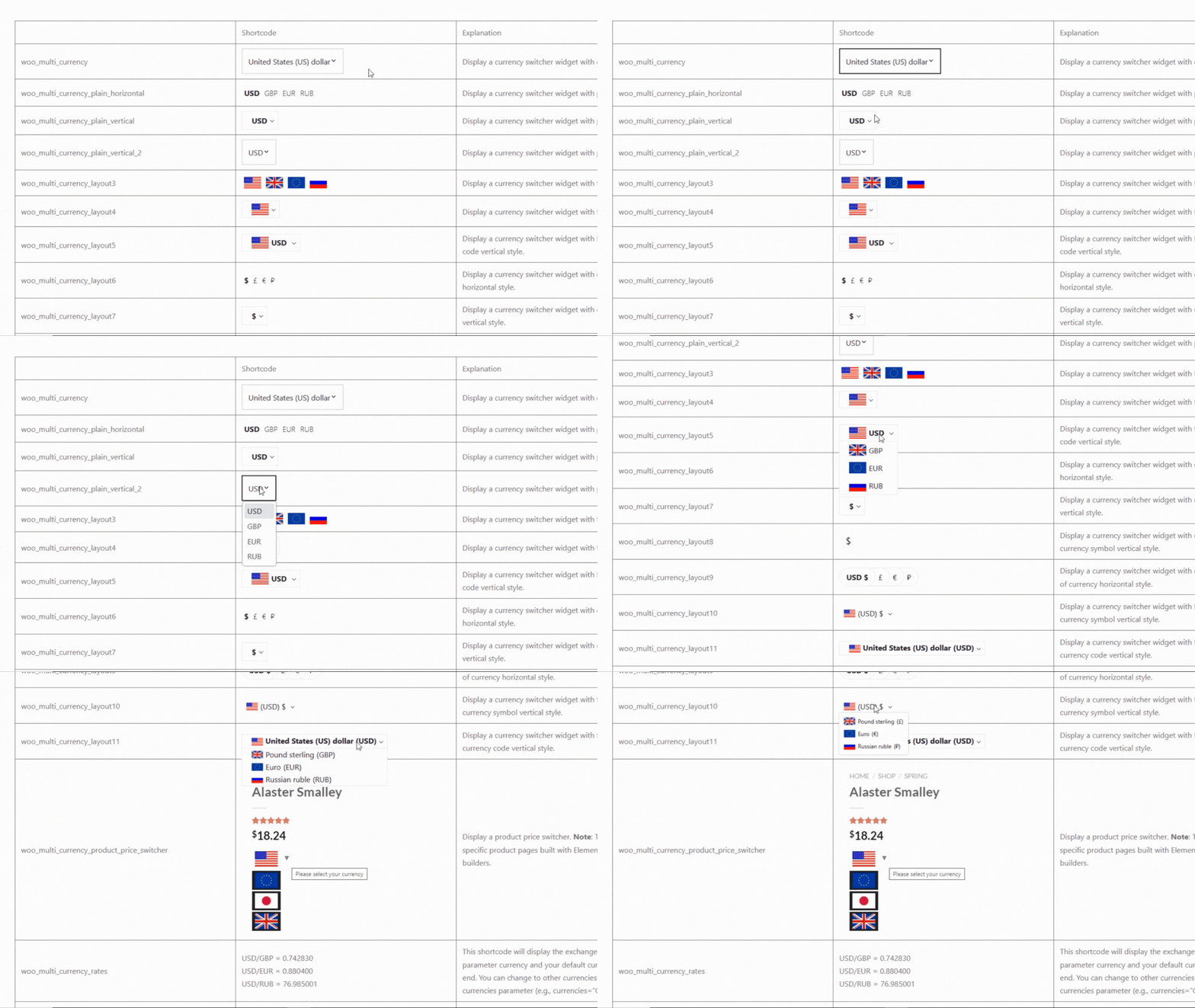
The plugin provides you shortcodes to display currencies exchange widgets, exchange rates on the front-end. Go to WooCommerce / Settings / Multi Currency / Codex to view supported shortcodes.
Preview the currency tools below:
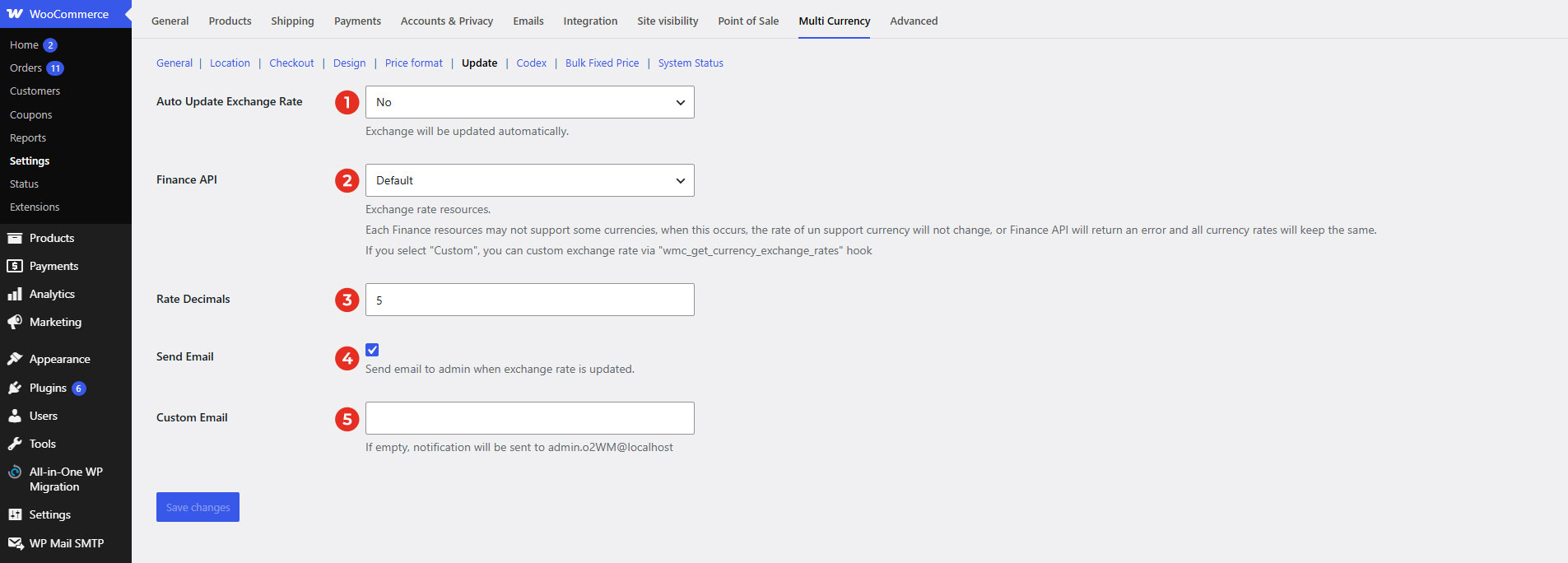
In Update, you can find options about the auto-update currency exchange rate and the plugin.
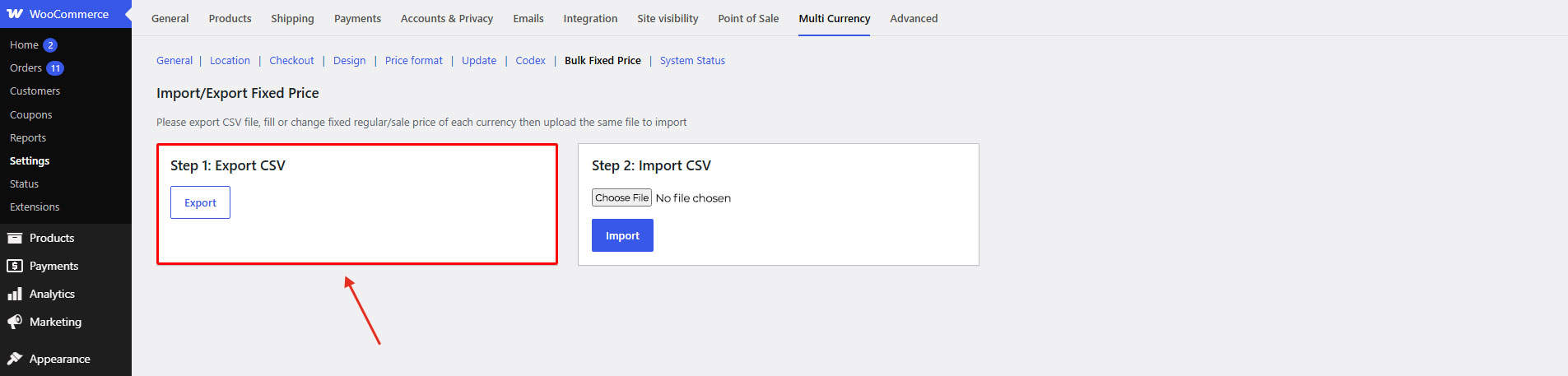
Important note: You can’t edit price in default currency with Bulk fixed price function. This price in CSV file is for view only. If you edit it and import back, it will not change the default currency price.
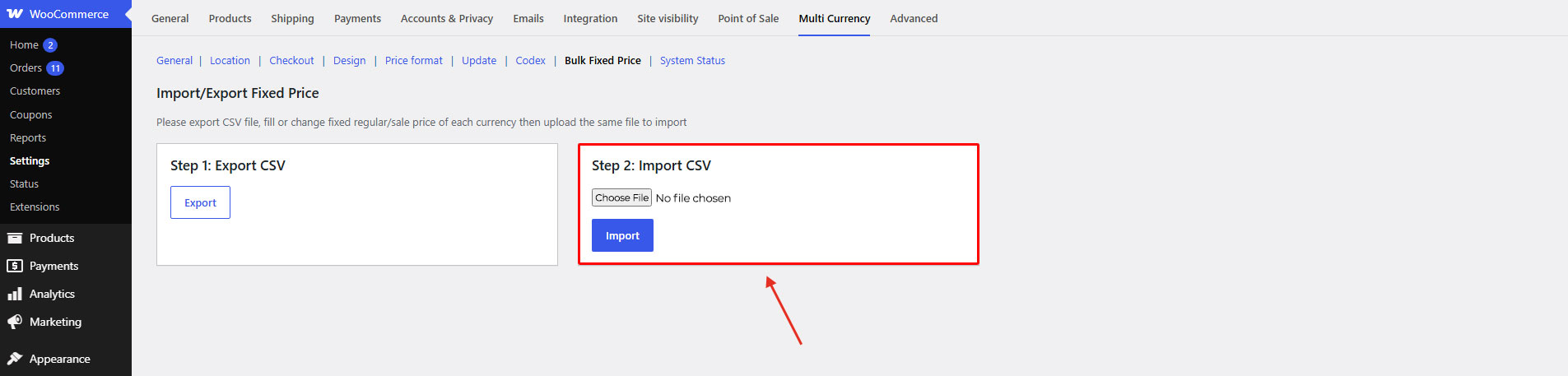
Step 1: Go to WooCommerce / Settings / Multi Currency / Bulk Fixed Price
Step 2: Export product file in CSV format
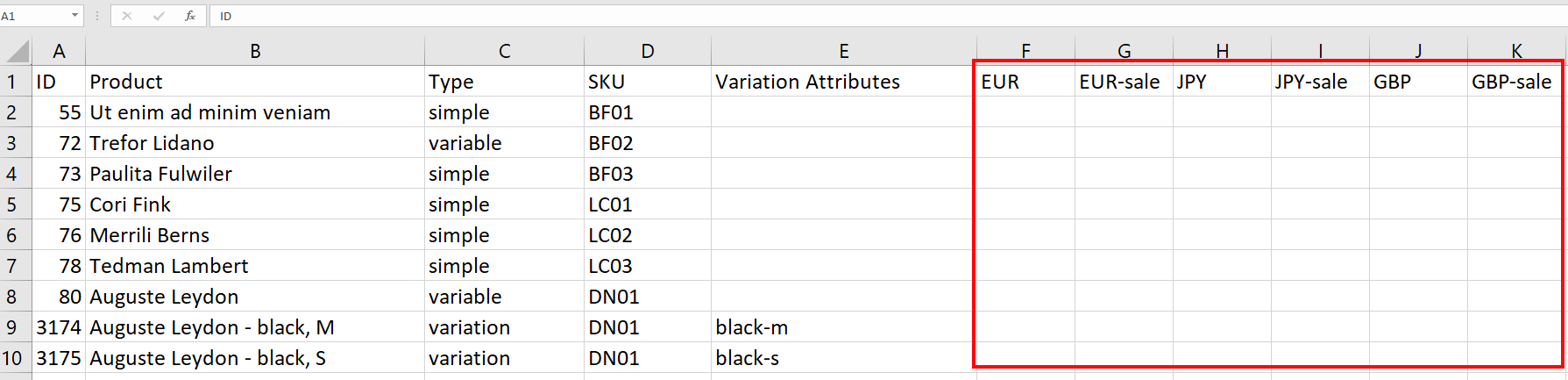
Step 3: Fill or change the fixed regular/sale price of each currency
Step 4: Upload the same file in CSV format to import.
| Plugin | Author | Converted Price | Fixed Price |
| WooCommerce Product Bundles | SomewhereWarm | Yes | No |
| WooCommerce PDF Invoices & Packing Slips | Ewout Fernhout | Yes | No |
| WooCommerce Bookings | WooCommerce | Yes | No |
| Printful Integration for WooCommerce plugin | Printful | Yes | No |
| Table Shipping Rate | WooCommerce | Yes | No |
| LearnPress | ThimPressYesNo | Yes | No |
| LearnPressWooCommerce Dynamic Pricing & Discounts plugin | RightPress | Yes | No |
| Plugin | Author | Compatible |
| Polylang | Frédéric Demarle | Change currencies base on language |
| WPML | OnTheGoSystems | Change currencies base on language |
| TranslatePress – Multilingual | Cozmoslabs, Razvan Mocanu, Madalin Ungureanu, Cristophor Hurduban | Change currencies base on language |
| Autoptimize | Frank Goossens (futtta) | Require to change WooCommerce settings |
| WP Fastest Cache | Emre Vona | Require to change WooCommerce settings |
| WP Super Cache | Automattic | Require a free plugin |
| WP Rocket | WP Media | Fully compatible |
| W3 Total Cache | Frederick Townes | Fully compatible |
| Extra Product Options for WooCommerce | Themehigh | Fully compatible |
| WooCommerce TM Extra Product Options | themeComplete | Fully compatible |
| Event Tickets | Modern Tribe, Inc. | Fully compatible |
| The Events Calendar | Modern Tribe, Inc. | Fully compatible |
| Name Your Price | Kathy Darling | Fully compatible |
| WooCommerce PDF Invoices, Packing Slips, Delivery Notes & Shipping Labels | WebToffee | Fully compatible |
| Subscriptio – WooCommerce Subscriptions | RightPress | Fully compatible |
| Woo Discount Rules | Flycart | Bulk discount (percentage + fixed), Product adjustment (percentage + fixed), Cart adjustment (percentage discount only) |
| WooCommerce Product Add-ons | WooCommerce | Fully compatible |
| Elementor | Elementor.com | Fully compatible |
| REDIS – WooCommerce Dynamic Pricing and Discounts | Villatheme | |
| Catna – WooCommerce Name Your Price and Offers | Villatheme | Convert price + support fixed price for Name your price fields |
| WooCommerce Boost Sales | Villatheme | Dynamic price and discount for bundle |
| WooCommerce Product Add-Ons Ultimate | Plugin Republic | Fully compatible |
| CTX Feed Pro | WebAppick | Fully compatible |
| WooCommerce Wholesale prices | Rymera Web Co | Fixed price and Converted price |
| Advanced Free Shipping | Jeroen Sormani | Partial compatible |
| DHL Express Shipping for WooCommerce – Live Rates | Octolize | Partial compatible |
| Fancy Product Designer | Radykal | Partial compatible |
| Google Listings and Ads | WooCommerce | Partial compatible |
| Litespeed Cache | LiteSpeed Technologies | Partial compatible |
| Product Designer for WooCommerce WordPress | Lumise | King-Theme | Partial compatible |
| Smart Bundle For WooCommerce | WooCommerce | Partial compatible |
| Subscriptions for WooCommerce | WebToffee | Partial compatible |
| Visual Product Configurator for Woocommerce Lite | ORION | Partial compatible |
| WCFM | WC Lovers | Partial compatible |
| WooCommerce Payments | Automattic | Partial compatible |
| WooCommerce Product Bundles | WooCommerce | Partial compatible |
| Woofunnels Order Bump | FunnelKit | Partial compatible |
| Advanced Product Fields For Woocommerce Pro | StudioWombat | Partial compatible |
| WooCommerce Google Product Feed | Ademti Software Ltd | Partial compatible |
| WPC Product Bundles | WPClever | Partial compatible |
| Wallet System for WooCommerce | WP Swings | Partial compatible |
| PPOM for WooCommerce by N-MEDIA | Najeeb Ahmad | Partial compatible |
| WooCommerce Subscriptions | WooCommerce | Partial compatible |
| Yith Frequently Bought Together | YITH | Partial compatible |
| Yith WooCommerce Points And Rewards Premium | YITH | Partial compatible |
| YITH WooCommerce Product Add-Ons | YITH | Partial compatible |
| YITH WooCommerce Dynamic Pricing and Discounts | YITH | Partial compatible |
| YITH WooCommerce Product Bundles | YITH | Partial compatible |
| Advanced Dynamic Pricing for WooCommerce | AlgolPlus | Partial compatible |
| Germanized for WooCommerce | vendidero | Partial compatible |
| Envia Shipping and Fulfillment | WooCommerce | Partial compatible |
| Extra Product Options & Add-Ons for WooCommerce | ThemeComplete | Partial compatible |
| WooCommerce Checkout | CheckoutWC | Partial compatible |
| WPC Product Bundles for WooCommerce | WPClever | Partial compatible |
| WooCommerce Loyalty Points and Rewards | Flycart | Partial compatible |
Templates
| Template | Usage |
| /woo-multi-currency-selector.php | [woo_multi_currency],[woo_multi_currency_plain_vertical_2] shortcode |
Follow this guide on how to override VillaTheme plugins’ templates via a theme.
Currency converter functions:
$multiCurrencySettings = WOOMULTI_CURRENCY_Data::get_ins(); // get settings
$wmcCurrencies = $multiCurrencySettings->get_list_currencies(); //get list currency
$currentCurrency = $multiCurrencySettings->get_current_currency(); // get current currency
$currentCurrencyRate = floatval( $wmcCurrencies[ $currentCurrency ]['rate'] ); // get rate of current currency
$currentCurrencyRate = 1;
if(class_exists('WOOMULTI_CURRENCY_Data')) {
$multiCurrencySettings = WOOMULTI_CURRENCY_Data::get_ins();
$wmcCurrencies = $multiCurrencySettings->get_list_currencies();
$currentCurrency = $multiCurrencySettings->get_current_currency();
$currentCurrencyRate = floatval( $wmcCurrencies[ $currentCurrency ]['rate'] );
}
It’s crucial to understand that once an order is made, the currencies might switch to those supported by the chosen payment method. Here are some prevalent payment methods and the currencies they accommodate:
Note: For some payment methods, the supported currencies might vary based on the country and the type of advertising account you have. For the most accurate and updated information on supported currencies for each payment method, it’s recommended to visit the official payment method website or the support documentation specific to the service you’re inquiring about:
| Payment methods | Supported currencies | Official Sources |
|---|---|---|
| PayPal | AUD, BRL, CAD, CNY, CZK, DKK, EUR, HKD, HUF, ILS, JPY, MYR, MXN, TWD, NZD, NOK, PHP, PLN, GBP, SGD, SEK, CHF, THB, USD | Link |
| Stripe | USD, AED, AFN, ALL, AMD, ANG, AOA, ARS, AUD, AWG, AZN, BAM, BBD, BDT, BGN, BIF, BMD, BND, BOB, BRL, BSD, BWP, BYN, BZD, CAD, CDF, CHF, CLP, CNY, COP, CRC, CVE, CZK, DJF, DKK, DOP, DZD, EGP, ETB, EUR, FJD, FKP, GBP, GEL, GIP, GMD, GNF, GTQ, GYD, HKD, HNL, HTG, HUF, IDR, ILS, INR, ISK, JMD, JPY, KES, KGS, KHR, KMF, KRW, KYD, KZT, LAK, LBP, LKR, LRD, LSL, MAD, MDL, MGA, MKD, MMK, MNT, MOP, MUR, MVR, MWK, MXN, MYR, MZN, NAD, NGN, NIO, NOK, NPR, NZD, PAB, PEN, PGK, PHP, PKR, PLN, PYG, QAR, RON, RSD, RUB, RWF, SAR, SBD, SCR, SEK, SGD, SHP, SLE, SOS, SRD, STD, SZL, THB, TJS, TOP, TRY, TTD, TWD, TZS, UAH, UGX, UYU, UZS, VND, VUV, WST, XAF, XCD, XOF, XPF, YER, ZAR, ZMW | Link |
| Squarespace | ARS, AUD, BRL, GBP, CAD, COP, CZK, DKK, EUR, HKD, INR, IDR, ILS, MYR, MXN, NZD, NOK, PHP, PLN, RUB, SGD, ZAR, SEK, CHF, THB, USD | Link |
| Authorize.net | USD, CAD, GBP, EUR, CHF, DKK, NOK, PLN, SEK | Link |
| Apple pay | Africa: Morocco, South Africa
Asia-Pacific: Australia, China mainland*, Hong Kong, Japan, Macao, Malaysia, New Zealand, Singapore, South Korea, Taiwan, Vietnam. Europe: Armeniam, Austria, Azerbaijan, Belarus, Belgium, Bulgaria, Croatia, Cyprus, Czech Republic, Denmark, Estonia, Faroe Islands, Finland, France, Georgia, Germany, Greece, Greenland, Guernsey, Hungary, Iceland, Ireland, Isle of Man, Italy, Kazakhstan, Jersey, Latvia, Liechtenstein, Lithuania, Luxembourg, Malta, Moldova, Monaco, Montenegro, Netherlands, Norway, Poland, Portugal, Romania, San Marino, Serbia, Slovakia, Slovenia, Spain, Sweden, Switzerland, Ukraine, United Kingdom, Vatican City. Latin America and the Caribbean: Argentina, Brazil, Chile, Colombia, Costa Rica, El Salvador, Guatemala, Honduras, Mexico, Panama, Peru. Middle East: Bahrain, Israel, Jordan, Kuwait, Palestine, Qatar, Saudi Arabia, United Arab Emirates. North America: Canada. |
Link |
| Amazon pay | AUD, GBP, DKK, EUR, HKD, JPY, NZD, NOK, ZAR, SEK, CHF, USD. | Link |
Thank you for your attention!
If you have any question, please create a topic at our FORUM, we will support within 24 hours.