
Copyright Villatheme 2015-2026
Created: 06/2026
Latest updated: 6/2026 – Updated version: 1.0.0
By: VillaTheme
Thank you for purchasing our plugin. If you have any questions that are beyond the scope of this documentation, please feel free to request support at our Support Forum. Thanks so much!
Get the plugin installation package from your account download page and save it to your desktop.
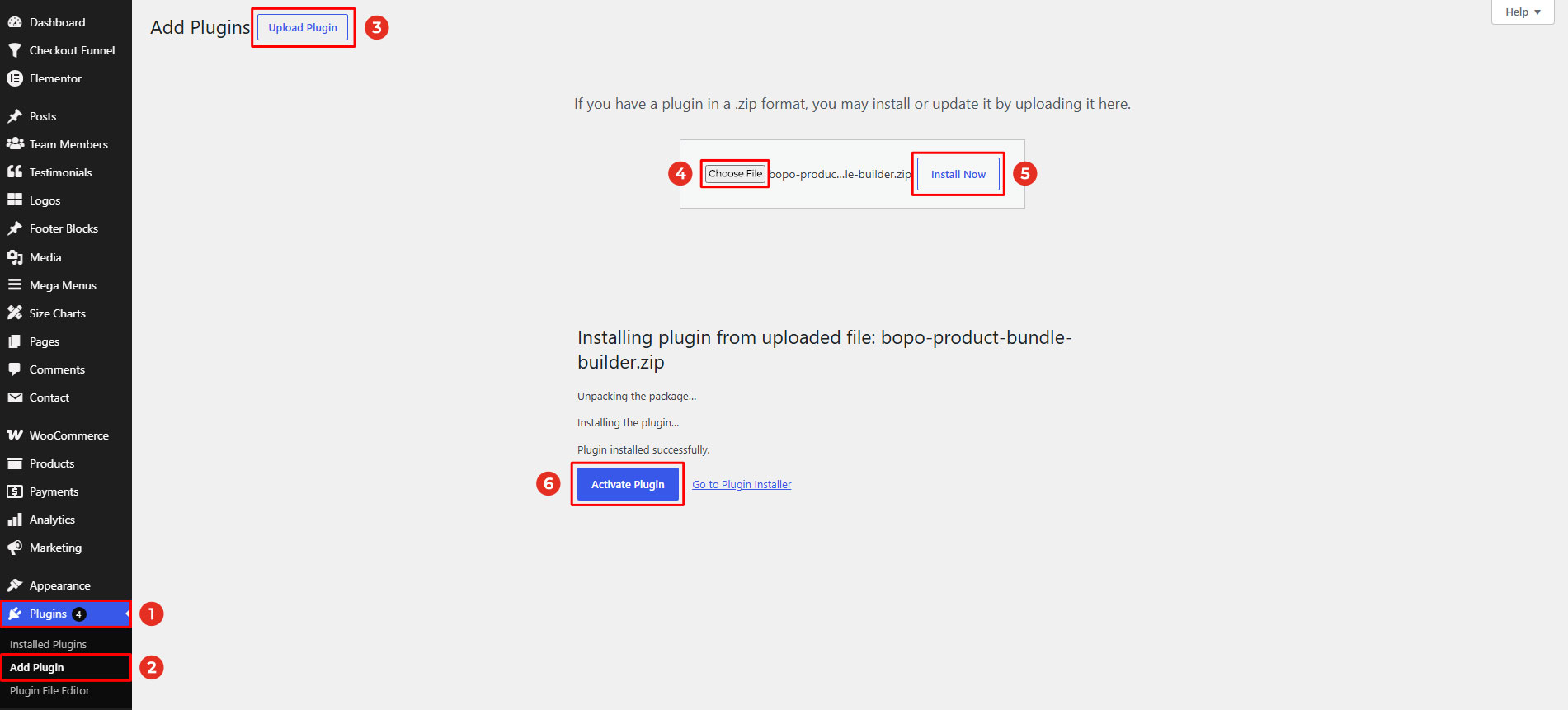
Go to Plugins/ Add New/ Upload Plugin/ Choose file/ Select bopo-woocommerce-product-bunlde-builder.zip / click “Install Now“/ click “Active plugin”.
Install and Set up Video:
Done! Let’s start using the plugin.
Step 1: Create product bundles.
Go to Dashboard > Products, create new product bundles.
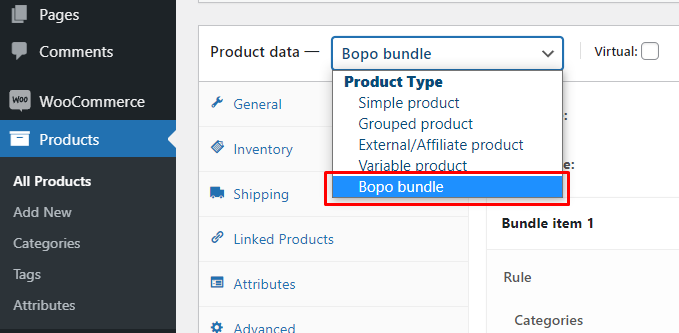
After selecting the Bopo bundle type, you will set up for this new bundle including: Title, rules, display, and discount.
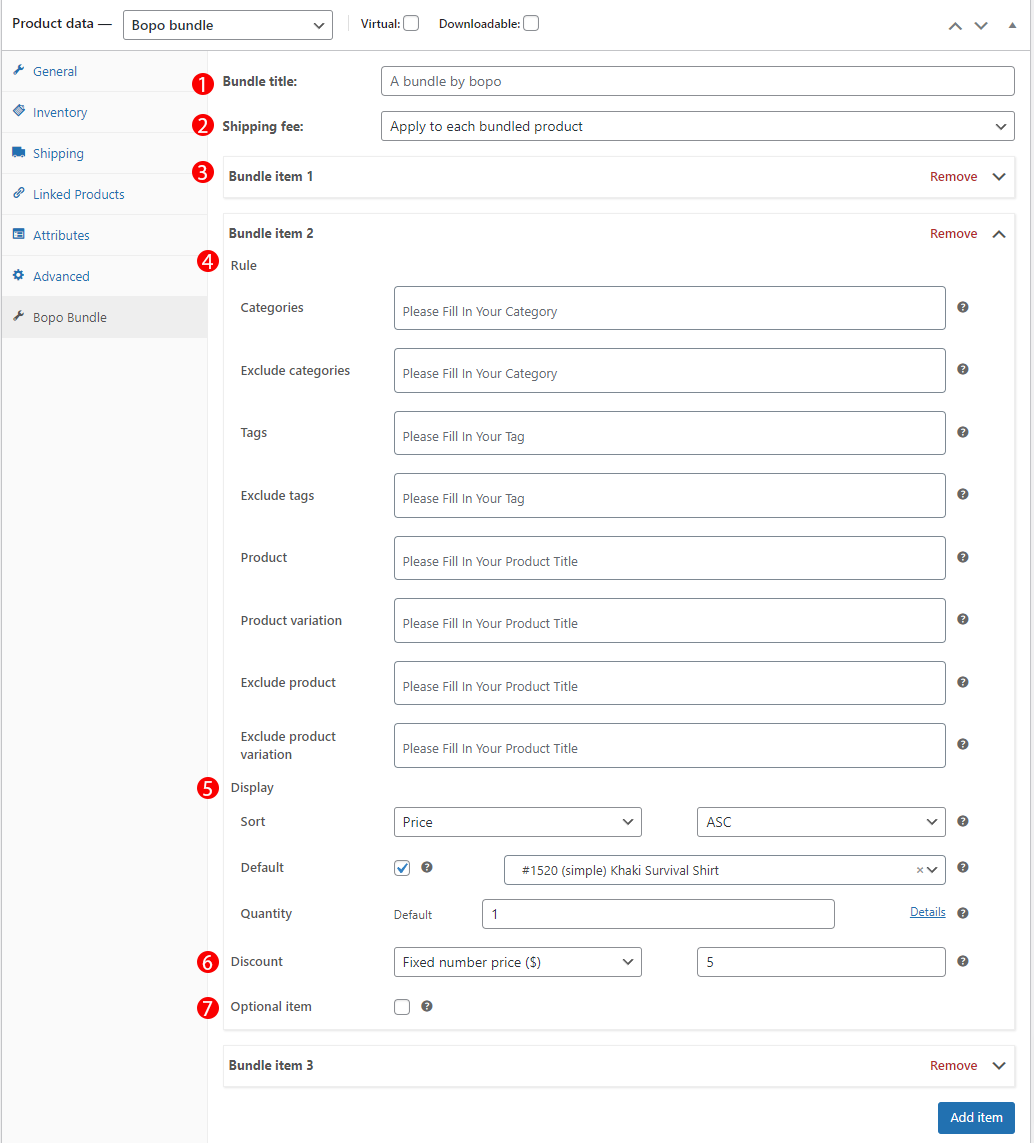
* Note: You have to remove the regular price of the product to apply the new bundle price.
1. Bundle title: Set name for the bundle
2. Shipping fee: Choose to apply the shipping fee to the whole bundle or each item in the bundle.
3. Bundle item: You can create as many bundle items as you want. Set rule, display, discount for each bundle item.
4. Rule
+ Categories: Select which categories can appear on the bundle item.
+ Exclude categories: Select which categories can not appear on the bundle item.
+ Tags: Select which products whose tags are enlisted in this tag field to appear on the bundle item.
+ Exclude tags: Not select which products whose tags are enlisted in this tag field to appear on the bundle item.
+ Product: Select which products will appear on the bundle item.
+ Product variation: Select which variations of variable products will appear on the bundle item.
+ Exclude product: Select which products will not appear on the bundle item.
+ Exclude product variation: Select which variations of variable products will not appear on the bundle item.
5. Display
+ Sort: Sort products on the bundle item list in Price, Title, Rating, and Date.
+ Default: Tick to select a default product as a bundle item and fill in the name of the default bundle item in the field nearby.
+ Quantity: Set quantity of bundle item.
6. Discount
+ Percentage: Offer a discount for the bundle in percentage.
+ Fixed price: Offer a discount for the bundle at a fixed price.
7. Optional item: Check this box to allow this item be not required to add to the bundle.
Step 2: Setting.
Go to WooCommerce > Settings > Bopo Bundle > Layout to configure how bundles are displayed on the product page. To understand how each option works, please see the “Layout” section under “How Does It Work.”
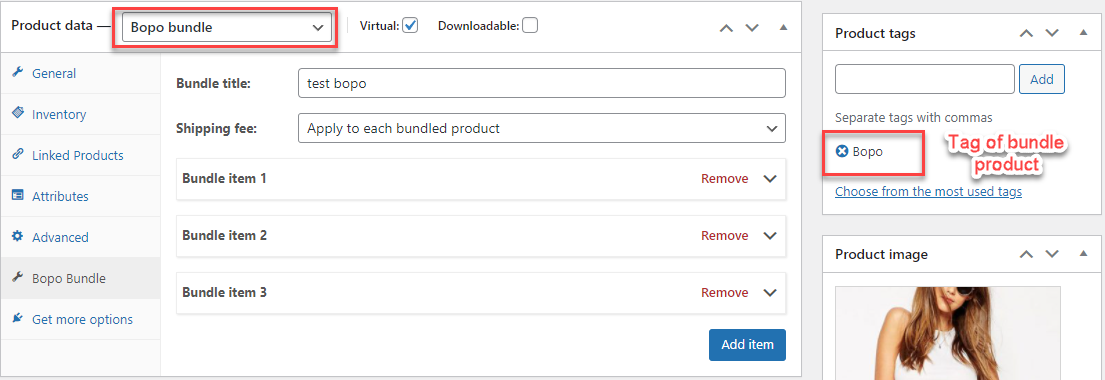
Go to Products > All Products, edit a product. Or you can add a new bundle product like other WooCommerce product types.
Select product data: Bopo bundle.
After selecting the Bopo bundle type, you will set up items for this new bundle including Title, rules, display, and discount. The maximum number of items per bundle is 30 items.
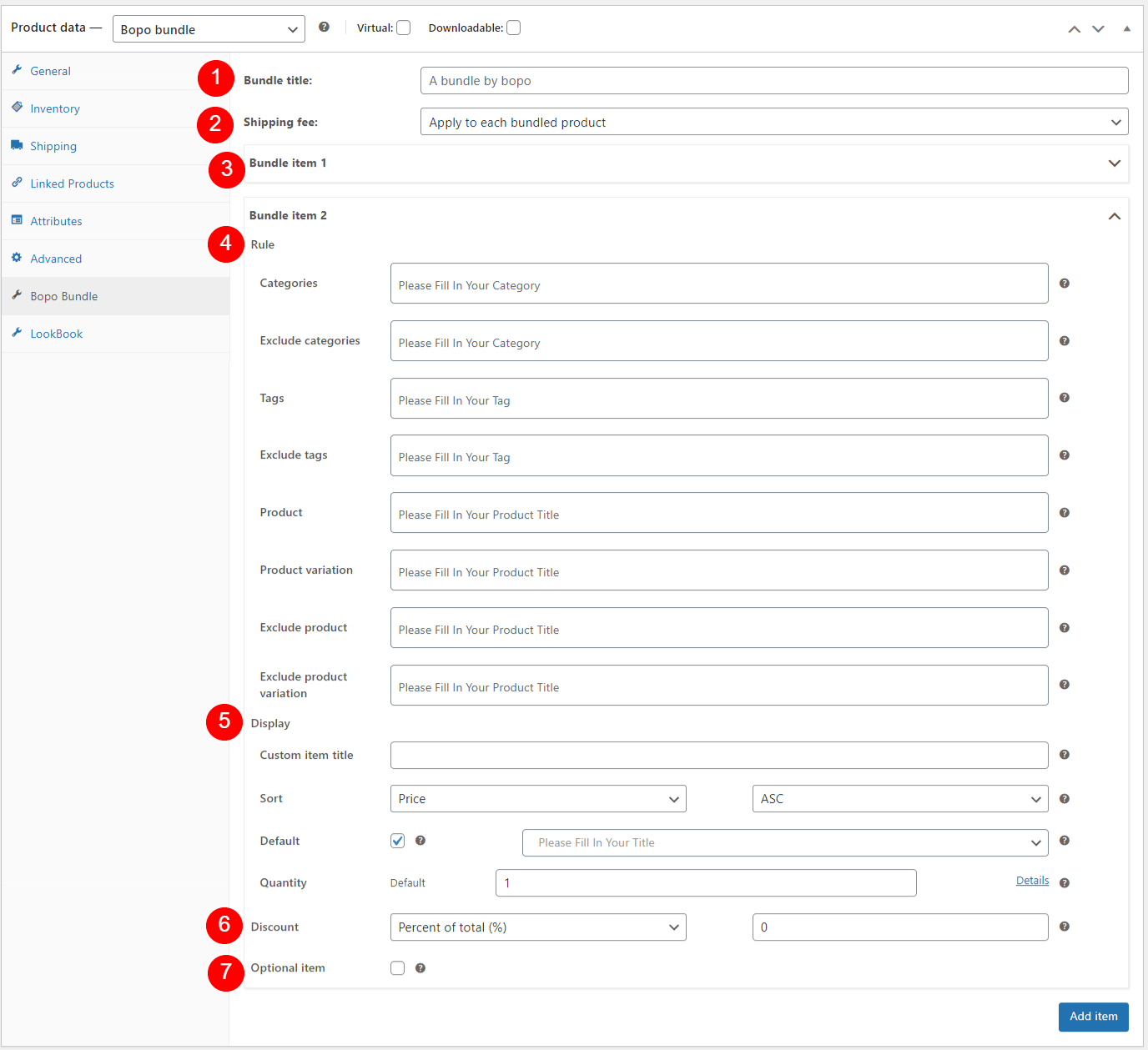
1. Bundle title: Set name for the bundle
2. Shipping fee: How the shipping fee is applied to the product
+ Apply to each bundled product (each item)
+ Apply to the whole bundle
3. Bundle item: You can create as many bundle items as you want. Set rule, display, discount for each bundle item.
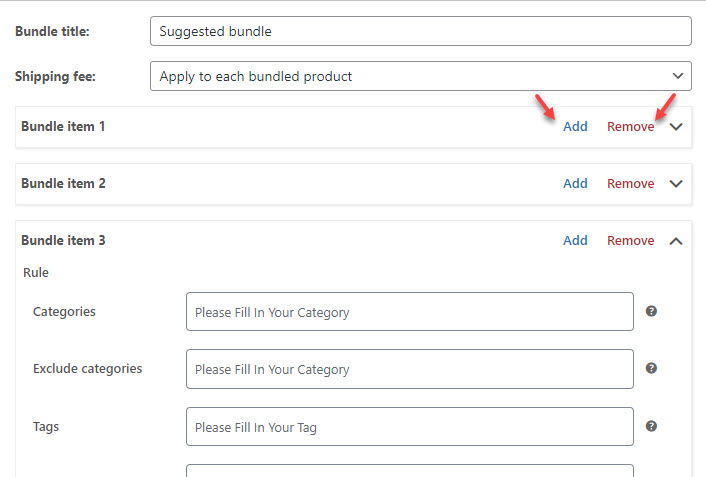
4. Rule
+ Categories: Select which categories can appear on the bundle item.
+ Exclude categories: Select which categories can not appear on the bundle item.
+ Tags: Select which products whose tags are enlisted in this tag field to appear on the bundle item.
+ Exclude tags: Not select which products whose tags are enlisted in this tag field to appear on the bundle item.
+ Product: Select which products will appear on the bundle item.
+ Product variation: Select which variations of variable products will appear on the bundle item.
+ Exclude product: Select which products will not appear on the bundle item.
+ Exclude product variation: Select which variations of variable products will not appear on the bundle item.
5. Display
+ Custom item tile: Set up custom name for the bundle item
+ Sort: Sort products on the bundle item list in Price, Title, Rating, and Date.
+ Default: Tick to select a default product as a bundle item and fill in the name of the default bundle item in the field nearby.
+ Quantity: Set quantity of bundle item.
6. Discount
+ Percentage of total: Offer a percentage discount when buying bundle.
+ Fixed number price: Offer a fixed price discount when buying bundle, e.g. Fixed number price = 10 >> Final price = Initial price – 10
+ Set item price: Offer bundle product at a certain price
7. Optional item: Check this box to allow this item be not required to add to the bundle.
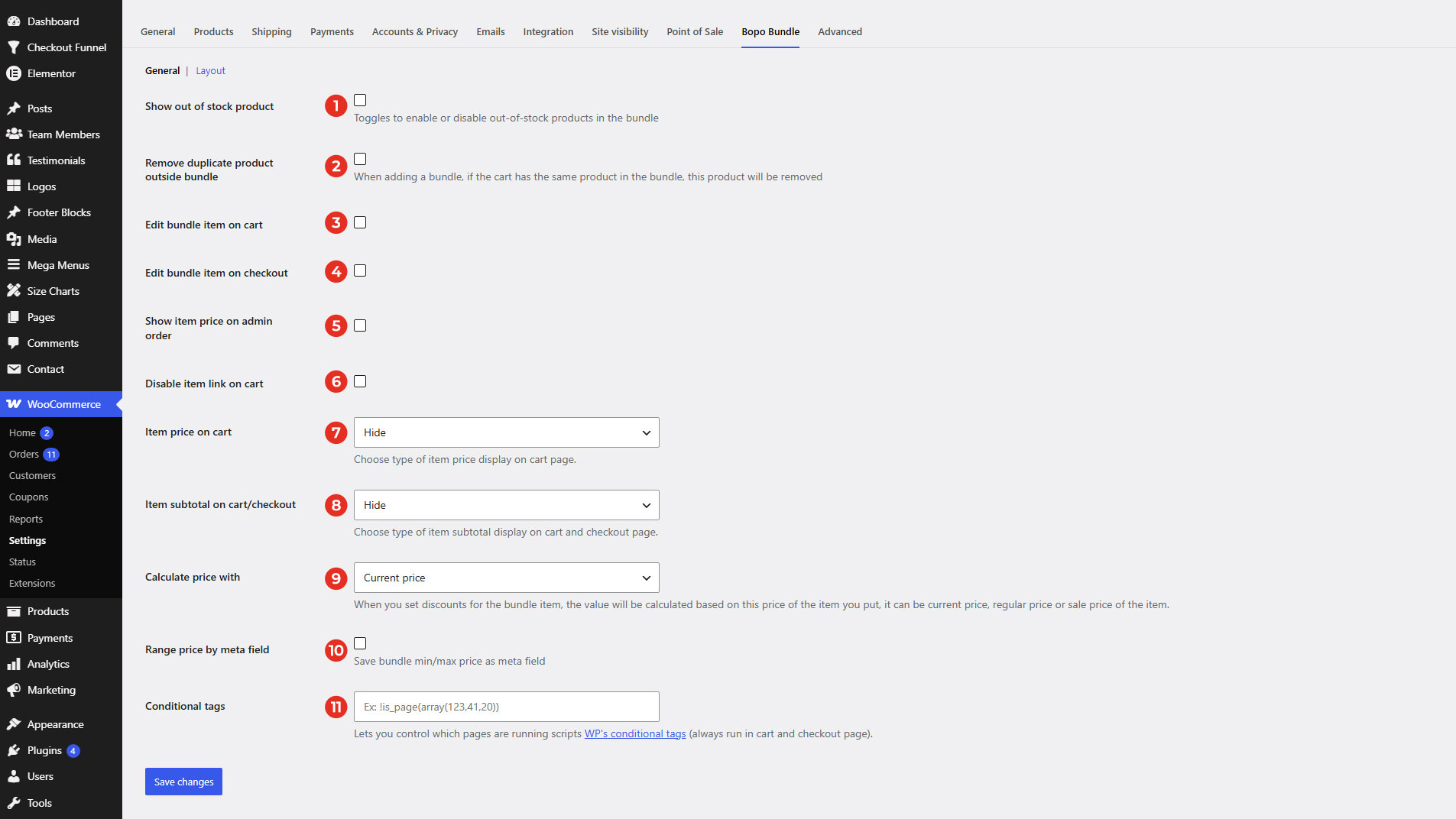
Go to WooCommerce > Settings > Bopo Bundle > General there you can manage out-of-stock products, duplicate products in the bundle toggles to edit bundle items in the cart and checkout page.
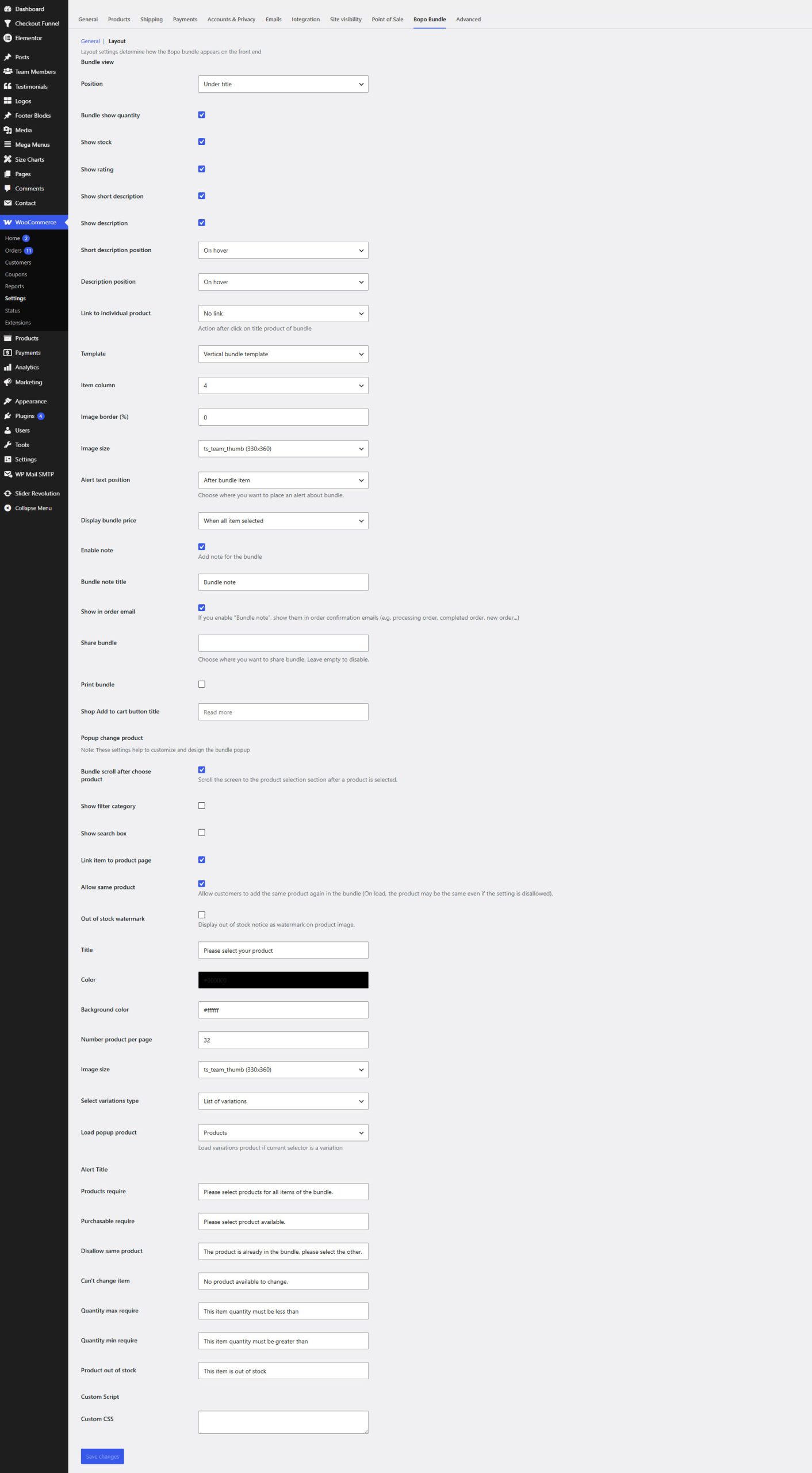
Go to Bopo Bundle > Layout to configure how bundles are displayed on the product page.
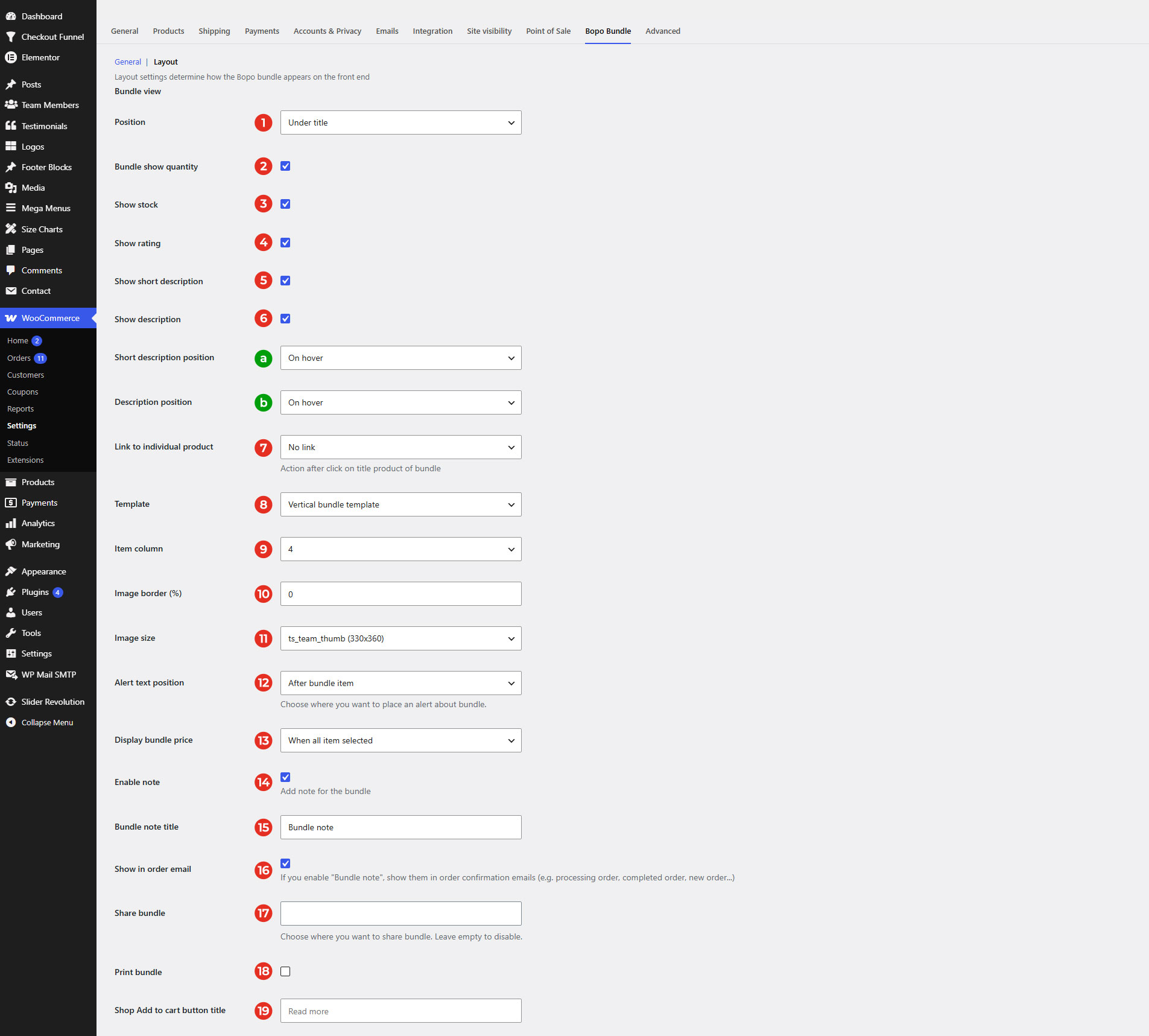
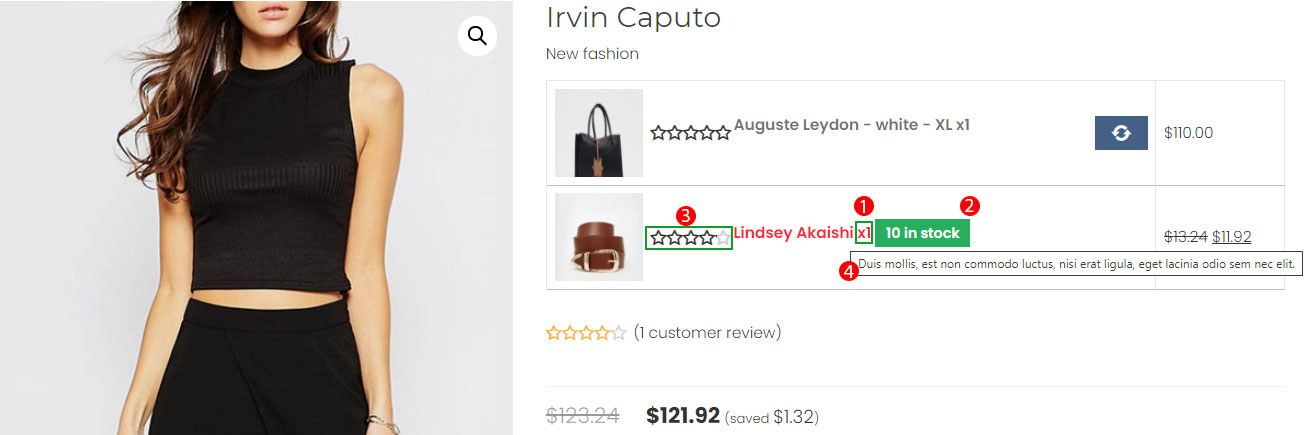
1.Position: You can choose where the bundle appear with available positions: Under product title; Under price & rating; Above add to cart; Under add to cart; Product tab.
2. Bundle show quantity: Enable to display the bundle quantity in order that customers can increase/descrease bundle item quantity.
3. Show stock: Toggle to show/hide stock quantity of the bundle items
4. Show rating: Toggle to show/hide overall rating of the bundle items
5. Show short description: Toggle to show/hide bundle item short description
6. Show description: Toggle to show/hide the bundle item description
a. Short description position: If “Show short description” is enabled, select where the short description is displayed – On hover or After product detail
b. Description position: If “Show description” is enabled, select where the description is displayed – On hover or After product detail
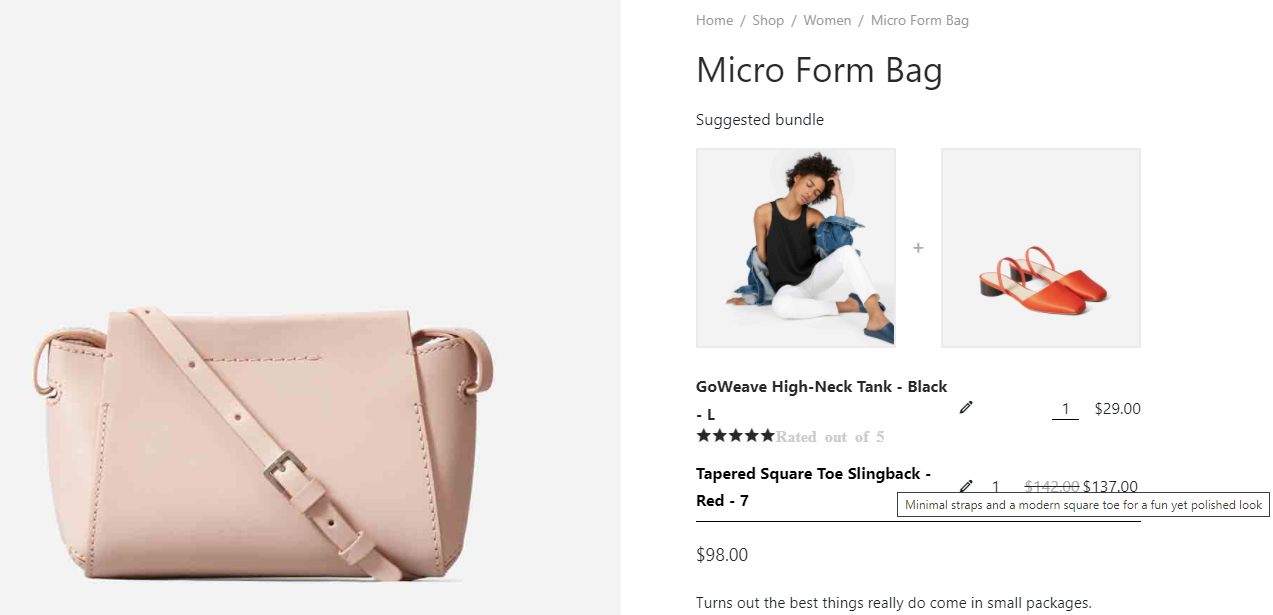
7. Link to an individual product: After clicking on the product title of the bundle item, choose what happens:
8. Template: There are 3 templates to choose from – Image Block, Horizontal or Vertical.
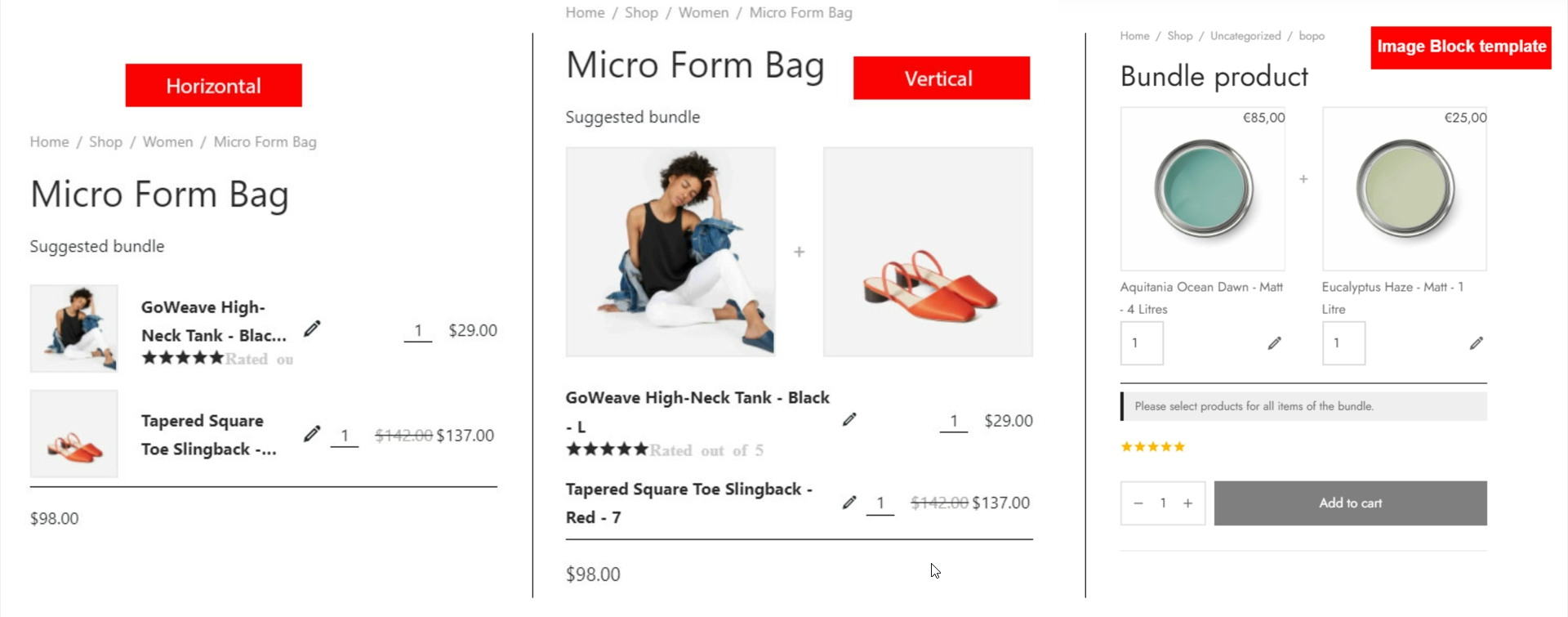
9. Item column (Vertical and Image Block templates): If you select the vertical template, the item column option will appear which allow you to set up the number of item columns on the bundle list.
10. Image border: Adjust product image border
11. Image sizes: You can select one of the image sizes of bundle item images:
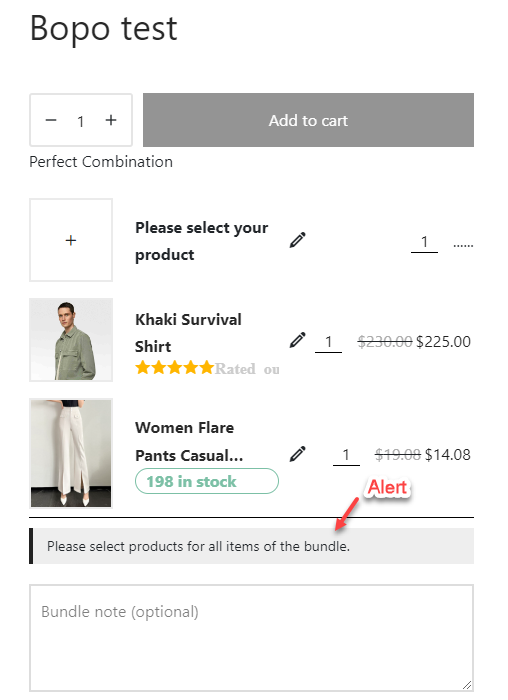
12. Alert text position: This alert helps to notify customers to select items to add to the cart in case selecting all items is required. You can choose where to display this alert: After bundle item, or Before bundle item.
13. Display bundle price: This option is for the price of the whole bundle product
14. Enable note: Enable this option if you want to add a note for the bundle
15. Bundle note title: Enter title for the bundle note
16. Show in order email: If enable “Bundle note”, show them in order confirmation emails (e.g. processing order, completed order, new order…)
17. Share bundle: Select social share option for bundle. Right now, we’re supporting: Facebook, Twitter, Email, Pinterest, VKontakte, Tumblr, Linkedln
18. Print bundle: Enable this option to print bundle
19. Shop Add to cart button title: Edit the Add to cart button title on Shop page/product list
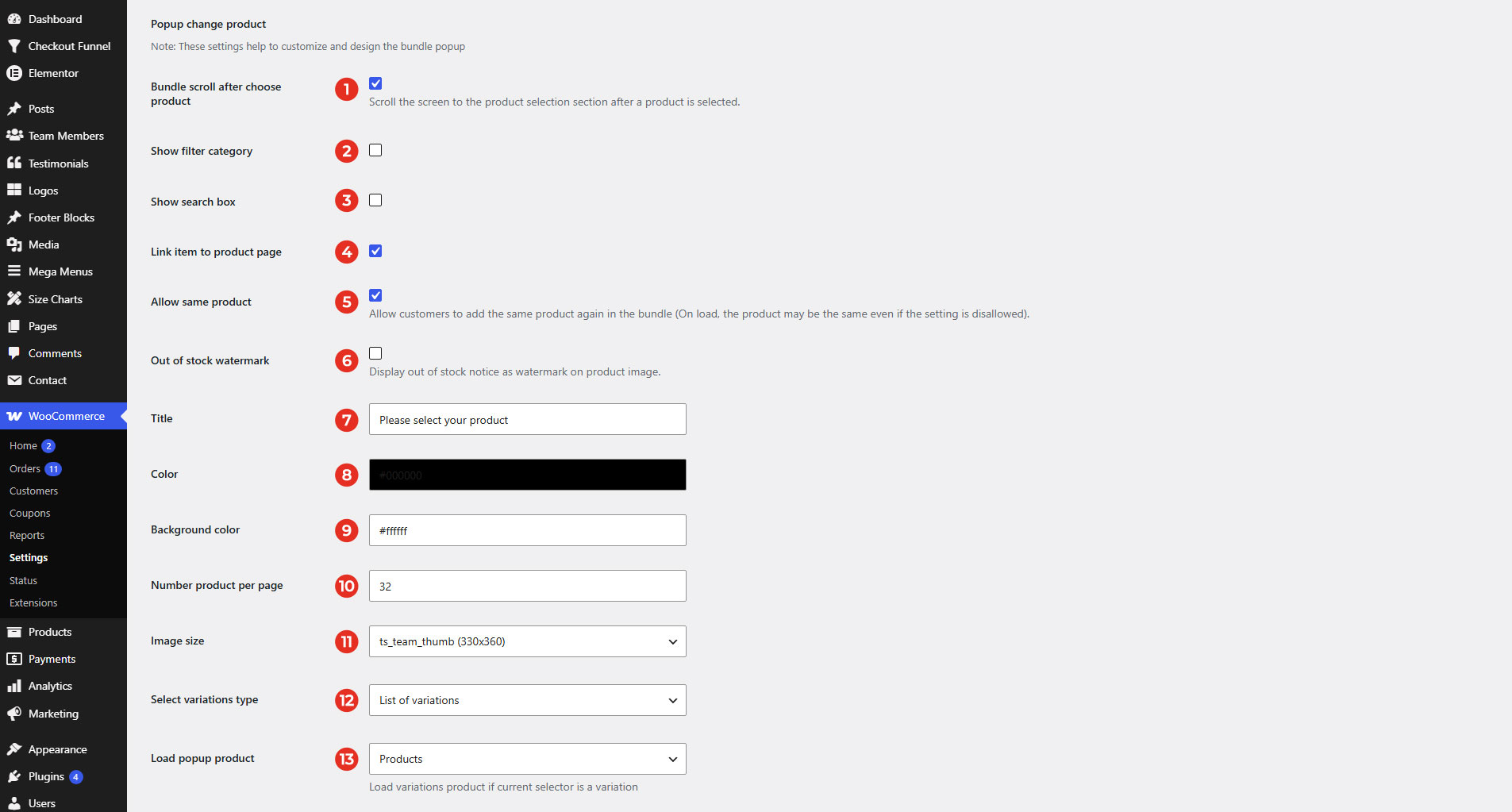 1. Bundle Scroll after choose product: After a product is selected, close the popup and scroll to the selected product in the main view.
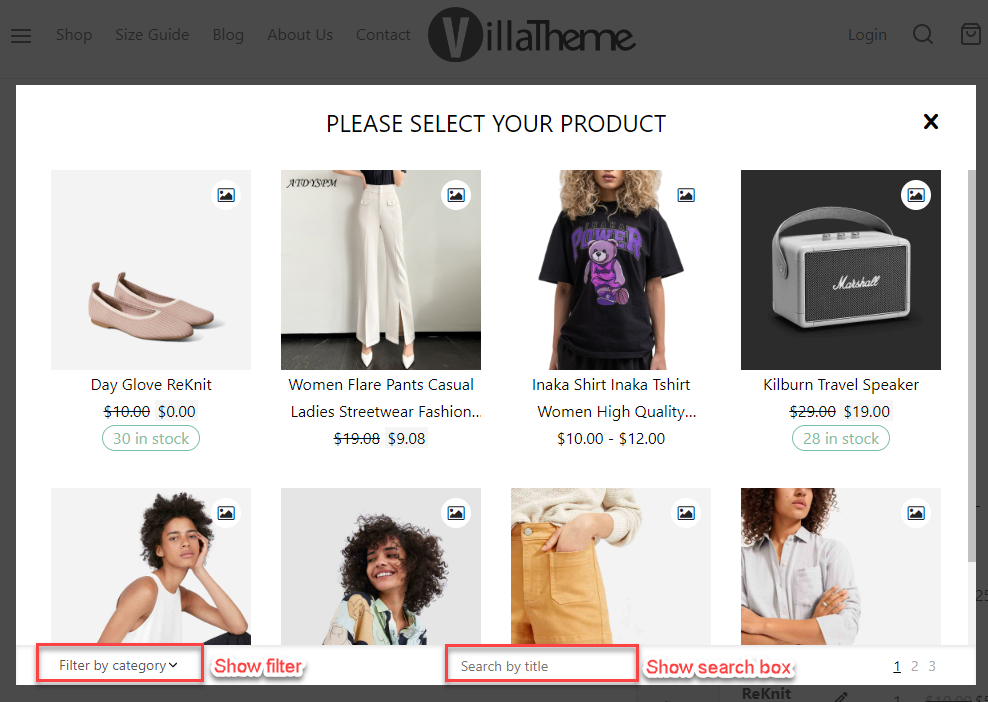
2. Show filter category: Display a filter by category for customers to search for desired categories.
3. Show search box: Customers can use a search box to find products by title.
4. Link item to product page: Enable/Disable product link on select item popup
5. Allow same product: Enable/Disable customer select duplicate item on select item to bundle
6. Out of stock watermark: Display out of stock notice as watermark on product image.
7. Title: Change the title which displays at the header of the popup
8. Color: Change the color of the text on the popup
9. Background color: Change the color of the background on the popup
10. Number of products per page: Enter the number of products per page you want to paginate on the popup.
11. Image size: Select the image size
12. Select variation type: You can choose how variations display on the popup: List of variations or select box.
13. Load popup product: Load variation products as parent product or variation if the current selector is a variation
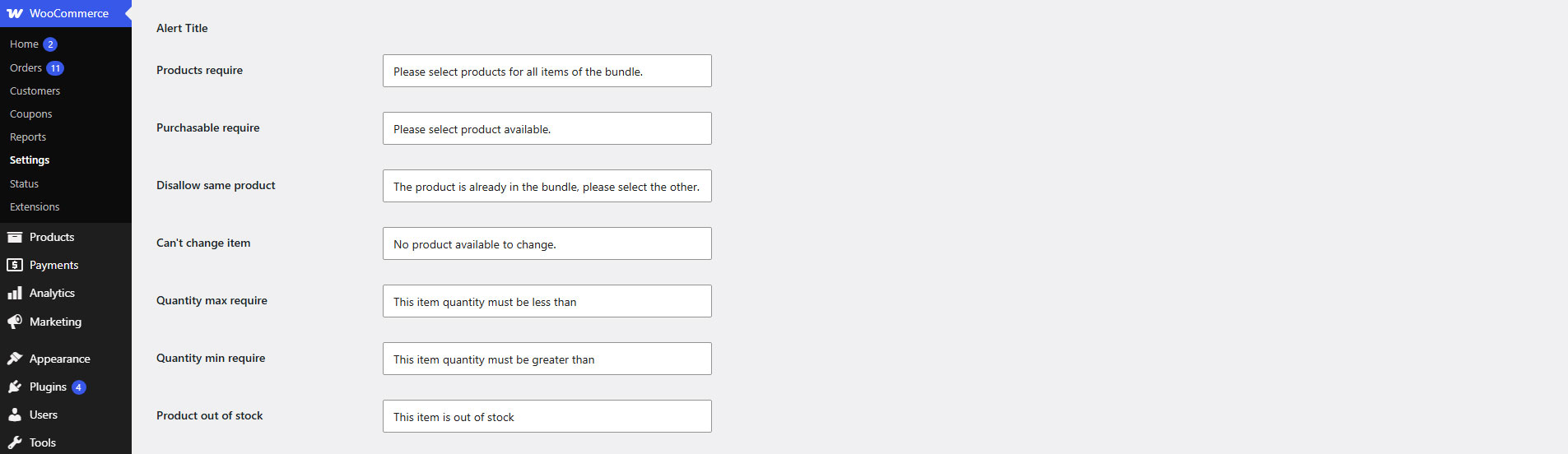
You can rewrite alert messages in your language and fit for your desire.
You can add custom CSS to customize the appearance of the interface.

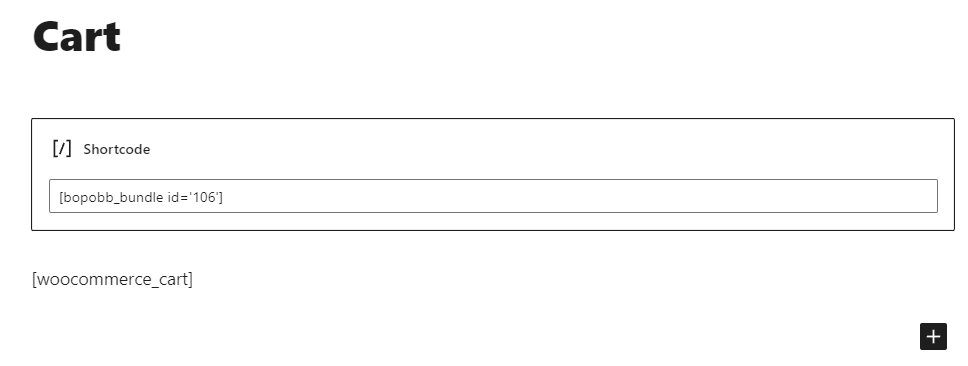
You can use the Bopo shortcode to display the Bopo bundles everywhere you want.
Go to each product edit page, the shortcode is under the product permalink link. You can copy the shortcode and add it to pages, posts… you want.
You can add parameters in the shortcode, for example:
[bopobb_bundle id='4706' template='block-bundle' column='4' title='test title' title_size='50px' title_color='#B70404']
Parameters:
template: Change the bopo bundle template in the shortcode. If empty, selected template in the plugin settings will be used. 3 values: horizontal-bundle, vertical-bundle, or block-bundle. For example: template="horizontal-bundle"column: This param is only for vertical template. Change the number of item columns. The value range is 2-4 columns. For example: column="4"id: Fill in the bundle ID you want to display in the shortcodetitle: Fill in the title for the bundletitle_size: Adjust the title font size, add numeric valuetitle_color: Select a text color for titleredirect: Redirect user to another page if needed. Leave blank to stay at the current page
‘
| Plugin | Author | Compatible |
| Elementor | Elementor | Bopo Bundle element in Elementor |
| WPML | OnTheGoSystems | Translate front end text |
| Polylang | WP SYNTEX | Translate front end text |
| WooCommerce Cart All in One | VillaTheme | Fully |
| WooCommerce Product Variation Swatches | VillaTheme | Popup variation style select box compatible |
| CURCY – WooCommerce Multi Currency – Currency Switcher | VillaTheme | Price format |
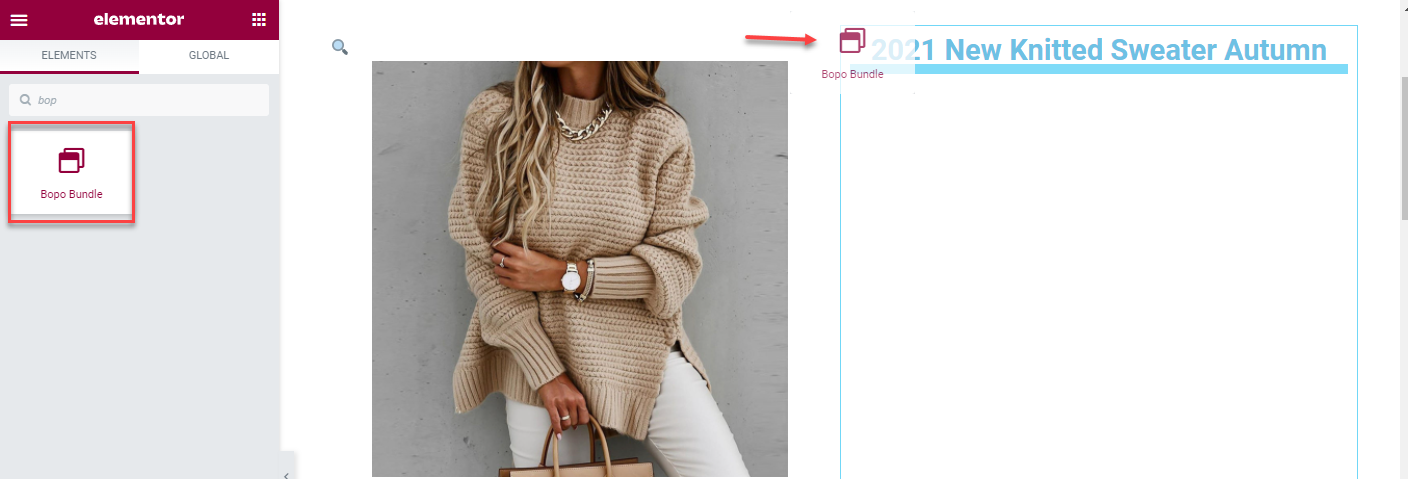
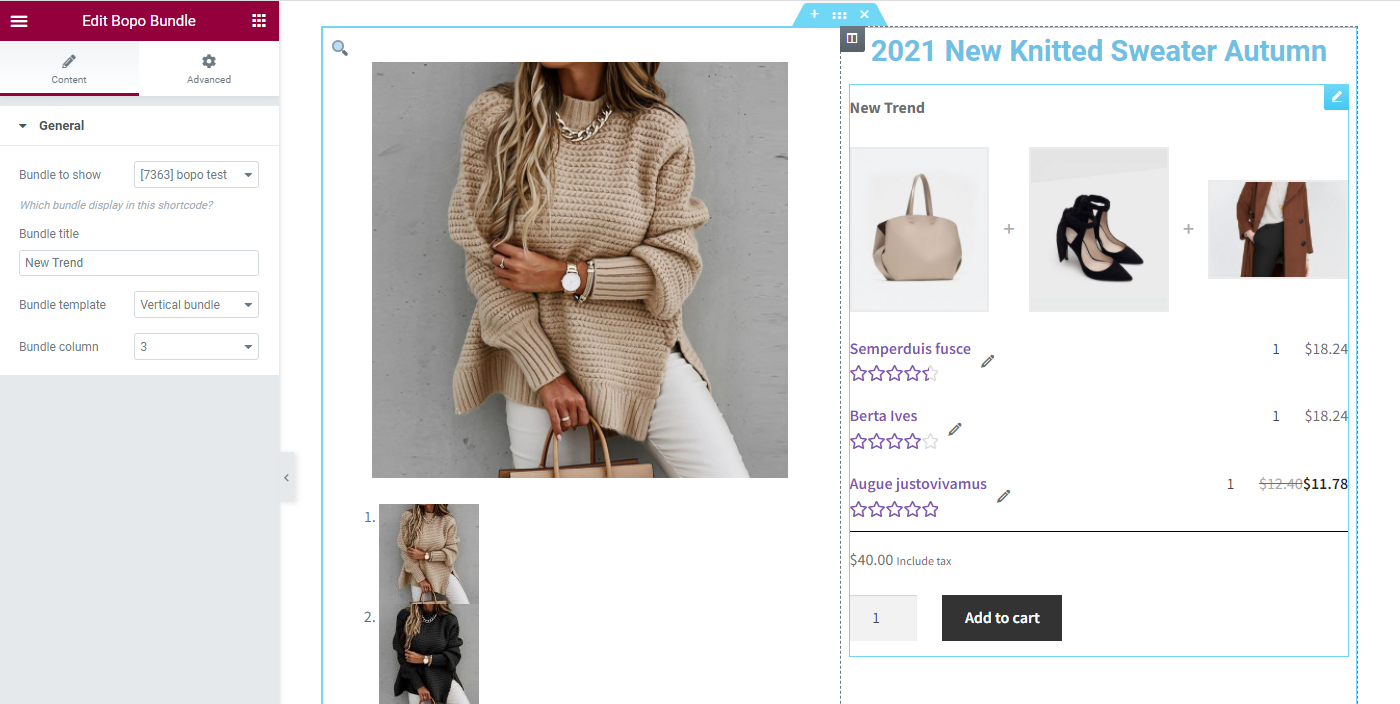
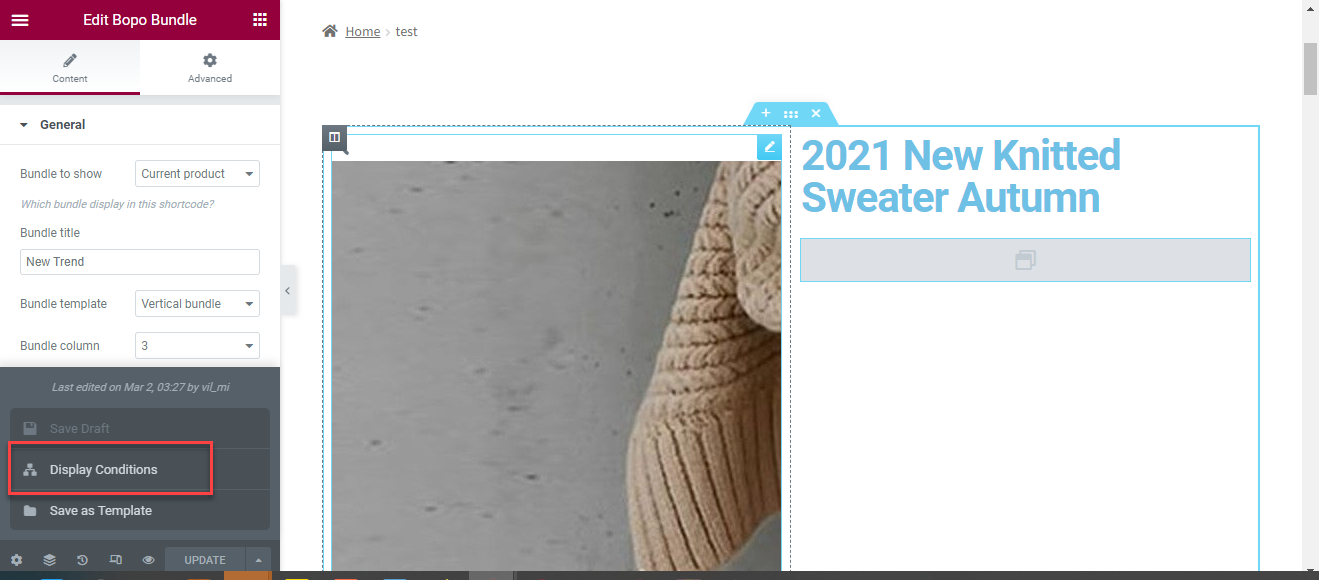
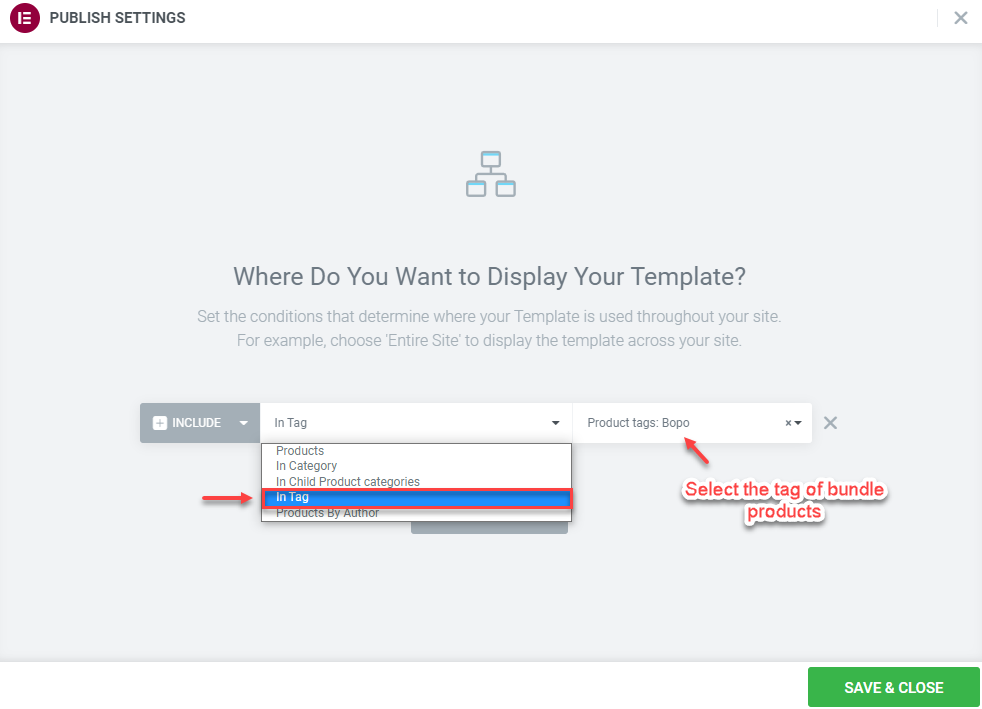
You can use the Bopo Bundle Element to embed bundles into a page built by Elementor. The Bopo Bundle element includes the bundle price, quantity field and add-to-cart button.
 |
 |