On the Upsell page, you can flexibly select which products/categories appear on the upsell popup.
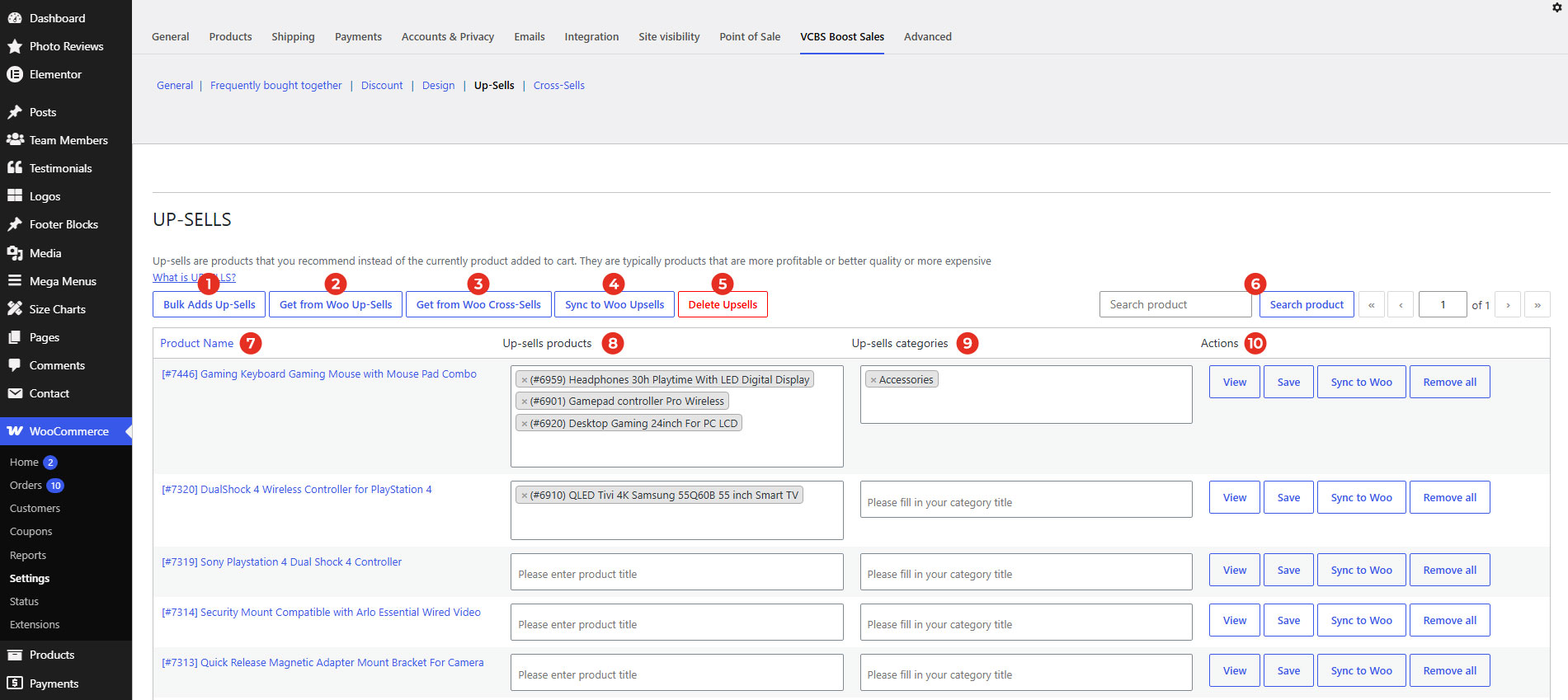
1. Bulk add Up-sells: Add upsell products to all products or specific products in your store.

a. Select products you want to display upsell products
b. Select upsell products.
c. Action: Click add to save.
d. Select all: Add upsell products to all products in your store.
2. Get from Woo Up-sells: Sync the upsell products which are set in WooCommerce products.
3. Get from Woo Cross-sell: Sync the cross sell products which are set in WooCommerce products.
4. Sync to Woo Up-sell: Sync these selected products to the Upsell of WooCommerce products (Linked products > Upsells)
5. Delete Upsells: Remove all upsells in the Upsell page.
6. Search product: Type and search for a product.
7. Product name: List all products in your store.
8. Up-sells products: Select products which you want to upsell.
9. Up-sell categories: Select categories which you want to upsell.
10. Action: Implement for each separate product.
- Save: To save the selected upsell products/categories.
- View: Display upsell popup on the front end.
- Sync to Woo: Sync these selected products to the Upsell of the current WooCommerce product (Linked products > Upsells)
- Remove all: Click remove to delete all selected upsell products/categories of this current product.