Once the plugin is installed and activated, it automatically extends WooCommerce’s address system to support multiple shipping addresses for logged-in customers. No additional setup is required to get started.
Adding Shipping Addresses
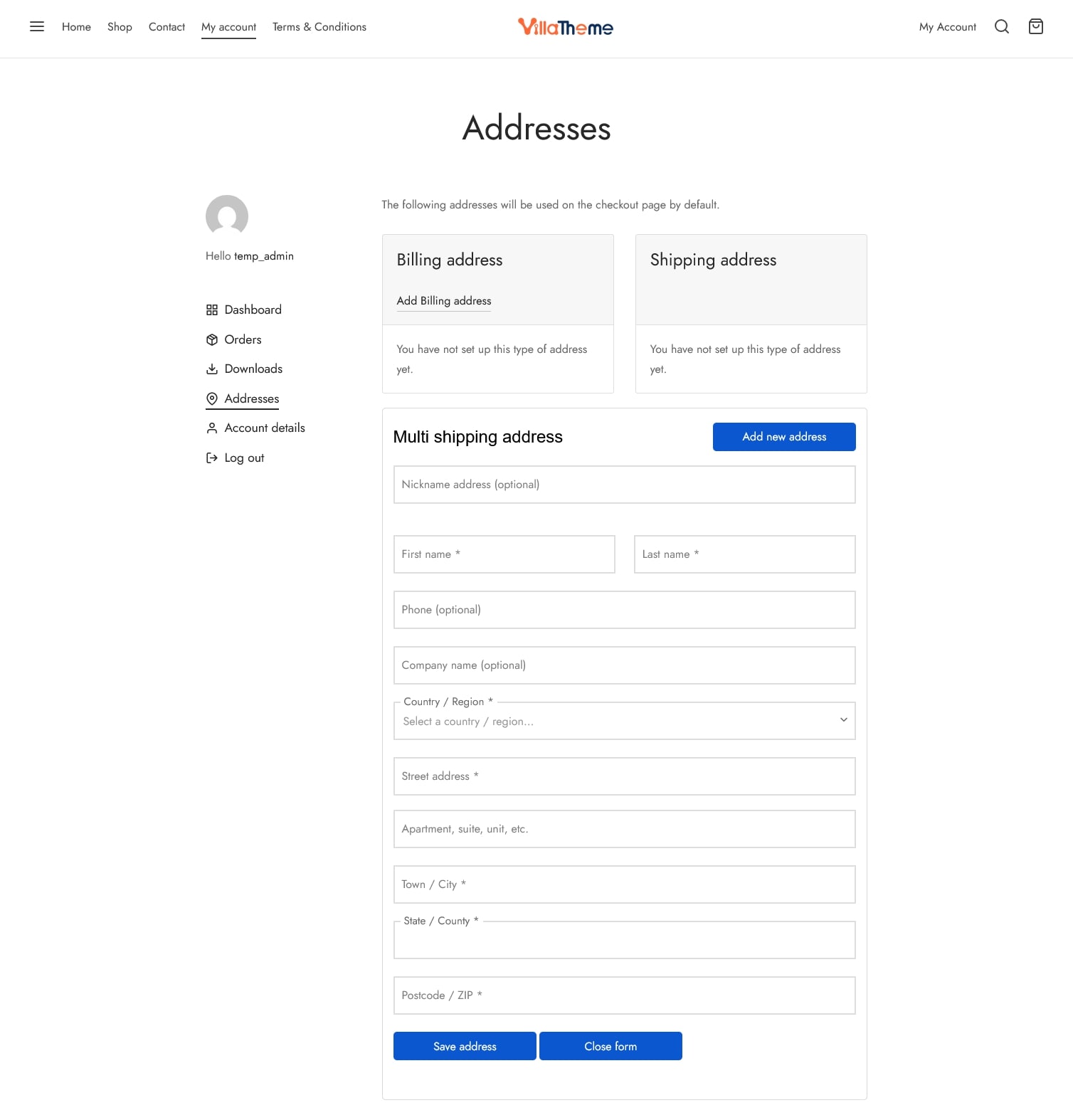
After activation, a new address form is automatically available under My Account → Addresses. Customers can use this form to add multiple shipping addresses

(Optional) Create a Custom Address Page
Administrators can create a dedicated address management place to make it more visible to customers. Simply insert the shortcode: [vima_address_list] to any page/area where one is supported and let it show to the front end. You can make a custom Addresses page. Publish the page and place it in a prominent location, such as the main menu or account menu
That page will display:
- The address list
- The form for adding new shipping addresses
For guests, they would have to sign in to view their addresses
Viewing Saved Addresses
Saved addresses are displayed:
- In My Account → Addresses
- On any page where the [vima_address_list] shortcode is used
Customers can manage all their shipping addresses from these locations – Add new shipping address, remove existing ones, edit them, or set one as the default shipping address.
Selecting an Address at Checkout
During checkout:
- Customers can select one of their saved shipping addresses. The selected address is automatically applied to the shipping details
- Customers can set a preferred default address for future checkouts
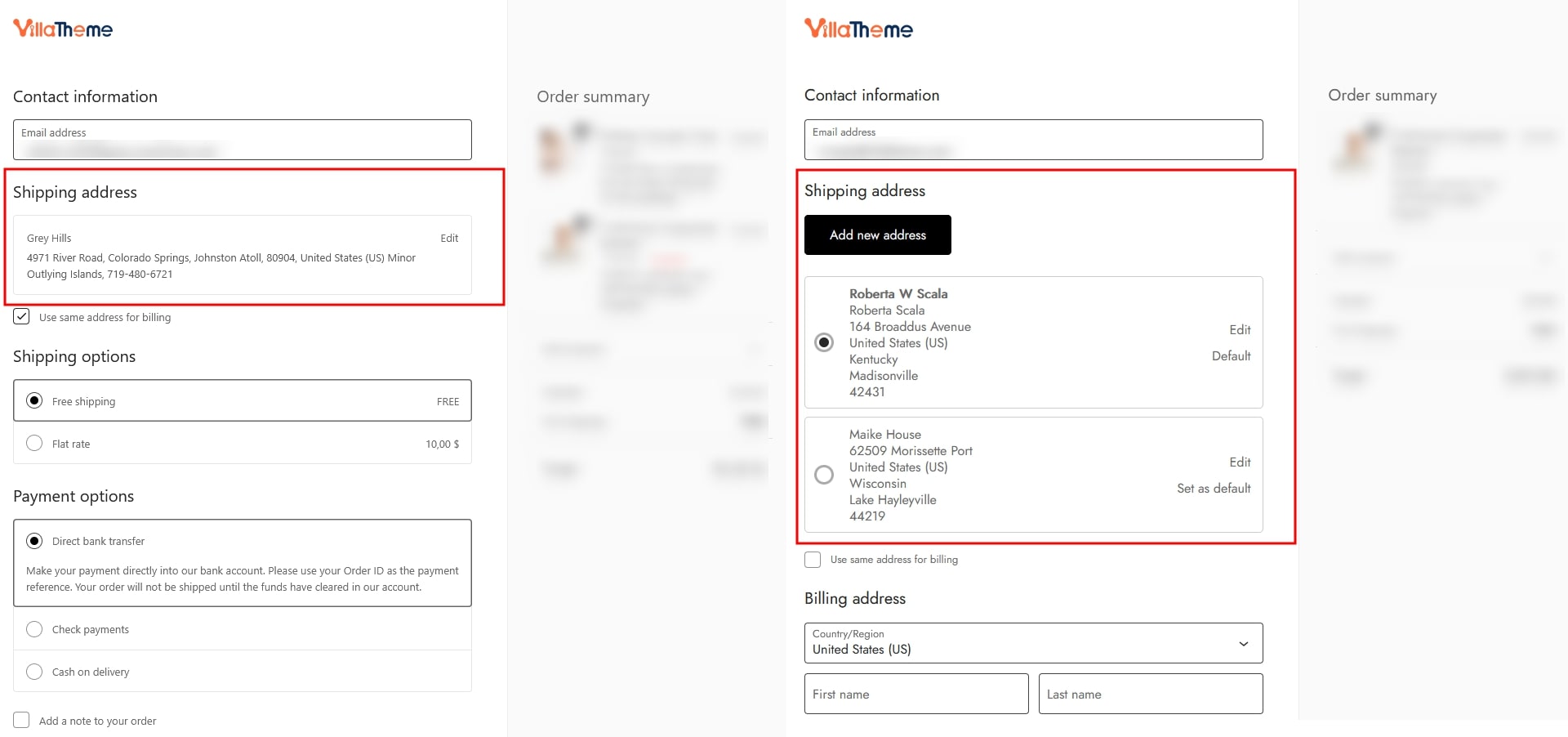
This makes repeat purchases faster and more convenient.