Make your filters appear in different languages with WPML
Step 1. Prepare Your Filter Blocks
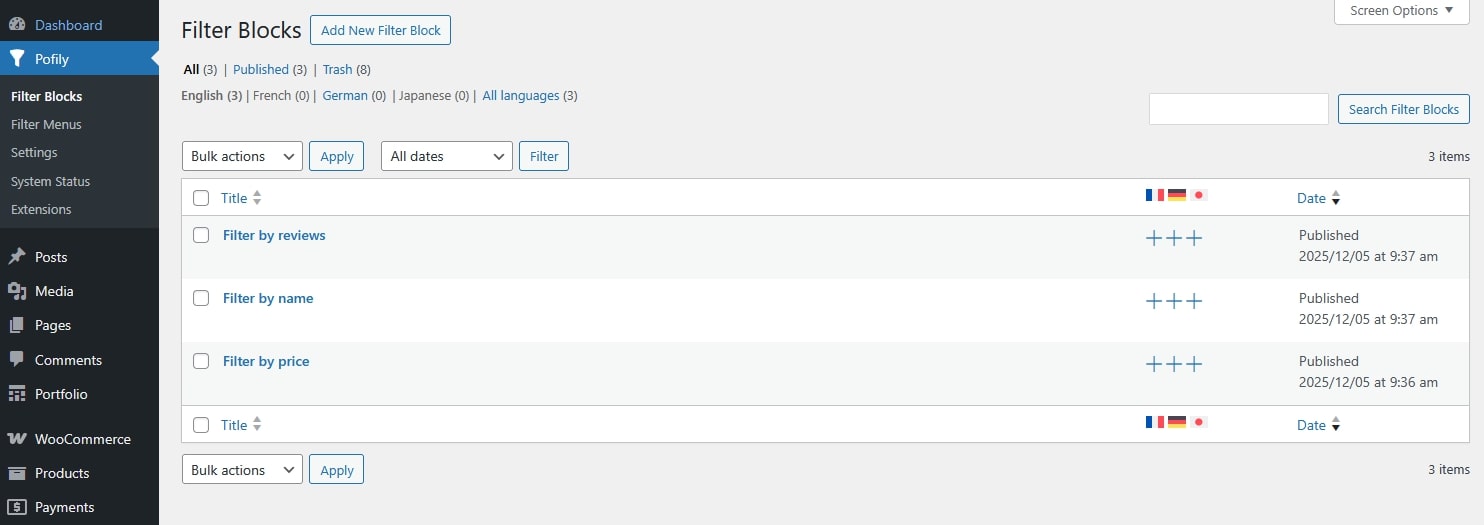
Before working with WPML, make sure you already have your own filter blocks set up in Pofily. These will serve as the base content for translation.
Step 2. Translate Filter Blocks in WPML
Once your filter blocks exist, you can translate them just like any WPML-supported post type.
- Go to the list of filter blocks in your dashboard.
- For each block, click the plus icon (+) associated to the language you want to translate.
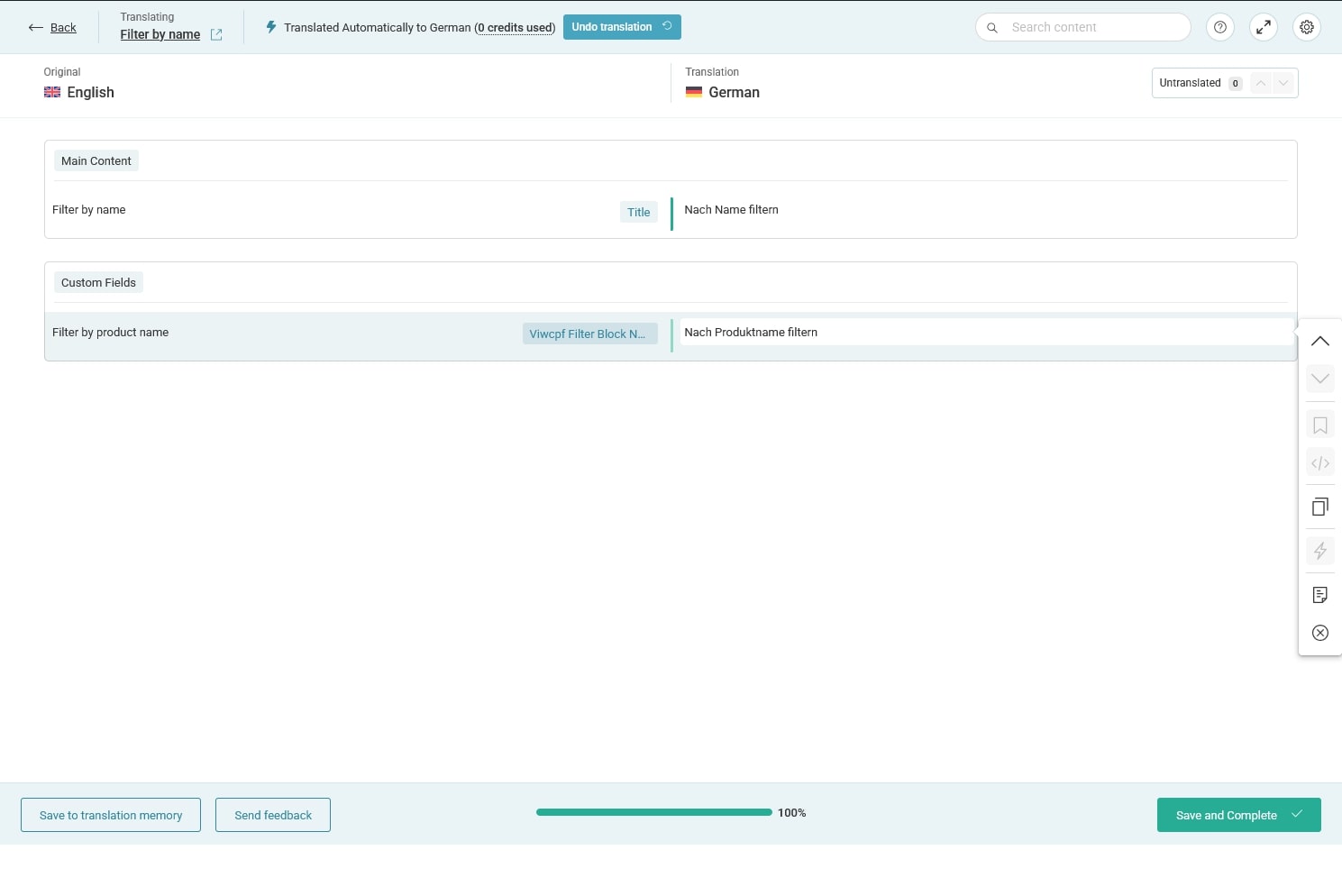
- Create the translated version (WPML will duplicate the block for that language).
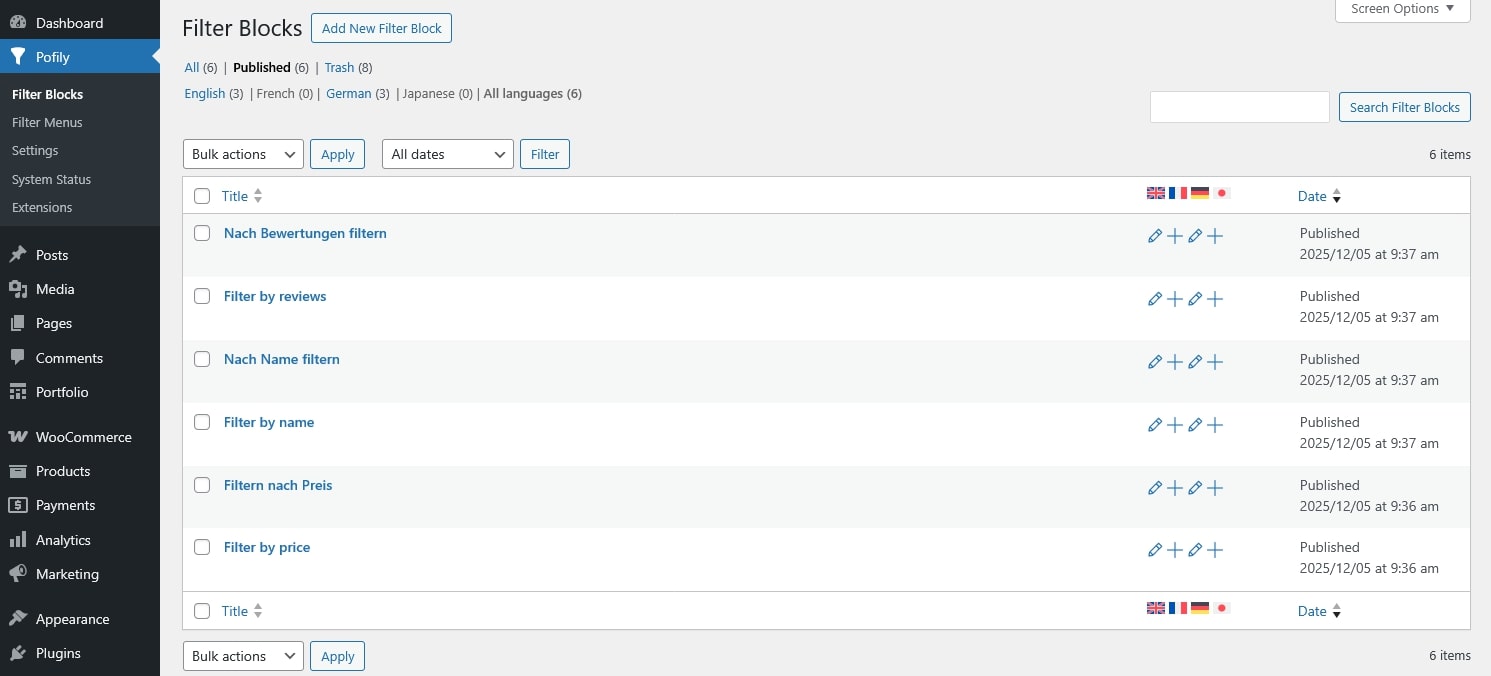
- After saving, you’ll see the translated filter blocks grouped under each language in the filter block list.
Step 3. Add Translated Blocks to a Filter Menu
A Pofily menu can contain multiple filter blocks. After translation, you can include blocks from different languages inside the same menu.
- Add the blocks for each language into your filter menu.
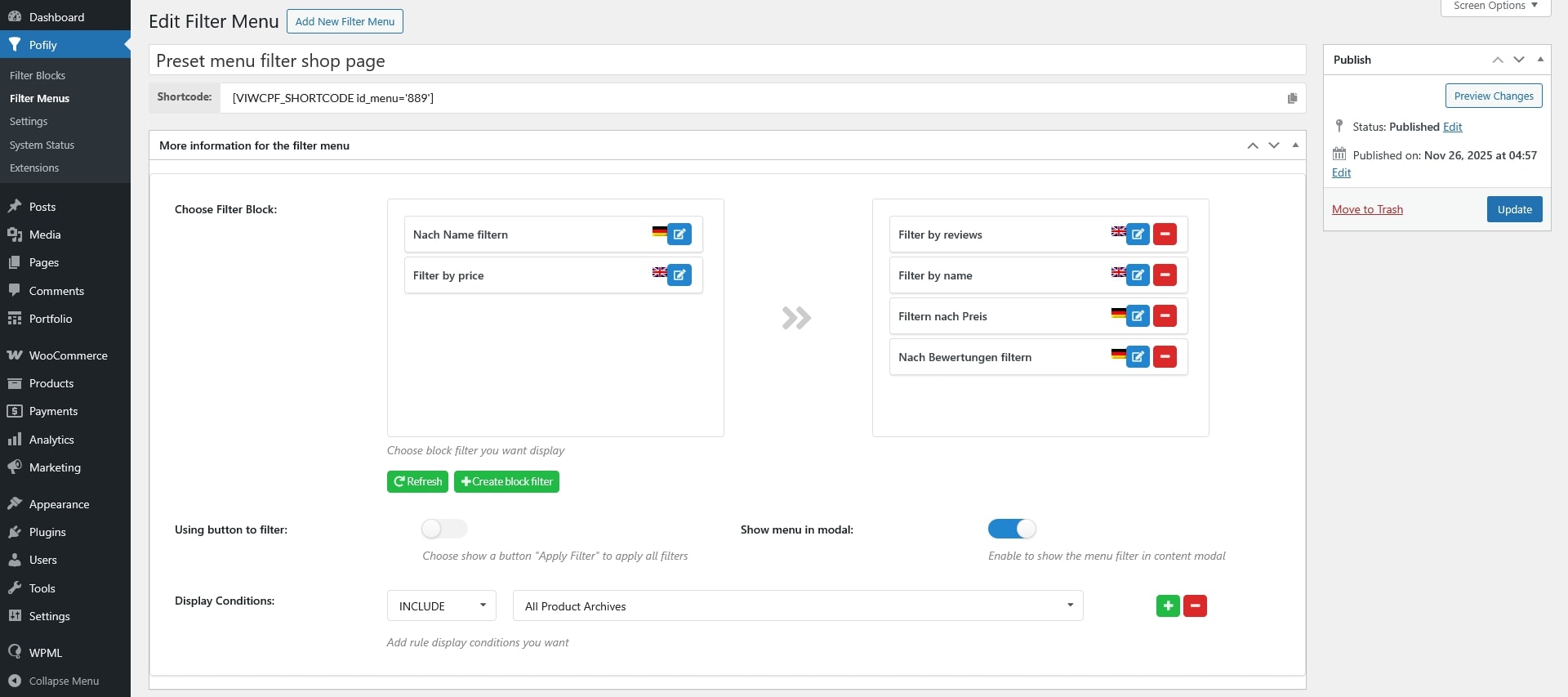
- When visiting the site, switching the language using WPML will automatically display the blocks assigned to that language.
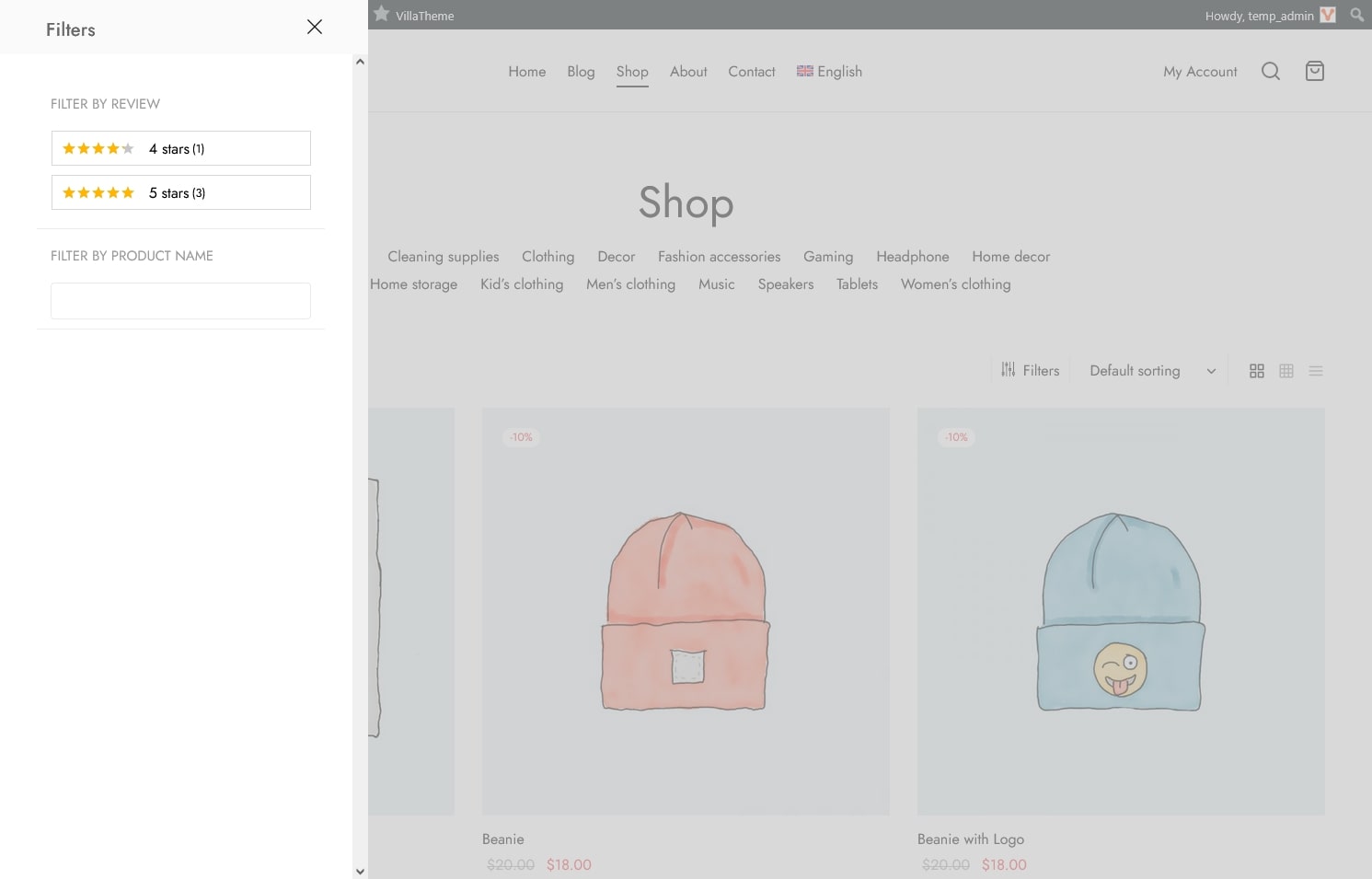
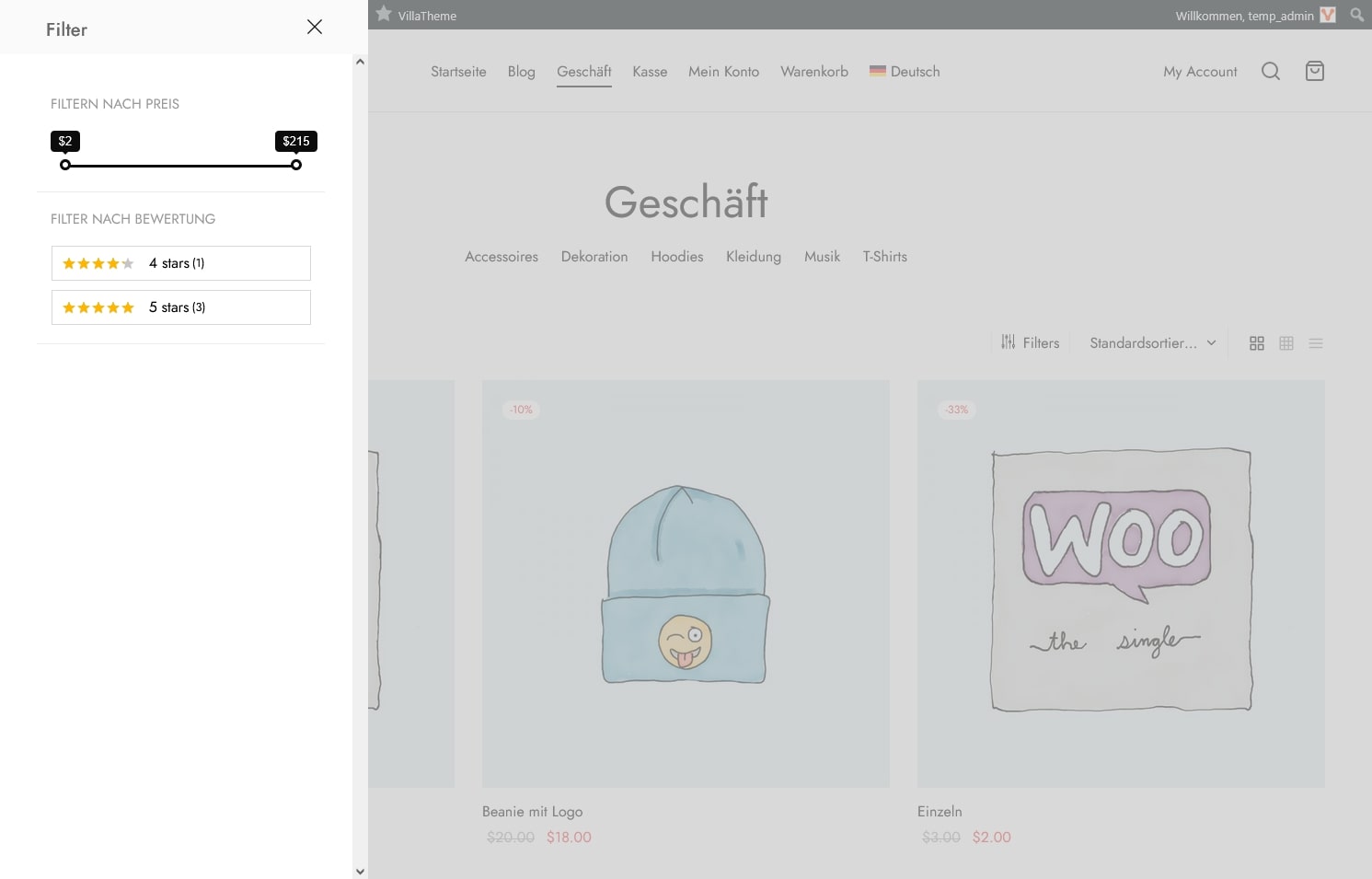
Note: Filter blocks inside a menu do not need to be translations of one another. You may have a different number of filters per language.
Examples: English may have 3 filters, while German may have only 2. You may assign the “Filter by Name” block for English and “Filter by Price” block for German in the same menu – both setups will work perfectly.